
Is your computer running slow or overheating? High CPU usage might be the reason why your system feels sluggish and unresponsive.
When your CPU is working too hard, it can cause frustration and slow down everything you want to do. But don’t worry—you can take control and bring your CPU usage down to a healthy level. You’ll discover simple, effective steps to reduce your CPU load and make your computer run smoother.
Keep reading, and you’ll learn how to fix this problem quickly and easily.
Identify High Cpu Processes
Identifying high CPU processes is the first step to lower your CPU usage. High CPU usage slows down your computer and makes it hard to work. You need to find which programs or processes use the most power. This helps you decide what to close or fix. Knowing the cause saves time and improves your computer’s speed.
Use Task Manager To Monitor Usage
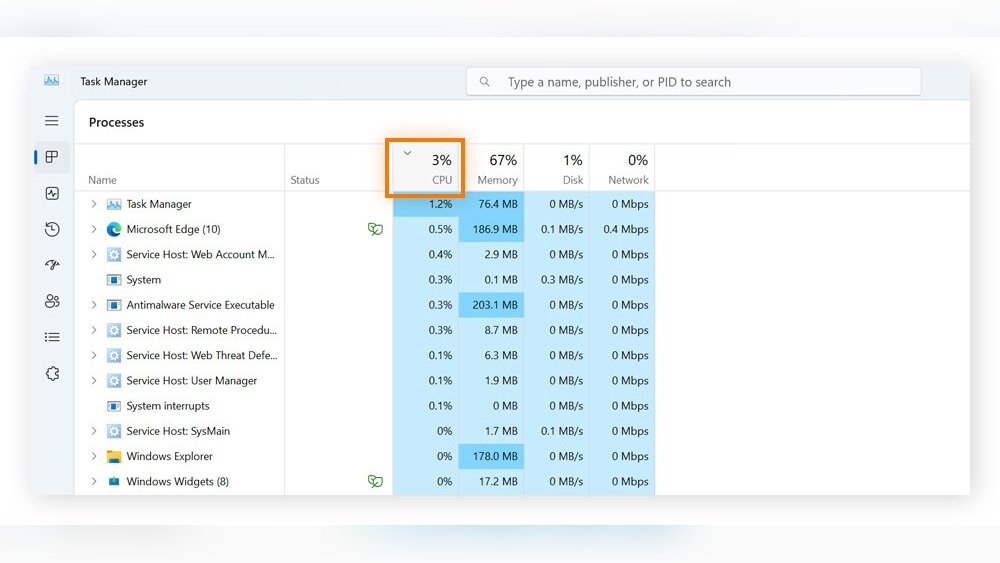
Task Manager shows you all running processes on your computer. Press Ctrl + Shift + Esc to open it fast. Click the “Processes” tab to see a list of apps and services. Look at the “CPU” column to check CPU use. The higher the number, the more CPU it uses. Sort by CPU usage to find the biggest users easily. Keep Task Manager open while you work to watch changes live.
Spot Resource-hungry Applications
Some apps use too much CPU without you knowing. Games, browsers, and video editors can be heavy. Sometimes background apps or updates use CPU too. Look for apps with very high CPU numbers in Task Manager. Close or restart these apps to reduce CPU load. If an app keeps using too much CPU, consider updating or reinstalling it. This can fix bugs and lower CPU use.
Credit: www.reddit.com
Close Unnecessary Programs
Closing unnecessary programs helps reduce your CPU usage. Many apps run in the background and use your computer’s power. Stopping these apps frees up resources and makes your system faster. This step is simple and improves overall performance.
End Background Apps
Background apps often run without you knowing. They consume CPU and slow down your computer. Open Task Manager by pressing Ctrl + Shift + Esc. Look for apps using high CPU under the Processes tab. Select the app and click “End Task” to close it. Do this for apps you do not need running.
Disable Startup Programs
Some programs start automatically when your computer boots up. These programs use CPU right from the start. Open Task Manager and go to the Startup tab. Review the list of programs set to run at startup. Disable the ones you don’t use often by right-clicking and selecting “Disable.” This reduces CPU load and speeds up boot time.
Optimize System Settings
Optimizing system settings helps reduce high CPU usage. Simple changes to your computer’s setup can make a big difference. These tweaks guide the CPU to work more efficiently. This lowers the load and speeds up your system.
Adjust Power Options
Power settings affect how your CPU performs. Choose a balanced or power-saving plan to reduce CPU strain. Avoid high-performance mode unless needed. This setting keeps the CPU from running at full speed all the time. It saves energy and cools down your computer. To change power options, go to Control Panel, then Power Options. Pick the plan that suits your needs but uses less power.
Manage Visual Effects
Visual effects use CPU power. Turning off extra animations and shadows helps lower CPU use. This makes your system faster and less busy. Open System Properties and select Performance Settings. Choose “Adjust for best performance” or customize which effects to disable. Removing fancy effects frees up CPU resources. Your computer will respond quicker without these visual distractions.
Update Software And Drivers
Keeping your software and drivers up to date is a key step to reduce CPU usage. Updates fix bugs and improve system efficiency. They help your computer run smoothly with less strain on the CPU.
Old software or drivers can cause your CPU to work harder. Updates bring better performance and stability. This lowers the risk of overheating and slowdowns.
Keep Operating System Current
Always install the latest updates for your operating system. These updates include important fixes and improvements. They can reduce unnecessary CPU tasks running in the background.
Operating system updates improve security and system management. This helps your CPU handle tasks more efficiently. Check for updates regularly and install them promptly.
Update Hardware Drivers
Drivers control how your hardware communicates with your system. Outdated drivers may cause higher CPU usage and errors. Updating drivers ensures hardware runs at its best.
Visit the manufacturer’s website to download the latest drivers. Use trusted tools to check for driver updates. Keeping drivers fresh helps balance CPU load and keeps your system stable.
Scan For Malware
High CPU usage can happen if malware runs in the background. Malware can slow down your computer and cause it to overheat. Scanning for malware is a key step to reduce CPU load. It helps find and remove harmful programs that use too much power.
Regular checks keep your system safe and fast. Simple scans can reveal hidden threats. Removing these threats frees up CPU resources. This improves your computer’s speed and stability.
Use Trusted Antivirus Tools
Select antivirus software known for good protection. Free and paid options exist. Choose one with high detection rates and regular updates. Avoid unknown or suspicious tools. Run full system scans to detect malware. Quick scans miss some threats. Let the antivirus work without interruption.
Remove Infections
Once malware is found, remove it immediately. Most antivirus programs offer easy removal options. Follow the instructions carefully. Restart your computer after removal. Check CPU usage again. If problems continue, try a second scan. Some malware hides deep in the system. Persistent infections may need professional help.

Credit: www.reddit.com
Improve Cooling And Hardware
Improving your computer’s cooling and hardware helps lower CPU usage. Overheating makes the CPU work harder and slows down your system. Good cooling keeps the CPU temperature low. This lets the processor run smoothly and use less power.
Proper hardware and clean components also prevent performance issues. Taking care of these parts can stop your CPU from getting too hot. This reduces the chance of crashes and freezes. Let’s explore simple ways to improve cooling and hardware.
Clean Dust From Components
Dust blocks air flow inside your computer case. It settles on fans, vents, and heat sinks. This traps heat and makes the CPU hotter. Use a soft brush or compressed air to clean dust. Focus on the CPU fan, power supply, and case vents. Clean your PC every few months to keep air flowing.
Check Cpu Cooling System
Check if the CPU cooler is working properly. The cooler removes heat from the processor. Make sure the fan spins without noise or stops. Look at the thermal paste between the CPU and cooler. Old paste dries out and loses its cooling power. Replace it every year for better heat transfer.
Consider upgrading to a better cooler if temperatures stay high. Air coolers and liquid coolers are good options. A strong cooling system keeps your CPU cool and saves power.
Adjust Advanced Settings
Adjusting advanced settings can help reduce high CPU usage effectively. These settings allow you to control how your computer uses its resources. Small changes here can improve performance and lower the CPU load. Let’s explore two key ways to adjust these settings safely and efficiently.
Modify Bios/uefi Options
Accessing your BIOS or UEFI lets you tweak hardware-related settings. Restart your computer and enter BIOS by pressing the setup key shown on screen. Look for CPU-related settings like power management or hyper-threading. Disabling unused features can lower CPU work and heat. Be careful not to change unknown settings. Save changes and reboot to apply them.
Manage Background Services
Background services run silently and consume CPU power. Open the Task Manager to see all running services. Disable services that you do not need, like printer or update services. Use the Services app to stop or set unnecessary services to manual start. This frees CPU resources for important tasks. Regularly review services to keep CPU usage low.

Credit: www.reddit.com
Use Third-party Optimization Tools
Using third-party optimization tools can help reduce high CPU usage effectively. These tools scan your system for issues that slow down your computer. They fix problems like unnecessary background processes and outdated drivers. Many tools also offer features to clean up junk files and manage startup programs. This can free up CPU power and improve your computer’s speed.
Choose Reliable Software
Pick software from trusted developers with good reviews. Reliable tools avoid causing more problems or slowing your PC. Check for regular updates to keep the software compatible with your system. Avoid free tools with many ads or hidden charges. Read user feedback to see how well the software works in real cases. Reliable software ensures safe and effective CPU management.
Automate Performance Tweaks
Use tools that automate system optimization tasks. Automation saves time by running fixes without your input. Schedule scans and cleanups during idle times. This keeps your CPU usage low without interrupting your work. Some tools adjust system settings to improve CPU efficiency automatically. Automated tweaks maintain steady performance and prevent CPU overload.
Frequently Asked Questions
How Can I Reduce High Cpu Usage On Windows?
Close unnecessary programs and background processes. Update your software regularly. Scan for malware and disable startup apps to decrease CPU load effectively.
What Causes My Cpu To Run At 100% Constantly?
High CPU usage often results from resource-heavy apps, malware, or outdated drivers. Background tasks and system updates also increase CPU load continuously.
Which Tools Help Monitor Cpu Usage Efficiently?
Use Task Manager on Windows or Activity Monitor on Mac. Third-party apps like HWMonitor and CPU-Z provide detailed CPU usage insights for optimization.
Does Updating Drivers Lower Cpu Usage?
Yes, updated drivers improve hardware efficiency and reduce CPU strain. Outdated drivers may cause compatibility issues, increasing CPU usage unnecessarily.
Conclusion
Reducing CPU usage helps your computer run smoother and faster. Close apps you do not use and remove unnecessary programs. Keep your system updated for better performance and security. Check for viruses or malware that may slow your CPU. Adjust settings to lower background activity and save energy.
Regularly cleaning your PC can also prevent overheating and lag. Small steps can make a big difference in CPU health. Stay patient and consistent to see real improvement over time. Your computer will thank you with better speed and stability.
