

Is your computer running slower than usual? High CPU load can make your device sluggish and frustrating to use.
But don’t worry—there are simple steps you can take right now to lower your CPU load and boost your computer’s speed. You’ll discover easy-to-follow tips that anyone can apply, even if you’re not a tech expert. Ready to make your computer faster and smoother?
Let’s dive in and get your CPU working smarter, not harder.
Identify High Cpu Usage
Identifying high CPU usage is the first step to reduce CPU load. It helps find which programs or processes use most of the CPU power. High CPU use can slow down your computer. It can cause apps to freeze or crash. Tracking down the cause lets you fix the problem fast.
Use simple tools to watch your CPU activity. Watch closely for programs that use too much power. This way, you can stop them or change settings to save CPU.
Monitor Processes
Check which processes use the most CPU. Each process is a task your computer runs. Some tasks need more CPU than others. Monitoring these helps spot the heavy users. Watch for processes that run too long or spike in use. This is often the cause of high CPU load.
Use Task Manager And System Monitor
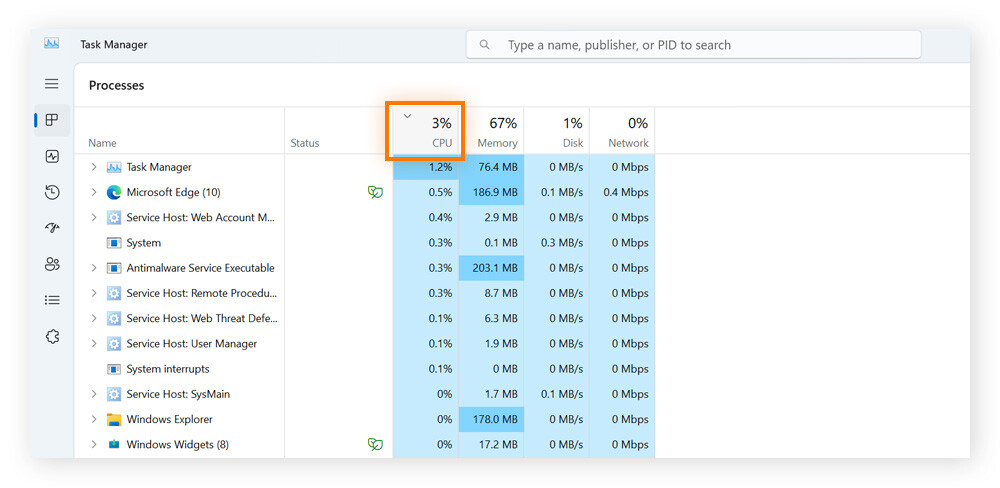
Task Manager on Windows shows CPU use by process. Open it by pressing Ctrl + Shift + Esc. Sort the list by CPU to see top users. On Mac or Linux, use System Monitor or Activity Monitor. These tools give a clear look at CPU load. They show which app or service needs the most power.
Check Background Applications
Some apps run in the background without your knowledge. These can eat up CPU without warning. Check the list of background apps regularly. Close or disable those not needed. This frees up CPU for tasks you want to run. Background apps often cause hidden CPU problems.

Credit: superuser.com
Optimize Software Settings
Optimizing software settings can lower your CPU load effectively. Adjusting these settings reduces unnecessary work on your computer. It helps the system run smoother and faster. Small changes in software can make a big difference. Focus on startup programs, updates, and browser use to see improvements.
Adjust Startup Programs
Many programs start automatically with your computer. These programs use CPU power even when not needed. Disable unnecessary startup programs to free up resources. Use the Task Manager on Windows or System Preferences on Mac. This step reduces CPU load right after booting.
Update Software And Drivers
Outdated software and drivers can cause high CPU usage. Updates fix bugs and improve performance. Check for updates regularly and install them promptly. This keeps your system running smoothly and reduces CPU stress. Updated drivers help hardware work efficiently with your system.
Limit Browser Tabs And Extensions
Browsers can consume a lot of CPU power. Having many tabs open increases this load. Close tabs you don’t need to save CPU power. Extensions also use CPU, so disable or remove unused ones. This simple action can lower CPU usage significantly.
Manage System Resources
Managing system resources helps lower CPU load and improves computer speed. It means using memory and storage wisely. Simple steps can reduce stress on your CPU.
Increase Virtual Memory
Virtual memory acts as extra RAM for your computer. It uses part of your hard drive to support memory needs. Increasing virtual memory can ease the CPU workload. To do this, go to system settings and find performance options. Adjust the paging file size to a higher value. This step helps programs run smoothly without using too much CPU.
Clean Temporary Files
Temporary files take up space and slow down your system. They build up from browsing and running programs. Deleting these files frees storage and reduces CPU strain. Use the built-in Disk Cleanup tool or a trusted app. Clear cache, cookies, and old files regularly. This keeps your system light and responsive.
Run Disk Cleanup And Defragmentation
Disk Cleanup removes unnecessary files from your drive. It helps recover disk space and improve system speed. Defragmentation rearranges fragmented data for faster access. Both tasks reduce CPU effort when reading files. Schedule these tools to run often for better performance. This keeps your system running smoother for longer.
Credit: www.avast.com
Tweak Power And Performance Options
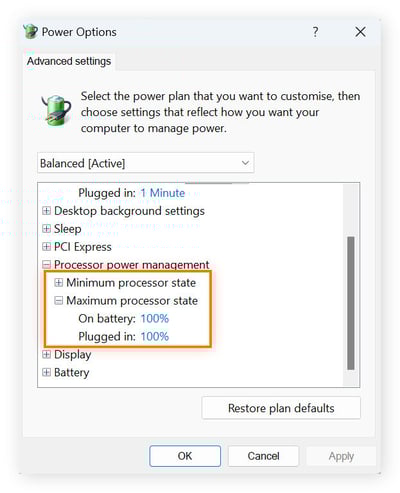
Tweaking power and performance options helps reduce CPU load effectively. These settings control how your system uses its resources. Adjusting them can improve speed and lower stress on your processor.
Small changes in power plans and performance settings can make a big difference. This section shows easy steps to optimize your computer’s power use and performance.
Select High-performance Power Plan
Choose the high-performance plan in your power settings. This plan gives more power to the CPU. It keeps your computer running at full speed. This reduces delays caused by power-saving modes. To select it, open Control Panel and go to Power Options. Pick “High Performance” to boost CPU activity.
Adjust Processor Scheduling
Set processor scheduling to prioritize programs over background services. This focuses CPU resources on the tasks you use. It helps reduce lag during work or gaming. Find this option in System Properties under Performance Settings. Choose “Programs” for better responsiveness and lower CPU load.
Disable Unnecessary Visual Effects
Turn off visual effects that use extra CPU power. Animations and shadows can slow your system. Disabling them frees up resources for important tasks. Go to Performance Settings and select “Adjust for best performance.” This turns off all effects or customize to keep some visuals while reducing CPU load.
Prevent Malware And Viruses
Malware and viruses can cause a high CPU load. These harmful programs use your computer’s power without permission. This slows down your system and makes it hard to work. Stopping these threats helps keep your CPU load low. It also protects your important files and personal data.
Perform Regular Scans
Run virus scans often to catch malware early. Use the built-in scan tools or security software. Scanning finds and removes threats before they cause damage. Set scans to run automatically for best results. Regular checks keep your CPU running smoothly.
Use Reliable Security Software
Choose security software from trusted companies. Good software blocks viruses and malware before they start. It also updates itself to fight new threats. Reliable programs use less CPU power during scans. This helps your computer stay fast and safe.
Avoid Suspicious Downloads
Do not download files from unknown sources. Suspicious downloads often carry viruses or malware. Only get files from official websites or trusted places. Always check the file type and size before opening. Being careful lowers the risk of infection and high CPU use.
Credit: www.avast.com
Upgrade Hardware Components
Upgrading hardware parts can lower your CPU load significantly. Old or weak components often cause slow performance and high CPU use. Investing in better hardware improves speed and efficiency. It reduces the pressure on your CPU, helping your computer run smoothly and faster.
Add More Ram
RAM stores data your computer uses right now. More RAM means your system handles tasks without using the CPU heavily. It lowers CPU load by reducing the need for constant data fetching from the hard drive. Extra RAM helps in multitasking and running big programs easily.
Consider Ssd Over Hdd
Solid State Drives (SSD) work faster than traditional Hard Disk Drives (HDD). SSDs access data quickly, which cuts down CPU waiting time. This leads to lower CPU load and faster system response. Switching to an SSD can make your computer feel much quicker and less stressed.
Upgrade Cpu Or Cooling System
A stronger CPU can process tasks faster and handle more work. Upgrading your CPU reduces the load and prevents slowdowns. Also, a good cooling system keeps the CPU from overheating. Cooler CPUs run efficiently, avoiding performance drops and crashes due to heat.
Use Advanced Tools And Techniques
Using advanced tools and techniques can help reduce CPU load effectively. These methods give you better control over how your processor works. They allow you to monitor, adjust, and optimize CPU usage for better performance.
Applying these techniques can prevent your CPU from getting overwhelmed. This keeps your system running smoothly and fast. Let’s explore some practical ways to do this.
Employ Performance Monitoring Software
Performance monitoring software shows real-time CPU usage. It helps identify which apps or processes use the most CPU power. By tracking this, you can spot problems early and act fast.
Popular tools include Task Manager for Windows and Activity Monitor for Mac. These tools display CPU load by each process. They help you decide which programs to close or adjust.
Advanced software like Process Explorer or HWMonitor offers deeper insights. They reveal CPU temperature, clock speed, and thread activity. This data helps you fine-tune your system for better CPU efficiency.
Set Cpu Affinity For Processes
CPU affinity means assigning specific CPU cores to certain processes. This spreads the workload evenly across cores. It prevents one core from getting too busy while others stay idle.
You can set CPU affinity using Task Manager or command-line tools. This technique improves multitasking and reduces CPU bottlenecks.
By controlling CPU affinity, your system becomes more stable. Apps run smoother and respond faster. It is especially useful for heavy or critical programs.
Optimize Bios Settings
BIOS settings control how your hardware works, including CPU behavior. Tweaking these settings can lower CPU load and boost efficiency.
Options like enabling Intel SpeedStep or AMD Cool’n’Quiet reduce CPU power when idle. This cuts unnecessary CPU usage and heat generation.
Disabling unused CPU cores or hyper-threading may also help in some cases. Adjusting cache settings can speed up processing too.
Enter BIOS carefully and change only what you understand. Incorrect settings can cause system issues.
Frequently Asked Questions
What Causes High Cpu Load On My Computer?
High CPU load is usually caused by running multiple heavy applications, background processes, or malware. It can also result from outdated software or insufficient hardware resources. Identifying the exact cause helps in applying the right solution to decrease CPU load effectively.
How Can I Reduce Cpu Load In Windows 10?
You can reduce CPU load by closing unnecessary programs, disabling startup apps, and updating drivers. Running antivirus scans and adjusting power settings also help. Regular maintenance like disk cleanup and managing background services lowers CPU usage significantly.
Does Upgrading Hardware Decrease Cpu Load?
Yes, upgrading hardware like installing a faster CPU, adding more RAM, or using SSDs can reduce CPU load. Better hardware handles processes more efficiently, leading to lower CPU stress and improved overall system performance.
Can Software Optimization Help Lower Cpu Load?
Absolutely, optimizing software by updating it, closing unused applications, and adjusting settings reduces CPU demand. Using lightweight alternatives and managing background tasks ensures smoother performance with less CPU consumption.
Conclusion
Reducing CPU load helps your computer run faster and smoother. Close unused programs and check for background processes. Keep your software updated and scan for malware regularly. Adjust settings to balance performance and power use. Small steps can make a big difference in CPU health.
Stay patient and keep monitoring your system’s performance. This way, your device lasts longer and works better every day.
