
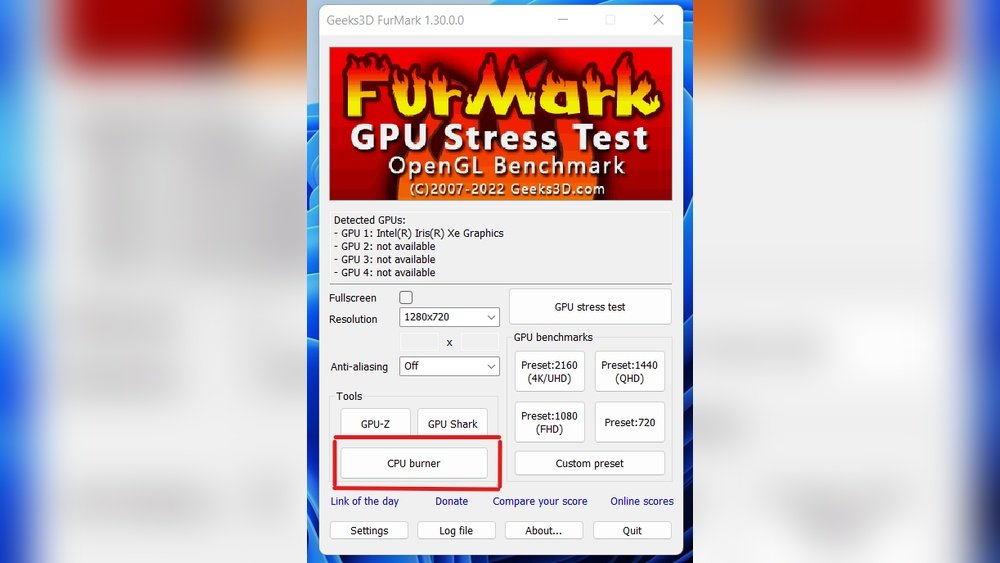
If you want to know if your CPU can handle heavy tasks without breaking a sweat, a CPU stress test is exactly what you need. This simple process helps you find out how strong and stable your processor really is.
Whether you’re a gamer, a content creator, or just someone curious about your PC’s limits, understanding how to stress test your CPU can save you from unexpected crashes and overheating. Keep reading, and you’ll discover easy steps to test your CPU’s power and keep your system running smoothly.

Credit: softwareg.com.au
Why Cpu Stress Testing Matters
CPU stress testing is important for anyone who uses a computer often. It helps check if the CPU can handle heavy work without problems. This test puts the processor under high load to see how it performs. Stress testing helps find hidden issues before they cause damage or slow down your system.
Understanding why CPU stress testing matters can save time and money. It ensures your computer runs smoothly and stays reliable under pressure. Here are key reasons why stress testing is essential.
Identifying Stability Issues
Stress testing reveals problems with your CPU’s performance. It shows if the processor crashes or freezes during heavy tasks. Detecting these issues early helps avoid data loss. Stability checks are vital for reliable computer use, especially for demanding programs.
Ensuring Thermal Management
Running a CPU at full load creates heat. Stress testing helps monitor how well cooling systems work. It shows if the CPU temperature stays safe or gets too high. Proper thermal management prevents overheating and hardware damage over time.
Maximizing Hardware Longevity
Stress tests help protect your CPU by finding weak points. Knowing how your processor handles stress can extend its life. Avoiding constant overheating and crashes means your hardware lasts longer. Regular testing supports a healthy, long-lasting computer.
Credit: support.punchtechnology.co.uk
Choosing The Right Stress Test Tools
Choosing the right CPU stress test tool is important. The tool must match your needs. It should be easy to use and reliable. Different tools offer different features. Some work better for beginners. Others are designed for experts.
Understanding the options helps pick the best tool. This saves time and avoids confusion. It also ensures accurate test results. Let’s explore popular tools and their differences.
Popular Cpu Stress Testing Software
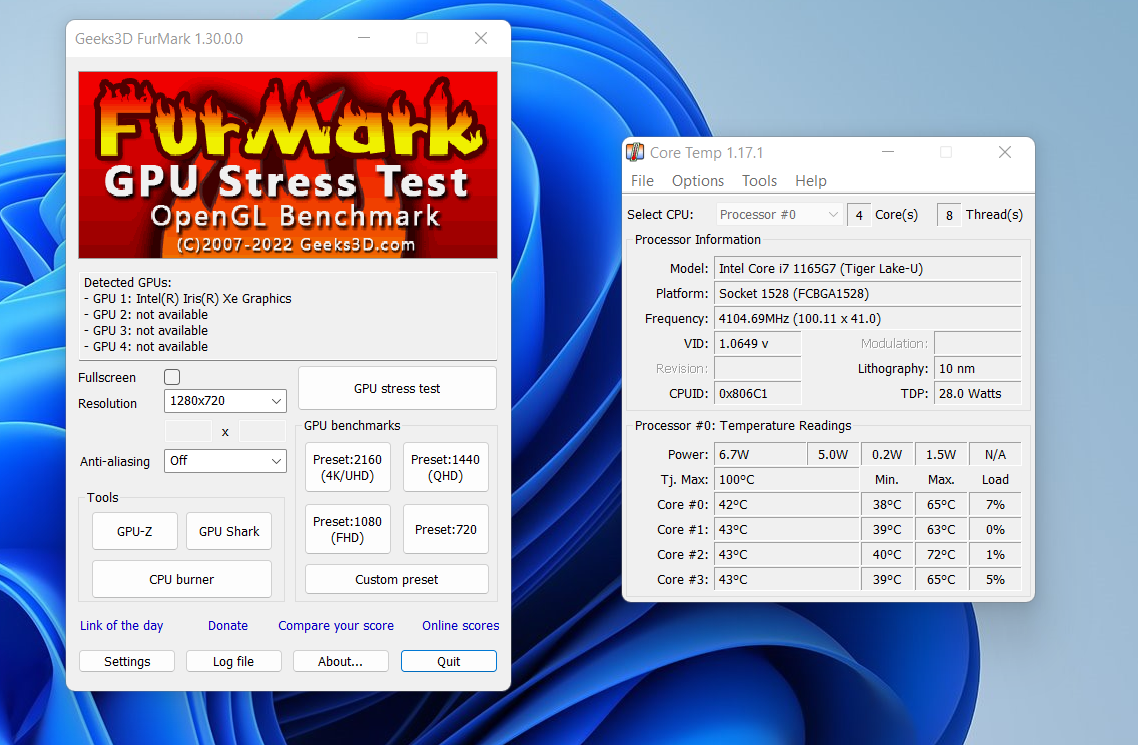
Prime95 is popular for testing CPU stability. It uses heavy calculations to stress the processor. IntelBurnTest is another tool. It runs intense math tests to push the CPU. AIDA64 offers detailed system information and stress testing. OCCT provides real-time monitoring with stress tests. Each tool has its own strengths and weaknesses.
Comparing Features And Ease Of Use
Some tools have simple interfaces. They are good for beginners. Others show detailed graphs and data. These suit advanced users. Speed of testing varies between tools. Some tests run quickly, others take hours. Features like temperature monitoring add value. The best tool matches skill level and test goals.
Open Source Vs Paid Options
Open source tools are free to use. They may lack some advanced features. Paid tools often include better support. They might have easier interfaces. Both options can work well. The choice depends on budget and needs. Beginners can start with free tools. Experts might prefer paid versions for more options.
Preparing Your System For Testing
Preparing your system for a CPU stress test is important to get accurate results. It helps your computer focus on the test without distractions. This preparation also protects your hardware from overheating or crashes. Follow simple steps before starting your stress test.
Closing Background Applications
Close all unnecessary programs running in the background. These apps use CPU power and can affect the test results. Check your system tray and task manager to find and stop these programs. This frees up resources for the stress test.
Monitoring System Temperatures
Keep an eye on your CPU and system temperatures. Use software tools to track heat levels before and during the test. High temperatures can damage your hardware. Stop the test if temperatures rise too much.
Updating Drivers And Bios
Make sure your system drivers and BIOS are up to date. Updates fix bugs and improve hardware performance. Visit your motherboard or computer maker’s website for the latest versions. Updated software helps the CPU run smoothly during the test.
Conducting The Cpu Stress Test
Conducting a CPU stress test helps check your processor’s strength and stability. This test pushes the CPU to work hard, showing how it handles high loads. It helps find problems like overheating or crashes before real issues happen. Follow clear steps to do the test safely and get useful results.
Setting Up Test Parameters
Start by choosing the right stress test tool. Set the test duration based on your needs. Select how much CPU power the test uses. Adjust options like temperature limits or fan control if available. Make sure the settings match your computer’s capacity and your goals.
Running Short Vs Extended Tests
Short tests run for a few minutes. They check basic CPU function quickly. Extended tests last for hours or even days. They reveal deeper stability problems and thermal issues. Run a short test first to spot obvious faults. Use longer tests for thorough checks and peace of mind.
Interpreting Test Results
Look for errors or crashes during the test. High temperatures might signal cooling problems. Stable operation means the CPU handles stress well. Compare your results to normal CPU limits. Use results to decide if hardware or settings need changes.
Troubleshooting Common Issues
Stress testing your CPU helps find its limits and stability. Sometimes, issues arise during these tests. Knowing how to fix common problems saves time and protects your hardware. Below are common issues and easy ways to troubleshoot them.
Overheating And Throttling
High CPU temperature is a frequent problem during stress tests. It can cause the CPU to slow down or throttle. Check if your cooling system works well. Clean dust from fans and heatsinks. Make sure thermal paste is applied properly. Use software to monitor CPU temperature. Stop the test if temperatures rise too high.
System Crashes And Freezes
Crashes or freezes often mean the CPU or memory is unstable. Lower the stress test intensity. Check your RAM for errors using memory test tools. Update your motherboard BIOS and chipset drivers. Ensure your power supply delivers enough power. Avoid running other heavy programs during the test.
Inconsistent Performance
Performance drops or changes can signal background processes or overheating. Close unnecessary programs before starting the test. Monitor CPU temperature throughout the test. Run the test multiple times for consistent results. If performance varies, check for malware or software conflicts.

Credit: softwareg.com.au
Optimizing Cpu Performance Post-test
After completing a CPU stress test, optimizing your CPU’s performance is essential. The test reveals how your CPU handles heavy tasks. This helps you find ways to keep it running smoothly and efficiently. Small changes can improve speed and prevent overheating. Focus on cooling, settings, and software updates to keep your CPU in top shape.
Adjusting Cooling Solutions
Cooling is vital for CPU health. Check your current cooling system after the stress test. Clean dust from fans and vents. Replace old thermal paste between the CPU and heatsink. Consider upgrading to a better cooler if temperatures remain high. Proper cooling prevents damage and keeps your CPU stable.
Tweaking Cpu Settings
CPU settings affect performance and power use. Use your computer’s BIOS or UEFI to access these settings. Lower the CPU voltage slightly to reduce heat without losing speed. Adjust the clock speed carefully if you want more performance. Save changes and monitor the system after tweaking. Avoid pushing settings too far to prevent crashes.
Implementing Software Updates
Software updates improve CPU efficiency and security. Keep your operating system up to date. Install the latest CPU drivers provided by the manufacturer. Update firmware or BIOS if available. These updates fix bugs and optimize CPU management. Regular updates ensure your CPU runs smoothly and safely.
Frequently Asked Questions
What Is A Cpu Stress Test And Why Use It?
A CPU stress test checks your processor’s stability under heavy load. It helps identify overheating, hardware faults, and performance limits. Stress tests ensure your CPU runs reliably during demanding tasks or gaming sessions.
How Do I Safely Perform A Cpu Stress Test?
Use reputable software like Prime95 or AIDA64. Monitor temperatures closely to avoid overheating. Stop the test if temperatures exceed safe limits to protect your CPU from damage.
How Long Should A Cpu Stress Test Run?
Typically, run the test for 1 to 2 hours. This duration reveals stability issues and thermal throttling. Longer tests provide more confidence but watch temperatures carefully.
Can Stress Testing Damage My Cpu?
Stress testing is safe if done correctly. Always monitor CPU temperatures and stop if they get too high. Overheating or prolonged excessive load may risk hardware damage.
Conclusion
Stress testing your CPU helps find any weak points early. It shows how your computer works under pressure. Using the right tools makes testing safe and clear. Watch your temperatures and performance during the test. Stop if your system gets too hot or slow.
Regular stress tests keep your CPU healthy and strong. This simple step can save you from big problems later. Try it out carefully and keep your PC running smooth.
