
Are you ready to unlock the full power of your computer? Learning how to CPU overclock can boost your system’s speed and performance without spending extra money on new hardware.
Imagine your games running smoother, your software working faster, and your overall experience becoming more efficient. But overclocking can seem tricky or risky if you don’t know where to start. Don’t worry—this guide will walk you through simple steps to safely push your CPU beyond its limits.
By the end, you’ll have the confidence and knowledge to get the most out of your machine. Let’s dive in and turn your CPU into a speed powerhouse!

Credit: www.wikihow.com
Basics Of Cpu Overclocking
Overclocking a CPU means running it faster than the factory set speed. This process can improve your computer’s speed. Many people overclock to get better performance for tasks like gaming or video editing.
Before starting, understanding the basics is important. Knowing what overclocking means, its benefits, risks, and whether your CPU supports it will help you make better decisions.
What Overclocking Means
Overclocking is increasing the CPU’s clock speed beyond its default rate. The clock speed controls how many tasks the CPU does each second. A higher clock speed means the CPU works faster. This can make programs run quicker and improve system responsiveness.
Benefits And Risks
Overclocking can boost your computer’s speed and performance. It can reduce loading times and make games smoother. Many users find it worth the effort for these gains. Still, overclocking also has risks. It can cause your CPU to overheat and shorten its lifespan. If done incorrectly, it may lead to system crashes or data loss. Cooling and careful settings are important to avoid problems.
Cpu Compatibility
Not all CPUs support overclocking. Some models have locked clock speeds, which means they cannot be changed. Check your CPU model and motherboard before overclocking. Certain brands and models are designed for easier overclocking. Make sure your hardware supports it to prevent damage and wasted effort.

Credit: www.wikihow.com
Preparing For Overclocking
Preparing for overclocking is an important step before changing CPU settings. It helps ensure your system runs stable and safe. Taking time to prepare lowers risks of damage and errors.
Start by checking if your hardware can handle overclocking. Update your BIOS and drivers to the latest versions. Also, make sure your cooling system can keep the CPU temperature low.
Checking Hardware Requirements
Not all CPUs support overclocking. Look for models labeled with “K” or “Unlocked.” Your motherboard must support overclocking features too. Choose quality RAM and power supply for stable power delivery. Weak hardware may cause crashes or failures.
Updating Bios And Drivers
BIOS controls CPU settings at a low level. An outdated BIOS can cause problems during overclocking. Visit your motherboard maker’s website for the newest BIOS update. Update CPU and chipset drivers as well. These updates improve compatibility and system stability.
Cooling Solutions
Overclocking generates more heat than normal use. Stock coolers often cannot handle this extra heat. Use a good air cooler or liquid cooling system. Check that your case has enough airflow. Keep CPU temperatures below safe limits to prevent damage.
Step-by-step Overclocking Process
Overclocking a CPU can improve your computer’s speed. This process requires careful steps to avoid damage. Follow the steps below to safely overclock your CPU.
Accessing Bios Settings
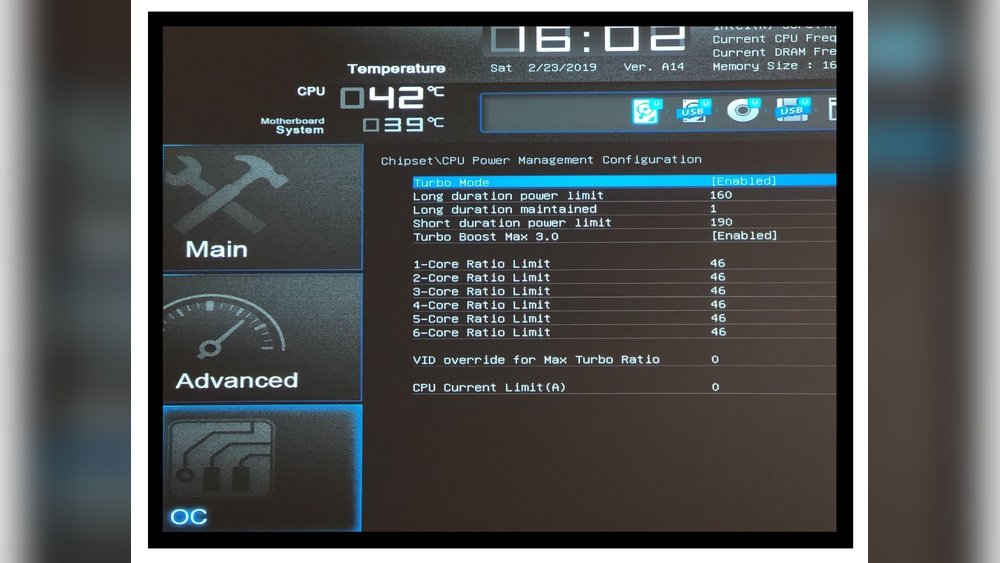
Restart your computer and enter the BIOS menu. Usually, press the Delete or F2 key during startup. Navigate to the CPU or performance section. This area controls your CPU’s core settings. Make sure to save your current settings before changing anything.
Adjusting Cpu Multiplier
The CPU multiplier controls the processor speed. Increase the multiplier value slowly by one step. Each step raises the clock speed slightly. Avoid large jumps to keep your system stable. Save changes and restart to apply the new speed.
Modifying Voltage Settings
Raising CPU voltage helps maintain stability at higher speeds. Increase voltage in small increments. Too much voltage can cause overheating or damage. Monitor your CPU temperature closely during this step. Keep voltage as low as possible for safety.
Testing Stability
Run stress tests to check system stability. Use programs like Prime95 or AIDA64. Test for at least 30 minutes to detect errors. If your system crashes or freezes, lower the multiplier or increase voltage slightly. Repeat testing until stable performance is achieved.
Monitoring Performance And Temperature
Monitoring your CPU’s performance and temperature is essential when overclocking. It helps you avoid damage and keeps your system stable. Regular checks ensure your CPU runs smoothly under higher speeds. This section explains the tools and signs to watch for.
Recommended Monitoring Tools
Use software like HWMonitor, Core Temp, or MSI Afterburner. These tools show real-time CPU temperature and usage. They are easy to install and free to use. Choose one that fits your needs and check it often during overclocking.
Interpreting Temperature Readings
Normal CPU temperatures usually stay below 80°C under load. Temperatures above 85°C can cause problems. Watch for sudden spikes or steady rises. A cooler running CPU means safer overclocking. Keep your system airflow strong to control heat.
Recognizing Stability Issues
Crashes, freezes, or blue screens often signal instability. Your CPU might be running too fast or too hot. Run stress tests to check for errors. If problems occur, reduce the overclock or improve cooling. Stability is key to safe overclocking.
Troubleshooting Common Problems
Overclocking your CPU can boost performance but also cause issues. Troubleshooting helps fix common problems fast. It keeps your system stable and safe. Let’s explore common issues and how to solve them.
System Crashes And Freezes
System crashes often happen after overclocking. Your CPU may be pushed too hard. This causes instability and sudden shutdowns. Lower the clock speed slightly to improve stability. Check your RAM settings as well. Run a stress test to find safe limits. Save your work often during testing.
Thermal Throttling
Thermal throttling happens when the CPU gets too hot. It slows down to avoid damage. Poor cooling is the main cause. Make sure your CPU cooler is working well. Clean any dust from fans and heatsinks. Use good thermal paste on the CPU. Consider better cooling if throttling continues.
Resetting Bios
Resetting BIOS clears any wrong overclock settings. This can fix boot problems and crashes. Turn off your PC and unplug it. Open the case and find the CMOS battery on the motherboard. Remove it for a few minutes, then replace it. Alternatively, use the BIOS reset jumper. After resetting, enter BIOS and load default settings.
Advanced Overclocking Tips
Advanced overclocking takes your CPU performance beyond basic settings. It requires careful adjustments and testing. Small changes can make big differences. This section covers key tips to help you push your CPU safely and effectively.
Fine-tuning Voltages
Adjusting CPU voltage is crucial for stability during overclocking. Too little voltage causes crashes. Too much can damage the CPU. Increase voltage in small steps. Test stability after each change. Use a quality cooling system to handle extra heat. Monitor temperatures closely to avoid overheating.
Using Software Utilities
Software tools simplify overclocking and monitoring. Programs like CPU-Z and HWMonitor provide real-time data. Use stress tests to check stability under load. Some utilities allow on-the-fly adjustments without restarting. Keep software updated for best compatibility. These tools help fine-tune settings with less guesswork.
Overclocking Different Cpu Architectures
Each CPU architecture behaves differently during overclocking. Intel and AMD chips have unique voltage and frequency limits. Research your CPU model before starting. Follow guides specific to your architecture. Some CPUs overclock better than others. Understanding these differences improves your chances of success.
Maintaining Overclocked Systems
Maintaining an overclocked CPU is key to keeping your system stable and safe. Overclocking pushes your processor beyond its normal limits. This can cause more heat and stress. Careful upkeep helps prevent damage and keeps performance steady.
Regular System Checks
Check your CPU temperature often. High heat can cause crashes or damage. Use software tools to monitor temperature and voltage. Watch for system errors or freezes. Test your system’s stability with stress tests regularly. Small problems caught early can save big headaches later.
Updating Cooling Systems
Good cooling is vital for overclocked CPUs. Stock coolers may not be enough. Consider upgrading to a better air cooler or liquid cooling system. Clean dust from fans and heatsinks often. Replace thermal paste every year for best heat transfer. Cooler CPUs run safer and last longer.
Backup And Recovery Plans
Overclocking can cause sudden crashes or data loss. Keep regular backups of important files. Use external drives or cloud storage for safety. Have a recovery plan ready for system failures. Know how to reset BIOS or restore default settings. This can save time and stress after a crash.

Credit: www.hp.com
Frequently Asked Questions
What Is Cpu Overclocking And Why Do It?
CPU overclocking means increasing the processor’s clock speed beyond its default. This boosts performance for tasks like gaming or editing. It can improve speed but may increase heat and power use. Proper cooling and stable settings are essential to avoid damage.
How To Safely Overclock A Cpu?
Start by increasing the clock speed gradually in BIOS or software. Monitor temperatures closely using reliable tools. Keep voltage increases minimal to avoid overheating. Test stability with stress tests after each change. Stop if temperatures exceed safe limits or if crashes occur.
What Tools Are Needed For Cpu Overclocking?
You need BIOS access or overclocking software provided by your motherboard brand. Monitoring tools like HWMonitor or Core Temp help track temperatures and voltages. Stress testing software like Prime95 or AIDA64 ensures system stability after changes.
Does Cpu Overclocking Void The Warranty?
Yes, most manufacturers consider overclocking as voiding the CPU warranty. It involves pushing hardware beyond factory settings, which may cause damage. Always check your CPU and motherboard warranty terms before overclocking.
Conclusion
Overclocking your CPU can boost its speed and performance. Start slow and test your system often. Watch your temperatures to avoid damage. Good cooling helps keep your CPU safe. Remember, not all CPUs handle overclocking well. Take your time and be patient.
Enjoy the extra power for tasks and games. Keep learning and improving your skills. Your computer can run faster with care. Overclocking is a way to get more from your CPU.
