
Is your computer feeling hot and slowing down? When your CPU overheats, it can cause your whole system to lag or even shut down unexpectedly.
You don’t have to live with a burning hot processor or worry about damaging your device. You’ll discover simple and effective ways to cool down your CPU fast. Whether you’re a gamer, a student, or just someone who uses their PC daily, these tips will help keep your computer running smoothly and extend its life.
Ready to stop the heat and boost your computer’s performance? Let’s dive in.
Credit: www.myfixguide.com
Signs Of Cpu Overheating
Knowing the signs of CPU overheating helps protect your computer. Overheating can cause serious damage and slow down your system. Early detection is key to avoiding bigger problems.
Common Symptoms
Your computer may act strangely if the CPU gets too hot. It can shut down without warning. The fan might run loudly or constantly. The case can feel very warm to touch. Sometimes, programs crash or freeze often.
Impact On Performance
High CPU temperature reduces speed and efficiency. Your system may lag or respond slowly. Tasks take longer to complete than usual. Overheating can cause errors and data loss. In extreme cases, hardware can fail completely.
Improving Airflow
Improving airflow inside your computer case helps cool down the CPU effectively. Good airflow moves hot air out and brings cool air in. This process lowers the temperature of your CPU and other parts. It also helps your computer work better and last longer.
Organizing Cables
Cables inside the case can block air movement. Keep cables tidy and away from fans. Use cable ties or clips to hold them together. Route cables behind the motherboard tray if possible. This clears space for air to flow freely. Less clutter means better cooling performance.
Optimizing Case Fans
Case fans push hot air out and pull cool air in. Place intake fans at the front or bottom of the case. Install exhaust fans at the back or top. This setup creates a smooth airflow path. Use fans with good speed and quiet operation. Clean fans regularly to keep them working well.
Choosing The Right Cooling System
Choosing the right cooling system is key to keeping your CPU safe. A proper cooler lowers the temperature quickly. It stops your computer from slowing down or crashing. You must pick a cooler that fits your needs and budget. Two main types of coolers exist. Each has its strengths and suits different users.
Air Coolers
Air coolers use fans and heat sinks to cool the CPU. The heat sink pulls heat away from the processor. Then, the fan blows the heat out of the case. These coolers are easy to install and maintain. They work well for most everyday computers. They are also cheaper than liquid coolers. Air coolers come in many sizes and power levels. Choose one that matches your CPU and case size.
Liquid Cooling Solutions
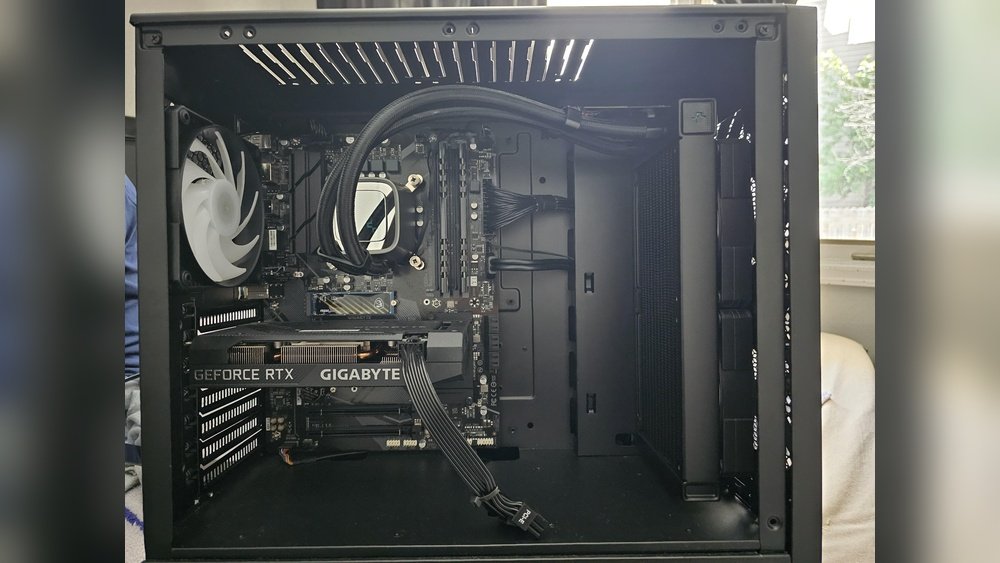
Liquid cooling uses water or coolant to move heat away from the CPU. It usually has a pump, tubes, and a radiator. The liquid absorbs heat and moves it to the radiator. The radiator then cools the liquid with fans. Liquid coolers are quieter than air coolers. They can cool better, especially for powerful CPUs. These coolers are often used in gaming or high-performance PCs. Installation can be harder and cost more. But liquid cooling keeps your CPU cool under heavy use.
Applying Thermal Paste Correctly
Applying thermal paste correctly is key to keeping your CPU cool. It helps move heat from the processor to the cooler. Without proper application, the CPU can overheat quickly. This guide explains how to choose and apply thermal paste the right way.
Selecting Quality Thermal Paste
Choose thermal paste that fits your budget and needs. Look for pastes with good heat conductivity. Avoid very cheap options, as they may not work well. Popular types include ceramic, metal-based, and silicone pastes. Check user reviews to find reliable brands. Quality paste lasts longer and improves cooling.
Application Techniques
Start with a clean CPU surface. Use alcohol wipes to remove old paste. Apply a small pea-sized dot in the center of the CPU. The cooler will spread it evenly when installed. Avoid spreading it yourself; too much paste can trap heat. Check for air bubbles and excess paste around edges. Proper application ensures good contact and better heat transfer.
Cleaning And Maintenance Tips
Keeping your CPU cool is vital for its performance and lifespan. Cleaning and maintenance help prevent overheating. These tasks are simple and save you from costly repairs.
Regular care keeps your computer running smoothly. It reduces dust buildup and checks for worn parts. Follow these tips to maintain your CPU’s health.
Removing Dust
Dust clogs fans and vents, blocking airflow. This causes the CPU to heat up quickly. Use a can of compressed air to blow dust away. Hold the can upright and spray in short bursts. Clean the fans, vents, and heat sinks carefully. Avoid using a vacuum, as it can cause static damage.
Regular Component Checks
Check your CPU fan and thermal paste often. Fans should spin freely without noise or wobbling. Replace any fan that sounds loud or stops working. Thermal paste helps transfer heat from CPU to cooler. Replace it every 1-2 years for best cooling. Inspect cables and connectors to ensure they are secure. Loose parts can reduce cooling efficiency.

Credit: www.youtube.com
Adjusting Bios And Software Settings
Adjusting BIOS and software settings helps cool down your CPU effectively. These settings control how your CPU runs and how much heat it produces. By making smart changes, you can reduce heat and keep your computer stable. You do not need special tools, just some time and care.
Fan Speed Control
Fans help move hot air away from your CPU. In the BIOS, you can set fan speeds to run faster when the CPU gets hot. This keeps your CPU cooler. Many motherboards have options to adjust fan curves. A steeper curve means fans spin faster at lower temperatures. This makes cooling more active. Use software tools if your motherboard supports them. They allow easy fan speed changes without restarting your PC.
Cpu Voltage And Frequency
Lowering CPU voltage reduces heat output. The CPU uses less power and produces less heat. You can adjust voltage in the BIOS under CPU settings. Be careful not to lower it too much or your PC may crash. Reducing CPU frequency also lowers heat. This means the CPU runs slower but cooler. Lower clock speeds reduce power use. Test changes one at a time and check system stability. Small adjustments can make a big difference in temperature.
Upgrading Hardware For Better Cooling
Upgrading your computer hardware can help cool down your CPU effectively. Better cooling parts reduce heat and keep your system running smoothly. This step is important if your CPU gets too hot often. It also helps increase the lifespan of your computer.
High-performance Fans
High-performance fans move more air than standard fans. They help push out hot air faster from inside the case. These fans are quieter and use less power. Installing larger fans can also improve airflow. Place them near the CPU for best results.
Aftermarket Cooling Solutions
Aftermarket cooling solutions include air coolers and liquid coolers. Air coolers have bigger heatsinks and stronger fans. Liquid coolers use water to carry heat away quickly. Both options cool CPUs better than stock coolers. Choose one based on your budget and case size.

Credit: softwareg.com.au
Environmental Factors To Consider
Cooling down your CPU is not only about hardware. The environment around your PC plays a big role. Small changes in your room can help your CPU run cooler. Understanding these factors helps you keep your computer safe and fast.
Room Temperature
Room temperature affects your CPU’s heat. Cooler rooms make it easier for your PC to stay cool. Avoid placing your computer in hot areas like near heaters or direct sunlight. Keep the room well-ventilated. A fan or air conditioner can lower the room temperature. This simple step helps your CPU stay within safe heat limits.
Pc Placement
Where you put your PC matters. Place it on a hard, flat surface. Avoid soft surfaces like beds or carpets that block air vents. Keep your PC away from walls and corners to allow airflow. Ensure there is space around your computer for air to move freely. Proper placement stops heat from building up inside your PC case.
Frequently Asked Questions
How Can I Lower My Cpu Temperature Quickly?
To cool your CPU fast, improve airflow in your case and clean dust from fans. Applying fresh thermal paste helps too. You can also reduce CPU load by closing heavy apps.
What Are The Best Cooling Solutions For Cpus?
Air coolers with large fans or liquid cooling systems are effective. Choose a cooler compatible with your CPU socket. Good quality thermal paste and proper installation maximize cooling performance.
Does Cleaning Dust Affect Cpu Temperature?
Yes, dust blocks airflow and insulates heat. Regularly clean dust from fans, heatsinks, and vents. This simple step can significantly lower your CPU temperature and improve system stability.
How Does Thermal Paste Improve Cpu Cooling?
Thermal paste fills microscopic gaps between the CPU and cooler. It improves heat transfer and lowers temperatures. Reapplying fresh thermal paste every couple of years keeps cooling efficient.
Conclusion
Keeping your CPU cool helps your computer work better and last longer. Simple steps like cleaning fans and improving airflow make a big difference. Using good thermal paste and quality coolers also helps. Avoid placing your PC in hot or enclosed spaces.
Regular checks can prevent overheating problems before they start. Stay mindful of your CPU’s temperature for smooth performance. Small efforts lead to a cooler, healthier computer. Easy to do and worth the time.
