
Is your computer running hot and slowing down just when you need it most? Overheating CPUs can cause crashes, reduce performance, and even damage your hardware over time.
But don’t worry—cooling down your CPU is easier than you think. You’ll discover simple and effective ways to keep your processor cool, boost your computer’s speed, and extend its lifespan. Ready to stop the heat and get your PC running smoothly again?
Let’s dive in!

Credit: www.reddit.com
Signs Of Cpu Overheating
Knowing the signs of CPU overheating helps protect your computer. Overheating can slow down your system or cause it to shut off unexpectedly. Watching for early symptoms lets you act fast. This can save your hardware and keep your PC running smoothly.
Common Symptoms
Your computer may show several signs of a hot CPU. It might run slower than usual or freeze often. The fan inside the PC might run loudly and continuously. You could see error messages or the screen may flicker. Sudden shutdowns or restarts are also clear warnings.
Risks Of High Temperatures
High CPU temperatures can damage your computer parts. The processor may wear out faster and stop working. Other components like the motherboard can also suffer. Overheating can cause data loss or corrupt files. Long-term heat exposure reduces your PC’s overall lifespan.
Effective Cooling Solutions
Keeping your CPU cool is key to its performance and life. Effective cooling solutions reduce heat and prevent damage. These methods help your computer run smoothly and quietly. Choose the right cooling option based on your needs and budget.
Air Cooling Options
Air cooling is the most common way to cool a CPU. It uses fans and heatsinks to move heat away. Fans pull cool air in and push hot air out. Heatsinks increase surface area to help heat escape faster. Air coolers are easy to install and cost-effective. They work well for most everyday tasks and light gaming.
Liquid Cooling Systems
Liquid cooling uses water or coolant to carry heat away from the CPU. It has tubes, a pump, and a radiator. The coolant absorbs heat and moves it to the radiator. The radiator cools it down with fans. Liquid cooling is quieter and more efficient than air cooling. It suits high-performance PCs and intense gaming setups.
Thermal Paste Application
Thermal paste fills gaps between the CPU and cooler. It improves heat transfer by removing air pockets. Apply a small, pea-sized amount in the center of the CPU. Spread it evenly or let the cooler spread it naturally. Good thermal paste application boosts cooling performance. Replace old paste every few years for best results.
Optimizing Airflow
Optimizing airflow inside your computer case helps keep the CPU cool. Good airflow moves hot air out and brings cool air in. This lowers the CPU temperature and improves computer performance. Two key ways to optimize airflow are placing case fans correctly and managing cables well.
Case Fans Placement
Place intake fans at the front of the case. They pull in cool air from outside. Exhaust fans go at the back or top. They push hot air out of the case. Make sure intake fans bring in more air than exhaust fans. This creates positive air pressure. It stops dust from entering the case.
Use fans of the right size for your case. Larger fans move more air but spin slower, making less noise. Keep fans clean and check them regularly. Dust buildup reduces airflow and cooling efficiency.
Cable Management Tips
Organize cables to avoid blocking airflow paths. Use cable ties or Velcro straps to bundle cables together. Route cables behind the motherboard tray if possible. This keeps the main area clear for air to flow freely.
Keep cables away from fans and vents. Messy cables cause air to swirl and reduce cooling. Clear airflow means cooler CPU temperatures and better system stability.

Credit: www.youtube.com
Adjusting System Settings
Adjusting your system settings can help lower your CPU temperature. Simple tweaks inside your computer help it run cooler and last longer. Changing fan speeds and power options controls heat better. These steps do not need extra parts or tools.
Bios Fan Controls
BIOS lets you change fan speed and behavior. Restart your PC and press the key to enter BIOS. Look for the “Fan Control” or “Hardware Monitor” section. Increase fan speed to cool the CPU more. Set fans to run faster when the CPU gets hot. This reduces temperature but may increase noise. Save changes and exit BIOS to apply settings.
Power Management Settings
Power settings affect CPU heat and energy use. Open your operating system’s power options menu. Choose a balanced or power saver plan. Lower the maximum processor state to reduce heat. This limits CPU speed during heavy tasks. Your computer will use less power and run cooler. Adjust these settings to find the best balance for you.
Regular Maintenance Tips
Keeping your CPU cool is important for its performance and lifespan. Regular maintenance helps prevent overheating and keeps your computer running smoothly. Simple actions done often can make a big difference. Follow these easy steps to maintain your CPU temperature.
Cleaning Dust And Debris
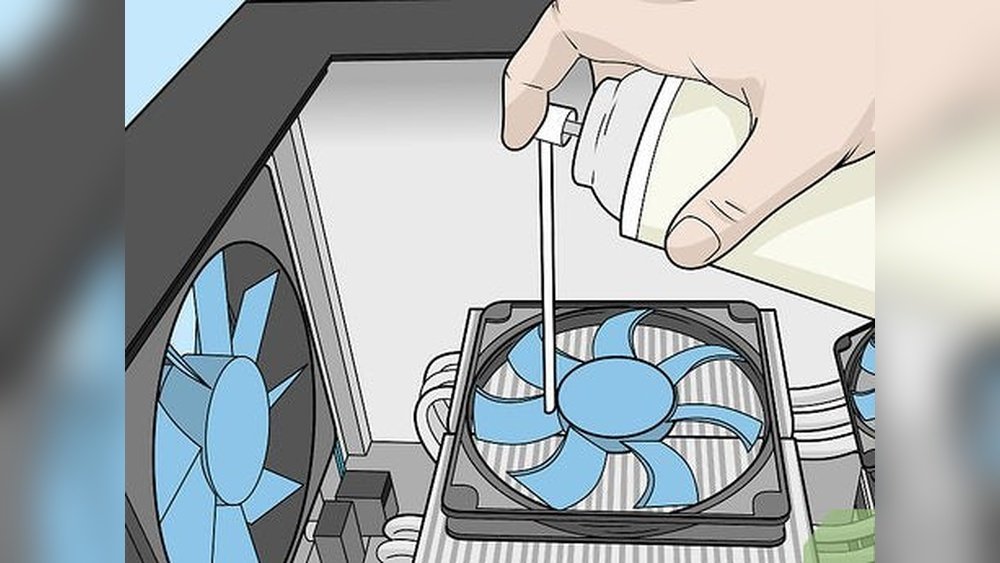
Dust blocks airflow and traps heat inside your computer. Use a soft brush or compressed air to remove dust from fans and vents. Clean your PC every few months for best results. Make sure to turn off and unplug your computer first. Keep the workspace clean to reduce dust buildup.
Monitoring Cpu Temperature
Check your CPU temperature regularly using software tools. Many free programs show real-time temperature and alerts. Watch for temperatures above 80°C, which can harm your CPU. Monitor temperature during heavy use like gaming or video editing. Early detection helps avoid overheating and damage.
Upgrading Hardware
Upgrading your computer hardware can greatly improve CPU cooling. Old or basic components might not handle heat well. Swapping them for better parts reduces temperature and boosts performance. Even small changes can make a big difference. Let’s explore two key hardware upgrades for cooling your CPU effectively.
Choosing Better Cooling Components
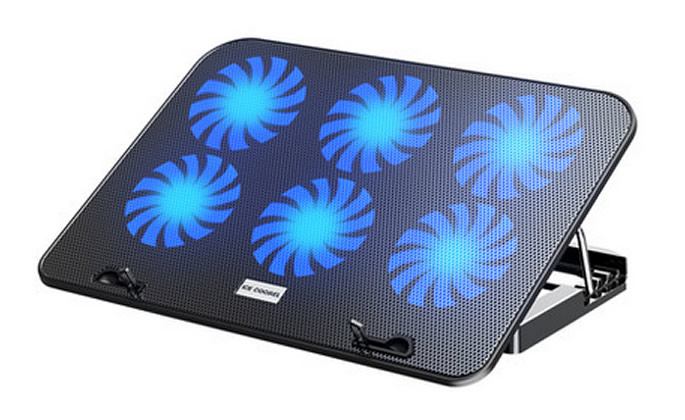
Better cooling parts keep your CPU temperature low. Consider upgrading your CPU cooler to a larger or more efficient model. Air coolers with bigger fans or liquid coolers with radiators work well. Good airflow inside the case also matters. Installing extra case fans can move hot air out faster. These upgrades help your CPU stay cool during heavy use.
When To Replace Thermal Paste
Thermal paste helps transfer heat from the CPU to the cooler. Over time, it dries out and loses effectiveness. Check and replace the paste every one to two years. New thermal paste improves heat transfer and lowers CPU temperature. Clean off the old paste carefully before applying a fresh layer. This simple step supports better CPU cooling and longer hardware life.
Credit: www.myfixguide.com
Frequently Asked Questions
How Can I Quickly Cool Down My Cpu?
To quickly cool down your CPU, close unnecessary programs and increase fan speed. Ensure proper airflow and avoid overclocking. Cleaning dust inside your PC also helps maintain optimal temperature.
What Are The Best Cpu Cooling Methods?
The best CPU cooling methods include air cooling with quality fans, liquid cooling systems, and using thermal paste. Each method improves heat dissipation and helps maintain lower CPU temperatures.
Does Thermal Paste Improve Cpu Cooling?
Yes, thermal paste fills microscopic gaps between the CPU and cooler. It enhances heat transfer, reducing CPU temperature and preventing overheating effectively.
How Does Case Airflow Affect Cpu Temperature?
Good case airflow removes hot air and brings in cool air, lowering CPU temperatures. Proper fan placement and clean vents improve airflow and overall cooling efficiency.
Conclusion
Keeping your CPU cool helps your computer run well and last longer. Clean fans and good airflow stop overheating. Using proper cooling tools prevents damage and slowdowns. Watch your computer’s temperature often to catch problems early. Simple steps make a big difference in performance.
Stay aware, and your CPU will stay healthy and fast. Cooling your CPU is easy with the right care.
