
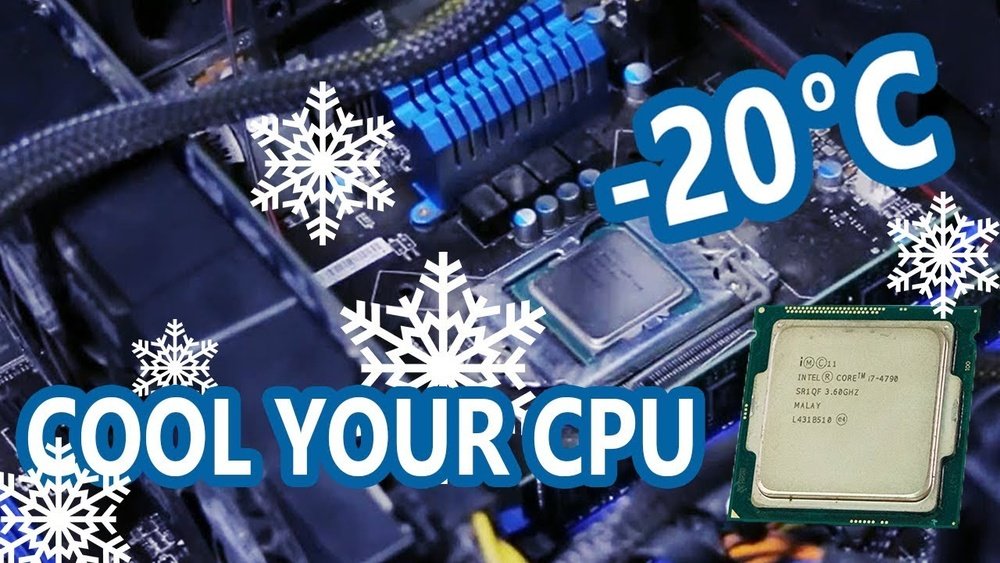
Is your computer getting hot and slowing down? Your CPU, the brain of your computer, can overheat if it’s not cooled properly.
When this happens, your system might freeze, crash, or even get damaged. But don’t worry—cooling your CPU doesn’t have to be complicated or expensive. You’ll discover simple and effective ways to keep your CPU cool, protect your computer, and boost its performance.
Ready to make your computer run smoother and last longer? Let’s dive in!
Causes Of Cpu Overheating
CPU overheating is a common issue that affects computer performance. Understanding the causes helps prevent damage and maintain smooth operation. Several factors contribute to higher CPU temperatures.
High Processing Loads
Running many programs or heavy software increases CPU work. This makes the processor generate more heat. Tasks like gaming, video editing, or running multiple apps at once add stress. The CPU struggles to cool down under constant high load.
Poor Airflow In Case
Poor airflow inside the computer case traps heat. Without enough fresh air, hot air stays around the CPU. This raises the temperature quickly. Cases with blocked vents or no fans reduce airflow. Good ventilation is key for cooling.
Dust And Dirt Buildup
Dust and dirt gather on fans and heatsinks over time. This blocks air movement and slows cooling parts. Dust acts like an insulator, holding heat near the CPU. Regular cleaning prevents buildup and keeps cooling efficient.
Old Or Inefficient Cooling Systems
Old cooling systems lose their ability to cool well. Thermal paste can dry out, reducing heat transfer. Fans wear out and spin slower, cutting airflow. Cheap or small coolers may not handle powerful CPUs. Upgrading cooling hardware improves temperature control.
Choosing The Right Cooling Solution
Choosing the right cooling solution is key to keeping your CPU safe and fast. A good cooler stops the CPU from getting too hot. This helps your computer run better and last longer. Picking the best option depends on your needs and budget.
Cooling solutions come in different types. Each has its own pros and cons. Understanding these options helps you decide what fits your setup best.
Air Coolers Vs Liquid Coolers
Air coolers use fans and metal fins to move heat away. They are simple and easy to install. Air coolers are quieter and cheaper. They work well for most everyday users.
Liquid coolers use water or coolant to carry heat away. These systems include tubes, a pump, and a radiator. Liquid coolers cool faster and handle high temperatures better. They suit powerful CPUs and gaming rigs.
Thermal Paste Importance
Thermal paste sits between the CPU and the cooler. It fills tiny gaps to help heat flow better. Without good thermal paste, the CPU can get too hot. Applying a thin, even layer improves cooling performance.
Use fresh thermal paste when installing or changing coolers. Old or dried paste reduces heat transfer. This small step boosts your CPU’s cooling a lot.
Fans And Radiators Selection
Fans move air to cool the CPU and other parts. Choose fans with good airflow and low noise. Bigger fans move more air and run quieter.
Radiators are part of liquid cooling. Size matters. Larger radiators cool better but need more space. Pick a radiator that fits your case and matches your CPU heat output.
Good fans and radiators keep the system stable. They stop your CPU from overheating during heavy use.
Improving Airflow Inside The Case
Improving airflow inside your computer case helps keep the CPU cool. Good airflow moves hot air out and brings cool air in. This balance lowers the temperature and stops the CPU from overheating. Small changes inside the case can make a big difference.
Fan Placement Strategies
Place intake fans at the front or bottom of the case. These fans bring fresh air inside. Exhaust fans belong at the top or back. They push hot air out. Align fans so air flows in one direction. This setup stops hot air from staying inside.
Cable Management Tips
Keep cables neat and out of airflow paths. Use zip ties to bundle cables together. Route cables behind the motherboard tray if possible. This clears space for air to move freely. Less clutter means better cooling for your CPU.
Using Dust Filters
Install dust filters on intake fans. Filters stop dust from entering the case. Dust buildup blocks airflow and traps heat. Clean filters regularly to keep air moving well. Clean air helps maintain lower CPU temperatures.
Regular Maintenance Practices
Keeping your CPU cool is not just about buying good hardware. Regular maintenance plays a big role in preventing overheating. Simple steps can improve your CPU’s performance and lifespan. Regular care helps avoid common problems caused by heat.
Cleaning Dust And Debris
Dust blocks airflow and traps heat around the CPU. Use a soft brush or compressed air to clean fans, vents, and heatsinks. Turn off your computer and unplug it before cleaning. Clean at least once every few months to keep the system fresh. This helps the CPU breathe and stay cool.
Reapplying Thermal Paste
Thermal paste moves heat from the CPU to the cooler. Over time, the paste dries out and loses effectiveness. Remove the old paste gently with isopropyl alcohol. Apply a small, even layer of new thermal paste on the CPU. This improves heat transfer and lowers temperature.
Checking Fan Functionality
Fans push hot air away from the CPU. Check that all fans spin freely and quietly. Replace any fan that makes noise or stops working. Make sure fans are properly connected to power. Good fan function keeps the CPU temperature in a safe range.
Optimizing System Settings
Optimizing system settings helps keep your CPU cool and efficient. Small changes can lower heat and improve performance. Adjust settings carefully to avoid problems.
This section covers key ways to optimize your system for better cooling.
Adjusting Cpu Voltage And Frequency
Lowering CPU voltage reduces power and heat output. It makes the processor run cooler. Reducing frequency also cuts heat but may slow performance. Use motherboard or BIOS settings to change these values. Test changes to find the best balance.
Using Fan Control Software
Fan control software lets you manage fan speeds easily. Faster fans cool better but create more noise. Slower fans reduce noise but may raise temperatures. Set custom fan curves to match your needs. Many programs work with different hardware brands.
Monitoring Temperatures
Regular temperature checks prevent overheating. Use tools like HWMonitor or Core Temp. Watch CPU, GPU, and motherboard temperatures. Set alerts to warn about high heat. Early detection helps avoid damage and keeps your PC safe.

Credit: www.alamy.com
Advanced Cooling Techniques
Advanced cooling techniques offer powerful ways to keep your CPU cool. These methods go beyond basic fans and heat sinks. They provide better heat management for high-performance computers. Some options require more effort but give excellent results. These techniques suit users who want very low temperatures or overclock their CPUs.
Custom Water Cooling Loops
Custom water cooling loops use liquid to cool the CPU. Water moves heat away faster than air. A pump pushes water through tubes and a radiator. The radiator releases heat outside the case. Users can add more parts like GPU blocks or reservoirs. These loops need careful planning and maintenance. They offer quiet operation and very low temperatures.
Phase-change Cooling
Phase-change cooling works like a small refrigerator. It uses a compressor to change a liquid into gas and back. This change absorbs heat from the CPU. The system keeps the CPU at very low temperatures. It is much colder than water cooling. This method is costly and complex. It suits extreme overclockers and specialists.
Thermoelectric Cooling Solutions
Thermoelectric cooling uses devices called Peltier modules. These modules create a temperature difference when powered. One side becomes cold and cools the CPU. The other side gets hot and needs a heat sink. Thermoelectric coolers can reach low temperatures quickly. They consume a lot of power and need good insulation. These coolers work well for short-term performance boosts.
Signs Of Cpu Overheating
Knowing the signs of CPU overheating helps protect your computer. Overheating can cause serious damage and slow down your system. Early detection lets you fix problems before they get worse. Watch for common symptoms to keep your CPU cool and healthy.
System Crashes And Freezes
Your computer may crash or freeze often if the CPU is too hot. Sudden shutdowns happen to prevent damage. Programs might stop responding without warning. These crashes show your CPU is struggling to work under high heat.
Thermal Throttling Effects
The CPU lowers its speed to cool down when it overheats. This causes slower performance and lag. Your computer feels less responsive. Thermal throttling protects the CPU but reduces efficiency and speed.
Unusual Fan Noise
Loud or fast-spinning fans often mean the CPU is hot. Fans work harder to cool down the system. Strange noises or constant high-speed fan activity signals overheating. Keep an ear out for fan sounds to catch heat problems early.

Credit: softwareg.com.au

Credit: www.reddit.com
Frequently Asked Questions
How Can I Cool My Cpu Effectively?
Use a high-quality CPU cooler, improve case airflow, and apply thermal paste correctly. Regularly clean dust from fans and vents to maintain efficient cooling.
What Are The Best Cpu Cooling Methods?
Air cooling with fans and heatsinks is common. Liquid cooling offers better heat dissipation. Choose based on budget, noise preference, and performance needs.
Does Thermal Paste Improve Cpu Cooling?
Yes, thermal paste fills microscopic gaps between the CPU and cooler. It enhances heat transfer and prevents overheating when applied properly.
Can I Use Software To Reduce Cpu Temperature?
Yes, software can control fan speeds and adjust CPU performance. Using monitoring tools helps maintain safe temperatures but doesn’t replace physical cooling solutions.
Conclusion
Keeping your CPU cool helps your computer run smoothly and last longer. Use good fans and clean dust often. Place your PC in a cool, open space. Avoid blocking air vents to let heat escape. Check your thermal paste and replace if needed.
Simple steps can prevent overheating and crashes. Stay aware of your CPU’s temperature. A cool CPU means better performance and fewer problems. Taking care of cooling saves time and money in the long run. Small efforts go a long way for a healthy computer.
