
Is your CPU running hotter than it should? When your computer slows down or crashes, overheating might be the culprit.
You don’t have to be a tech expert to fix this. Cooling your CPU properly can boost your computer’s speed and extend its life. You’ll discover simple and effective ways to keep your CPU cool, so your system runs smoothly and stays reliable.
Keep reading—you’ll learn practical tips that make a real difference.

Credit: www.reddit.com
Causes Of Cpu Overheating
CPU overheating happens when the processor gets too hot. This can make your computer slow or even shut down. Knowing what causes overheating helps you fix it fast. Several common reasons can raise the CPU temperature beyond safe levels.
High Workload And Overclocking
Running many programs or heavy tasks makes the CPU work hard. More work means more heat. Overclocking pushes the CPU beyond its normal speed. This increases power use and heat output. Both high workload and overclocking can cause serious overheating.
Poor Airflow In The Case
Good airflow moves hot air away from the CPU. If the case blocks airflow, heat builds up inside. This traps hot air around the CPU and other parts. Poor airflow raises temperatures and lowers performance. Proper case fans and vents help keep air moving.
Dust And Dirt Accumulation
Dust blocks air vents and clogs fans. Dirt on the CPU cooler stops heat from leaving the processor. Dust buildup lowers cooling efficiency. Fans have to work harder but still fail to cool well. Cleaning dust regularly helps prevent overheating.
Aging Thermal Paste
Thermal paste sits between the CPU and its cooler. It helps transfer heat away from the CPU. Over time, thermal paste dries out or cracks. Old paste loses its ability to conduct heat. Replacing aging thermal paste improves cooling and lowers CPU temperature.
Credit: www.myfixguide.com
Choosing The Right Cooling Solution
Choosing the right cooling solution for your CPU is very important. It helps keep your computer running well and prevents overheating. Different types of cooling work best for different needs and budgets. Understanding these options can help you pick the best one for your setup.
Air Cooling Options
Air cooling is the most common and affordable way to cool a CPU. It uses fans and heat sinks to move heat away from the processor. Many air coolers are easy to install and require little maintenance. They work well for most everyday computers and gaming setups.
High-quality air coolers have larger heat sinks and faster fans. These features help lower temperatures more effectively. Air cooling is quieter than you might think if you choose a good model.
Liquid Cooling Systems
Liquid cooling uses water or coolant to carry heat away from the CPU. It often cools better than air and can handle higher performance processors. These systems have a pump, radiator, and tubes to move the liquid.
Liquid cooling is popular with gamers and people who overclock their CPUs. It tends to be quieter than many air coolers under heavy use. Installation is more complex and costs more, but the cooling power is strong.
Passive Cooling Methods
Passive cooling does not use fans or pumps. It relies on large heat sinks to absorb and spread heat. This method is silent and has no moving parts, so it never makes noise.
Passive cooling works well for low-power CPUs or small computers. It is simple and needs no electricity for fans. The downside is it may not cool enough for powerful processors.
Improving Case Airflow
Improving case airflow plays a key role in cooling your CPU effectively. Good airflow moves hot air out and brings cool air in. This simple step helps keep your computer running smoothly and prevents overheating. Small changes inside your case can make a big difference.
Optimizing Fan Placement
Place intake fans at the front of your case. These fans pull cool air inside. Exhaust fans belong at the back or top to push hot air out. This setup creates a steady airflow path. Avoid blocking fans with cables or hardware. Balanced intake and exhaust fans improve cooling performance.
Using Quality Case Fans
Choose fans that offer good airflow and low noise. Larger fans move more air at lower speeds. Look for fans with good bearings for durability. Cheap fans may fail quickly or be noisy. Investing in quality fans helps keep your CPU cooler for longer.
Cable Management Tips
Keep cables tidy and away from airflow paths. Use zip ties or Velcro straps to bundle cables. Tidy cables reduce air blockage inside the case. This allows fans to work more efficiently. Good cable management also makes your PC look cleaner and easier to maintain.
Maintaining Thermal Paste
Thermal paste helps move heat from the CPU to the cooler. It fills small gaps between the CPU and heatsink. Over time, thermal paste can dry out or lose effectiveness. Maintaining it ensures your CPU stays cool and runs well.
Checking and replacing thermal paste is a simple task. Doing it right can lower CPU temperature by several degrees. This helps avoid overheating and extends your CPU’s life.
When To Replace Thermal Paste
Replace thermal paste every 1 to 3 years. If your CPU runs hotter than usual, check the paste. Removing the cooler will show if the paste looks dry or cracked. Also replace if you remove the cooler for cleaning or upgrades.
How To Apply Thermal Paste Correctly
Start by cleaning the old paste with isopropyl alcohol. Use a lint-free cloth or coffee filter. Apply a small pea-sized drop of paste in the center of the CPU. When you attach the cooler, it spreads the paste evenly. Avoid using too much paste, as it can cause poor heat transfer.
Monitoring And Controlling Cpu Temperature
Keeping your CPU cool is key for your computer’s health and speed. Monitoring and controlling its temperature helps avoid damage and slows down. It also keeps your system running smoothly without sudden shutdowns.
Many methods exist to watch and manage CPU heat. Simple tools and settings let you check temperatures anytime. You can also control fan speeds and get alerts if things get too hot.
Using Software Tools
Software tools show real-time CPU temperatures. Programs like HWMonitor or Core Temp display accurate data. They are easy to install and use on most computers. These tools help track temperature changes during different tasks. You can see if the CPU gets too hot under heavy use. This info guides you to take action quickly.
Adjusting Fan Curves
Fan curves control how fast fans spin based on temperature. You can set fans to run faster as the CPU heats up. This cooling response prevents overheating without making noise all the time. Many BIOS setups and software allow you to customize fan speeds. Adjusting curves keeps your CPU cool and quiet.
Setting Temperature Alerts
Temperature alerts warn you if the CPU gets dangerously hot. You can set limits in monitoring software to receive notifications. These alerts help avoid damage by prompting quick cooling steps. Some programs even shut down the system automatically at critical heat levels. Alerts give peace of mind and protect your hardware.

Credit: www.youtube.com
Additional Cooling Tips
Cooling your CPU is key to keeping your computer fast and safe. Besides using good fans or liquid coolers, some extra steps can help cool your CPU better. These tips help reduce heat and keep your system stable. Let’s explore some simple ways to improve CPU cooling.
Keeping The Room Cool
Room temperature affects your CPU temperature a lot. A cooler room means your PC parts get less hot. Use air conditioning or a fan to lower the room heat. Avoid placing your computer near heat sources like sunlight or heaters. Good air flow around your desk also helps. Cooler air means your CPU runs cooler.
Regular Cleaning And Maintenance
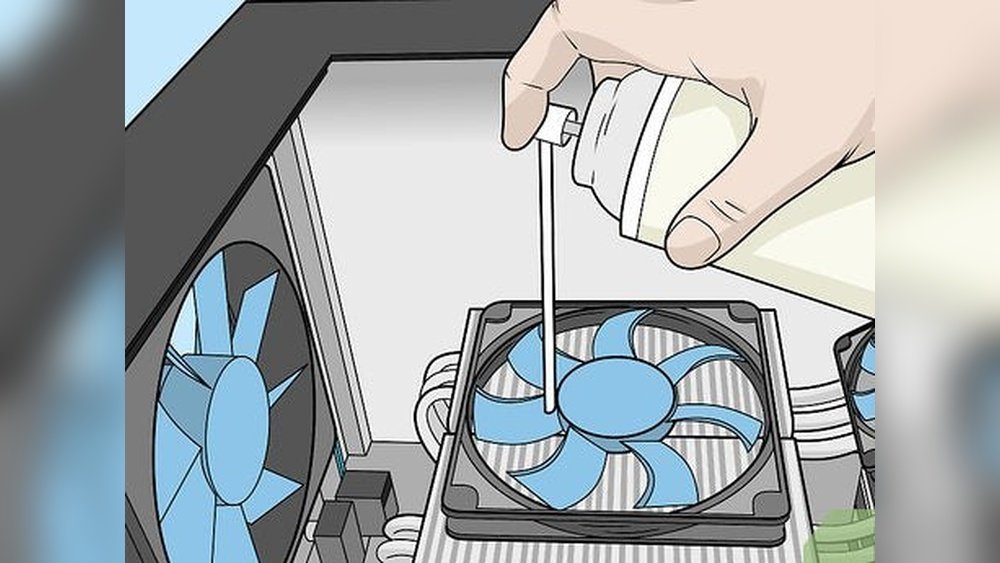
Dust blocks air flow and traps heat inside your PC. Clean your computer case and fans often using compressed air. Remove dust from heat sinks, fans, and vents. Check fan blades for dirt and clean gently. Regular cleaning keeps air moving freely. This stops your CPU from overheating and slows down.
Upgrading Hardware For Better Cooling
Old or weak cooling parts may not cool well. Upgrading your CPU cooler to a better fan or liquid cooler improves heat removal. Choose coolers that fit your CPU socket and case size. Better thermal paste also helps heat transfer from CPU to cooler. Adding more case fans improves air flow inside the computer. Good hardware keeps your CPU temperature low.
Frequently Asked Questions
How Can I Cool My Cpu Quickly?
Use a high-quality CPU cooler or liquid cooling system. Ensure good airflow inside the case. Clean dust regularly to maintain efficiency.
What Is The Best Thermal Paste For Cpu Cooling?
Choose a thermal paste with high thermal conductivity, like Arctic Silver 5 or Noctua NT-H1. Apply a thin, even layer for best results.
Does Overclocking Affect Cpu Temperature?
Yes, overclocking increases CPU voltage and frequency, which raises temperature. Proper cooling solutions are essential to prevent overheating.
How Often Should I Clean My Cpu Cooler?
Clean your CPU cooler every 3 to 6 months. Dust buildup reduces cooling efficiency and can cause overheating issues.
Conclusion
Cooling your CPU helps keep your computer fast and safe. Good airflow and clean fans make a big difference. Using quality thermal paste improves heat transfer. Choosing the right cooler suits your needs and budget. Regular checks prevent overheating problems later.
Simple steps can stop your CPU from getting too hot. Stay patient and follow these tips for best results. Your computer will run smoother and last longer. Keep your CPU cool, and enjoy better performance every day.
