
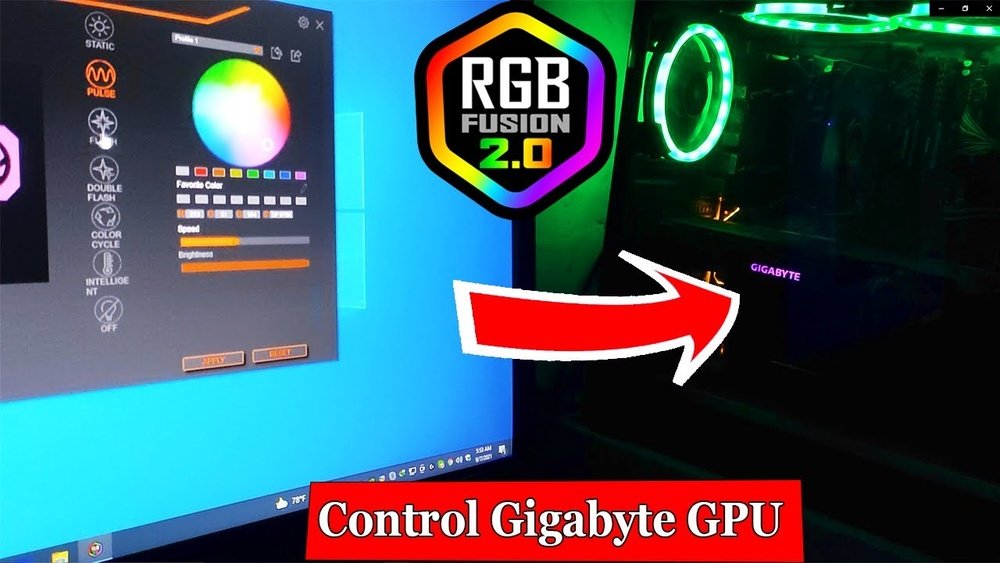
If you have a Gigabyte GPU, you’ve probably noticed its colorful RGB lights. These lights can make your setup look amazing, but sometimes you want to control them just the way you like.
Maybe you want to match your PC’s theme or turn them off when you don’t need them. This guide will show you exactly how to control your Gigabyte GPU RGB with simple steps. By the end, you’ll have full control over your GPU’s lighting, making your setup truly yours.
Keep reading to unlock the secret to perfect RGB customization!

Credit: www.reddit.com
Gigabyte Gpu Rgb Basics
Gigabyte GPUs come with built-in RGB lighting that adds style to your setup. These lights are not just for show. They help create a unique look for your computer.
You can easily control these lights using software made by Gigabyte. This control lets you choose colors and effects that fit your mood or game theme.
Understanding the basics of Gigabyte GPU RGB helps you customize your PC. It also improves the overall experience of using your graphics card.
Rgb Features On Gigabyte Gpus
Gigabyte GPUs include several RGB lighting zones. These zones can light up in different colors and patterns. The lighting is bright and clear, making your PC stand out.
The RGB system supports many colors and effects. You can set static colors or dynamic effects like breathing or flashing. The software allows syncing with other Gigabyte RGB devices.
Benefits Of Rgb Customization
Customizing RGB on your Gigabyte GPU adds personality to your setup. It makes your PC look more attractive and modern. You can match the lighting with your room or desk theme.
RGB lighting also helps in identifying your PC status. Certain colors can show temperature or performance levels. This visual feedback is useful during heavy gaming or work sessions.
Credit: www.gigabyte.com
Software For Rgb Control
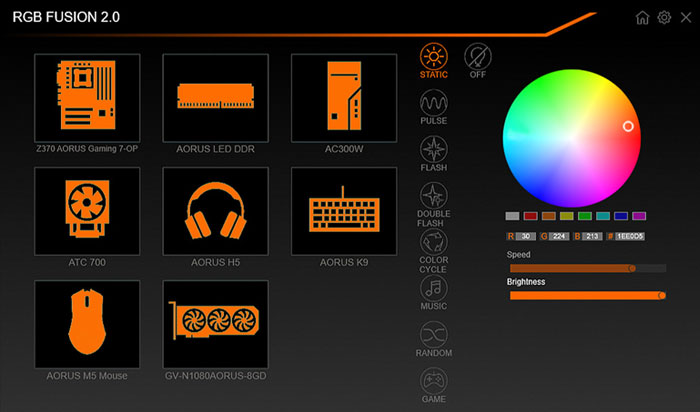
Controlling the RGB lights on your Gigabyte GPU is simple with the right software. Gigabyte offers a dedicated program called RGB Fusion. This software allows you to customize colors and lighting effects with ease. It works well with most Gigabyte graphics cards, giving you full control over the RGB lighting.
Using software is the best way to change and sync your GPU lights. It ensures smooth color transitions and various lighting modes. You can set static colors or dynamic effects that move and pulse. The software also helps you save your favorite settings.
Installing Rgb Fusion
Start by downloading RGB Fusion from the Gigabyte website. Choose the version that fits your GPU model. The download is free and quick.
Run the installer and follow the on-screen steps. The process takes just a few minutes. After installation, restart your computer. This ensures the software works properly.
Check that your GPU is connected and powered on. RGB Fusion may not detect the GPU otherwise. Once the software opens, it will scan for compatible devices automatically.
Navigating The Interface
RGB Fusion has a clean, simple design. The main screen shows all detected Gigabyte devices. Click on your GPU to access lighting controls.
Choose from preset lighting modes like static, breathing, or flashing. You can also select custom colors using the color wheel. Adjust brightness and speed with sliders below.
There is an option to sync lighting across multiple devices. This keeps all your RGB components in harmony. Save your settings with the save button to use them later.
Explore the advanced tab for more detailed effects. Here, you can create your own lighting profiles. Profiles help switch looks quickly for different moods or setups.
Customizing Lighting Effects
Customizing lighting effects on your Gigabyte GPU lets you create a unique look for your PC. It gives your setup a personal touch. You can pick colors, change brightness, and set how fast the lights move. These options help your GPU stand out or match other parts of your system.
Using Gigabyte’s software, you can easily control these settings. The process is simple and quick. Adjusting lighting effects makes your PC feel more alive and fun to use.
Choosing Color Schemes
Start by selecting color schemes that fit your style. Gigabyte software offers many preset colors. You can also pick custom colors using a color wheel or RGB sliders. Choose from solid colors or gradients. Matching colors with your room or PC theme looks great. Changing colors often keeps your setup fresh.
Adjusting Brightness And Speed
Control the brightness to suit your environment. Lower brightness for dark rooms to avoid glare. Increase brightness for bright spaces or show off your lights. Speed controls how fast the lighting changes. Slow speeds create calm effects. Fast speeds add energy and excitement. Adjust these to find the right balance.
Setting Dynamic Effects
Dynamic effects bring your GPU lighting to life. Options include breathing, flashing, and cycling colors. These effects add movement and style. You can set effects to react to music or system temperature. This makes your PC more interactive and fun. Experiment with different effects to find what you like best.
Syncing Rgb With Other Components
Syncing the RGB lighting of your Gigabyte GPU with other PC parts creates a unified look. It helps your setup look clean and stylish. Matching colors and effects across devices makes the whole system feel connected.
Many users want their lights to pulse, change colors, or blink together. This synchronization is easy with the right tools. It saves time and keeps everything in harmony without extra effort.
Using Rgb Fusion Link
RGB Fusion Link is Gigabyte’s software for controlling RGB lights. It lets you sync your GPU’s lighting with other Gigabyte parts. This includes motherboards, RAM, and peripherals.
Open RGB Fusion Link and select your devices. Choose a lighting mode that fits all components. You can pick static colors, breathing effects, or color cycles. The software sends commands to all parts at once.
The interface is simple to use. Changes show up immediately on your hardware. This makes it easy to customize and experiment with different looks. It keeps the RGB lights working together without any hassle.
Combining Effects Across Devices
Combining effects means making all your RGB lights do the same thing. For example, all lights can pulse in sync or change colors together.
Start by setting a base effect in RGB Fusion Link. Then apply it to each device you want to sync. The software ensures the timing and colors match perfectly.
Some effects respond to music or CPU temperature. You can link these sensors to your RGB setup. This adds dynamic lighting that reacts to your PC’s status.
Syncing effects helps create a smooth and attractive light show. It enhances your gaming or work environment with consistent lighting.
Troubleshooting Rgb Issues
RGB lighting on your Gigabyte GPU adds style to your PC. Sometimes, the lights may not work as expected. Troubleshooting these issues helps restore the glow. This guide covers common problems and how to fix them. It also explains updating firmware and software to keep the RGB running smoothly.
Common Problems And Fixes
One common issue is the RGB lights not turning on. Check if the RGB software is installed and running. Restart your computer to refresh the system. Another problem is the colors not changing properly. Try resetting the RGB settings to default. Loose cables can also cause lighting problems. Make sure all RGB connectors are secure and plugged in correctly.
Updating Firmware And Software
Outdated firmware or software can cause RGB glitches. Visit the official Gigabyte website to download updates. Install the latest version of the RGB Fusion software. Firmware updates improve compatibility and fix bugs. Always follow the update instructions carefully. Keep your drivers up to date for the best performance.
Advanced Tips For Stunning Effects
Advanced tips help you create stunning RGB effects with your Gigabyte GPU. These tips go beyond basic settings. They allow you to customize colors and patterns deeply. Your PC can look unique and eye-catching. Explore these techniques to enhance your setup’s lighting.
Creating Custom Profiles
Custom profiles let you save different lighting setups. Change colors and effects for games or moods. Use the Gigabyte RGB Fusion software to design profiles. Pick your favorite colors and lighting patterns. Save them to switch quickly anytime. This keeps your lighting fresh and exciting.
Using Third-party Software
Third-party apps add more control over your GPU lighting. Programs like OpenRGB offer extra options. They support syncing lights across many devices. Use these tools if RGB Fusion feels limited. Make sure the software supports your Gigabyte GPU model. This way, you get smooth and stable lighting effects.
Maximizing Visual Impact
Position your PC for the best light display. Clear the area around your GPU to avoid shadows. Combine your GPU lighting with case fans and strips. Choose bright colors that match your room’s theme. Use slow transitions or flashing to catch attention. Small changes can create a powerful visual effect.
Credit: www.reddit.com
Frequently Asked Questions
How Do I Control Gigabyte Gpu Rgb Lights?
You can control Gigabyte GPU RGB lights using the RGB Fusion software. It allows you to customize colors, effects, and brightness easily.
Can I Sync Gigabyte Gpu Rgb With Other Components?
Yes, RGB Fusion lets you sync your GPU RGB lights with compatible motherboards, RAM, and peripherals for a unified look.
What If Rgb Fusion Software Doesn’t Detect My Gpu?
Try updating your GPU drivers and RGB Fusion software. Restart your PC and ensure your GPU supports RGB Fusion.
Is There A Way To Control Gigabyte Gpu Rgb Without Software?
No, controlling Gigabyte GPU RGB lights requires the RGB Fusion software for proper customization and synchronization.
Conclusion
Controlling Gigabyte GPU RGB lights is simple with the right steps. Use the official software for easy color and effect changes. Customize your lighting to match your style or mood. Keep your drivers updated to avoid issues. Experiment with different settings to find what looks best.
Enjoy a personalized PC setup that stands out. Now, your Gigabyte GPU can shine just the way you want. Bright colors, smooth effects, total control—easy and fun.
