
Is your computer making more noise than usual? Or maybe you’ve noticed it getting hotter faster than before.
Your CPU fan plays a big role in keeping your system cool and running smoothly. But what if you could take control of your CPU fan’s speed and behavior? Imagine reducing unnecessary noise, improving performance, and protecting your hardware—all by managing your fan settings.
You’ll discover simple, effective ways to control your CPU fan and keep your computer in top shape. Let’s dive in and make your PC work smarter, not harder.
:max_bytes(150000):strip_icc()/gdstime-3-pin-cpu-fan-5f72f195b8dd42cca80f2eb5d21c7879.jpg)
Credit: www.lifewire.com
Cpu Fan Basics
The CPU fan plays a key role in keeping your computer cool. It stops your processor from getting too hot. Without proper cooling, your system can slow down or shut off. Understanding the basics of the CPU fan helps you control it better. You can keep your PC running smoothly and quietly.
Let’s explore the types of CPU fans, how they affect performance, and common noise causes.
Fan Types And Functions
CPU fans come in different styles. The most common are axial fans, which blow air directly over the processor. Another type is blower fans, which push air through a narrow path. Some systems use liquid cooling with fans on radiators. Each fan type moves heat away from the CPU in its own way. Their main job is to keep the processor temperature safe. Faster fans cool better but may be louder.
Impact On System Performance
A well-functioning CPU fan keeps your system stable. Cool temperatures allow the CPU to run at full speed. When the fan slows down or stops, the CPU may overheat. Overheating causes the system to throttle, or reduce speed, to protect itself. This lowers performance and can cause crashes. Proper fan control ensures your computer runs fast and lasts longer.
Common Noise Sources
Noise from a CPU fan often signals a problem. Dust buildup makes fans work harder and louder. Loose or worn bearings can cause grinding or rattling sounds. Sometimes, a fan blade hits cables or other parts inside the case. Vibrations from a poorly mounted fan also add noise. Regular cleaning and careful installation help keep fan noise low.
Monitoring Cpu Fan Speed
Monitoring CPU fan speed is important to keep your computer cool and running well. It helps prevent overheating and damage to your hardware. You can check the fan speed using different methods, each giving useful information.
Using Bios Settings
Access your BIOS during computer startup by pressing a key like F2 or Delete. Inside BIOS, find the hardware or fan control section. Here, you can see the current speed of your CPU fan in RPM (revolutions per minute). Some BIOS versions allow you to change fan speed settings manually. This helps balance cooling and noise. Remember to save changes before exiting BIOS.
Software Tools For Monitoring
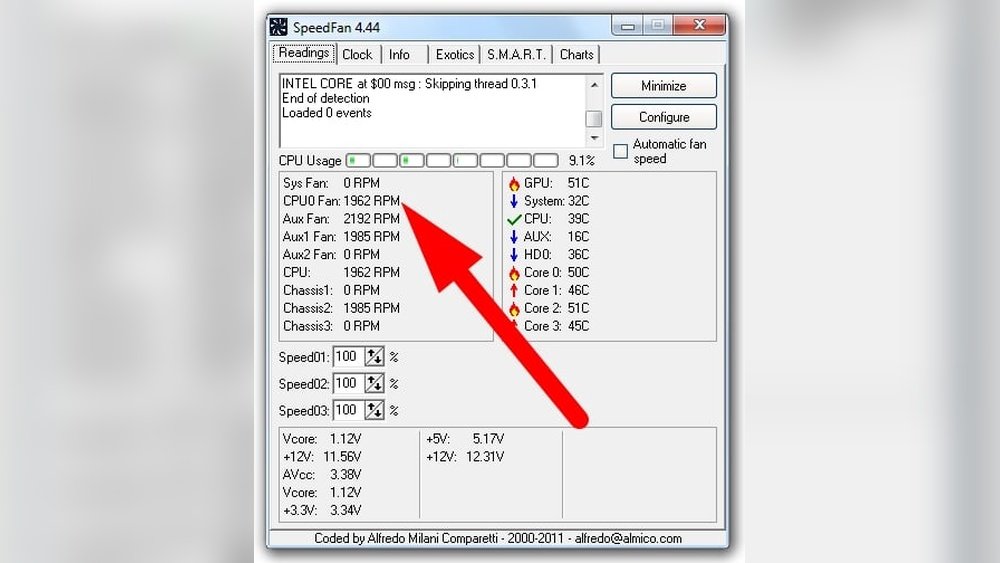
Many free programs show CPU fan speed while Windows runs. Examples include HWMonitor, SpeedFan, and Core Temp. These tools display fan speed, CPU temperature, and other system details. They update data in real time. You can spot if the fan speed drops or rises unexpectedly. This helps you react fast to cooling problems.
Interpreting Fan Speed Data
Fan speed values usually range from 1000 to 4000 RPM, depending on your hardware. Low speeds may mean the fan is idle or faulty. High speeds suggest the CPU is hot and needs more cooling. Sudden changes can indicate dust buildup or hardware failure. Use this data to decide if your fan needs cleaning or replacement. Proper fan speed keeps your CPU safe and efficient.
Adjusting Fan Settings
Adjusting fan settings helps keep your CPU cool and quiet. It controls how fast the fan spins based on the temperature. Proper fan control can extend your computer’s life and reduce noise. There are different ways to adjust these settings, depending on your needs and hardware.
Manual Fan Control Options
Manual fan control lets you set the fan speed yourself. You can increase or decrease the speed anytime. This method works well if you want full control over cooling and noise levels. Use your motherboard’s BIOS or dedicated software to change fan speeds. Watch the temperature to avoid overheating while lowering noise.
Using Fan Curves
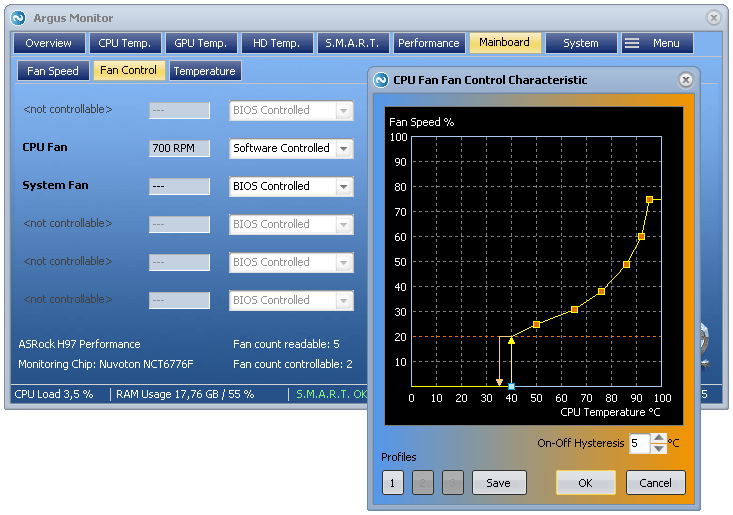
Fan curves adjust fan speed based on temperature changes. The fan spins faster as the CPU gets hotter and slows down when cool. You can customize the curve points to fit your system needs. This creates a balance between cooling and noise. Many motherboards and software tools support fan curve settings.
Automatic Fan Profiles
Automatic fan profiles set fan speeds based on preset rules. These profiles adjust speeds without your input. They use temperature sensors to decide the right fan speed. Profiles like “Silent,” “Performance,” or “Balanced” are common. This option is easy and safe for most users.
Credit: www.argusmonitor.com
Improving Cooling Efficiency
Improving cooling efficiency helps your CPU run cooler and last longer. A cooler CPU works better and avoids sudden shutdowns. Small steps can make a big difference in fan control and overall cooling.
Cleaning And Maintenance
Dust blocks airflow and makes the fan work harder. Clean your CPU fan and vents often. Use a soft brush or compressed air to remove dust. Keep your computer in a clean, dust-free place. Regular cleaning stops overheating and keeps the fan quiet.
Upgrading Thermal Paste
Thermal paste moves heat from CPU to the cooler. Old paste dries out and loses its power. Replace it every year or two for better heat transfer. Use a small amount of good quality thermal paste. This helps the fan cool the CPU more easily.
Choosing Better Fans
Not all fans are equal in quality or noise level. Choose fans with good airflow and low noise ratings. Larger fans move more air at slower speeds. This reduces noise and improves cooling. Check fan size and speed before buying for better results.
Reducing Fan Noise
Reducing fan noise improves your computer’s comfort and focus. Loud fans can distract and disturb your work or play. Small changes can make your PC quieter without affecting cooling.
Installing Noise Dampeners
Noise dampeners are soft pads placed under your fan. They absorb vibrations that cause noise. Installing these pads reduces shaking and buzzing sounds. Use rubber or silicone dampeners for best results. Place them between the fan and the case screws.
Fan Placement Tips
Correct fan placement lowers noise and improves airflow. Avoid placing fans too close to hard surfaces. Leave space around fans to reduce sound reflection. Position intake and exhaust fans opposite each other. Balanced airflow helps fans run slower and quieter.
Using Fan Speed Controllers
Fan speed controllers let you adjust how fast fans spin. Slower fans produce less noise but still cool your CPU. Use software or hardware controllers to set fan speed. Keep temperatures safe by monitoring CPU heat. Lower fan speeds during light tasks to cut noise.

Credit: superuser.com
Advanced Cooling Solutions
Advanced cooling solutions offer better ways to control your CPU fan speed and temperature. These options go beyond basic air cooling. They help keep your computer cooler and quieter. This section explains three popular advanced cooling methods.
Liquid Cooling Systems
Liquid cooling systems use water or special liquid to move heat away. They cool CPUs more efficiently than air fans. These systems have tubes, a pump, and a radiator. The liquid absorbs heat from the CPU and carries it to the radiator. The radiator then releases the heat into the air. Liquid cooling reduces fan noise and keeps temperatures low.
Hybrid Cooling Approaches
Hybrid cooling combines air and liquid cooling methods. It uses liquid cooling for the CPU and air cooling for other parts. This mix improves cooling performance. The CPU stays cool with liquid, while fans cool the rest of the system. Hybrid cooling is good for high-performance computers. It balances noise and cooling power effectively.
Custom Fan Setups
Custom fan setups allow precise control over cooling. You can add extra fans or replace old ones with better models. Fans can be placed in different locations for better airflow. Software tools help adjust fan speed based on temperature. Custom setups improve cooling without large upgrades. They keep your CPU safe and your computer quiet.
Troubleshooting Fan Issues
Troubleshooting CPU fan issues is important to keep your computer cool. A faulty fan can cause overheating and damage. This section helps you find and fix fan problems quickly. Follow these steps to ensure your fan works well.
Diagnosing Fan Failures
Check if the fan spins when the computer is on. Listen for unusual noises like grinding or rattling. Use software to monitor fan speed and temperature. A fan that does not spin or spins slowly may fail soon. Dust buildup can also stop the fan from working properly. Clean the fan carefully and test again.
Fixing Fan Connection Problems
Turn off the computer and open the case. Find the fan cable connected to the motherboard. Make sure the cable is plugged in firmly. Loose or disconnected cables stop the fan from working. If the cable looks damaged, replace it with a new one. Secure the cable to avoid pulling or bending.
When To Replace Fans
Replace the fan if it does not spin after cleaning and reconnecting. Fans that make loud noise or wobble need replacement. Old fans may fail more often and cause overheating. Choose a fan that fits your CPU and case size. Installing a new fan can improve cooling and computer life.
Frequently Asked Questions
How Can I Manually Control My Cpu Fan Speed?
You can control CPU fan speed via BIOS settings or using dedicated software. Adjust fan curves for optimal cooling and noise levels. Ensure your motherboard supports fan control features before making changes.
Why Is My Cpu Fan Running Constantly At High Speed?
A constantly high CPU fan speed may indicate overheating or dust buildup. Check your CPU temperature and clean the fan and heat sink regularly. Also, review your fan control settings in BIOS or software.
What Software Helps Control Cpu Fan Speed Effectively?
Popular software like SpeedFan, MSI Afterburner, or Argus Monitor help control fan speeds. These tools allow custom fan curves and real-time monitoring, providing better temperature management for your CPU.
Can Adjusting Cpu Fan Speed Improve System Performance?
Yes, controlling fan speed can lower CPU temperature and prevent thermal throttling. Optimal cooling improves system stability and performance. However, avoid setting fan speed too low, which risks overheating.
Conclusion
Controlling your CPU fan helps keep your computer cool and quiet. Adjusting fan speed prevents overheating and saves energy. Simple tools and settings make the process easy to follow. Regular checks ensure your system runs smoothly and lasts longer. Keep your computer healthy by managing fan speed well.
Small steps can improve performance and comfort. Take control today for a better computing experience.
