
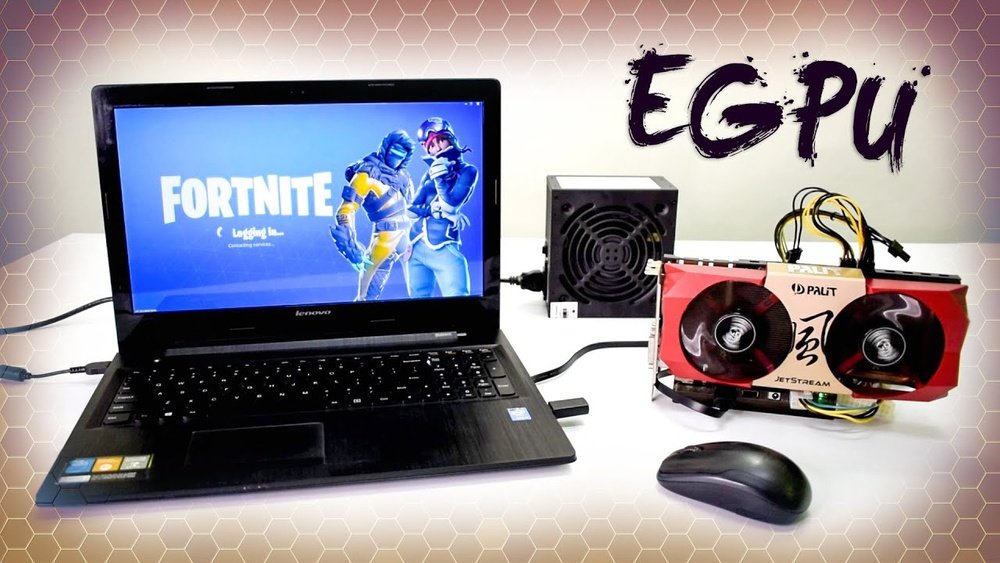
Are you looking to boost your laptop’s performance without buying a new one? Connecting a GPU to your laptop can be the game-changer you need.
Imagine running your favorite games smoother, editing videos faster, or handling heavy software with ease. It might sound complicated, but you can do it step-by-step, even if you’re not a tech expert. Keep reading, and you’ll discover simple ways to give your laptop the power it deserves.
Let’s get started!

Credit: www.youtube.com
Choosing The Right External Gpu
Choosing the right external GPU is key to boosting your laptop’s graphics power. Not all external GPUs work with every laptop. Picking the best one depends on your laptop’s specs and your needs. Let’s explore the types of external GPUs, their compatibility, and performance factors.
Types Of External Gpus
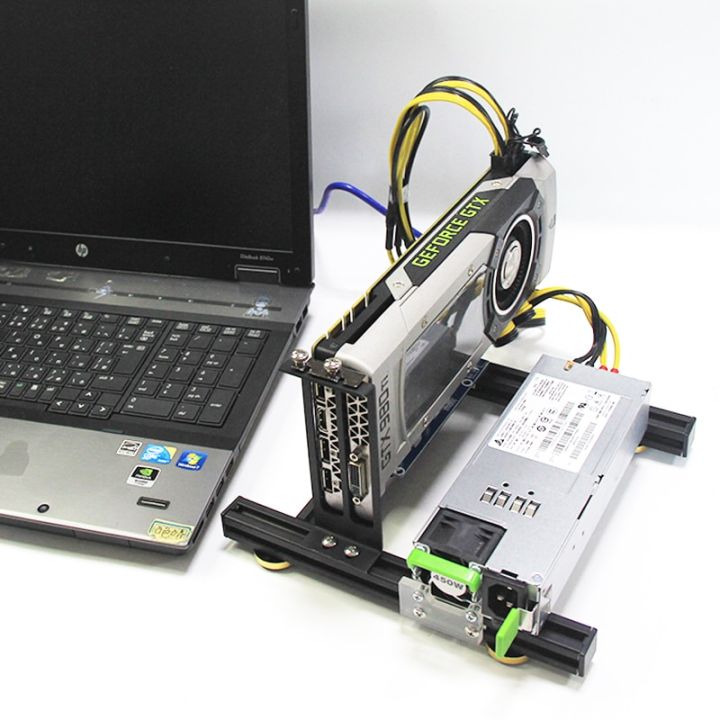
External GPUs come in different forms. Some are compact and portable, while others are larger and more powerful. Basic models offer good performance for casual use. High-end models target serious gamers and professionals. Some units include their own power supply and cooling systems. Choose one that fits your space and usage.
Compatibility With Laptops
Check your laptop’s ports before buying an external GPU. Most use Thunderbolt 3 or 4 for fast data transfer. Some older laptops may not support external GPUs. Also, verify the laptop’s BIOS and drivers support external GPU use. Compatibility ensures the external GPU works smoothly and avoids issues.
Performance Considerations
External GPUs improve graphics speed but have limits. Data transfer speed affects overall performance. Thunderbolt 3 offers good speed, but not the same as internal GPUs. Some laptops may throttle performance to save power. Choose an external GPU that balances power and your laptop’s capabilities for best results.
Necessary Hardware And Ports
Connecting a GPU to a laptop needs specific hardware and ports. Not all laptops support external GPUs. Knowing the right components helps make the setup smooth. This section covers the key hardware and ports required.
Thunderbolt 3 And Usb-c Ports
Thunderbolt 3 ports are essential for many external GPU setups. These ports use the USB-C shape but offer faster data transfer speeds. They allow the GPU to communicate quickly with your laptop. Not all USB-C ports support Thunderbolt 3, so check your laptop’s specs. A Thunderbolt 3 port ensures the best performance for an external GPU.
Power Supply Requirements
External GPUs need extra power to run properly. The power supply usually comes with the GPU enclosure. It must provide enough wattage for both the GPU and the enclosure. A weak power supply can cause performance issues or shutdowns. Always verify the power needs before connecting your GPU to avoid problems.
Cables And Adapters
Cables and adapters connect the GPU to your laptop. A Thunderbolt 3 cable is common for this link. Some setups may require special adapters if ports differ. Use high-quality cables to prevent signal loss. Proper cables ensure stable and fast communication between devices.
Step-by-step Setup Process
Connecting a GPU to your laptop can boost its graphics power. This step-by-step guide helps you set up the external GPU easily. Follow each step carefully for best results.
Preparing Your Laptop
First, check your laptop’s ports. Most external GPUs use Thunderbolt 3 or 4 ports. Make sure your laptop supports these connections.
Close all running programs. Save your work to avoid data loss. Update your laptop’s operating system to the latest version. This ensures compatibility with the GPU.
Connecting The External Gpu
Unpack your external GPU and power it on. Connect the GPU to your laptop using the Thunderbolt cable. Plug the GPU’s power supply into an outlet.
Turn on your laptop. Wait for it to recognize the new hardware. You may hear sounds or see notifications on your screen.
Installing Drivers And Software
Download the latest drivers from the GPU manufacturer’s website. Choose drivers that match your laptop’s operating system. Run the installer and follow on-screen instructions.
Restart your laptop after installation. Open your GPU control panel to adjust settings. Test the GPU with a game or benchmark to confirm it works.
Optimizing Gpu Performance
Optimizing your GPU performance helps your laptop run faster and smoother. It improves graphics quality and reduces lag. Small changes in settings can make a big difference. This section explains easy steps to get the best from your GPU.
Configuring Graphics Settings
Open your graphics control panel. Adjust settings for performance over quality. Lower resolution or turn off extra effects. Use the application’s settings for specific needs. This reduces strain on the GPU.
Managing Power Options
Set your laptop to high-performance mode. Avoid power-saving modes during heavy GPU use. Plug in your laptop to get full power. Check battery settings to keep the GPU active. Proper power management prevents slowdowns.
Monitoring Gpu Usage
Use tools like Task Manager or third-party apps. Watch your GPU load in real time. Identify heavy programs using the GPU. Close unused apps to free resources. Monitoring helps keep your system balanced and fast.
Troubleshooting Common Issues
Troubleshooting common issues is vital when connecting a GPU to a laptop. Problems can stop the GPU from working properly. Fixing these quickly helps keep your system running smoothly. This section covers three common problems and easy ways to solve them.
Connection Problems
Loose cables or wrong ports cause connection problems. Check all cables carefully. Use the correct port on your laptop and GPU. Make sure the GPU is securely attached. Restart the laptop after connecting the GPU. This helps the system recognize the device.
Driver Conflicts
Old or wrong drivers cause conflicts. Download the latest drivers from the GPU maker’s website. Remove any old drivers before installing new ones. Use device manager to check for driver issues. Restart the laptop after updating drivers. Proper drivers ensure the GPU works well.
Performance Bottlenecks
Slow performance may come from hardware limits. The laptop’s CPU or RAM might slow the GPU. Close unnecessary programs to free up memory. Check laptop cooling to avoid overheating. Update your system software to improve speed. These steps help your GPU run at full power.
Credit: www.reddit.com
Alternative Gpu Boosting Methods
Many users want better graphics performance on their laptops. Connecting an external GPU is not the only way. There are other methods to boost your GPU power. These alternatives can help improve gaming and graphic tasks.
Upgrading Internal Gpu (if Possible)
Some laptops allow internal GPU upgrades. This option is rare but worth checking. Upgrading the internal GPU can improve speed and graphics. Make sure to check your laptop’s manual first. Professional help might be needed for this task.
Using Cloud Gaming Services
Cloud gaming uses powerful servers to run games. Your laptop only streams the game video. This method reduces the need for a strong GPU. Services like NVIDIA GeForce Now and Xbox Cloud Gaming work well. A stable internet connection is essential for smooth play.
Optimizing Existing Hardware
Improving your laptop’s current setup can help GPU performance. Close unnecessary programs to free up memory. Update your graphics drivers regularly for best results. Adjust in-game settings to lower graphics quality. This reduces GPU load and keeps games running smoothly.
Credit: www.totalplumbingfl.com
Frequently Asked Questions
What Is The Easiest Way To Connect A Gpu To A Laptop?
The easiest way is using an external GPU (eGPU) enclosure. It connects via Thunderbolt 3 or USB-C ports, boosting your laptop’s graphics power without internal upgrades.
Can All Laptops Support An External Gpu Connection?
No, not all laptops support eGPUs. Your laptop must have a Thunderbolt 3 or USB-C port with PCIe support to connect an external GPU successfully.
Do I Need Special Software To Use An External Gpu?
Yes, you often need to install drivers and software for the eGPU. This ensures proper communication between your laptop and the external graphics card.
Will Connecting A Gpu Improve My Laptop’s Gaming Performance?
Yes, connecting an external GPU can significantly enhance gaming performance. It offloads graphics processing from your laptop’s internal GPU, enabling higher frame rates and better visuals.
Conclusion
Connecting a GPU to your laptop can boost performance greatly. It needs the right tools and simple steps. Always check compatibility before starting the setup. Follow instructions carefully to avoid any issues. This upgrade helps with gaming, design, and heavy tasks.
Take your time and enjoy the improved speed. A better laptop experience is within your reach. Try it and see the difference yourself.
