
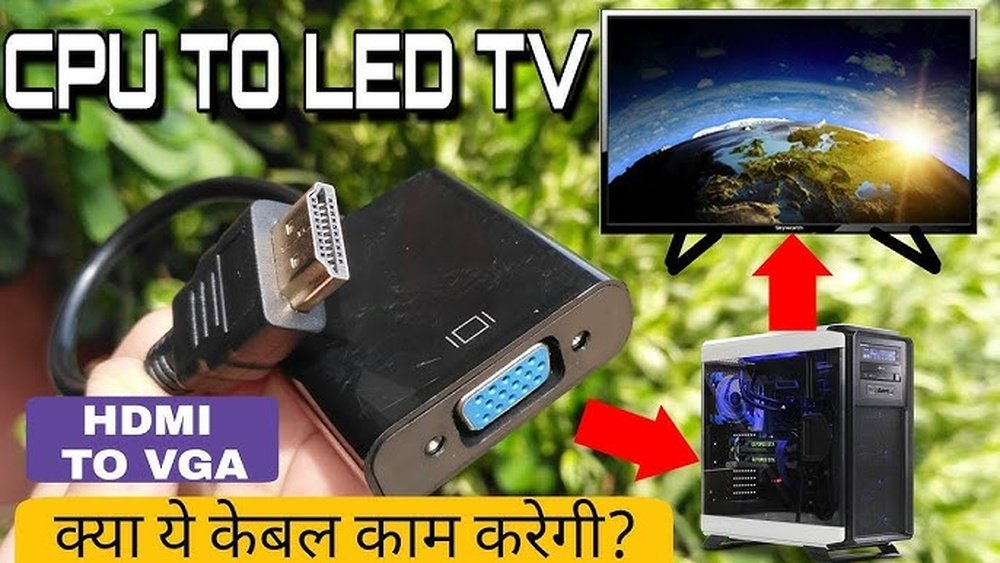
Do you want to enjoy your computer’s content on a bigger screen? Connecting your CPU to your TV with an HDMI cable is the simplest way to do it.
Whether you want to watch movies, play games, or share presentations, this connection makes everything clearer and more exciting. You’ll learn exactly how to set it up quickly and easily. Keep reading, and you’ll be ready to transform your TV into a powerful display for all your computer needs.

Credit: www.youtube.com
Check Your Devices
Before connecting your CPU to your TV with an HDMI cable, check your devices first. Knowing the right ports on both devices is important. This step saves time and avoids confusion. It also ensures a smooth connection for better video and sound quality.
Identify Hdmi Ports On Cpu
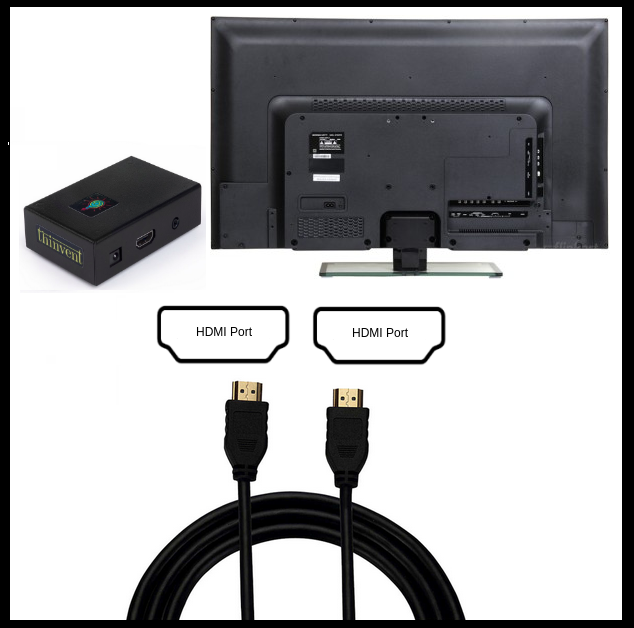
Find the HDMI port on your CPU. It looks like a small, flat slot with angled edges. Most modern CPUs have this port on the back or side. Some CPUs may have more than one HDMI port. Use the port labeled “HDMI” for the best connection.
Locate Hdmi Input On Tv
Look for the HDMI input ports on your TV. These are usually on the back or side panel. The ports are labeled “HDMI” and may have numbers, like HDMI 1 or HDMI 2. Choose a free HDMI input to connect your CPU. Remember this port for later when selecting the TV source.
Credit: www.przewozcm.eu
Choose The Right Hdmi Cable
Choosing the right HDMI cable is key to connecting your CPU to your TV. The right cable ensures clear video and sound without interruptions. Not all HDMI cables are the same. Picking the correct type and length helps avoid problems.
Types Of Hdmi Cables
There are three main types of HDMI cables. Standard HDMI cables work well for regular HD video and audio. High-Speed HDMI cables handle higher resolutions like 4K and faster refresh rates. Premium High-Speed cables offer better performance and support newer features like HDR. Choose a cable that matches your TV’s resolution and your CPU’s output.
Length And Quality Considerations
Choose a cable length that fits your setup without extra slack. Too long cables may cause signal loss. Good quality cables have better shielding to reduce interference. Look for cables with sturdy connectors and thick insulation. This ensures durability and stable performance over time.
Connect Cpu To Tv
Connecting your CPU to a TV is simple and useful. It lets you see your computer screen on a bigger display. Use an HDMI cable for the best quality and easy setup. This guide shows how to connect your CPU to your TV with HDMI.
Plugging In The Hdmi Cable
Find the HDMI port on your CPU. It looks like a small, wide slot. Take one end of the HDMI cable and plug it into this port. Next, locate the HDMI port on your TV. It is usually on the side or back. Plug the other end of the HDMI cable into the TV’s port.
Make sure both ends fit snugly. Do not force the cable if it feels stuck. Use the correct HDMI port on your TV for input. This connection sends both video and audio signals.
Securing Connections
Check if the HDMI cable is firmly plugged in. Loose connections can cause poor picture or no sound. Gently push the cable ends to ensure they are tight. Avoid bending or twisting the HDMI cable sharply.
Keep the cable away from devices that may cause interference. After securing, turn on your TV and CPU. Select the right HDMI input on your TV remote. Now, your CPU screen should show on the TV.
Configure Tv Settings
After connecting your CPU to the TV with an HDMI cable, configuring the TV settings is important. It ensures the best picture and sound quality. Proper settings help your TV recognize the CPU signal quickly. The process is simple and takes just a few minutes.
Selecting The Correct Hdmi Input
Your TV usually has multiple HDMI ports. Each port connects to a different device. Use your TV remote to open the input or source menu. Look for the HDMI port number connected to your CPU. Select that HDMI input to display your CPU screen on the TV.
If you pick the wrong HDMI input, the TV will show a blank or no signal screen. Changing the input lets the TV find the CPU’s video output. Remember the HDMI port number for easy access next time.
Adjusting Display Settings
Once the correct HDMI input is selected, adjust the display settings. Go to the TV’s settings menu and find display options. Change the resolution to match your CPU’s output, usually 1080p or 4K. This step improves image clarity and sharpness.
Adjust the aspect ratio to fit the screen. Some TVs offer modes like “Zoom,” “Wide,” or “Original.” Pick the mode that shows the full CPU screen without cutting edges. Also, check the TV’s brightness and contrast settings. Proper adjustment makes the picture easy to see and more natural.
Set Up Cpu Display
Connecting your CPU to a TV with an HDMI cable is easy. The next step is to set up the display on your TV. This lets your TV show the output from your computer correctly.
Setting up the display involves detecting your TV as a monitor and choosing the best display mode. These steps help you get a clear picture and good performance.
Detecting The Tv As A Monitor
First, turn on your TV and CPU. Make sure the HDMI cable is connected to both devices.
On your CPU, open the display settings. You can find this by right-clicking the desktop and selecting “Display settings.”
Look for the option to detect displays. Click “Detect” to find your TV. The CPU will search for the TV and recognize it as a monitor.
If the TV does not appear, check the HDMI connection or try a different HDMI port on the TV.
Choosing Display Modes
Once your TV shows as a monitor, you can pick how to use it. Common modes include “Duplicate,” “Extend,” and “Second screen only.”
“Duplicate” shows the same screen on both CPU and TV. “Extend” adds the TV as extra workspace. “Second screen only” uses only the TV as the display.
Choose the mode that fits your needs. For watching videos, “Second screen only” works best.
Adjust the resolution to match your TV for clear images. Check the recommended settings in the display menu.
Credit: softwareg.com.au
Troubleshoot Common Issues
Connecting a CPU to a TV with HDMI is simple. Still, problems can occur. Troubleshooting helps fix common issues fast. This section covers typical problems and easy solutions.
No Signal On Tv
Check if the HDMI cable is fully plugged in. Try a different HDMI port on the TV. Make sure the TV is set to the right input source. Restart both the TV and the CPU. Replace the HDMI cable if needed.
Poor Display Quality
Adjust the resolution settings on your CPU to match your TV. Use the TV’s picture settings to improve sharpness and brightness. Clean the HDMI cable connectors from dust. Try using a high-speed HDMI cable for better quality. Update your graphics drivers on the CPU.
Audio Problems
Ensure the TV volume is not muted or too low. Check audio output settings on your CPU. Select HDMI as the default audio device. Test with another HDMI cable to rule out faults. Restart the devices to refresh the connection.
Frequently Asked Questions
How Do I Connect My Cpu To Tv With Hdmi?
To connect your CPU to a TV, use a compatible HDMI cable. Plug one end into the CPU’s HDMI port and the other into the TV. Then, select the correct HDMI input on your TV to display your CPU’s screen.
Can I Use Any Hdmi Cable For Pc To Tv Connection?
Yes, any standard HDMI cable can connect your PC to a TV. For better quality, use High-Speed HDMI cables especially if streaming 4K or higher resolution content.
Why Is My Tv Not Displaying Pc After Hdmi Connection?
Ensure the HDMI cable is securely connected to both devices. Check if the TV is set to the correct HDMI input. Update your PC’s graphics drivers and adjust display settings if needed.
How To Enable Sound From Pc Through Tv Via Hdmi?
Go to your PC’s sound settings and select your TV as the default playback device. This routes audio through the HDMI cable to your TV speakers.
Conclusion
Connecting your CPU to a TV with HDMI is simple and quick. Just plug one end of the HDMI cable into your CPU and the other into your TV. Switch your TV to the correct HDMI input. You will see your computer screen on the TV.
This setup works well for watching videos, playing games, or working on a bigger screen. Make sure your cable is good quality for the best picture. Enjoy your larger display with ease and no extra tools needed. Easy steps, great results.
