
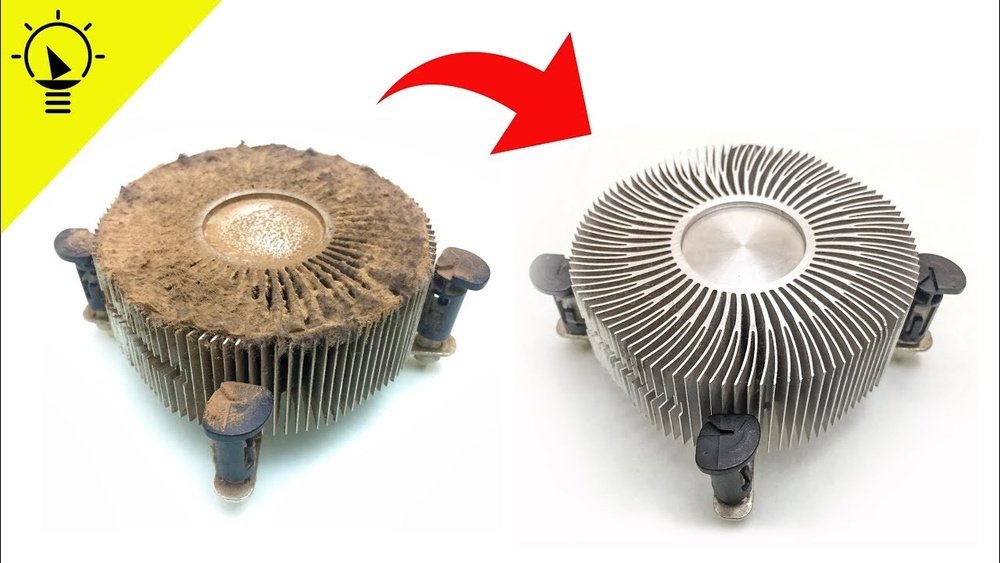
Is your computer making strange noises or overheating? The culprit might be your CPU fan clogged with dust and debris.
Cleaning your CPU fan is easier than you think, and it can boost your computer’s performance and lifespan. You’ll discover simple, step-by-step tips to get your CPU fan running smoothly again. Keep reading—you’ll be surprised how a little cleaning can make a big difference for your device.
Credit: www.reddit.com
Signs Of A Dirty Cpu Fan
A dirty CPU fan can cause many problems for your computer. Dust and dirt block airflow and stop the fan from working well. This can lead to several noticeable signs that show the fan needs cleaning. Recognizing these signs early helps protect your computer from damage.
Overheating Issues
Your computer may get very hot. The CPU fan cools the processor. Dust stops the fan from spinning fast. This makes the CPU temperature rise. Overheating can cause the computer to shut down suddenly.
Loud Fan Noise
A dirty fan often makes loud noises. Dust makes the fan blades heavier. The fan works harder and spins faster. This creates a loud, annoying sound. If you hear this noise, the fan needs cleaning soon.
Reduced Performance
When the CPU fan is dirty, the computer slows down. High temperatures force the CPU to reduce speed. This protects the hardware but lowers performance. Programs may lag or take longer to open.
Tools Needed For Cleaning
Cleaning your CPU fan needs the right tools. Proper tools make the job easier and safer. They help remove dust and dirt without damaging the fan or other parts. Below are the essential tools you need to clean your CPU fan effectively.
Compressed Air Can
A compressed air can helps blow away dust from the fan blades and vents. It reaches tight spaces that are hard to clean with a cloth. Use short bursts to avoid moisture build-up. This tool is safe and effective for removing loose dirt.
Soft Brush
A soft brush clears stubborn dust stuck on fan blades and corners. Choose a brush with soft bristles to avoid scratches. Brush gently to loosen the dirt before using compressed air. This tool helps clean delicate parts without causing damage.
Screwdrivers
Screwdrivers are needed to open your computer case and remove the fan if required. Use the right size to avoid stripping screws. A small Phillips-head screwdriver usually works for most cases. Handle screws carefully to keep your computer safe.
Isopropyl Alcohol And Cloth
Isopropyl alcohol cleans sticky dirt and grime on the fan blades. Use a cloth slightly dampened with alcohol to wipe the blades. Avoid soaking the cloth to prevent liquid from entering the fan. This tool ensures a deeper clean and better fan performance.
Preparing Your Workspace
Preparing your workspace is the first step to clean the CPU fan safely and effectively. A clean and organized area helps prevent damage and makes the process smoother. It also keeps dust and dirt from spreading to other parts of your computer. Follow these key steps to get your workspace ready.
Power Down And Unplug
Turn off your computer completely before starting. Do not just put it to sleep or in hibernation. Unplug the power cable from the wall outlet or power strip. Also, disconnect any other cables attached to the computer. This step ensures no electricity runs through the system while you work.
Ground Yourself To Prevent Static
Static electricity can harm computer parts easily. Touch a metal object, like your desk or a metal lamp, before opening the case. Use an anti-static wrist strap if you have one. This simple action protects your CPU fan and other components from static shocks.
Gathering Necessary Equipment
Collect all tools and materials before you begin cleaning. You will need a small screwdriver, a can of compressed air, and a soft brush. A microfiber cloth and rubbing alcohol also help remove stubborn dirt. Having everything ready saves time and keeps you focused on the task.
Removing The Cpu Fan
Removing the CPU fan is the first step to clean it properly. A clean fan helps your computer stay cool and work well. This process is simple if you follow the steps carefully. Always handle parts gently to avoid damage.
Opening The Computer Case
Turn off your computer and unplug all cables. Place the computer on a clean, flat surface. Use a screwdriver to remove the screws on the case. Slide or lift the case panel to open it. Keep the screws safe for later.
Locating The Cpu Fan
Look inside the case for the CPU fan. It is attached to the large metal heatsink on the motherboard. The fan usually sits in the center of the motherboard. It is connected with a small power cable. Identifying it correctly is important.
Detaching The Fan Safely
Unplug the fan’s power cable from the motherboard. Check how the fan is fixed to the heatsink. Some fans have clips, screws, or push-pins. Use the right tool to remove these carefully. Avoid pulling the fan hard to prevent damage.
Cleaning Process
Cleaning the CPU fan is key to keeping your computer cool and running well. Dust and dirt can build up over time. This slows the fan and causes the CPU to heat up. A clean fan works quietly and efficiently. Follow these steps to clean your CPU fan safely and effectively.
Using Compressed Air
Compressed air helps blow dust from the fan and vents. Hold the can upright to avoid moisture. Use short bursts of air to clear dust. Keep the fan blades from spinning by holding them gently. This prevents damage to the fan motor. Blow air through the fan and around the heatsink.
Brushing Off Dust And Debris
A small brush can remove dust stuck on fan blades. Use a soft brush like a paintbrush or makeup brush. Brush gently to avoid bending the blades. Clean the fan frame and nearby parts. This method reaches areas air might miss. Brush away dust from all sides of the fan.
Cleaning Fan Blades With Alcohol
Use isopropyl alcohol to clean stubborn dirt on fan blades. Dampen a cloth or cotton swab with alcohol, not too wet. Wipe each blade carefully to remove grime and grease. Alcohol evaporates quickly and does not harm electronics. Let the fan dry completely before turning the computer back on.

Credit: www.youtube.com
Reapplying Thermal Paste
Reapplying thermal paste is an important step after cleaning your CPU fan. It helps keep your processor cool and working well. Thermal paste fills tiny gaps between the CPU and the heat sink. This improves heat transfer and stops the CPU from overheating.
Over time, thermal paste can dry out or lose its effectiveness. This reduces cooling performance. Knowing when and how to replace thermal paste helps keep your computer safe.
When To Replace Thermal Paste
Replace thermal paste every two to three years. Also, change it if you remove the heat sink for any reason. If your CPU runs hotter than usual, old paste might be the cause. Dry or cracked paste needs immediate replacement. Fresh paste ensures better heat transfer and lower temperatures.
Proper Application Technique
Start by cleaning the old paste with isopropyl alcohol and a soft cloth. Apply a small pea-sized amount of new paste to the center of the CPU. When you attach the heat sink, it will spread the paste evenly. Avoid using too much paste. Too much can cause poor heat transfer or damage. Ensure the paste covers the surface without spilling over the edges.
Reinstalling The Cpu Fan
Reinstalling the CPU fan is an important step after cleaning. A properly installed fan keeps your computer cool and running well. Take your time to place the fan correctly and avoid damage. Follow simple steps to secure the fan and connect the power cables properly.
Securing The Fan
Place the CPU fan back on the heatsink carefully. Align the holes on the fan with the mounting points. Use screws or clips to hold the fan firmly in place. Tighten screws evenly to avoid bending the fan. A loose fan can cause noise and poor cooling.
Connecting Power Cables
Locate the CPU fan power cable on your motherboard. It is usually a small 3 or 4-pin connector near the CPU socket. Gently plug the fan cable into this connector. Ensure it fits snugly without forcing it. Proper connection allows the fan to spin and cool the CPU.

Credit: www.wikihow.com
Post-cleaning Checks
Cleaning your CPU fan is only part of the process. After cleaning, checking the fan’s performance is important. These steps ensure your CPU stays cool and works well. Proper checks help avoid damage and keep your computer running smoothly.
Testing Fan Operation
Turn on your computer after cleaning the fan. Watch the fan carefully. It should spin smoothly without any noise. If the fan does not spin, check connections again. A properly working fan prevents overheating and keeps your CPU safe.
Monitoring Cpu Temperatures
Use software tools to check CPU temperature. The temperature should stay within the normal range. High temperatures mean the fan might not be working well. Keep monitoring for a few hours to confirm stable cooling. This step protects your computer from heat damage.
Preventive Maintenance Tips
Keeping your CPU fan clean is key to a healthy computer. Preventive maintenance helps avoid dust build-up and overheating. Small steps can keep your PC running smoothly for a long time. Here are some simple tips to maintain your CPU fan and improve your computer’s performance.
Regular Cleaning Schedule
Set a routine to clean your CPU fan every three to six months. Dust collects fast and blocks airflow. Use a soft brush or compressed air to remove dust. Turn off your PC and unplug it before cleaning. Regular cleaning prevents dust from damaging the fan or other parts.
Improving Airflow In Your Pc Case
Good airflow keeps your computer cool and extends its life. Arrange cables neatly to avoid blocking air paths. Keep the PC case in a well-ventilated area. Avoid placing your PC on carpets or dusty floors. Proper airflow helps the CPU fan work more efficiently.
Using Dust Filters
Install dust filters on your PC’s air intakes. Filters catch dust before it enters the case. Clean the filters every month to keep air flowing freely. Dust filters reduce the amount of dust that reaches the CPU fan. This simple step lowers the need for frequent deep cleaning.
Frequently Asked Questions
How Often Should I Clean My Cpu Fan?
Clean your CPU fan every 3 to 6 months. Dust buildup reduces cooling efficiency and can cause overheating. Regular cleaning ensures optimal performance and prolongs your computer’s lifespan.
What Tools Do I Need To Clean A Cpu Fan?
You need a soft brush, compressed air can, and a screwdriver. These tools help safely remove dust and dirt without damaging the fan or CPU components.
Can I Use A Vacuum To Clean My Cpu Fan?
It’s not recommended to use a vacuum. Vacuum can generate static electricity, potentially damaging sensitive computer parts. Use compressed air or a soft brush for safer cleaning.
Is It Safe To Remove The Cpu Fan For Cleaning?
Yes, but power off and unplug your computer first. Carefully detach the fan without forcing it. Avoid touching the CPU or other components to prevent damage.
Conclusion
Keeping your CPU fan clean helps your computer run cool and smooth. Dust and dirt can slow the fan and cause overheating. Regular cleaning stops this and keeps your PC healthy. Take your time, follow steps carefully, and use the right tools.
A clean fan means better performance and longer computer life. Small effort, big results. Clean your CPU fan often for best results.
