
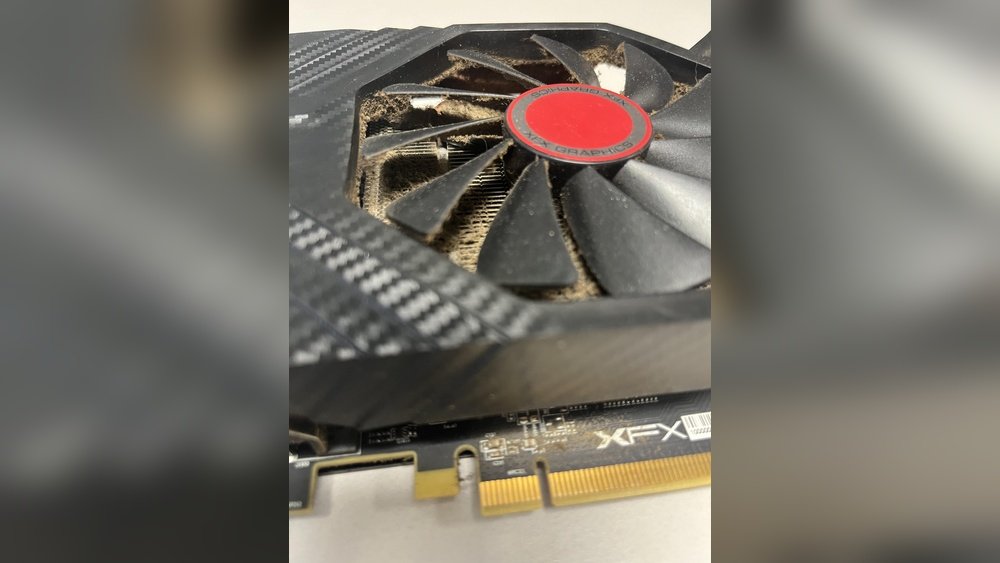
Is your GPU fan making more noise than usual? Or maybe your computer is running hotter than it should?
These are clear signs that your GPU fan needs cleaning. If you ignore it, your graphics card could overheat and slow down, costing you time and money. But don’t worry—you don’t need to be a tech expert to fix this.
You’ll learn simple, step-by-step ways to clean your GPU fan safely and effectively. Keep reading to protect your computer and boost its performance.

Credit: www.youtube.com
Signs Of A Dirty Gpu Fan
A dirty GPU fan can cause many problems for your computer. It may not cool your graphics card properly. Dust and dirt build up over time. This stops the fan from working well. Knowing the signs helps you clean it on time. It keeps your GPU safe and fast.
Reduced Cooling Efficiency
A dirty fan moves less air. Dust blocks the fan blades and vents. This makes the GPU hotter than usual. Your computer may slow down or freeze. The GPU cannot cool itself properly. Cleaning the fan improves air flow and cooling.
Unusual Noise Levels
The fan may make strange sounds. Dust and dirt can unbalance the fan blades. You might hear rattling or grinding noises. The fan works harder but spins unevenly. These sounds mean the fan needs cleaning or repair.
Overheating Issues
Overheating can damage your GPU. A dirty fan cannot cool the card well. The GPU temperature rises quickly during use. Your computer may shut down to protect itself. Cleaning the fan helps keep the GPU cool and safe.
Credit: www.reddit.com
Tools Needed For Cleaning
Cleaning a GPU fan requires the right tools to do the job safely and effectively. Using proper equipment protects your hardware from damage. It also helps remove dust and dirt thoroughly. Prepare these tools before starting your cleaning process.
Soft Brushes And Cloths
Soft brushes are perfect for removing dust from fan blades. They reach small spaces without scratching the surface. Use a microfiber cloth to wipe the fan gently. Avoid rough materials that can cause damage.
Compressed Air Can
A compressed air can blasts away dust from hard-to-reach areas. It is powerful yet safe for electronics. Hold the can upright and spray short bursts. Keep the fan blades steady to prevent spinning too fast.
Screwdrivers And Anti-static Gear
Screwdrivers help open the GPU case carefully. Choose the right size to avoid stripping screws. Anti-static gear like wrist straps prevents static electricity. Static can harm your GPU’s sensitive parts. Wear this gear to stay safe during cleaning.
Preparing Your Workspace
Preparing your workspace is the first step to clean your GPU fan safely. A clean, organized area helps avoid mistakes. It also protects your computer parts from damage. Follow these steps to get ready before you start.
Powering Down And Unplugging
Turn off your computer completely. Do not just put it to sleep. Unplug the power cord from the wall socket. This stops electricity from flowing. It keeps you and your PC safe while cleaning.
Grounding Yourself
Static electricity can harm computer parts. Touch a metal object to remove static charge from your body. Use an anti-static wrist strap if you have one. This step protects your GPU and other components from damage.
Organizing Components
Prepare a clean table or desk. Lay a soft cloth or mat to place parts on. Arrange screws and small pieces in containers or trays. This helps keep track of everything. It makes reassembling easier and faster.
Removing The Gpu Safely
Removing the GPU safely is the first step before cleaning the fan. It protects both your computer and the graphics card. Taking care during removal prevents damage and helps keep your PC working well.
Locating The Gpu
The GPU sits inside the computer case, usually near the bottom. It connects to the motherboard through a large slot. Look for a card with one or more fans on it. This card is often the biggest component inside the case.
Unscrewing And Disconnecting
Turn off the computer and unplug it from the power source. Open the case by removing the side panel screws. Find the screws holding the GPU in place and remove them carefully. Gently push the small latch on the motherboard slot to release the GPU. Slowly pull the card straight out without bending it.
Handling Precautions
Hold the GPU by its edges to avoid touching the circuits. Avoid static electricity by grounding yourself before touching the card. Do not use force; if it does not come out easily, check for extra screws or latches. Place the GPU on a clean, static-free surface while cleaning.
Cleaning The Gpu Fan
Cleaning the GPU fan is important to keep your graphics card working well. Dust can block airflow and cause overheating. Regular cleaning helps your GPU stay cool and last longer. The process is simple and safe if done carefully.
Using Compressed Air
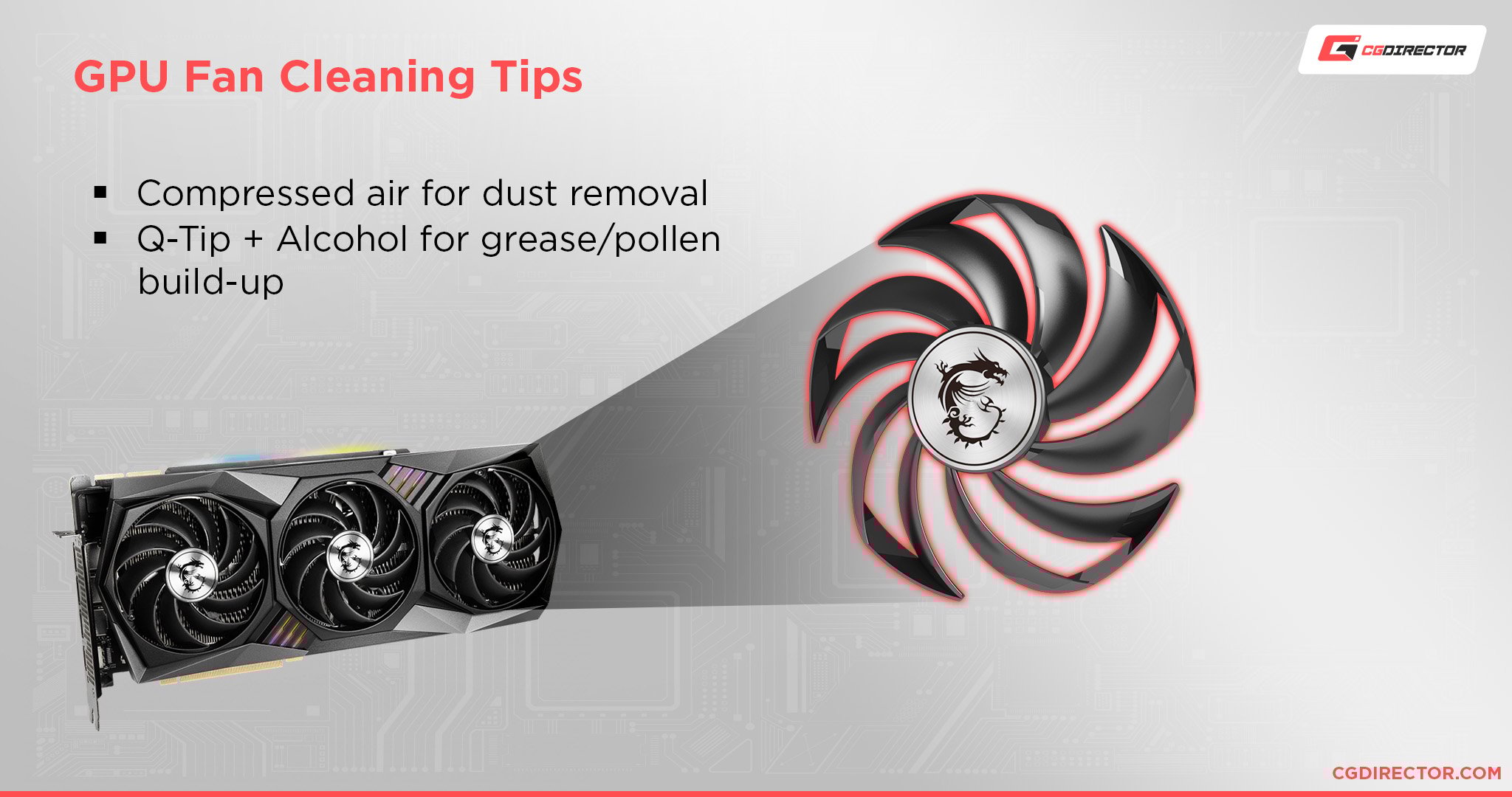
Start by turning off your computer and unplugging it. Use a can of compressed air to blow dust off the fan. Hold the fan blades still with your finger to stop them from spinning. Blow air in short bursts to avoid damage. Focus on all sides of the fan and the heatsink.
Wiping Dust With A Brush
Use a soft brush to remove dust stuck on the fan blades. A small paintbrush or makeup brush works well. Gently wipe each blade and the surrounding area. Avoid pressing too hard to prevent bending the blades. This method reaches areas air might miss.
Avoiding Fan Damage
Never spin the fan by hand or with compressed air force. Spinning too fast can break the fan’s motor. Avoid using water or liquid cleaners on the GPU fan. Always keep the computer unplugged during cleaning. Handle the GPU carefully to protect other parts.
Cleaning Other Gpu Components
Cleaning the GPU fan is important, but other parts need care too. These parts help your GPU stay cool and work well. Keeping them clean stops overheating and keeps your computer safe. Let’s see how to clean these parts the right way.
Heat Sink Maintenance
The heat sink moves heat away from the GPU chip. Dust can block the fins and stop airflow. Use a soft brush or compressed air to clear dust gently. Avoid pushing dust deeper inside. Clean the heat sink regularly for best cooling.
Thermal Paste Replacement Tips
Thermal paste helps heat move from the GPU chip to the heat sink. Old paste dries out and loses power. Remove the old paste using isopropyl alcohol and a soft cloth. Apply a small, pea-sized drop of new paste. Spread it evenly for good contact. Replace paste every one to two years.
Checking For Obstructions
Look inside your GPU for anything blocking airflow. Small cables or dust clumps can stop air from moving. Clear these obstructions carefully. Also, check the fan blades for stuck dirt. Removing all blockages helps the GPU cool faster and work better.
Reassembling And Testing
After cleaning your GPU fan, carefully reassemble the parts. This step is crucial for proper function. Pay close attention to how each piece fits together. A well-assembled GPU works better and lasts longer.
Testing the GPU after reassembly ensures everything runs smoothly. You can avoid damage by checking all connections and fan operation. Follow the steps below to reinstall and test your GPU correctly.
Reinstalling The Gpu
Turn off your PC and unplug all cables. Hold the GPU by its edges to avoid static damage. Gently place it back into the PCIe slot. Push it down until it clicks into place. Secure it with screws to keep it stable. Reconnect all power cables to the GPU.
Ensuring Proper Fan Operation
Turn on your computer and watch the GPU fan closely. The fan should spin smoothly without noise or wobbling. If it does not start, check power connections again. Listen for unusual sounds that indicate problems. A properly working fan keeps your GPU cool.
Monitoring Temperatures
Use software tools to check GPU temperatures while running. Keep an eye on temperature spikes during heavy use. Ideal GPU temps are usually below 85°C. Higher temps may need more cleaning or better airflow. Regular monitoring helps prevent overheating and damage.
Credit: www.cgdirector.com
Maintenance Tips For Longevity
Proper maintenance of your GPU fan ensures it runs smoothly for years. Dust and dirt can slow down the fan and cause overheating. Following simple tips helps keep your GPU cool and extends its life. Consistent care protects your investment and improves your PC’s performance.
Regular Cleaning Schedule
Set a regular time to clean the GPU fan. Cleaning every 1-3 months works well for most users. Use a soft brush or compressed air to remove dust. Avoid using water or harsh chemicals. Cleaning often stops dust buildup that can block airflow.
Optimizing Pc Airflow
Good airflow inside the PC case helps the GPU fan work better. Keep cables tidy to avoid blocking air paths. Use extra case fans if needed to improve ventilation. Place the PC in a cool, open space. Avoid putting it on carpets or inside closed cabinets.
Software Tools For Fan Control
Use software to monitor and control the GPU fan speed. Many GPU brands offer free tools to adjust fan settings. Set fan speed to increase when the GPU gets hot. This prevents overheating and reduces wear on the fan. Checking fan speed regularly helps catch issues early.
Frequently Asked Questions
How Often Should I Clean My Gpu Fan?
You should clean your GPU fan every 3 to 6 months. Frequent cleaning prevents dust buildup, improving cooling and performance.
What Tools Do I Need To Clean A Gpu Fan?
Use a soft brush, compressed air can, microfiber cloth, and small screwdriver. These tools help safely remove dust without damaging components.
Can Cleaning The Gpu Fan Improve Gaming Performance?
Yes, a clean GPU fan keeps temperatures low, preventing thermal throttling. This maintains optimal GPU speed and smooth gaming experience.
Is It Safe To Use Compressed Air On Gpu Fans?
Yes, compressed air is safe if used carefully. Hold the fan blades to prevent spinning and avoid moisture buildup during cleaning.
Conclusion
Cleaning your GPU fan keeps your computer running cool and smooth. Dust and dirt block airflow and cause overheating. Regular cleaning helps avoid crashes and slowdowns. Take your time and follow safety steps. Use soft brushes or compressed air gently.
A clean fan means longer GPU life and better performance. Keep your computer healthy with simple care. Easy to do and worth the effort. Stay patient and clean often for best results.
