
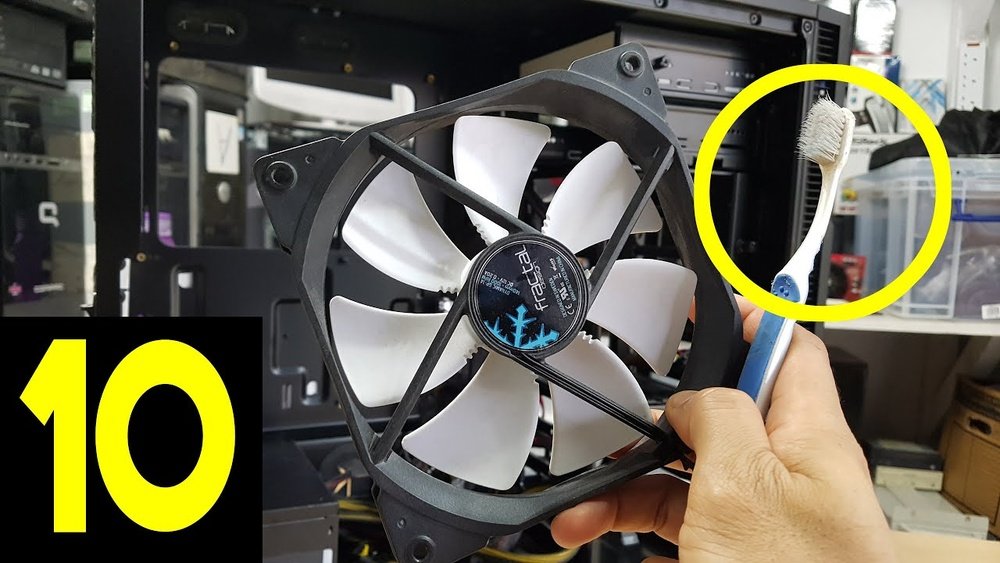
Is your CPU feeling slow or overheating? Dust buildup inside your computer can be the hidden culprit.
Usually, people reach for compressed air to clean it out, but what if you don’t have any on hand? Don’t worry—you can still give your CPU a proper clean without compressed air. You’ll discover simple, safe, and effective ways to clear dust and keep your CPU running smoothly.
Keep reading, and you’ll learn easy tricks that save your computer and your wallet.
Tools Needed
Cleaning a CPU without compressed air requires some simple tools. These tools help remove dust and dirt safely. You can use items found at home or buy small, specialized tools. The key is to clean gently without damaging the CPU or its parts.
Household Items
Start with soft brushes like a clean paintbrush or makeup brush. They remove dust from tiny spaces. Use a microfiber cloth to wipe surfaces gently. Cotton swabs help clean hard-to-reach corners. Rubbing alcohol, at least 70%, can remove stubborn grime. Always apply it to the cloth, not directly on the CPU. A small vacuum cleaner with a brush attachment can also help. Avoid static buildup by grounding yourself before cleaning.
Specialized Cleaning Tools
For a deeper clean, consider buying tools made for electronics. Anti-static brushes are safe for sensitive parts. A soft air blower or a hand-powered dust blower can replace compressed air. Precision tweezers help remove stuck debris. Cleaning putty or gel lifts dirt from hard-to-reach areas. These tools cost little but work well. Use them carefully to avoid damage.
Safety Precautions
Cleaning your CPU without compressed air needs care. Safety is the top priority. Taking simple precautions protects you and your computer parts. Follow these steps to avoid damage and injury.
Power Off And Unplug
Always turn off your computer before cleaning. Shut it down completely. Then, unplug the power cable from the outlet. This stops electricity from flowing. It lowers the risk of shocks and short circuits. Never clean your CPU while it is powered on. Wait a few minutes after turning it off. This lets the components cool down.
Static Electricity Risks
Static electricity can harm computer parts. It builds up on your body or clothes. A small shock can damage the CPU or motherboard. Avoid working on carpet or dry floors. Use an anti-static wristband if possible. Touch a metal object to release static before handling parts. Keep parts on an anti-static mat or surface. Handle components by their edges. Do not touch the pins or circuits directly.
Disassembling The Cpu
Disassembling the CPU is the first step to clean it without compressed air. It helps you reach the dusty parts inside. Taking the CPU apart carefully prevents damage and makes cleaning easier. Follow simple steps to open your computer safely and access the fans and heat sink.
Removing The Case
Turn off your computer and unplug all cables. Place the computer on a flat surface. Use a screwdriver to remove screws from the case. Keep the screws safe for later. Slide or lift the case panel gently. Avoid forcing it to prevent damage. Set the case panel aside in a clean place.
Accessing The Fans And Heat Sink
Look inside to find the CPU fan and heat sink. These parts often collect dust and block airflow. Use a small brush to remove loose dust carefully. Check for clips or screws holding the fan and heat sink. Remove them slowly to avoid breaking wires. Once loose, you can clean deeper or replace thermal paste if needed.
Credit: www.reddit.com
Cleaning Fans Without Compressed Air
Cleaning your CPU fans is important to keep your computer cool and running well. Dust builds up on fan blades and slows down airflow. This can make your CPU hotter and cause problems. You do not always need compressed air to clean fans. There are simple tools and methods that work well and are easy to use.
Using A Soft Brush
A soft brush helps remove dust gently from fan blades and grills. Use a small paintbrush or a makeup brush with soft bristles. Turn off your computer and unplug it first. Hold the fan blades still with your finger. Brush away dust carefully without pressing too hard. The brush moves dust off without scratching the fan. Repeat on all fan blades and the surrounding area.
Using A Vacuum Cleaner Safely
A vacuum cleaner can pull dust out of the fan. Use a small nozzle or brush attachment. Set the vacuum to low power to avoid damage. Keep the vacuum nozzle near the fan, but do not touch the blades. Hold the fan blades still by hand to stop them from spinning. Run the vacuum over the blades and vents slowly. This method removes dust without spreading it around the room.
Cleaning Heat Sink And Other Components
Cleaning the heat sink and other CPU components is important for keeping your computer cool. Dust and dirt block airflow, causing the CPU to overheat. Regular cleaning helps the heat sink work better and extends your computer’s life.
Without compressed air, cleaning these parts requires care and simple tools. Focus on removing dust gently to avoid damage. Here are two effective methods to clean the heat sink and nearby components.
Wiping With Microfiber Cloth
Use a soft microfiber cloth to wipe dust from the heat sink fins. Avoid rough materials that can cause scratches. Gently brush or wipe each fin, removing loose dust and dirt. This method works well for light dust buildup.
Clean other components like the fan blades and surrounding areas with the cloth. Hold the cloth firmly but carefully to avoid bending delicate parts. Repeat until most dust is gone.
Using Isopropyl Alcohol
Isopropyl alcohol cleans stubborn dirt and grease safely. Use 90% or higher concentration for best results. Dampen a cloth or cotton swab lightly with alcohol. Do not soak it to prevent liquid damage.
Wipe the heat sink surfaces and fan blades carefully. Let the alcohol evaporate quickly, leaving no residue. Avoid touching electrical parts directly with liquid. This method removes grime and improves heat transfer.

Credit: lifehacks.stackexchange.com
Removing Dust From Hard-to-reach Areas
Dust hides in tight spaces inside the CPU. These hard-to-reach areas collect dirt over time. Removing dust is important to keep your computer cool and working well. Without compressed air, other tools help reach these spots safely. You can clean these areas carefully with simple household items.
Using A Makeup Brush
A soft makeup brush helps remove dust gently. Its fine bristles reach between small parts easily. Choose a clean, dry brush with soft bristles. Lightly brush dust off the CPU surface and fans. Move the brush in small strokes to avoid damage. This method is safe and effective for delicate parts.
Using Cotton Swabs
Cotton swabs work well for tight corners and edges. Use dry swabs to avoid moisture inside the CPU. Gently roll the swab over dusty spots to lift dirt. Replace swabs often to prevent spreading dust. Be careful not to press too hard on fragile parts. Cotton swabs are great for focused cleaning in narrow areas.
Reassembling And Testing
After cleaning your CPU without compressed air, reassembling and testing are key steps. Careful reassembly ensures your computer runs smoothly. Testing confirms everything works as it should. Follow these steps closely to avoid damage and ensure performance.
Putting Components Back
Start by placing the CPU cooler back on the processor carefully. Screw it down gently to avoid bending pins or damaging parts. Reconnect all cables and wires you unplugged earlier. Put the RAM sticks back into their slots firmly. Replace the side panel on your computer case securely. Double-check all connections before closing the case fully.
Powering On And Monitoring
Turn on your computer and watch the startup process. Listen for unusual noises or see if the system fails to boot. Check the BIOS screen for CPU temperature readings. Use software tools to monitor the CPU temperature in the operating system. Make sure the fan spins and cools properly. If anything seems off, power down and review your work carefully.
Maintenance Tips
Maintaining your CPU without compressed air is simple with the right habits. Regular care helps keep your computer running cool and fast. Avoid damage by cleaning and preventing dust often. Small steps make a big difference.
Regular Cleaning Schedule
Set a routine to clean your CPU every few months. Open the case carefully and wipe dust with a soft brush or cloth. Use a small vacuum or a damp cloth to clean hard-to-reach areas. Keep your workspace clean to reduce dust inside the computer. Consistent cleaning stops dust from building up and causing problems.
Preventing Dust Build-up
Place your computer on a desk, not the floor. Floors have more dust and dirt. Use dust filters on your computer’s vents if possible. Close unused ports to block dust entry. Keep the room tidy and use a humidifier to reduce dust. These simple steps protect your CPU from dust and heat.

Credit: www.youtube.com
Frequently Asked Questions
How Can I Clean My Cpu Without Compressed Air?
You can use a soft brush or a microfiber cloth to gently remove dust. Avoid liquids and be careful around sensitive components to prevent damage.
What Household Items Can Replace Compressed Air For Cpu Cleaning?
A small paintbrush, a soft toothbrush, or a blower bulb can effectively remove dust. These tools are gentle and safe for CPU cleaning.
Is It Safe To Use A Vacuum Cleaner On A Cpu?
Using a vacuum cleaner is not recommended. It can generate static electricity and damage CPU components. Stick to brushes or blower bulbs instead.
How Often Should I Clean My Cpu Without Compressed Air?
Clean your CPU every 3 to 6 months to maintain optimal performance. More frequent cleaning may be necessary in dusty environments.
Conclusion
Cleaning your CPU without compressed air is easy and safe. Use soft brushes, cloths, or small vacuums to remove dust. Take your time and be gentle to avoid damage. Regular cleaning helps your computer run cooler and last longer. A clean CPU means better performance and fewer problems.
Keep your workspace tidy to avoid dust buildup. Small efforts can make a big difference. Try these simple methods next time you clean your CPU.
