
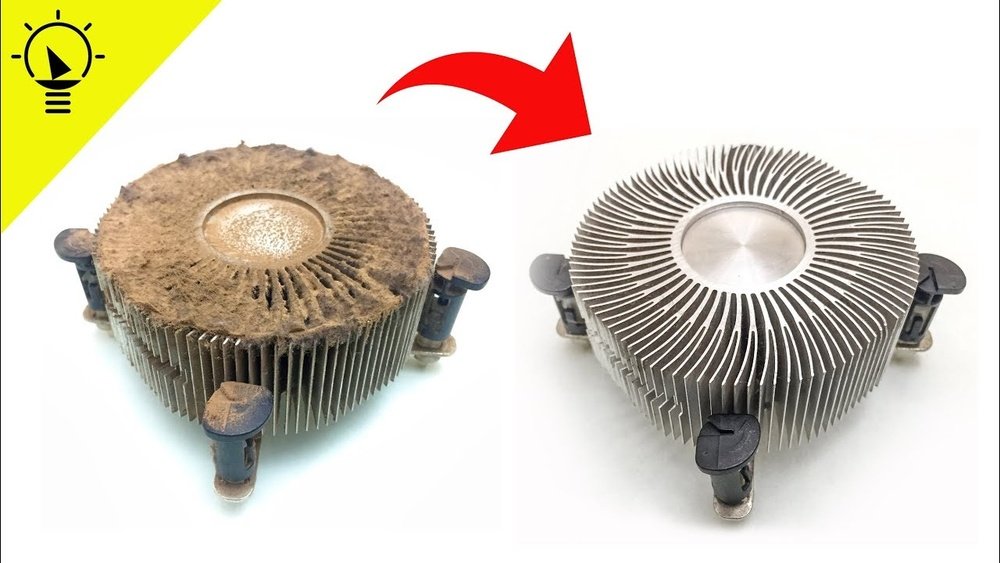
Is your computer making strange noises or running hotter than usual? The culprit might be your CPU fans.
Over time, dust and dirt build up, slowing them down and making your system work harder. But don’t worry—cleaning your CPU fans is easier than you think. In this guide, you’ll learn simple, step-by-step methods to get your fans running smoothly again.
Keep reading, and you’ll boost your computer’s performance and extend its life with just a few easy tips.
Credit: www.reddit.com
Why Clean Cpu Fans Matter
CPU fans keep your computer cool. They stop the processor from getting too hot. Dust and dirt can block these fans. This makes them work harder. Over time, this can cause damage.
Cleaning CPU fans helps your computer run smoothly. It prevents overheating and slows down wear. A clean fan saves energy and reduces noise. This keeps your system healthy and fast.
Improved Cooling Efficiency
Dust builds up on fan blades and vents. This blocks airflow and traps heat. Clean fans move air better. This cools the CPU more effectively. Better cooling keeps your computer safe.
Longer Hardware Lifespan
Heat can shorten computer parts’ life. Fans that are dirty cause more heat. Cleaning fans lowers temperature inside the case. Cooler parts last longer and need fewer repairs.
Reduced Noise Levels
Dirty fans spin slower or wobble. This makes your computer noisy and distracting. Clean fans work quietly and smoothly. A quiet PC is easier to use and enjoy.
Better System Performance
Overheated CPUs slow down to protect themselves. Clean fans keep temperatures low. This lets your CPU work at full speed. Your programs run faster and respond better.
Signs Your Cpu Fan Needs Cleaning
Knowing when your CPU fan needs cleaning helps keep your computer healthy. A dirty fan causes many problems. It can slow down your computer or make it overheat. Watch for clear signs. They tell you it’s time to clean the fan.
Unusual Noise From The Fan
A loud or strange noise means dust may block the fan blades. The fan works harder to cool your CPU. This noise is a warning. Clean the fan to stop the noise and protect your computer.
High Cpu Temperature
If your computer feels hot or shuts down suddenly, the fan may be dirty. Dust stops air from moving freely. The CPU gets hotter because the fan cannot cool it well. Check the temperature with software tools. High heat means it is time to clean.
Slow Computer Performance
A dusty fan can cause your computer to slow down. The CPU slows itself to avoid damage. This reduces speed and makes programs lag. Cleaning the fan can improve performance and make your computer faster again.
Visible Dust Build-up
Look inside your computer case. Dust on the fan blades or vents is easy to see. Thick dust layers block airflow. This is a clear sign that cleaning is needed. Remove dust gently to avoid damage.
Tools Needed For Cleaning
Cleaning your CPU fans is important to keep your computer cool and running well. Having the right tools makes the job easier and safer. Use tools that help remove dust without damaging parts.
Compressed Air Can
A compressed air can blows dust out from hard-to-reach areas. It removes dust without touching the fan blades. Use short bursts to avoid moisture buildup.
Soft Brush
A soft brush helps clean dust stuck on fan blades. Choose a brush with gentle bristles to avoid scratches. Use it carefully to loosen dirt before blowing air.
Microfiber Cloth
A microfiber cloth wipes away dust and smudges. It is soft and won’t damage delicate parts. Use it to clean the fan housing and nearby areas.
Screwdriver
A screwdriver removes screws to open your computer case. Choose the right size to avoid stripping screws. Keep screws safe after removal for easy reassembly.
Anti-static Wrist Strap
An anti-static wrist strap prevents static electricity damage. It protects computer parts while you clean. Attach it to a grounded metal surface before starting work.
Preparing Your Workspace
Preparing your workspace is the first step to cleaning CPU fans safely and effectively. A clean, organized area helps prevent damage to your computer parts. It also makes the process faster and less stressful.
Set up a flat surface with good lighting. This will help you see all the small parts clearly. Make sure the area is free from dust and clutter. Dust can get into the computer and cause more problems.
Gather Essential Tools
Collect all tools before starting. You will need a small screwdriver, a can of compressed air, and a soft brush. Have a clean cloth and some cotton swabs ready. These tools will help you clean the fan without causing damage.
Work In A Static-free Environment
Static electricity can harm computer parts. Avoid working on carpet or rugs. Use an anti-static wristband if possible. Touch a metal object to discharge static before handling parts. This keeps your computer safe from shocks.
Disconnect And Power Down
Turn off your computer completely. Unplug it from the power source. Press the power button for a few seconds to drain leftover electricity. This step prevents any electrical accidents while cleaning.
Organize Small Parts
Keep screws and small pieces in a container. This stops them from getting lost. Label parts if needed to remember where they go. Staying organized makes reassembling easier and quicker.
Step-by-step Cleaning Process
Cleaning your CPU fan is important to keep your computer cool and running well. Dust and dirt can build up on the fan, making it noisy and less effective. This step-by-step guide shows you how to clean your CPU fan safely and easily. Follow these simple steps to improve your computer’s performance and extend its life.
Power Down And Unplug
Turn off your computer completely. Unplug it from the power source. This stops any electricity from flowing. It keeps you safe while cleaning. Wait a few minutes to let the computer cool down.
Remove The Cpu Fan
Open your computer case carefully. Find the CPU fan attached to the processor. Unscrew or unclip the fan gently. Keep the screws safe for later. Avoid pulling on the wires connected to the fan.
Dust Removal Techniques
Use a soft brush or compressed air to remove dust. Blow air in short bursts to avoid damage. Clean both the fan and the heatsink beneath. Do this over a trash bin or outside to avoid mess.
Cleaning The Fan Blades
Wipe each fan blade with a dry, soft cloth. For stubborn dirt, slightly dampen the cloth with water. Avoid using strong cleaners or soaking the fan. Dry the blades thoroughly before reassembly.
Reassembling The Fan
Place the fan back in its original position. Secure it with screws or clips. Reconnect any cables you removed. Close the computer case carefully. Plug the computer back in and power it on.
Preventing Future Dust Buildup
Preventing future dust buildup on your CPU fans keeps your computer running cool and quiet. Dust can block airflow and cause overheating. Regular care helps your PC last longer and work better. Simple steps stop dust from piling up again.
Regular Maintenance Schedule
Set a routine to clean your CPU fans every 1 to 3 months. Use a soft brush or compressed air to remove dust. Stick to the schedule even if the fans look clean. Small dust layers can cause big problems over time.
Using Dust Filters
Install dust filters on your computer’s air vents. Filters catch dust before it reaches the fans. Clean or replace filters regularly to keep them effective. This simple step reduces dust buildup inside your PC.
Optimizing Airflow
Keep cables and parts inside your PC organized. Blocked airflow makes fans work harder and gather more dust. Use extra case fans to improve air movement. Good airflow reduces dust buildup and cools your system well.
Troubleshooting Common Issues
Cleaning your CPU fans is important for keeping your computer cool and running well. Sometimes, problems can still happen after cleaning. Troubleshooting helps find the cause and fix these issues. Here are common problems and easy ways to solve them.
Fan Noise Problems
Fans can make loud noises if dust is stuck in the blades. Dirt can unbalance the fan and cause extra noise. Check for dust and clean the blades gently with a soft brush. Also, make sure the fan is tight on its mount. Loose screws can cause vibrations and noise. If noise continues, the fan’s bearings might be worn out and need replacing.
Overheating Despite Cleaning
Cleaning fans does not always stop overheating. Check if the thermal paste between the CPU and cooler is old or dry. Old paste reduces heat transfer. Replace it carefully following instructions. Also, ensure all fans, including case fans, are working well. Poor airflow inside the case can cause heat buildup even if the CPU fan is clean.
Fan Not Spinning
A fan that does not spin may have a power issue. Check the fan’s connection to the motherboard or power supply. Sometimes the cable can be loose or unplugged. The fan motor could be damaged. Try spinning the fan blades by hand to see if they move freely. If stuck, the fan might need replacement. Also, check BIOS settings to confirm the fan is enabled.

Credit: www.youtube.com

Credit: www.vortez.net
Frequently Asked Questions
How Often Should I Clean My Cpu Fan?
Cleaning your CPU fan every 3 to 6 months prevents dust buildup. This maintains optimal cooling and improves computer performance. Regular cleaning extends your CPU’s lifespan and avoids overheating issues.
What Tools Do I Need To Clean A Cpu Fan?
You need a soft brush, compressed air, microfiber cloth, and screwdriver. These tools safely remove dust and dirt without damaging fan blades or components. Avoid using liquids or harsh chemicals.
Can I Clean The Cpu Fan Without Removing It?
Yes, you can clean the CPU fan with compressed air while it’s installed. Hold the fan blades steady to prevent spinning and possible damage. This method removes loose dust effectively.
Is It Safe To Use Compressed Air On Cpu Fans?
Using compressed air is safe if done gently. Avoid holding the can upside down to prevent liquid spray. Always use short bursts to protect the fan motor and electronic parts.
Conclusion
Cleaning CPU fans keeps your computer cool and running well. Dust and dirt slow fan speed and cause heat. Regular cleaning stops this problem and extends your PC’s life. Use soft brushes and gentle air to avoid damage. Take safety steps before you start.
A clean fan means better performance and fewer crashes. Small effort, big benefits. Keep your computer fresh and fast by cleaning fans often. Simple care leads to smooth, quiet operation every day.
