
Is your computer running slower than usual or overheating? One common reason might be a dirty CPU.
Cleaning your CPU is easier than you think, and it can boost your computer’s performance and lifespan. You’ll discover simple, step-by-step methods to safely clean your CPU at home. By the end, you’ll know exactly how to keep your computer cool and running smoothly.
Ready to give your CPU the care it deserves? Let’s get started!

Credit: www.youtube.com
Why Clean Your Cpu
Cleaning your CPU is important for keeping your computer running well. Dust and dirt can build up inside your CPU over time. This build-up can cause your computer to slow down or get too hot. Cleaning your CPU helps prevent these problems. It also makes your computer last longer and work better.
Benefits Of Regular Cleaning
Regular cleaning stops dust from blocking fans and vents. This helps your CPU stay cool. A cooler CPU works faster and avoids overheating. Cleaning also reduces noise from fans running too fast. It keeps your computer parts safe from damage. Regular cleaning saves money by avoiding expensive repairs.
Signs Your Cpu Needs Cleaning
Your computer may show signs if it needs cleaning. It might run slower than usual. The fan could be louder or run all the time. You might see your CPU getting very hot. Sometimes, the computer may shut down suddenly. These signs mean dust is causing problems inside.
Credit: koolingmonster.com
Tools And Materials Needed
Cleaning your CPU properly needs the right tools and materials. Using suitable supplies helps protect your computer parts. It also makes the cleaning process easier and safer.
Gathering these items before you start saves time and avoids mistakes. Some tools are essential for basic cleaning. Others can help with deeper cleaning jobs.
Essential Cleaning Supplies
- Soft microfiber cloth for wiping surfaces gently
- Compressed air can to blow dust from tight spots
- Isopropyl alcohol (70% or higher) to remove sticky dirt
- Cotton swabs for detailed cleaning around small parts
- Anti-static wrist strap to prevent static damage
- Screwdriver set to open the CPU case carefully
Optional Tools For Deep Cleaning
- Thermal paste remover to clean old thermal paste
- Thermal paste applicator or brush for new paste
- Soft brush with fine bristles for stubborn dust
- Vacuum cleaner with small nozzle for dust removal
- Plastic tweezers to handle small parts safely
Preparing For Cleaning
Preparing your CPU for cleaning is the first step to keep it safe and working well. Proper preparation helps avoid damage and makes the cleaning process easier. Follow these simple steps to get ready before you start.
Power Down And Unplug
Turn off your computer completely. Do not just put it to sleep or hibernate. Wait until the screen goes black and all lights are off.
Next, unplug the power cable from the wall socket. This stops any electricity from flowing inside. Also, disconnect all other cables like the monitor, keyboard, and mouse. This makes moving the CPU easier and safer.
Creating A Safe Workspace
Choose a clean, flat surface to work on. A desk or table is best. Avoid soft surfaces like beds or carpets. They hold dust and create static electricity.
Lay down a soft cloth or anti-static mat to protect the CPU case. Make sure the area has good light. This helps you see dust and parts clearly while cleaning.
Step-by-step Cleaning Process
Cleaning your CPU is important for better performance and longer life. Dust and old paste can cause overheating. Follow these simple steps to clean your CPU safely and correctly.
Removing The Cpu Cooler
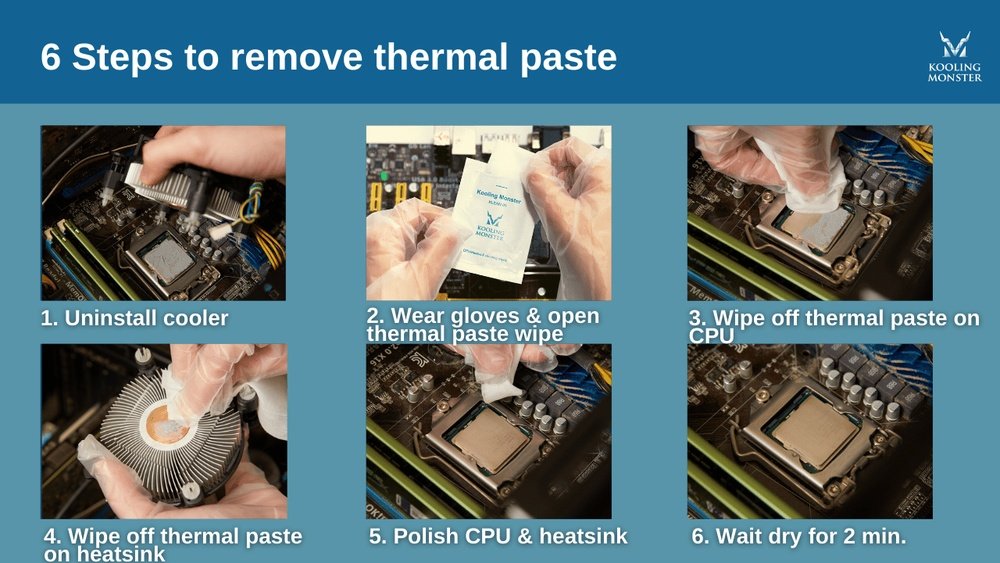
First, turn off your computer and unplug it. Open the case carefully. Find the CPU cooler, usually a fan and heatsink on top of the CPU. Unscrew or unclip it gently. Lift the cooler straight up to avoid damage.
Cleaning The Fan And Heatsink
Use a soft brush or compressed air to remove dust from the fan blades. Blow air through the heatsink fins to clear dirt. Avoid spinning the fan too fast with air. Wipe any remaining dust with a dry cloth.
Removing Old Thermal Paste
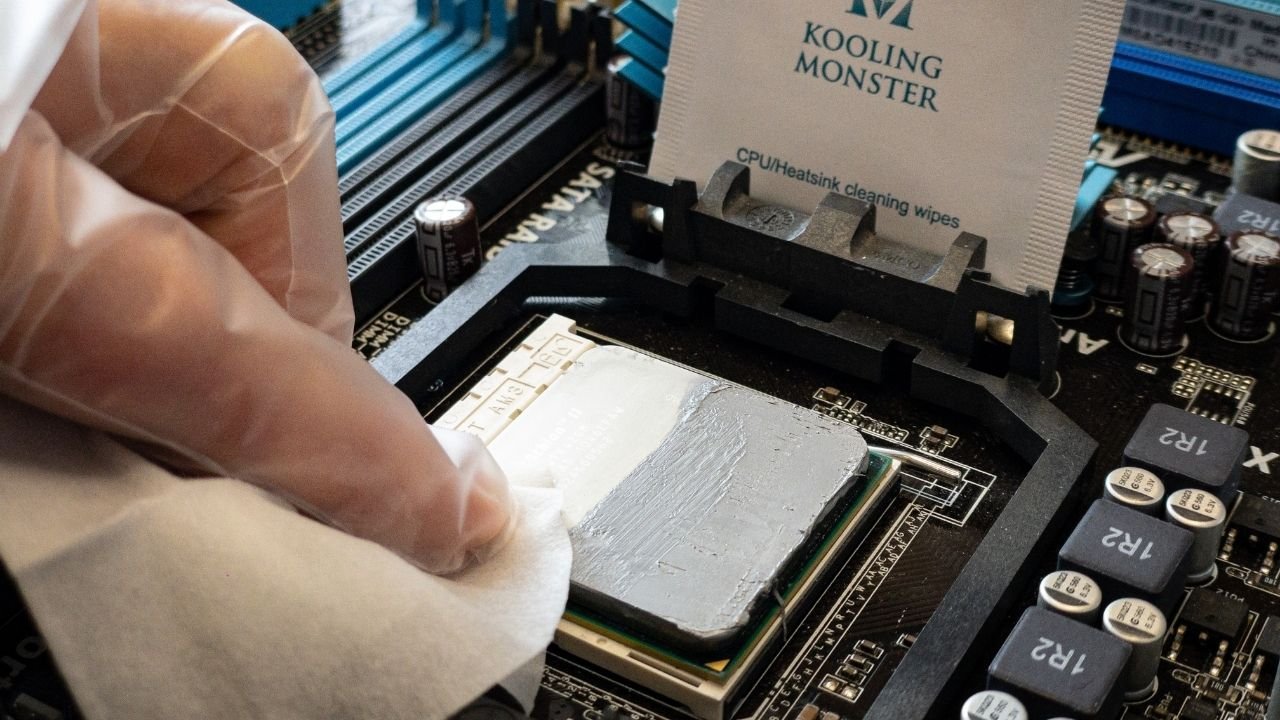
Use a lint-free cloth or coffee filter. Apply a small amount of isopropyl alcohol on the cloth. Gently wipe the old thermal paste from the CPU surface. Clean the cooler’s base too. Make sure both are dry before moving on.
Applying New Thermal Paste
Put a small pea-sized dot of thermal paste in the center of the CPU. Spread it evenly with a plastic card or let the cooler spread it when attached. Avoid using too much paste. Too much can cause poor heat transfer.
Reassembling The Components
Place the CPU cooler back carefully. Align it with the mounting points. Screw or clip it firmly but not too tight. Connect the fan cable to the motherboard. Close the case and plug your computer back in.
Cleaning Tips And Best Practices
Cleaning your CPU is important for better performance and longer life. Follow these tips and best practices to clean it safely and effectively. Careful handling and avoiding mistakes will protect your device from damage. This guide helps you keep your CPU clean without stress.
Handling Sensitive Components
Always turn off and unplug your computer before cleaning. Use an anti-static wrist strap to avoid static damage. Handle parts gently, especially the CPU and motherboard. Avoid touching pins or circuits with bare hands. Use soft brushes or compressed air to remove dust. Keep liquids away from sensitive areas to prevent short circuits.
Avoiding Common Mistakes
Do not use water or harsh chemicals on the CPU. Avoid using a vacuum, which can cause static. Never force parts during cleaning or reassembly. Do not rush the process; take your time. Make sure everything is dry before turning the computer on. Clean regularly to prevent dust buildup and overheating.
Maintaining Cpu Cleanliness
Keeping your CPU clean is important for its performance and lifespan. Dust and dirt can block airflow and cause overheating. Regular cleaning helps your computer run smoothly and stay cool. Simple steps can prevent damage and improve efficiency.
Recommended Cleaning Frequency
Clean your CPU every three to six months. This depends on your environment. Dusty or smoky places need more frequent cleaning. Regular checks help spot dust buildup early. Avoid waiting for your CPU to overheat or slow down.
Using Dust Filters And Covers
Dust filters stop dust from entering your CPU case. They are easy to install on air vents. Clean the filters monthly to keep airflow strong. Covers protect your CPU from dirt when not in use. These tools reduce the need for deep cleaning often.
Troubleshooting After Cleaning
After cleaning your CPU, some problems might appear. These issues often relate to temperature or performance. Troubleshooting helps find and fix these problems fast. Follow simple steps to keep your computer running smoothly.
Monitoring Temperatures
Check CPU temperature right after cleaning. Use free software like HWMonitor or Core Temp. Normal temperature ranges from 30°C to 50°C when idle. High temperatures can cause crashes or slowdowns. If temps rise above 80°C, stop and check the cooling system. Make sure the thermal paste is applied correctly. Ensure the fan and heatsink are tightly secured. Clean dust from fan blades and vents again if needed.
Fixing Performance Issues
Slow computer or crashes can happen after cleaning. Restart your PC to reset settings. Update your drivers, especially for the CPU and motherboard. Run a virus scan to rule out malware. Check Task Manager for programs using too much CPU. Close or uninstall unnecessary apps. Reset BIOS settings to default if problems continue. Test your CPU under load using stress test tools. Watch for errors or freezes during the test. Replace hardware if the CPU or fan shows faults.

Credit: gamemaxpc.com
Frequently Asked Questions
How Often Should I Clean My Cpu?
Cleaning your CPU every 3 to 6 months is ideal. Dust buildup affects cooling and performance. Regular cleaning prevents overheating and hardware damage. Frequency depends on your environment’s dust levels.
What Tools Do I Need To Clean A Cpu?
Use a soft brush, compressed air can, microfiber cloth, and thermal paste. Avoid vacuum cleaners to prevent static damage. These tools safely remove dust and debris from the CPU and cooler.
Can I Clean My Cpu Without Removing It?
Yes, carefully blow compressed air into the vents and heatsink. Avoid liquid cleaners and direct contact with components. Removing the CPU allows deeper cleaning but is not always necessary.
Why Is Thermal Paste Important During Cpu Cleaning?
Thermal paste ensures efficient heat transfer between CPU and cooler. Replace it when cleaning the CPU to maintain optimal cooling. Old paste can dry out, reducing heat dissipation and causing overheating.
Conclusion
Cleaning your CPU helps keep your computer cool and fast. Dust and dirt can block airflow and cause overheating. Regular cleaning improves performance and extends your CPU’s life. Take care to use safe tools and gentle methods. Small steps make a big difference in your PC’s health.
Keep your workspace clean to avoid dust buildup. A clean CPU means fewer crashes and better speed. Simple maintenance saves money and frustration later. Start cleaning today to enjoy a smoother computer tomorrow.
