
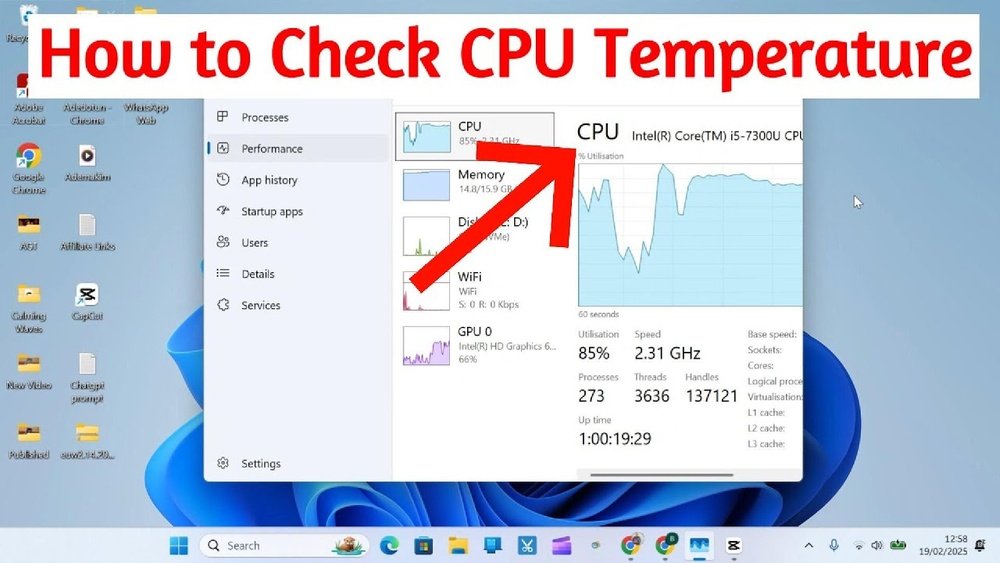
Are you worried that your computer might be overheating? Knowing how to check your CPU temperature is one of the simplest ways to protect your device from damage.
When your CPU gets too hot, it can slow down, crash, or even stop working altogether. But don’t worry—this guide will show you easy steps to monitor your CPU’s temperature quickly and accurately. By the end, you’ll have the tools to keep your computer running smoothly and avoid costly repairs.
Ready to take control of your PC’s health? Let’s dive in!
Importance Of Monitoring Cpu Temperature
Keeping an eye on your CPU temperature is very important. Your CPU works hard to run programs and processes. It produces heat during this work. Too much heat can cause serious problems. Monitoring temperature helps avoid damage and keeps your computer safe.
Regular checks allow you to spot issues early. You can stop overheating before it harms your system. This simple step protects your computer’s health and keeps it running smoothly.
Risks Of Overheating
Overheating can cause your computer to shut down suddenly. This protects parts from heat damage but can interrupt work. Long periods of heat can burn out your CPU. Overheating also risks damaging other internal parts. It can cause data loss or corrupt files. Protecting your CPU temperature prevents these risks.
Impact On Performance And Longevity
High temperatures make your CPU slow down. This reduces your computer’s speed and responsiveness. It may freeze or lag during tasks. Heat stress shortens the life of your CPU. Cooler temperatures help your CPU last longer. Keeping temperature low maintains good performance over time.
Credit: www.avast.com
Tools To Check Cpu Temperature
Checking your CPU temperature helps keep your computer safe and running well. Many tools show this important information. Some tools are built into your system, while others come from outside sources. Both have their uses and benefits. Understanding these tools makes monitoring easy and effective.
Built-in Bios/uefi Options
Every computer has BIOS or UEFI software inside. This software controls basic system functions. It also shows CPU temperature. You can access it by restarting your computer and pressing a special key. Usually, the key is Delete, F2, or Esc. Inside BIOS/UEFI, look for a hardware or system monitor section. There, you will find the CPU temperature reading.
This method is simple and does not need extra programs. It shows real-time temperature before your operating system loads. But, it might not show detailed history or alerts. Still, it is a good first step to check your CPU heat.
Third-party Software Choices
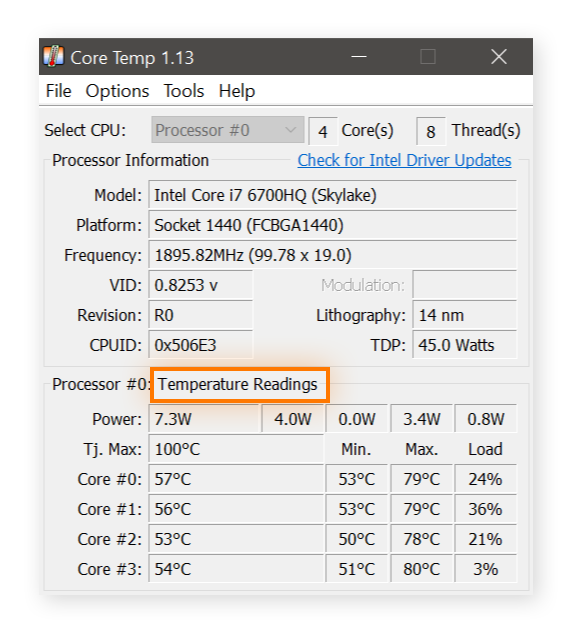
Many free and paid programs display CPU temperature clearly. These tools run inside your operating system. They often provide detailed graphs and alerts. Some popular choices are HWMonitor, Core Temp, and SpeedFan. These apps show temperatures for each CPU core. They also report other details like fan speed and voltage.
Third-party software is easy to install and use. It updates temperature readings constantly. Some allow custom alerts if the CPU gets too hot. This helps protect your computer from damage. These tools suit users who want more control and information than BIOS offers.
Step-by-step Guide To Check Cpu Temperature
Checking your CPU temperature helps keep your computer safe. Overheating can cause slowdowns or damage. This guide shows simple steps to check your CPU heat. Follow these methods to know your CPU’s temperature with ease.
Accessing Bios/uefi
Turn off your computer. Press the key to enter BIOS or UEFI. Usually, it is F2, Del, or Esc. The screen varies by brand. Look for a tab named “Hardware Monitor” or “PC Health.” Here, you find the CPU temperature. Note the temperature before you exit. Restart your computer to continue normal use.
Using Software Applications
Download a trusted temperature monitoring app. Popular choices include HWMonitor, Core Temp, or SpeedFan. Install the software and open it. The main window shows CPU temperature in real-time. Watch the numbers while doing different tasks. This method is easy and fast to use anytime.
Interpreting Temperature Readings
Normal CPU temperature ranges from 30°C to 50°C at idle. Under heavy use, 60°C to 80°C is common. Temperatures above 85°C may cause problems. If your CPU is too hot, clean fans or improve airflow. Keep your computer cool to avoid damage and keep it fast.

Credit: softwareg.com.au
Ideal Cpu Temperature Ranges
Knowing your CPU’s ideal temperature helps keep your computer safe. Too hot or too cold can cause problems. Each CPU model has a range where it works best. Staying within this range ensures good performance and longer life.
Temperature changes depending on what the CPU is doing. It is normal for the CPU to get warmer during tasks. Understanding these ranges helps you spot issues early and protect your device.
Idle Temperature Benchmarks
Idle temperature means the CPU is not doing much work. Normally, it stays between 30°C and 50°C. Some CPUs run cooler, others warmer depending on design and cooling. If your CPU stays above 50°C at idle, check your cooling system. Dust or poor airflow might cause higher idle temperatures.
Safe Operating Temperatures Under Load
Under load means the CPU is working hard, like during gaming or video editing. Safe temperatures usually range from 60°C to 85°C. Some CPUs can handle up to 90°C without damage but avoid long periods at this heat. If temperatures rise above 90°C, the CPU may throttle or shut down to protect itself.
Good cooling systems keep temperatures in the safe range. Monitor your CPU often to prevent overheating and keep your PC healthy.
Tips To Maintain Safe Cpu Temperature
Keeping your CPU temperature safe is important for your computer’s health. High temperatures can cause slowdowns or damage parts. Follow these simple tips to keep your CPU cool and running well.
Improving Airflow And Cooling
Good airflow helps remove heat from your CPU. Make sure your computer case has enough fans. Place fans to push hot air out and bring cool air in. Use a quality CPU cooler for better heat control. Avoid blocking air vents with cables or objects.
Cleaning Dust And Debris
Dust can block airflow and trap heat. Clean your computer inside regularly. Use a soft brush or compressed air to remove dust. Pay special attention to fans and vents. Keeping your PC clean helps maintain steady temperatures.
Updating Bios And Drivers
BIOS and driver updates can improve temperature management. Check your motherboard’s website for updates. Install the latest BIOS version carefully. Update your CPU and chipset drivers too. These updates help your system control CPU heat better.
Troubleshooting High Cpu Temperatures
High CPU temperatures can cause your computer to slow down or even shut off. Knowing how to fix these high temperatures keeps your PC safe. This section helps you find and fix problems that cause heat issues.
Identifying Hardware Issues
Check if the CPU fan is spinning properly. Dust can block airflow and trap heat inside. Clean dust from fans and vents carefully. Make sure the heat sink is firmly attached to the CPU. Old or dried thermal paste can stop heat transfer. Replace the thermal paste to improve cooling. Sometimes, faulty hardware parts need replacement to fix heat problems.
Managing Software And Processes
Some programs use more CPU power than others. Open the task manager to see which apps use the most CPU. Close apps that are not needed. Too many background processes raise CPU temperature. Set your system to limit CPU usage if possible. Update your software to fix bugs that cause high CPU load. Running fewer programs helps keep your CPU cooler.
Credit: www.youtube.com
Frequently Asked Questions
How Can I Check My Cpu Temperature On Windows?
You can check CPU temperature on Windows using software like HWMonitor, Core Temp, or MSI Afterburner. Install and run these tools to view real-time temperature readings easily.
What Is A Safe Cpu Temperature Range?
A safe CPU temperature typically ranges between 30°C and 70°C under normal use. Temperatures above 80°C may cause overheating and performance issues.
Can Bios Show My Cpu Temperature?
Yes, most BIOS setups display CPU temperature in the hardware monitoring section. Restart your PC and enter BIOS to check this information.
Why Is My Cpu Temperature So High?
High CPU temperature can result from poor cooling, dust buildup, or overclocking. Ensure proper airflow and clean your computer regularly.
Conclusion
Checking your CPU temperature helps keep your computer safe and fast. Use simple tools to see the temperature anytime. Watch for high numbers to avoid damage or slowdowns. Regular checks stop problems before they start. Keep your system clean and cool for best results.
Stay aware, and your PC will work longer. Small steps make a big difference in performance. Easy to do, and worth the effort.
