
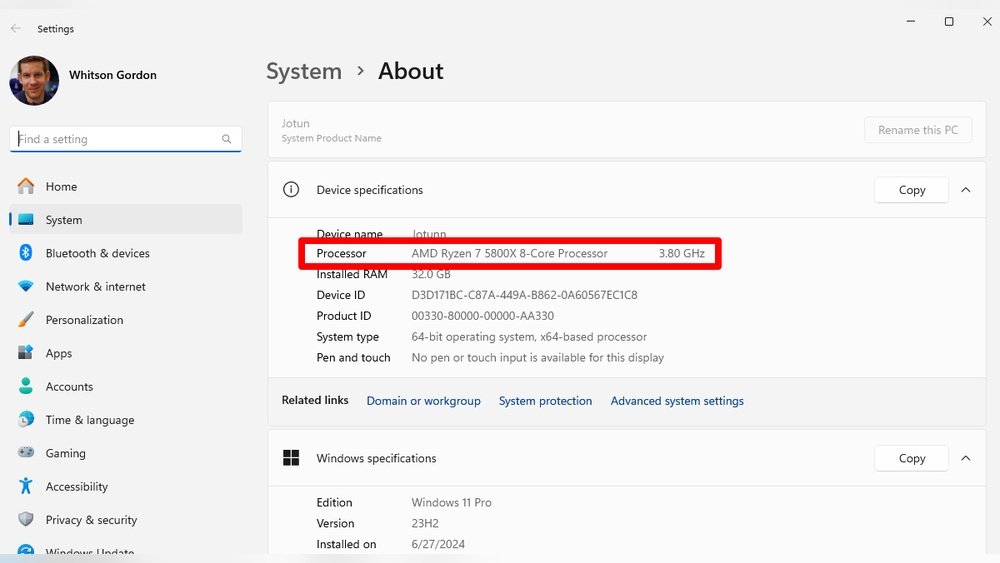
Want to know exactly what CPU powers your computer? Whether you’re troubleshooting, upgrading, or just curious, finding out your CPU details is easier than you think.
You’ll discover simple, step-by-step ways to check your CPU quickly—no tech skills required. By the end, you’ll feel confident knowing exactly what’s inside your machine and how it affects your computer’s performance. Keep reading, and unlock this essential info in just minutes!
Credit: www.howtogeek.com
Identify Cpu On Windows
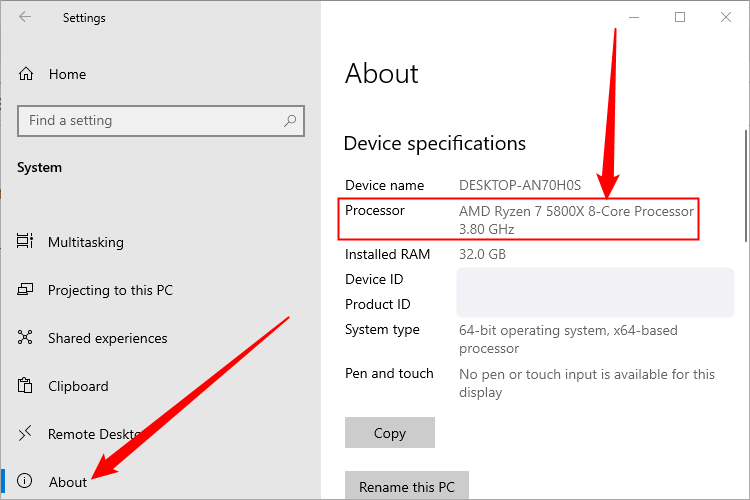
Finding out which CPU your Windows PC has is simple and quick. Knowing your processor helps with software choices and upgrades. Windows offers several ways to see your CPU details without extra tools. Here are three easy methods to identify your CPU on Windows.
Using System Information
Press Windows + R keys to open the Run box.
Type msinfo32 and press Enter.
The System Information window opens showing your system summary.
Look for the “Processor” entry to find your CPU name and model.
This method gives detailed info about your CPU and other hardware.
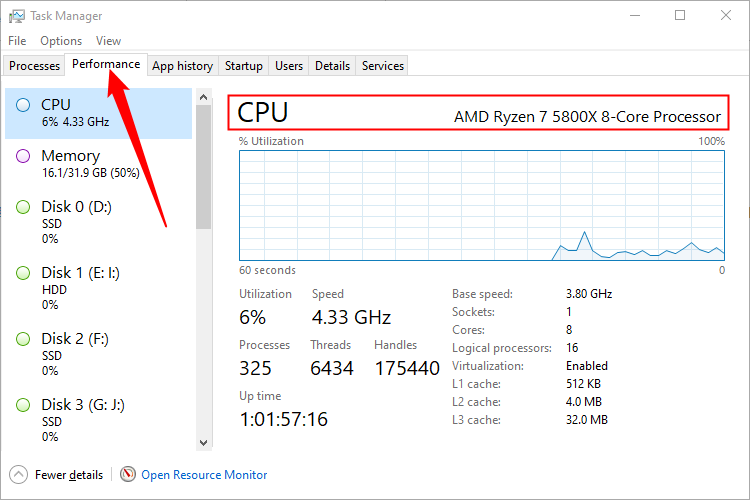
Checking Task Manager
Right-click the taskbar and select Task Manager.
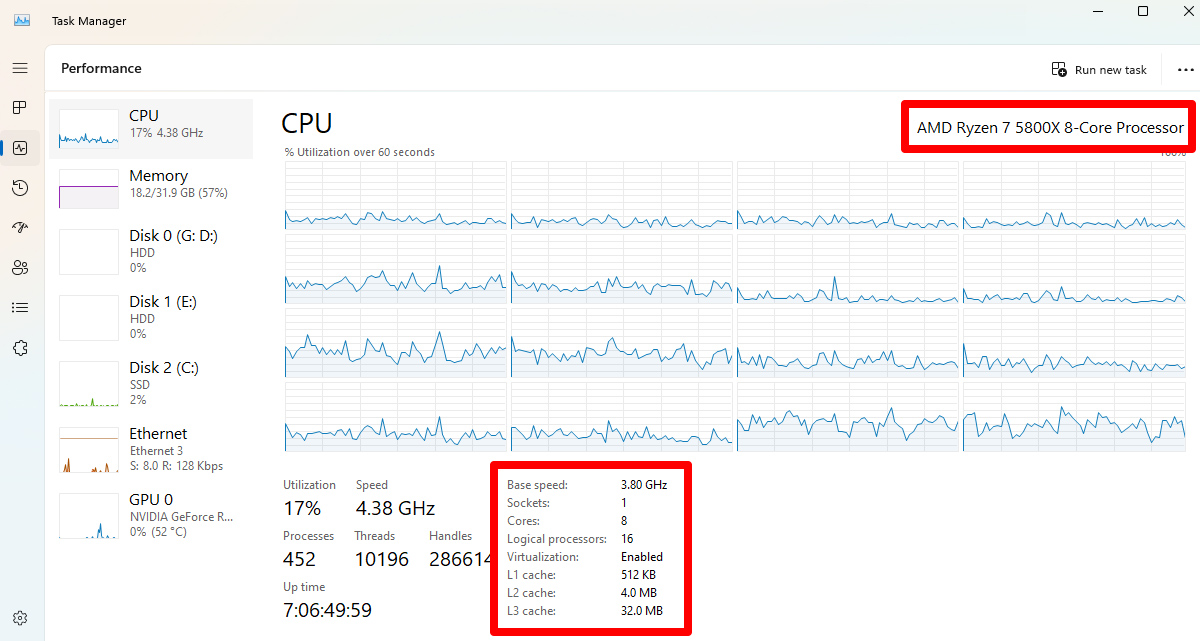
Click the “Performance” tab at the top.
Select “CPU” from the left side menu.
The right panel displays your CPU name and speed.
This view updates live with CPU usage and performance data.
Command Prompt Method
Open the Start menu and type cmd.
Click Command Prompt to open it.
Type wmic cpu get name and press Enter.
The command shows your CPU model name on the next line.
This method works well for quick CPU identification using text commands.
Credit: www.howtogeek.com
Find Cpu On Mac
Finding out what CPU your Mac has is simple. You do not need special tools or apps. Your Mac shows this information quickly in its system settings.
This helps you understand your Mac’s speed and power. It also helps when buying software or hardware that needs certain CPU types.
About This Mac
Click the Apple icon at the top-left corner of your screen.
Select “About This Mac” from the menu.
A window appears showing basic info about your Mac.
You can see the CPU type and speed right under the macOS version.
This is the fastest way to find your Mac’s processor details.
System Report Details
In the “About This Mac” window, click “System Report.”
A new window opens with detailed hardware information.
On the left side, click “Hardware” if not already selected.
The right side shows the processor name, speed, and number of cores.
This gives a complete view of your Mac’s CPU specs.
Check Cpu On Linux
Checking your CPU on Linux is simple and fast. You do not need special tools or skills. Just a few commands or file views give you all the details. This helps you understand your computer better.
Using Terminal Commands
Open the terminal on your Linux system. Type lscpu and press Enter. This command shows CPU architecture, cores, speed, and more. Another command is cat /proc/cpuinfo. It lists detailed CPU information for each core. Use top or htop to see CPU usage live. These commands work on almost all Linux versions.
Viewing System Files
Linux stores CPU info in system files. One key file is /proc/cpuinfo. Open it with a text editor or use cat in the terminal. This file contains processor model, vendor, and flags. Another file is /sys/devices/system/cpu/cpu0/cpufreq/scaling_cur_freq. It shows the current CPU frequency. Exploring these files gives a clear CPU overview without extra tools.
Credit: rog.asus.com
Third-party Tools
Third-party tools help identify your CPU quickly and clearly. These programs offer detailed information about your processor. They show specs like model, speed, and core count.
Many tools are free and easy to use. They work on different versions of Windows and other systems. These tools provide more data than built-in options.
Cpu-z For Windows
CPU-Z is a popular tool for Windows users. It shows processor name, code name, and technology. You can see clock speeds and cache sizes too.
The interface is simple and clean. It updates data in real-time. CPU-Z also lists motherboard and memory details.
This tool is lightweight and runs quickly. It helps confirm your CPU model without confusion.
Other Useful Software
Speccy is another reliable tool for checking CPU info. It also displays temperature and system overview. The layout is easy to read for beginners.
HWMonitor focuses on hardware health. It tracks CPU temperature, voltage, and fan speeds. This tool helps spot potential hardware issues.
For Mac users, Intel Power Gadget gives CPU details. It shows clock speed and power usage. The app is free and simple to install.
Tips For Accurate Cpu Identification
Identifying your CPU correctly is important for many tasks. It helps with system upgrades, software compatibility, and troubleshooting. Accurate CPU details save time and prevent mistakes.
This section shares simple tips for clear CPU identification. Follow these to get the right information about your processor.
Avoiding Common Mistakes
Do not rely only on system labels or stickers. They can be outdated or incorrect. Using built-in tools like Task Manager or System Information gives better results. Avoid guessing based on computer brand or model. Always check the actual CPU details using software tools or system settings.
Verifying Manufacturer Details
Check the CPU manufacturer name carefully. Intel and AMD are the most common brands. Make sure the CPU model number matches the manufacturer’s official site. This step confirms the CPU’s exact type and speed. Accurate manufacturer details help in finding the right drivers and updates.
Frequently Asked Questions
How Do I Find My Cpu On Windows?
Open the Task Manager by pressing Ctrl + Shift + Esc. Go to the Performance tab and select CPU. Your processor’s name and details will appear at the top right corner.
How Can I Check My Cpu On Mac?
Click the Apple logo and select About This Mac. The Overview tab displays your Mac’s CPU type and speed clearly.
What Command Shows Cpu Info On Linux?
Use the command lscpu in the terminal. It lists detailed information about your CPU, including model, cores, and architecture.
Can I Check Cpu Specs Without Software?
Yes, on Windows, use System Information (msinfo32). On Mac, use About This Mac. These tools display your CPU details without extra apps.
Conclusion
Knowing your CPU helps you understand your computer better. It guides you in choosing the right software and upgrades. Checking your CPU is quick and easy with simple steps. Use built-in tools or third-party apps for details. This knowledge saves time and avoids confusion later.
Keep your system info handy for support or repairs. Now, you can confidently check and know your CPU anytime.
