
Wondering how to check your GPU quickly and easily? Whether you’re a gamer, a designer, or just curious about your computer’s power, knowing your GPU details can make a big difference.
It helps you understand your system’s performance and decide if it’s time for an upgrade. In this guide, you’ll discover simple steps to find out exactly what GPU you have—no tech jargon, no confusion. Ready to take control of your PC’s graphics?
Keep reading and get the answers you need right now.
Credit: www.avast.com
Identify Your Gpu Model
Knowing your GPU model helps with software updates and hardware compatibility. It tells you the exact graphics card inside your computer. This information is useful for gaming, video editing, or troubleshooting display issues. Several easy methods exist to find your GPU model on Windows.
Using Device Manager
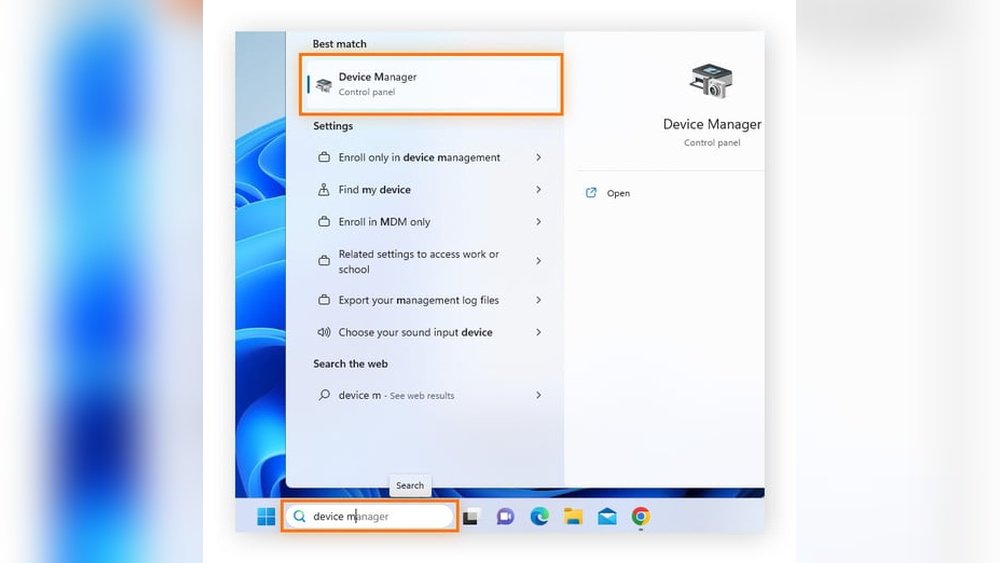
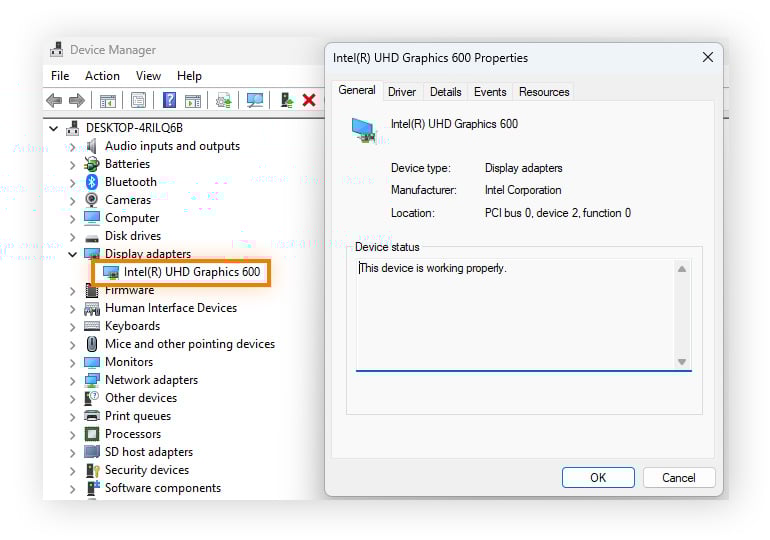
Device Manager lists all hardware components on your PC. Press Windows + X and select Device Manager. Expand the Display adapters section. Your GPU model appears here. This method is quick and built into Windows.
Checking System Information
System Information offers detailed hardware data. Press Windows + R, type msinfo32, and press Enter. Go to Components > Display. Your GPU model shows under the name. This tool gives more info than Device Manager.
Third-party Tools
Programs like GPU-Z or Speccy provide in-depth GPU details. Download and install one of these free tools. Run the program to see your GPU model and specs. These tools help users needing detailed GPU information.

Credit: www.liftingitalia.com
Monitor Gpu Performance
Monitoring your GPU performance helps you understand how well your graphics card works. It shows if the GPU handles tasks smoothly or needs attention. Watching the GPU performance can prevent slowdowns and crashes during heavy use.
Task Manager Usage
Task Manager is a quick way to check GPU activity on Windows. Press Ctrl + Shift + Esc to open it. Click the “Performance” tab and select “GPU.” Here, you see real-time usage, memory, and engine load. This tool shows basic GPU stats without extra software.
Real-time Performance Software
Real-time software gives detailed GPU performance data. Programs like MSI Afterburner or GPU-Z show temperature, clock speeds, and usage. They run alongside your tasks and update information live. These tools help spot overheating or throttling issues early.
Benchmarking Tools
Benchmarking tools test your GPU under heavy load. They measure speed and power using specific tests. Popular benchmarks include 3DMark and Unigine Heaven. Running benchmarks shows how your GPU compares to others. It reveals if your GPU performs as expected.
Check Gpu Temperature
Checking your GPU temperature helps keep your computer safe. High temperatures can cause slowdowns or damage. It is important to watch the heat level of your graphics card. This way, you can avoid problems and improve performance.
Built-in Monitoring Tools
Many GPUs come with built-in tools to check temperature. These tools show real-time heat readings. You can find them in your computer’s control panel or software. For example, NVIDIA and AMD offer software with temperature monitoring. Use these tools to see if your GPU runs too hot. They help you act quickly to cool it down.
Third-party Temperature Apps
Third-party apps provide extra features for GPU temperature tracking. Programs like HWMonitor, MSI Afterburner, and GPU-Z are popular choices. These apps show detailed temperature graphs and alerts. They work with most graphics cards and are easy to use. You can download them for free and start monitoring right away. These apps help you keep your GPU safe and efficient.

Credit: www.acquetech.com
Test Gpu Health
Testing your GPU health helps find problems early. A healthy GPU keeps your computer fast and stable. It also prevents crashes and graphic glitches. Checking your GPU regularly saves time and money.
Stress Testing Methods
Stress tests push your GPU to work at full power. This reveals hidden issues like overheating or weak performance. Use tools that simulate heavy graphic work or gaming. Run the test for 15 to 30 minutes. Watch for sudden crashes or slowdowns.
Identifying Artifacts And Errors
Artifacts are strange lines or shapes on your screen. They show that your GPU might be damaged or overheating. Look closely while running games or stress tests. Flickering, color changes, or screen tearing are bad signs. If you see these, your GPU needs attention.
Using Diagnostic Software
Diagnostic software checks your GPU’s temperature and performance. Programs like GPU-Z or HWMonitor give clear reports. These tools track clock speed, memory use, and heat levels. Use them to find overheating or hardware faults quickly. Run diagnostics regularly to keep your GPU healthy.
Update Gpu Drivers
Updating your GPU drivers is important for smooth computer performance. Drivers help your graphics card communicate with your system. New driver versions fix bugs and improve stability. This keeps your games and apps running well. Drivers also add new features and support for newer software. Regular updates can prevent crashes and slowdowns.
Manual Driver Update
To update drivers manually, visit the GPU maker’s website. Look for the support or download section. Enter your GPU model to find the latest driver. Download the correct version for your operating system. Run the installer and follow the steps on screen. Restart your computer after installation to apply changes. This method ensures you get official and safe drivers.
Automatic Driver Update Tools
Automatic tools scan your system for outdated drivers. They download and install updates without much effort. Some popular tools come from GPU manufacturers. Others are third-party programs that manage drivers for many devices. These tools save time and reduce errors. Set them to check regularly for new updates. This keeps your GPU up to date easily.
Frequently Asked Questions
How To Find My Gpu On Windows?
Open Device Manager, expand Display Adapters, and see your GPU name listed. Alternatively, use Task Manager’s Performance tab to view GPU details instantly.
Can I Check Gpu Specs Without Software?
Yes, by using built-in tools like DirectX Diagnostic Tool (dxdiag) on Windows. It shows GPU name and basic specs without extra software.
How To Check Gpu Temperature Safely?
Use reliable software like MSI Afterburner or GPU-Z to monitor temperature. Keep GPU cool to prevent overheating and maintain performance.
Why Is My Gpu Not Detected?
GPU might be improperly seated, driver issues, or hardware failure. Update drivers, check connections, or test GPU in another system for diagnosis.
Conclusion
Checking your GPU is simple and quick. Just follow the easy steps shared here. Knowing your GPU helps with gaming and software choices. It also helps when upgrading your computer. Stay confident in managing your system’s hardware. Keep this guide handy whenever you need it.
Your GPU details are just a few clicks away. No need to worry or guess anymore. Take control of your PC’s performance today.
