
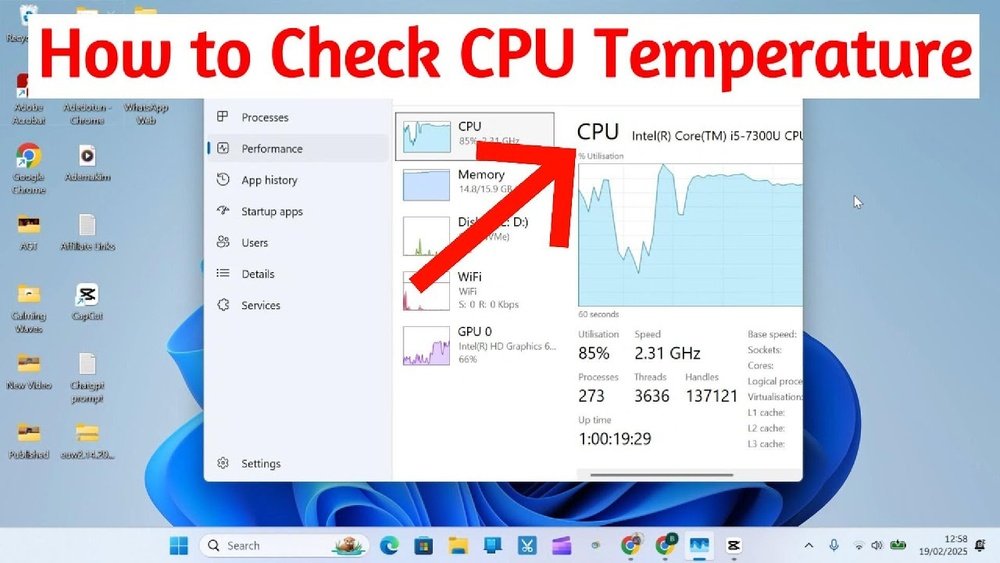
Are you worried that your computer might be running too hot? Knowing how to check the temperature of your CPU is one of the smartest things you can do to keep your device running smoothly.
If your CPU gets too warm, it can slow down your system or even cause damage. But don’t worry—checking your CPU’s temperature is easier than you think. You’ll discover simple and effective ways to monitor your CPU temperature, helping you avoid costly problems and keep your computer performing at its best.
Keep reading to learn how to protect your device and boost its lifespan.

Credit: softwareg.com.au
Why Monitor Cpu Temperature
Knowing your CPU temperature helps keep your computer healthy. The CPU works hard and can get very hot. High temperatures can cause problems. Monitoring temperature helps avoid these issues early. It keeps your system running smoothly and safely.
Impact On Performance
High CPU temperatures make your computer slow down. The CPU reduces speed to cool itself. This is called thermal throttling. It lowers performance and causes lag. Watching the temperature helps keep your computer fast.
Preventing Overheating Damage
Too much heat can damage your CPU parts. Overheating shortens the life of your computer. It can cause crashes or permanent damage. Monitoring temperature alerts you before damage happens. You can take action to cool down your CPU and protect your device.

Credit: www.alcpu.com
Signs Of High Cpu Temperature
High CPU temperature can cause many problems for your computer. It harms performance and can damage parts. Knowing the signs helps you act fast. You can protect your CPU and keep your computer running smoothly.
System Slowdowns
Your computer may slow down when the CPU gets hot. Programs take longer to open. Tasks freeze or lag. This happens because the CPU reduces speed to cool down. It tries to avoid damage by working less hard.
Unexpected Shutdowns
The computer may shut down without warning. This is a safety feature to stop overheating. Sudden shutdowns protect the CPU from permanent damage. If this happens often, check your CPU temperature right away.
Unusual Fan Noise
The cooling fan works harder as the CPU heats up. You may hear louder or strange noises from the fan. This noise means the fan is trying to cool down the CPU quickly. If it sounds very loud, the CPU may be too hot.
Tools To Check Cpu Temperature
Checking your CPU temperature is important to keep your computer safe. High temperatures can cause damage or slow down your system. Several tools help you monitor CPU temperature easily. These tools vary in complexity and features. Choose the one that fits your needs and skill level.
Built-in Bios/uefi
BIOS or UEFI is the first place to check your CPU temperature. Restart your computer and enter BIOS by pressing a key like F2 or Delete. Find the hardware monitor or PC health section. Here, you see the current CPU temperature. This method does not need extra software. It shows real-time data before the operating system loads.
Third-party Software
Many free programs show CPU temperature in Windows or Linux. Popular options include HWMonitor, Core Temp, and SpeedFan. These apps display temperature readings and other system info. They update data continuously while you work. Some offer alerts for high temperatures. Use third-party tools for detailed and easy monitoring.
Manufacturer Utilities
CPU makers often provide their own monitoring tools. Intel offers Intel Extreme Tuning Utility (XTU). AMD has Ryzen Master for Ryzen processors. These tools show temperature and let you adjust settings. They provide accurate readings tailored to specific CPUs. Use manufacturer utilities to get reliable data and extra features.
Checking Cpu Temperature In Bios/uefi
Checking your CPU temperature in BIOS or UEFI helps you monitor your computer’s health. This method does not require any software. You can see the real-time temperature as soon as the system starts. It is useful if your computer is overheating or running slow.
Accessing Bios/uefi
Turn off your computer first. Press the power button to turn it on. Immediately press the BIOS key repeatedly. The key varies by manufacturer, usually Delete, F2, or Esc. Keep pressing until the BIOS or UEFI screen appears. Use the arrow keys or mouse to navigate inside.
Locating Temperature Information
Look for a menu named Hardware Monitor or PC Health Status. This section shows CPU temperature and other system stats. Find the CPU Temperature or CPU Thermal sensor reading. The temperature is usually in Celsius. Note the value before you exit BIOS. Do not forget to save any changes if you made them.
Using Software To Monitor Cpu Temperature
Monitoring your CPU temperature using software is simple and effective. It helps keep your computer safe from overheating and can improve performance. Many programs show real-time temperature readings and alert you if the CPU gets too hot. This way, you can act fast to cool down your system.
Popular Free Tools
Several free tools track CPU temperature with ease. Core Temp is a lightweight program that displays clear temperature data. HWMonitor offers detailed information about CPU, GPU, and other hardware. SpeedFan not only monitors temperatures but also controls fan speeds. Each tool works well on most Windows computers.
Installation And Setup
Download the chosen software from the official website. Run the installer and follow the on-screen instructions. After installation, open the program to view the main dashboard. Most tools start monitoring automatically. Check settings to enable alerts and customize temperature thresholds.
Interpreting Temperature Readings
CPU temperatures below 50°C are normal during light use. When the temperature reaches 70°C or higher, the CPU is under heavy load. Temperatures above 85°C can cause damage if sustained. Watch for sudden spikes or consistent high readings. Use this data to adjust cooling or reduce workload.
Tips To Maintain Safe Cpu Temperature
Keeping your CPU temperature safe helps your computer work well and last longer. High temperatures can slow down your PC and cause damage. Small changes can keep your CPU cool and prevent issues.
Here are some simple tips to maintain a safe CPU temperature.
Improving Airflow
Good airflow inside your computer case moves hot air out and brings cool air in. Make sure cables are tidy and do not block fans. Use cases with vents and fans in the right spots. Avoid putting your PC in a closed space without air.
Cleaning Dust
Dust blocks air and makes your CPU hotter. Clean dust from fans, vents, and heat sinks often. Use a soft brush or compressed air to remove dust safely. Regular cleaning keeps your cooling system working well.
Upgrading Cooling Solutions
Stock coolers may not cool well for heavy use. Consider better air coolers with larger fans or heat pipes. Liquid cooling systems can also help reduce CPU temperature. Choose a cooler that fits your CPU and case for best results.
Credit: www.youtube.com
Frequently Asked Questions
How Can I Check My Cpu Temperature On Windows?
You can use built-in tools like Task Manager or third-party apps such as HWMonitor. These display real-time CPU temperature easily and accurately.
What Is A Safe Cpu Temperature Range?
Typically, 30°C to 50°C is safe during normal use. Temperatures above 80°C can risk overheating and damage your CPU.
Why Does My Cpu Temperature Suddenly Spike?
Temperature spikes happen due to heavy tasks like gaming or video editing. Poor cooling or dust buildup can also cause sudden heat rises.
Can Bios Show Cpu Temperature?
Yes, most BIOS setups display CPU temperature under hardware monitoring. Access BIOS during startup to view real-time thermal data without extra software.
Conclusion
Checking your CPU temperature helps keep your computer safe. High temperatures can cause damage or slow down your system. Use simple tools to monitor the heat regularly. Pay attention to signs like loud fans or slow performance. Taking small steps now can save you from big problems later.
Stay aware, and your CPU will run smoothly for years. It’s easy and important to check your CPU’s temperature often.
