
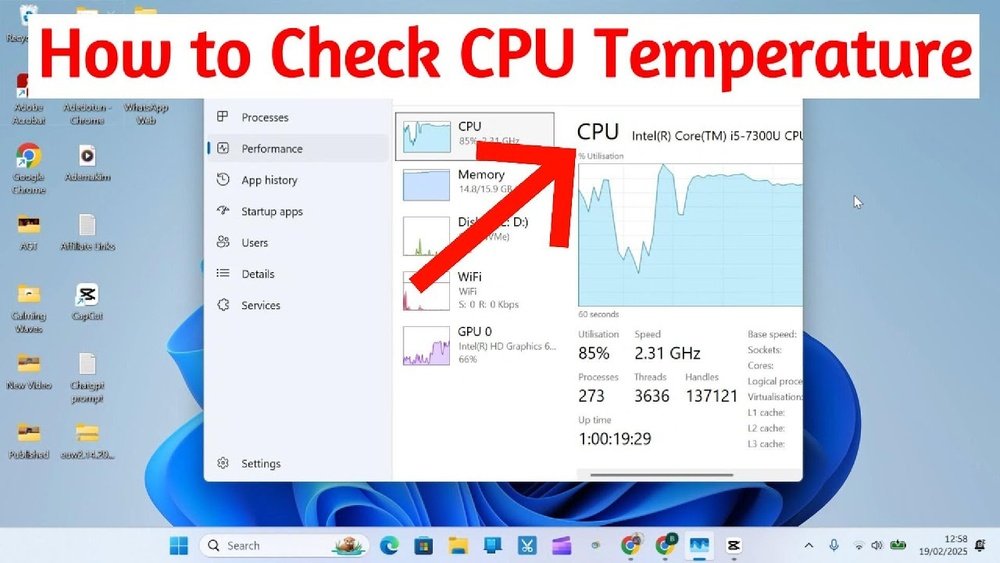
Are you worried that your computer might be overheating? Knowing how to check the temperature of your CPU is one of the easiest ways to keep your system running smoothly and avoid unexpected crashes.
If your CPU gets too hot, it can slow down your work or even cause permanent damage. But don’t worry — you’ll discover simple, step-by-step methods to monitor your CPU temperature quickly and easily. By the end, you’ll have the confidence to protect your computer and keep it performing at its best.
Keep reading to find out how!

Credit: openhardwaremonitor.org
Why Monitor Cpu Temperature
Monitoring your CPU temperature is important for keeping your computer healthy. The CPU works hard and can get very hot. Too much heat can cause problems. Checking the temperature helps you avoid damage and keeps your PC running well.
Knowing your CPU temperature helps you catch issues early. It lets you fix cooling problems before they harm your system. This simple step can save money and extend your computer’s life.
Effects Of Overheating
Overheating can slow down your CPU. It may cause your computer to freeze or crash. High heat can damage CPU parts permanently. It also reduces the lifespan of your device. Keeping the CPU cool avoids these risks and keeps performance steady.
Signs Of High Cpu Temperature
Your computer might beep or shut down suddenly. It could run louder because fans work harder. Programs may lag or respond slowly. The device may feel hot to touch near vents. These signs show that the CPU is too hot and needs attention.
Built-in Tools To Check Cpu Temperature
Checking your CPU temperature helps keep your computer safe from overheating. You can use built-in tools on your computer to see the CPU temperature. These tools do not need extra downloads or software. They give quick and basic information about your CPU’s heat level.
Built-in tools are easy to access. They show real-time temperature or give a reading when you start your PC. This helps you avoid problems caused by high heat.
Bios/uefi Temperature Monitoring
BIOS or UEFI is the first screen that appears when you turn on your computer. It controls the hardware settings. You can check CPU temperature here without any software.
To access BIOS or UEFI, restart your computer and press a key like F2, Del, or Esc. Look for a section called “Hardware Monitor” or “PC Health.” Here, you will see the CPU temperature in degrees Celsius or Fahrenheit.
This method shows temperature when the PC is idle. It is helpful to see the base temperature of your CPU before the operating system loads.
Windows Task Manager And Settings
Windows Task Manager shows many system details but does not display CPU temperature directly. However, Windows Settings can give some temperature info on newer systems.
Open Task Manager by pressing Ctrl + Shift + Esc. Check the “Performance” tab for CPU usage but not temperature. To check temperature, go to Windows Settings > System > Display > Graphics settings. Some PCs show temperature here.
Windows 11 has better support for CPU temperature in its system tools than older versions. This feature depends on your hardware and drivers.
Third-party Software Options
Third-party software offers a simple way to check your CPU temperature. These apps read data directly from your processor and show it in an easy format. Many programs are free and work on most computers.
You do not need special skills to use them. Just install the software and open it to see your CPU temperature in real-time. Some apps also show other useful details like fan speed and voltage.
Popular Cpu Temperature Apps
Core Temp is a favorite for many users. It shows temperature for each core clearly. HWMonitor is another app that tracks temperature, voltage, and fan speed. SpeedFan offers more control over fan settings and temperature monitoring. Open Hardware Monitor is open-source and supports many sensors. These apps run quietly in the background without slowing your PC.
Features To Look For
Choose software with a simple interface. It should display clear temperature readings. Real-time updates help you spot issues quickly. Alerts for high temperatures protect your CPU from damage. Compatibility with your operating system is important. Extra features like fan control and logging can be helpful. Lightweight apps use less memory and CPU power.
Using Command Line To Check Temperature
Checking your CPU temperature from the command line is a quick way to monitor your computer’s health. It requires no extra software with a graphical interface. You get real-time data by typing simple commands.
This method works well for tech-savvy users and those who want to save system resources. It also helps when troubleshooting overheating issues.
Windows Powershell Methods
Open Windows PowerShell as an administrator. Type Get-WmiObject MSAcpi_ThermalZoneTemperature -Namespace "root/wmi". Press Enter. This command shows temperature readings in tenths of degrees Kelvin.
To convert the value, use this formula: (Temperature / 10) – 273.15. It gives the temperature in Celsius. Windows PowerShell may not always show accurate CPU temps. It depends on your hardware support.
Linux Terminal Commands
Open your Linux terminal. Type sudo sensors and press Enter. You might need to install the lm-sensors package first. This command lists temperatures from various sensors on your system.
Another command is cat /sys/class/thermal/thermal_zone0/temp. It shows the temperature in millidegrees Celsius. Divide the result by 1000 for a readable value.
Interpreting Temperature Readings
Checking your CPU temperature is just the first step. Understanding what the numbers mean is very important. Temperature readings tell you if your CPU runs safely or if it risks damage. Knowing how to read these numbers helps keep your computer healthy and fast.
Safe Temperature Ranges
Most CPUs work best below 70°C (158°F) under load. Idle temperatures usually range between 30°C and 50°C (86°F to 122°F). Staying within these limits keeps your CPU safe. Temperatures above 80°C (176°F) can cause problems. Long periods of high heat reduce CPU life and performance.
When To Take Action
Take action if the CPU temperature goes over 85°C (185°F). This can mean your cooling system is not working well. Check fans, clean dust, or improve airflow inside your case. If the temperature stays high, consider better cooling solutions. Acting fast prevents damage and keeps your PC running smoothly.

Credit: softwareg.com.au
Tips To Keep Cpu Cool
Keeping your CPU cool helps your computer run smoothly. It prevents damage and improves performance. Simple steps can lower your CPU temperature effectively.
Improving Airflow
Good airflow inside your computer case moves hot air out. Arrange cables neatly to avoid blocking fans. Use cases with vents or mesh panels for better air entry. Position your PC in a place with space around it. Avoid placing it in tight spots or near heat sources.
Regular Cleaning And Maintenance
Dust buildup blocks airflow and traps heat. Clean your computer every few months using compressed air. Focus on fans, vents, and heat sinks. Check fan blades for dust and wipe them gently. Replace old thermal paste between the CPU and cooler to improve heat transfer.
Upgrading Cooling Solutions
Stock coolers may not be enough for heavy use. Consider upgrading to a better air cooler with larger fans. Liquid cooling offers quiet and efficient temperature control. Choose a cooling solution that fits your case and budget. Ensure proper installation to avoid cooling problems.

Credit: www.alcpu.com
Frequently Asked Questions
How Can I Check My Cpu Temperature In Windows?
You can check CPU temperature using software like HWMonitor or Core Temp. These tools display real-time temperature readings easily.
What Is A Safe Cpu Temperature Range?
Safe CPU temperatures typically range between 30°C and 70°C. Temperatures above 80°C may indicate overheating risks.
Can Bios Show My Cpu Temperature?
Yes, most BIOS setups display CPU temperature under hardware monitoring or system health sections.
Why Is My Cpu Temperature Suddenly High?
High CPU temperatures can result from poor cooling, dust buildup, or heavy software usage.
Conclusion
Knowing your CPU temperature helps keep your computer safe. Checking it often can stop overheating problems early. Use easy tools or built-in software to see the temperature. Keep your PC clean and cool to avoid damage. Simple steps like these protect your device and make it last longer.
Stay aware and your computer will run smoothly every day.
