
Wondering how to check the GPU of your laptop? Whether you’re gaming, designing, or just curious, knowing your laptop’s graphics card is key.
It helps you understand its power, compatibility, and what it can handle. In this guide, you’ll learn simple steps to find out exactly what GPU your laptop has—no tech jargon, no confusion. Keep reading, and you’ll have the answers you need in minutes.
Credit: www.myfixguide.com
Identify Your Laptop Model
Start by finding your laptop’s exact model number. This helps locate detailed hardware information. Checking the GPU becomes easier once you know the model.
Check The Label On Your Laptop
Most laptops have a label on the bottom or under the battery. This label shows the model number clearly. Use this number to find exact details about your laptop. It helps in identifying the GPU inside.
Use System Information On Windows
Press the Windows key and type “System Information.” Open the app that appears. Look for “System Model” in the window. This shows the laptop model without opening the device. Simple and quick.
Look In The About Section Of Settings
Open Settings from the Start menu. Click on “System,” then choose “About.” Find the “Device name” or “Model” listed there. This gives the laptop model directly from your operating system.
Check The Manufacturer’s Website
Enter your laptop’s model number on the maker’s website. You get detailed specs including GPU information. This method is reliable and accurate for finding hardware details.
Use System Information Tools
System information tools help you find your laptop’s GPU quickly. These tools are built into your operating system. They show details about your hardware without extra software. Using these tools is simple and fast. They give clear information about your graphics card and its specs.
Windows Device Manager
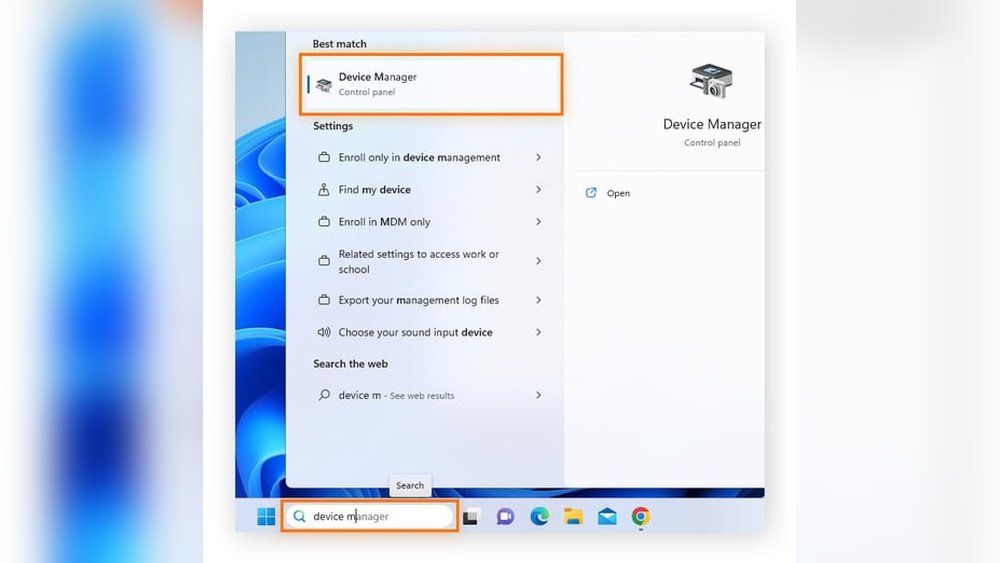
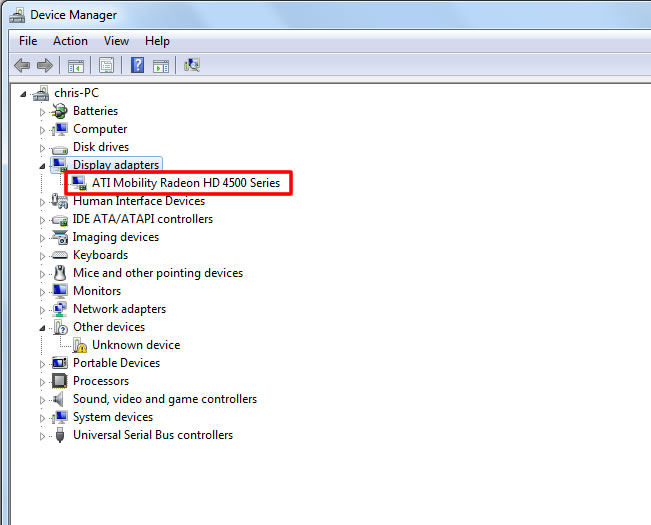
Open the Device Manager by right-clicking the Start button. Select “Device Manager” from the list. Find “Display adapters” and click the arrow to expand it. Your GPU’s name appears under this section. Double-click the GPU for more details. The Driver tab shows the driver version. This helps check if your GPU is up to date.
Mac About This Mac
Click the Apple icon in the top-left corner. Choose “About This Mac” from the menu. A window opens showing your Mac’s overview. The Graphics section lists your GPU model. It shows built-in or dedicated graphics information. This method works on all Mac laptops. It provides a quick look at your GPU details.
Linux Terminal Commands
Open the terminal on your Linux laptop. Type lspci | grep -i vga and press Enter. This command lists graphics devices on your system. For detailed info, use lshw -c video. It shows your GPU name and specs. These commands require no extra apps. They work on most Linux distributions.
Check Gpu Via Directx Diagnostic Tool
Checking your laptop’s GPU helps understand its graphics power. The DirectX Diagnostic Tool is a quick way to find GPU details. It shows the graphics card model and driver information. This tool is built into Windows, so no extra software is needed.
Use this tool to confirm your laptop’s GPU before installing games or graphic software. It also helps troubleshoot display issues. The steps below explain how to open and use the DirectX Diagnostic Tool.
Open The Directx Diagnostic Tool
Press the Windows key and R at the same time. Type dxdiag in the Run box. Click OK or press Enter. The DirectX Diagnostic Tool window will open. Wait a few seconds for it to load fully.
Navigate To The Display Tab
Click the “Display” tab at the top of the window. This tab shows information about your GPU. Look for the name of the graphics card under “Device.”
Check Gpu Details
Find the “Name” field to see the GPU model. The “Manufacturer” field shows the GPU maker, like Nvidia or AMD. Note the “Chip Type” for technical details. The “Display Memory” shows how much VRAM your GPU has.
Review Driver Information
Scroll down to see the “Driver” section. This section shows the driver version and date. Updated drivers improve performance and fix bugs. Write down this info if you need support.
Use Third-party Software
Using third-party software is a simple way to check your laptop’s GPU details. These tools show detailed information about your graphics card. They help you understand your laptop’s performance and capabilities. Most of these programs are free and easy to use. They also provide real-time data about your GPU’s temperature and usage.
Gpu-z
GPU-Z is a popular tool for checking GPU specs. It shows the name, memory size, and clock speeds of your graphics card. The interface is clean and simple. You can see your GPU’s temperature and load during use. It works with most laptop GPUs. GPU-Z helps users learn about their graphics hardware quickly.
Speccy
Speccy gives a full report of your laptop’s hardware. It shows the GPU model along with CPU, RAM, and storage details. The layout is easy to read. Speccy also displays the current temperature of your GPU. This software is great for beginners. It helps you get a clear picture of your laptop’s components.
Hwmonitor
HWMonitor focuses on monitoring hardware temperatures and voltages. It shows your GPU’s temperature, fan speed, and power consumption. This software helps prevent overheating issues. It supports many GPU brands and models. HWMonitor is useful to check your laptop’s GPU health over time.
Check Gpu In Laptop Settings
Checking the GPU in your laptop settings helps you know which graphics card it uses. This is important for understanding your laptop’s performance. You can find this information without extra software. Different brands have different ways to show this data.
Windows Graphics Settings
Open the Start menu and click Settings. Choose System, then go to Display. Scroll down and select Graphics settings. Here, you can see the GPU used for each app. This section shows if your laptop uses integrated or dedicated graphics. It helps to manage which GPU runs specific programs.
Nvidia Control Panel
Right-click on your desktop and select NVIDIA Control Panel. In the Control Panel, go to System Information. You will see details about your NVIDIA GPU here. This tool shows the GPU model and driver version. It also lets you customize graphics performance for apps.
Amd Radeon Settings
Right-click on the desktop and choose AMD Radeon Settings. Click on System to view GPU details. You can check the GPU name and memory size here. This panel helps optimize your AMD graphics card settings. It is useful for both gaming and work tasks.

Credit: www.hp.com
Verify Gpu Performance And Specs
Verifying the GPU performance and specs helps you understand your laptop’s graphics power. It shows how well your laptop can handle games, videos, and software. Knowing this information guides you in choosing the right laptop or upgrading your current one. Two main ways to verify GPU details include using benchmarking tools and checking manufacturer websites.
Benchmarking Tools
Benchmarking tools test your GPU by running specific tasks. These tests measure speed, temperature, and overall performance. Popular tools include 3DMark, FurMark, and Unigine Heaven. They provide scores to compare your GPU with others. Running these tests helps spot issues or confirm the GPU works well. Many tools offer free versions that are easy to use. Results show real-world performance, not just numbers.
Manufacturer Websites
Manufacturer websites provide official GPU specs and updates. Brands like NVIDIA, AMD, and Intel list detailed information on their GPUs. You can find clock speed, memory size, and supported technologies. This data helps you understand the limits and features of your GPU. Manufacturer sites also offer drivers and software to improve GPU performance. Checking here ensures you get accurate and trusted info.
Troubleshoot Gpu Detection Issues
Sometimes, your laptop does not show the GPU correctly. This problem can stop programs from using the graphics card. Troubleshooting GPU detection helps fix this issue fast. It lets you use your laptop’s full power for games, videos, or work.
Several things can cause the GPU to not show up. It might be a driver problem, hardware issue, or wrong settings. Checking these can help find the exact cause and solve it.
Check Device Manager For Gpu Status
Open Device Manager by typing it in the search bar. Look under “Display adapters” to see your GPU. If it is missing or has a warning sign, the driver may be faulty or missing. This tool shows if Windows detects your graphics card correctly.
Update Or Reinstall Gpu Drivers
Outdated or broken drivers often cause detection issues. Visit the GPU maker’s website for the latest driver. Download and install the correct version for your laptop. Sometimes, uninstalling the current driver first helps before installing a new one.
Check Bios Settings For Gpu Options
Restart your laptop and enter BIOS setup by pressing a key like F2 or Delete. Look for settings related to graphics or GPU. Ensure the dedicated GPU is enabled if your laptop has both integrated and dedicated cards. Wrong BIOS settings can hide the GPU from Windows.
Run Hardware Diagnostics
Some laptops have built-in tools to test hardware health. Run these tools to check the GPU status. They can detect hardware problems blocking the GPU from working. If diagnostics find errors, the GPU may need repair or replacement.

Credit: www.hp.com
Frequently Asked Questions
How Do I Find My Laptop’s Gpu Model?
You can find your laptop’s GPU by checking the Device Manager under Display Adapters. Alternatively, use system information tools like DirectX Diagnostic Tool (dxdiag) or third-party apps such as GPU-Z for detailed GPU specs and performance data.
Can I Check My Laptop Gpu Without Software?
Yes, you can check your laptop GPU without software by accessing the Device Manager. Navigate to Display Adapters, and you’ll see the GPU model listed there. This method is quick and doesn’t require installing any additional programs.
Why Is Knowing My Laptop Gpu Important?
Knowing your laptop GPU helps determine gaming and graphic performance capabilities. It guides software compatibility and upgrade decisions. This info is crucial for tasks like video editing, gaming, and 3D rendering to ensure smooth operation.
How To Check If My Laptop Gpu Is Integrated Or Dedicated?
Check the Device Manager under Display Adapters; integrated GPUs usually have Intel or AMD names. Dedicated GPUs often list Nvidia or AMD Radeon models. You can also use system info tools to confirm the GPU type quickly.
Conclusion
Checking your laptop’s GPU is simple and quick. You can find the information using built-in tools or settings. Knowing your GPU helps you understand your laptop’s power. This can guide you when choosing software or games. Always double-check the details for accuracy.
Now, you have the steps to check your laptop’s graphics card easily. Keep this knowledge handy for future use.
