
Are you worried about your computer running too hot? Knowing how to check the temps of your CPU and GPU is key to keeping your system healthy and fast.
Overheating can slow down your machine, cause crashes, or even damage important parts. But don’t worry—this guide will show you simple ways to monitor your hardware’s temperature. By the end, you’ll know exactly how to keep your CPU and GPU cool and running smoothly.
Keep reading to protect your device and boost its performance!
Why Monitor Cpu And Gpu Temps
Monitoring the temperatures of your CPU and GPU is important for keeping your computer safe and running well. These parts produce heat while working. Too much heat can cause problems. Watching the temps helps you stop damage early.
Risks Of Overheating
Overheating can cause your computer to shut down suddenly. It may also lead to permanent damage to the CPU or GPU. High temps can make parts fail faster. This can cost you money to fix or replace.
Impact On Performance
Heat slows down your CPU and GPU. They reduce their speed to cool down. This means your computer runs slower. Games and apps may lag or freeze. Keeping temps low helps your system work better.
Hardware Longevity
High temperatures shorten the life of your hardware. Constant heat wears down components over time. Cool temps help your CPU and GPU last longer. This saves you money on repairs and upgrades.
Credit: www.shoshitamam.com
Tools To Check Cpu Temperature
Checking your CPU temperature helps protect your computer from overheating. It also improves system performance and lifespan. Various tools exist for monitoring CPU temperature. These tools range from built-in options to software and mobile apps. Each type offers unique benefits and ease of use.
Built-in Bios/uefi Options
The BIOS or UEFI firmware on your computer often shows CPU temperature. You can access it by pressing a key during startup, like F2 or Delete. This method does not need extra software. It gives a simple readout of temperature and system health. However, it works only during boot and does not offer real-time monitoring.
Popular Software Utilities
Many software tools provide detailed CPU temperature readings. Programs like HWMonitor, Core Temp, and SpeedFan are widely used. They show live temperature and other system data. These utilities are easy to install and free to use. They also display temperature graphs and alerts to prevent overheating.
Mobile Apps For Remote Monitoring
Mobile apps let you check CPU temperature from your phone or tablet. Apps like HWiNFO and AIDA64 offer remote monitoring features. They connect to your PC via network or Bluetooth. This option is great for users who want to watch temperatures without staying at their desk. Some apps also send notifications if temperatures rise too high.
Tools To Check Gpu Temperature
Monitoring your GPU temperature helps keep your computer safe and running well. High temperatures can cause slowdowns or damage. Several tools let you check GPU temperature easily. These tools range from software made by the GPU makers to popular third-party apps and even in-game displays. Each option shows your GPU temperature in real time. Pick the one that fits your needs and skills best.
Manufacturer Software
GPU makers offer software to track temperature. Nvidia has GeForce Experience. AMD users get Radeon Software. Intel provides Intel Graphics Command Center. These programs show GPU temperature clearly. They also offer extra features like driver updates and performance settings. Using manufacturer software ensures accurate readings. It fits well with your GPU hardware. Plus, installation is usually simple and safe.
Third-party Monitoring Tools
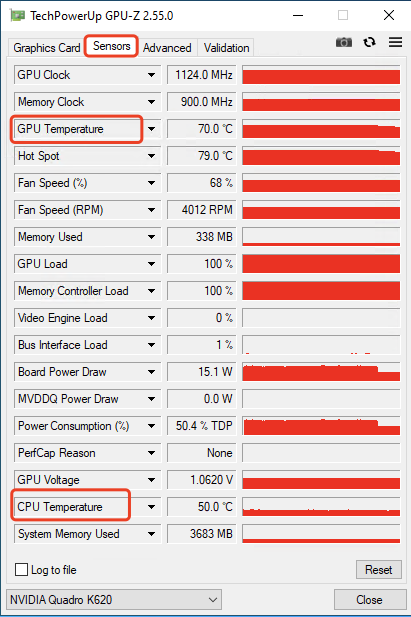
Many third-party apps monitor GPU temperatures. Popular ones include HWMonitor, MSI Afterburner, and GPU-Z. These tools work with most GPUs. They offer detailed info on temperature, fan speed, and voltage. You can customize alerts for high temperatures. Some tools also log data over time. This helps track your GPU’s health. Third-party tools are free or low cost. They often support both CPU and GPU monitoring.
In-game Overlays
In-game overlays display GPU temperature while you play. Software like RivaTuner Statistics Server or MSI Afterburner includes this feature. Overlays show temperature on the screen without closing the game. This helps spot overheating during gaming sessions. The overlays are lightweight and easy to turn on or off. Gamers find this method very useful. It keeps hardware info visible without interrupting gameplay.

Credit: openhardwaremonitor.org
Step-by-step Temp Checking Process
Checking the temperature of your CPU and GPU is important to keep your computer safe. High temperatures can cause damage or slow down your system. Follow this simple step-by-step process to check your hardware temps quickly. It helps you avoid overheating and maintain performance.
Accessing Temperature Data
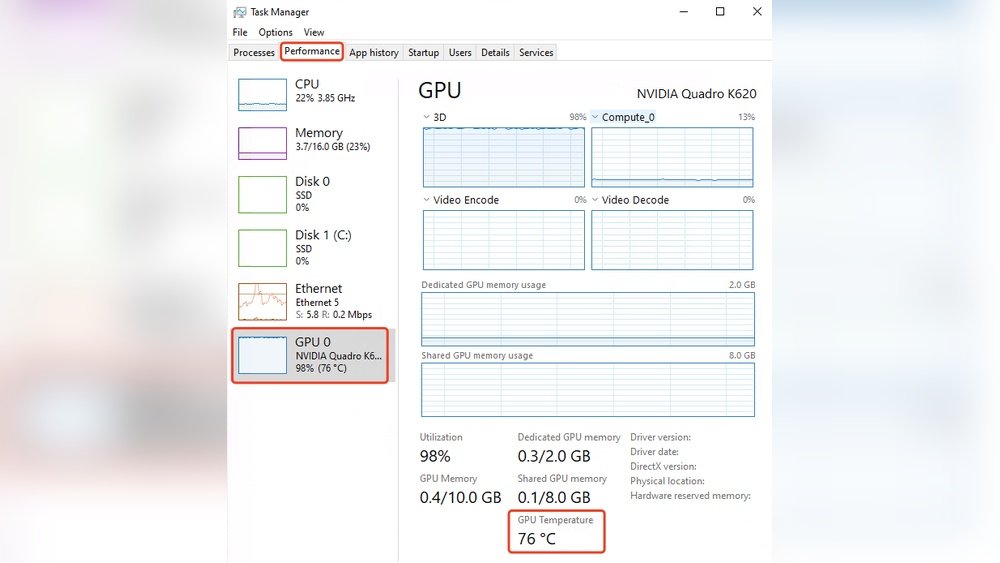
Start by downloading a trusted temperature monitoring program. Popular options include HWMonitor, Core Temp, or MSI Afterburner. Install and open the program. It will display current temperatures of your CPU and GPU. Some software shows temps directly in the system tray for easy access. You can also check temps in your BIOS, but software is easier for regular use.
Interpreting Temperature Readings
Look at the numbers next to your CPU and GPU labels. Normal CPU temps usually range from 30°C to 50°C when idle. Under heavy use, temps can rise to 70°C or 80°C safely. GPU temps follow a similar range but can go slightly higher. Temps above 90°C may cause damage and need action. Compare your readings to your hardware’s safe temperature limits found in manuals or online.
Setting Alerts For High Temps
Many monitoring programs let you set alerts for high temperatures. Set a warning level around 80°C for CPU and GPU. The software will notify you if temps rise above this limit. Alerts help prevent overheating by giving you time to cool your system. You can also automate fan speeds or shut down the PC if temps get too high.
Maintaining Safe Temperature Levels
Maintaining safe temperature levels is key for your CPU and GPU to work well. High temperatures can cause slowdowns or damage. Keeping them cool helps your computer last longer and run smoothly.
Temperature control starts with good airflow inside your computer. Cooling parts work better when air moves freely. Dust and dirt block air and raise temperatures. Adjusting fan speeds can also help keep parts cool.
Improving Airflow And Cooling
Place your computer in a spot with good air circulation. Avoid tight spaces or closed cabinets. Use extra fans if your case allows. Position fans to pull cool air in and push hot air out.
Cleaning Dust And Debris
Dust collects on fans and heatsinks. It stops air from moving and traps heat. Turn off your computer before cleaning. Use a soft brush or compressed air to remove dust carefully. Clean regularly to keep airflow clear.
Adjusting Fan Speeds
Fans can run faster to cool parts more. Use software tools to control fan speed. Higher speeds lower temperature but can be noisy. Find a balance between cooling and noise that suits you.
When To Take Action
Knowing when to take action on your CPU and GPU temperatures is key to keeping your computer safe. High temperatures can cause damage and reduce performance. Acting early can prevent costly repairs and data loss.
Check your computer regularly to spot any signs of overheating. Don’t wait for your system to shut down or freeze. Small issues can quickly become big problems.
Signs Of Overheating
Your computer may slow down or freeze without warning. Fans might run loudly and constantly. The case may feel very hot to touch. Sudden shutdowns or restarts also signal trouble. Watch for error messages about temperature or hardware.
Preventive Measures
Keep your computer clean from dust and debris. Ensure fans and vents are not blocked. Use cooling pads for laptops. Apply fresh thermal paste if needed. Monitor temperatures with reliable software tools often. Lower settings in games or heavy apps to reduce heat.
Seeking Professional Help
Call a technician if overheating persists after basic checks. Professionals can test hardware and replace damaged parts. Avoid opening laptops if unsure; it may void warranty. Expert help ensures safe and proper repair. Don’t ignore warning signs to protect your device.

Credit: gipa.ae
Frequently Asked Questions
How Can I Check My Cpu Temperature Easily?
You can check your CPU temperature using software like HWMonitor, Core Temp, or SpeedFan. These tools display real-time temps and help monitor system health efficiently.
What Is The Ideal Gpu Temperature Range?
A safe GPU temperature typically ranges between 30°C to 70°C under normal load. Temperatures above 85°C may cause performance issues or hardware damage.
Why Is Monitoring Cpu And Gpu Temps Important?
Monitoring temps prevents overheating, which can reduce hardware lifespan and cause system crashes. It helps maintain optimal performance and ensures device stability.
Can Bios Show Cpu And Gpu Temperatures?
Most BIOS setups display CPU temperature but rarely show GPU temps. For detailed GPU monitoring, software tools are more reliable and user-friendly.
Conclusion
Checking your CPU and GPU temps helps keep your computer safe. It shows if your device runs too hot or cool enough. Use simple tools and software to track these temps easily. Watching temps often stops damage and keeps performance smooth.
Stay aware of your hardware’s heat to avoid problems later. A cool PC works better and lasts longer. Take a moment to check temps now and then. It’s a smart habit for every computer user.
