
Are you worried that your computer might be running too hot? Knowing how to check the temperature of your GPU and CPU is a simple step that can save your device from serious damage.
When your hardware gets too warm, it can slow down, crash, or even break. But don’t worry—you don’t need to be a tech expert to keep an eye on these vital stats. You’ll learn easy ways to monitor your GPU and CPU temperatures, so you can keep your system running smoothly and avoid costly repairs.
Ready to take control of your computer’s health? Let’s dive in.
Credit: rog.asus.com
Why Monitor Cpu And Gpu Temps
Monitoring the temperature of your CPU and GPU is very important. These parts work hard to run your computer and games. If they get too hot, problems can start. Knowing the temperature helps you keep your system safe and running well.
Checking temps is easy and helps you avoid damage. It also helps your PC perform its best for longer times.
Impact On Performance
High temperatures can slow down your CPU and GPU. To protect themselves, they reduce speed. This causes your computer to run slower. Watching temps helps keep your system fast and smooth.
Preventing Overheating
Too much heat can break parts inside your PC. Overheating can cause crashes or sudden shutdowns. By checking temperatures, you can stop overheating early. This keeps your computer stable and safe.
Extending Hardware Life
Heat shortens the life of your CPU and GPU. Cooler parts last longer and work better. Regular monitoring helps you fix heat problems fast. This saves money by avoiding early hardware replacement.

Credit: www.sietesetenta.com.ar
Tools To Check Temperatures
Checking the temperature of your CPU and GPU helps keep your computer safe. High temperatures can cause slow performance or damage. Different tools make it easy to monitor these temperatures. Some tools are built into your system, while others come as separate software or devices. Choose the one that suits your needs and skill level.
Built-in System Utilities
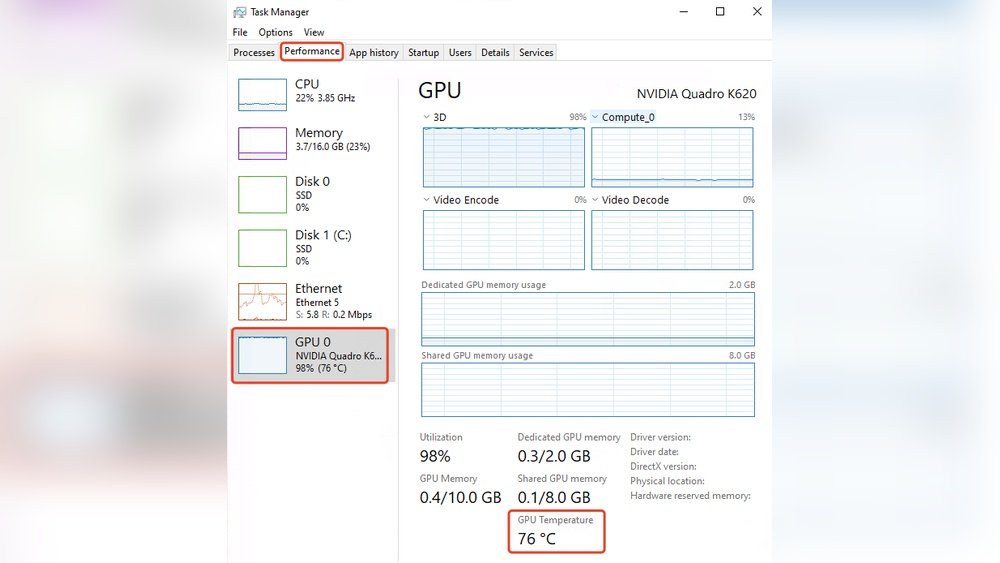
Most computers have basic tools to check temperatures. On Windows, the Task Manager shows some details, but not always temperature. BIOS or UEFI screens provide temperature readings before the system boots. Mac users can check Activity Monitor, but it lacks temperature info. These built-in utilities are free and easy to use. They offer a quick way to check if temperatures look normal.
Third-party Software Options
Third-party apps offer detailed temperature reports. Programs like HWMonitor, Core Temp, and MSI Afterburner show CPU and GPU temperatures. They display real-time data and often log temperature history. These apps are free or low-cost. They work well for gamers and heavy users who need constant monitoring. Most are easy to install and use. They give clear readings to help avoid overheating.
Hardware Monitoring Devices
External devices can measure temperatures directly from your hardware. These tools connect to your motherboard or sensors inside the case. They show accurate temperatures without relying on software. Some come with displays that sit on your desk or attach to your PC. Hardware monitors suit enthusiasts who want precise data. They also help when software tools do not work properly or show wrong info.
Checking Cpu Temperature
Checking the CPU temperature is important to keep your computer safe. High temperatures can slow down your system or cause damage. You can check the CPU temperature in a few easy ways. Each method helps you understand how hot your processor is running.
Using Bios/uefi Settings
BIOS or UEFI settings show the CPU temperature before the operating system loads. Restart your computer and press the key to enter BIOS/UEFI (often F2, Del, or Esc). Find the hardware monitor or PC health section. There you will see the current CPU temperature. This method is simple and requires no extra software.
Popular Software For Cpu Temps
Many free programs show real-time CPU temperature inside Windows. Examples include HWMonitor, Core Temp, and Speccy. Download and install one of these tools. Open the software to see detailed temperature readings. These programs often display other important info like fan speed and voltage.
Interpreting Temperature Readings
Normal CPU temperatures usually range between 30°C and 50°C at idle. Under heavy use, temperatures can rise to 70°C or 80°C. Temperatures above 90°C might indicate overheating. If your CPU runs too hot, check your cooling system or clean dust from fans. Keeping your CPU cool helps your computer run smoothly and last longer.
Credit: www.gpu-mart.com
Checking Gpu Temperature
Checking the temperature of your GPU is important to keep your computer safe. High temperatures can cause damage or slow down your system. You can check the GPU temperature easily using software tools. This helps you know if your GPU is working well or getting too hot.
Using Graphics Card Software
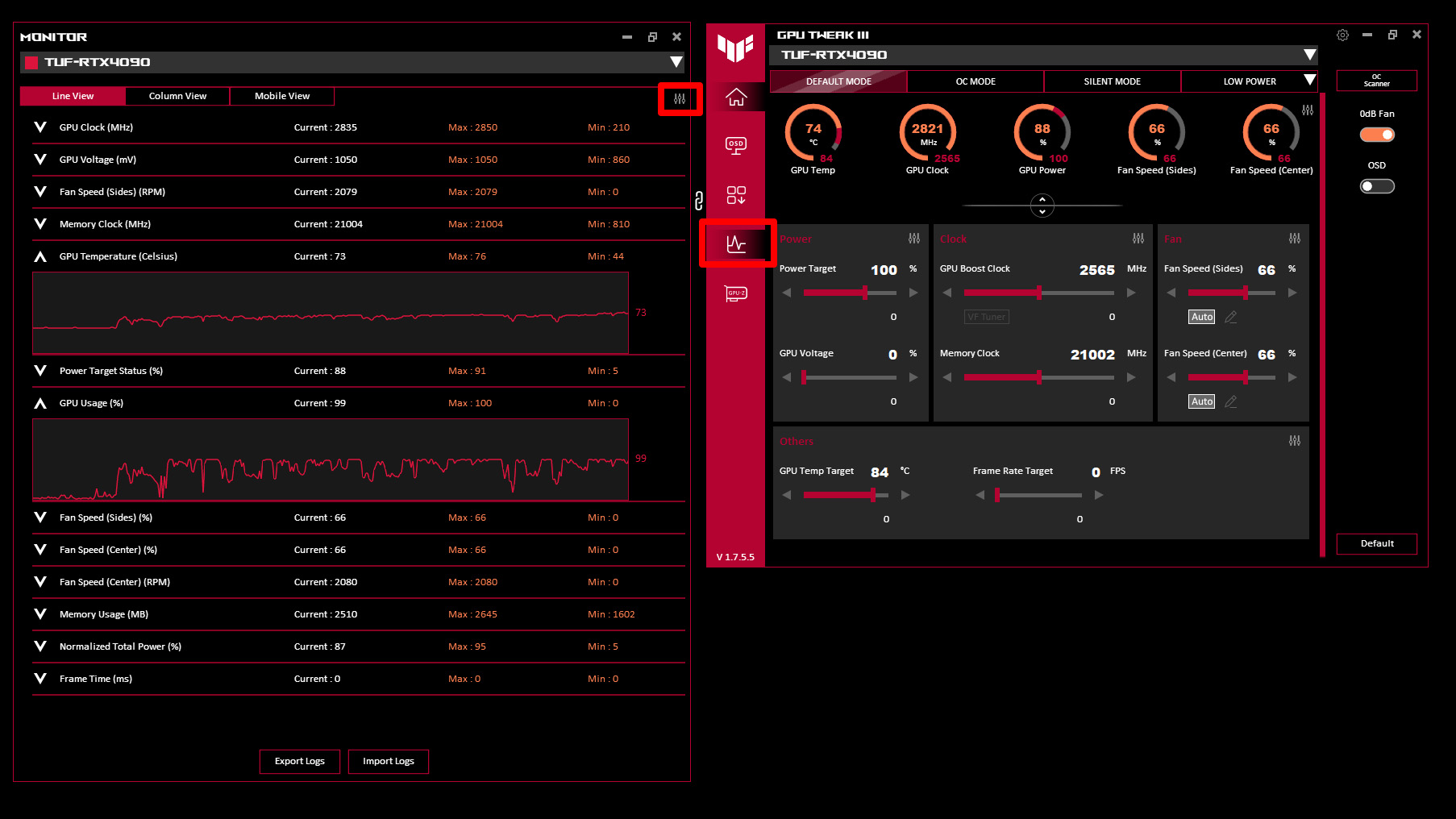
Most graphics cards come with their own software. This software shows the temperature of the GPU in real-time. For example, NVIDIA has GeForce Experience, and AMD offers Radeon Software. These programs display the GPU temperature on the screen. You can also see other details like fan speed and clock rates.
Using the official software is simple and reliable. It gives accurate temperature readings made for your specific GPU model.
Third-party Gpu Monitoring Tools
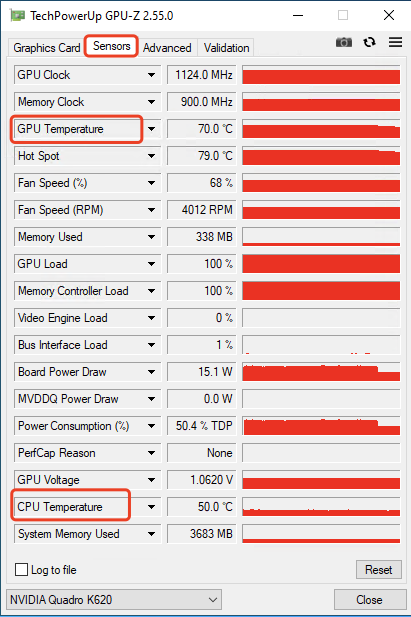
You can use third-party apps to check GPU temperature. Popular tools include MSI Afterburner, HWMonitor, and GPU-Z. These apps work with most GPUs from different brands. They show temperature, usage, and other important data.
Third-party tools offer extra features like graphs and alerts. They help you track temperature over time and detect problems early.
Normal Temperature Ranges
Knowing normal temperature ranges helps you spot issues fast. Most GPUs run between 30°C and 50°C when idle. Under heavy load, temperatures usually reach 65°C to 85°C. Some models can safely go up to 90°C, but this is the limit.
If your GPU temperature goes above 90°C regularly, it may need cleaning or better cooling. Keeping your GPU cool improves performance and lifespan.
Tips To Maintain Optimal Temps
Maintaining the right temperature for your GPU and CPU keeps your computer running smoothly. High temperatures can cause slowdowns or damage parts. Simple steps help keep these components cool and extend their life. Follow these tips to maintain optimal temps and improve your PC’s performance.
Improving Airflow
Good airflow moves hot air out and brings cool air in. Arrange cables neatly to avoid blocking airflow. Use case fans to push air through your computer. Place the computer where it can get fresh air, not inside a closed space.
Cleaning Dust And Debris
Dust blocks airflow and traps heat. Clean fans, vents, and heatsinks regularly with a soft brush or compressed air. Turn off and unplug your computer before cleaning. Removing dust helps parts stay cooler and work better.
Applying Thermal Paste
Thermal paste helps heat move from the CPU or GPU to the cooler. Over time, paste can dry out and lose effectiveness. Replace the old paste with a fresh, thin layer. This improves heat transfer and lowers temperatures.
Upgrading Cooling Solutions
Stock coolers may not be enough for some computers. Consider better air coolers with bigger fans or more heat pipes. Liquid cooling offers excellent temperature control but needs careful installation. Choose cooling that fits your needs and budget.
Troubleshooting High Temperatures
High temperatures in your GPU or CPU can cause slow performance or damage. Finding the cause of heat is key to fixing it. This guide helps you spot problems and cool down your computer.
Identifying Causes
Check dust build-up inside your PC. Dust blocks airflow and traps heat. Poor ventilation or old thermal paste can also raise temperatures. Running many programs or heavy games adds more heat.
Adjusting Fan Speeds
Fans help push hot air out and bring cool air in. Use software or BIOS settings to change fan speed. Faster fans cool better but may sound louder. Find a balance between noise and cooling.
Reducing Overclocking
Overclocking means running your CPU or GPU faster than normal. This creates more heat. Lowering the speed can reduce temperature and avoid crashes. Keep your system stable and cool by adjusting clock speeds carefully.
Seeking Professional Help
Complex heat issues might need expert care. Technicians can clean, replace parts, or improve cooling. Professional help ensures your PC stays safe and runs well. Don’t wait if temperatures stay high after basic fixes.
Frequently Asked Questions
How Do I Check My Cpu Temperature On Windows?
You can check CPU temperature using software like HWMonitor or Core Temp. These tools display real-time temperature data clearly and accurately. Simply download, install, and run the program to monitor your CPU’s heat levels effortlessly.
What Is The Safe Temperature Range For A Gpu?
A safe GPU temperature usually ranges from 30°C to 85°C under normal use. Temperatures above 90°C may cause overheating and damage. Monitoring your GPU temperature regularly helps maintain optimal performance and longevity.
Can Bios Show Cpu And Gpu Temperatures?
Yes, many BIOS setups display CPU temperature in the hardware monitoring section. However, GPU temperature is typically not shown in BIOS. For GPU, use dedicated software like MSI Afterburner or GPU-Z to check the temperature accurately.
Why Is My Cpu Temperature Suddenly High?
High CPU temperature can result from poor ventilation, dust buildup, or heavy workloads. Ensure your cooling system is working and clean your PC regularly. Monitoring and addressing these issues prevent overheating and potential hardware damage.
Conclusion
Checking your GPU and CPU temperature helps keep your computer safe. Use simple tools to watch the heat levels often. High temperatures can cause slowdowns or damage parts. Stay alert and cool your system if it runs hot. Regular checks protect your computer and improve its life.
Keep your PC running smooth and avoid costly repairs. A little care goes a long way in computer health.
