
Is your GPU running hotter than usual? Knowing how to check the temperature of your GPU is key to keeping your computer safe and performing at its best.
If your graphics card gets too hot, it can slow down, crash, or even get damaged. But don’t worry—this guide will show you simple and effective ways to monitor your GPU’s temperature. By the end, you’ll have the confidence to protect your hardware and enjoy smoother gaming or work sessions without any overheating worries.
Keep reading to learn exactly how to keep your GPU cool and in top shape!
Credit: www.howtogeek.com
Why Monitor Gpu Temperature
Monitoring your GPU temperature is important for many reasons. The GPU works hard to run games, videos, and programs smoothly. Watching its temperature helps keep it safe and fast. Knowing the temperature can stop problems before they start. This way, your computer stays healthy for longer.
Impact On Performance
A hot GPU slows down. It lowers its speed to cool off. This means games and apps run less smoothly. Your experience gets worse without clear signs. Keeping the GPU cool helps it work at full speed. This keeps your computer fast and responsive all the time.
Preventing Overheating Damage
Too much heat can break the GPU. Overheating causes permanent damage to parts inside. This can make your computer stop working. Checking temperature helps catch heat problems early. You can fix cooling or clean dust before damage happens. This saves money and keeps your computer safe.
Tools To Check Gpu Temperature
Checking your GPU temperature is important to keep your computer running well. There are many tools to help you see how hot your GPU gets. These tools can be built into your system or come from other software providers. Knowing your GPU temperature helps prevent overheating and damage.
Built-in Software Options
Most computers have built-in tools to check GPU temperature. Windows users can use Task Manager to see some basic info. Some graphics card brands include their own software. For example, NVIDIA has GeForce Experience, and AMD offers Radeon Software. These programs show real-time temperature and other stats. They are easy to access and free to use.
Third-party Applications
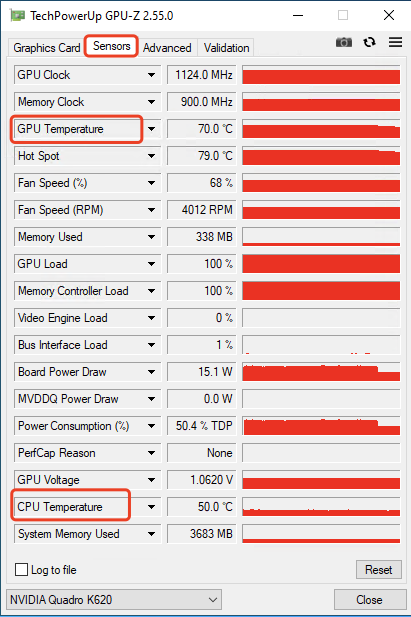
Third-party apps give more detailed info about GPU temperature. Popular tools include MSI Afterburner, HWMonitor, and GPU-Z. These apps show temperature, fan speed, and voltage. They work with many GPU brands and models. They often offer alerts if the temperature gets too high. Most are free or have free versions. They are useful for gamers and PC builders.
Steps To Check Gpu Temperature
Checking your GPU temperature helps keep your computer safe. It shows if the graphics card runs too hot. High temperatures can cause slowdowns or damage. You can check the temperature in several easy ways. Choose the method that fits your needs and skills.
Using Task Manager Or System Monitor
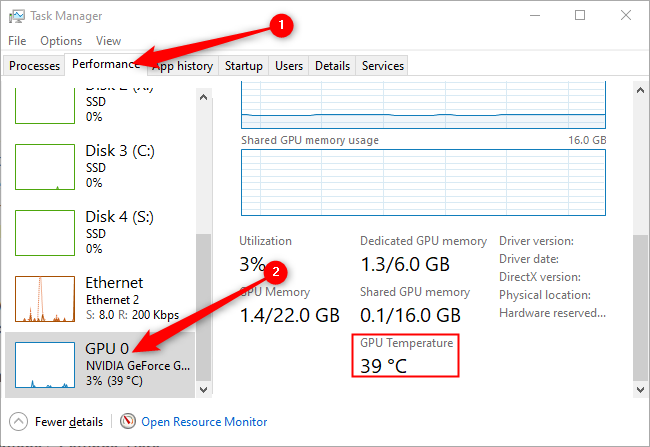
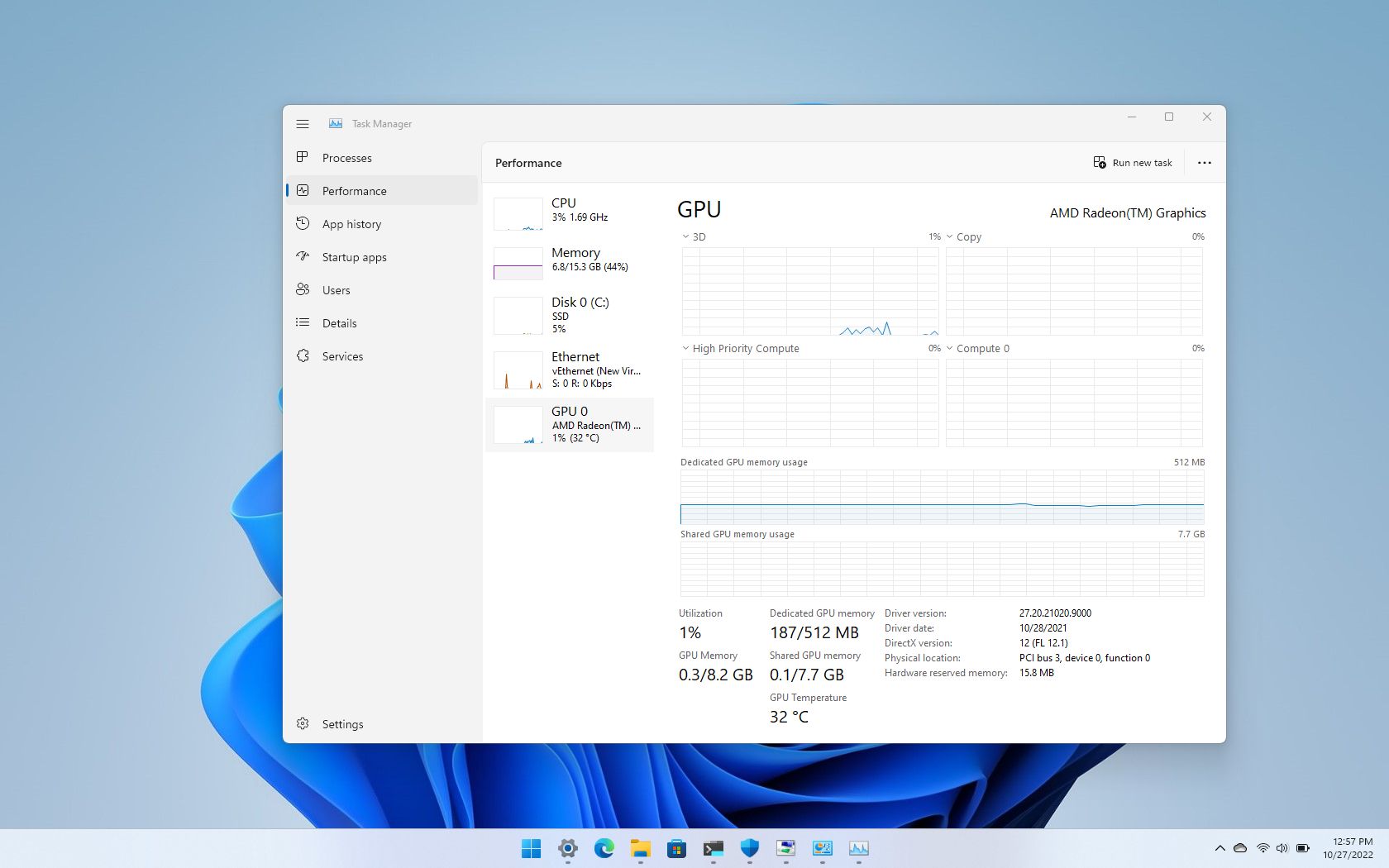
Windows Task Manager shows GPU temperature in newer versions. Press Ctrl + Shift + Esc to open it. Click on the “Performance” tab. Select “GPU” from the list on the left. The temperature appears under the graph. Mac users can check GPU info using Activity Monitor. It shows basic GPU data but not always temperature.
Using Dedicated Gpu Software
GPU makers offer software to monitor temperatures. NVIDIA has GeForce Experience. AMD provides Radeon Software. Install the correct software for your card. Open the program and find the performance or monitoring section. You will see real-time temperature readings. These tools also offer fan control and updates.
Using Third-party Tools
Third-party apps give detailed GPU temperature info. Popular choices include HWMonitor, MSI Afterburner, and GPU-Z. Download and install one of these tools. Run the program and look for GPU temperature or sensor data. These tools provide extra info like clock speed and voltage. They work for most graphics cards and are easy to use.
Credit: www.esseg.eu
Safe Temperature Range For Gaming
Maintaining a safe temperature range for your GPU is vital during gaming. High temperatures can reduce performance and damage hardware. Knowing the ideal temperature helps keep your GPU running smoothly and your games stable. Monitoring your GPU temperature protects your system and extends its life.
Idle Vs Load Temperatures
Idle temperature means the GPU is not working hard. It usually stays between 30°C and 45°C. Load temperature happens when you play games or use heavy apps. It can rise to 65°C to 85°C. Some GPUs can handle temperatures up to 90°C but it is better to keep it lower. Watching these temperatures helps spot cooling problems early.
Manufacturer Recommendations
Each GPU brand suggests a safe temperature range. NVIDIA cards generally stay safe below 85°C. AMD GPUs also recommend keeping temps under 85°C. Exceeding these limits can shorten GPU life. Check your GPU manual or website for exact numbers. Following these guidelines avoids overheating and crashes.
Tips To Maintain Safe Gpu Temperatures
Maintaining safe GPU temperatures helps your computer run smoothly. High heat can cause crashes and reduce your GPU’s life. Simple steps keep the temperature low and your system healthy.
Improving Airflow
Good airflow moves hot air out and brings cool air in. Position your PC in a space with open air around it. Avoid placing it inside closed cabinets or tight spaces. Use extra case fans to boost air movement inside your PC. Make sure cables do not block air paths.
Cleaning Dust And Debris
Dust blocks airflow and traps heat inside your PC. Clean your GPU fans and vents regularly. Use compressed air or a soft brush to remove dust. Turn off and unplug your PC before cleaning. Keep your workspace clean to reduce dust build-up.
Adjusting Fan Speeds
Fans control how fast heat leaves your GPU. Many GPUs allow fan speed changes using software. Increase fan speeds during heavy tasks to cool down faster. Balance noise and cooling for comfort. Regularly check and adjust fan settings to keep temperatures safe.
Signs Of Gpu Overheating
Overheating can harm your GPU and affect its performance. Detecting signs of overheating early helps protect your device. Watch for these common symptoms to keep your GPU safe.
Performance Drops
Your GPU may slow down during heavy tasks. Frame rates in games might fall suddenly. Graphics can become choppy or laggy. This happens because the GPU reduces speed to cool down. Noticeable slowdowns often point to overheating issues.
Unexpected Shutdowns
The computer may shut off without warning. These shutdowns protect the GPU from damage. Sudden power offs during gaming or work are a red flag. Overheating causes the system to stop itself for safety. Frequent shutdowns mean the GPU temperature is too high.
Credit: hognerdobrasil.com.br
Frequently Asked Questions
How Can I Check My Gpu Temperature On Windows?
You can check GPU temperature using built-in tools like Task Manager or third-party apps like MSI Afterburner. These tools display real-time temperature readings, helping you monitor and prevent overheating efficiently.
What Is The Ideal Gpu Temperature For Gaming?
Ideal GPU temperature during gaming ranges between 65°C to 85°C. Temperatures above 85°C may risk hardware damage, so monitoring ensures your GPU runs safely and performs optimally.
Which Software Is Best For Monitoring Gpu Temperature?
MSI Afterburner and HWMonitor are popular, reliable software for GPU temperature monitoring. They provide detailed, real-time data, making them ideal for gamers and PC enthusiasts.
Can Overheating Damage My Gpu Permanently?
Yes, prolonged overheating can cause permanent GPU damage. It reduces performance, shortens lifespan, and may lead to system crashes, so regular temperature checks are crucial.
Conclusion
Checking your GPU temperature helps keep your computer safe and fast. It shows if your GPU runs too hot and needs cooling. Use simple tools or software to watch the temperature often. Staying aware helps avoid damage and slowdowns. Keep your GPU clean and well-ventilated for best results.
Regular checks protect your hardware and improve performance. Small steps make a big difference in your PC’s health. Stay smart, stay cool.
