
Are you curious about how fast your computer’s brain—the CPU—really is? Knowing your CPU speed can help you understand your device’s performance and decide if it’s time for an upgrade.
You’ll learn simple, step-by-step ways to check your CPU speed quickly and easily. By the end, you’ll have the confidence to assess your computer’s power like a pro. Keep reading, and unlock the secret to boosting your device’s efficiency!
Credit: www.partitionwizard.com
What Cpu Speed Means
CPU speed is an important part of a computer’s performance. It shows how fast the processor can run tasks. Understanding CPU speed helps you know how well your computer works.
Many people think a higher speed always means better performance. That is not always true. Other factors also affect how fast your CPU runs.
Clock Speed Basics
Clock speed is the number of cycles a CPU completes in one second. It is measured in gigahertz (GHz). One GHz means one billion cycles per second.
Each cycle allows the CPU to process instructions. More cycles can mean more tasks done quickly. But clock speed alone does not tell the whole story.
Factors Affecting Cpu Speed
The CPU speed is influenced by more than just clock rate. The number of cores in a CPU helps run tasks at the same time. More cores can improve multitasking.
Cache size also matters. A bigger cache stores data closer to the CPU for fast access. This reduces waiting time for data.
Thermal limits affect speed too. If the CPU gets too hot, it slows down to cool off. This is called thermal throttling.
Other parts of the computer, like memory and storage speed, impact the overall performance.
Credit: www.partitionwizard.com
Methods To Check Cpu Speed
Checking the speed of your CPU is important for understanding your computer’s performance. There are several simple ways to find this information. Each method suits different user needs and skill levels. You can use system settings, command line tools, or third-party software. Below are easy steps for each method.
Using System Settings
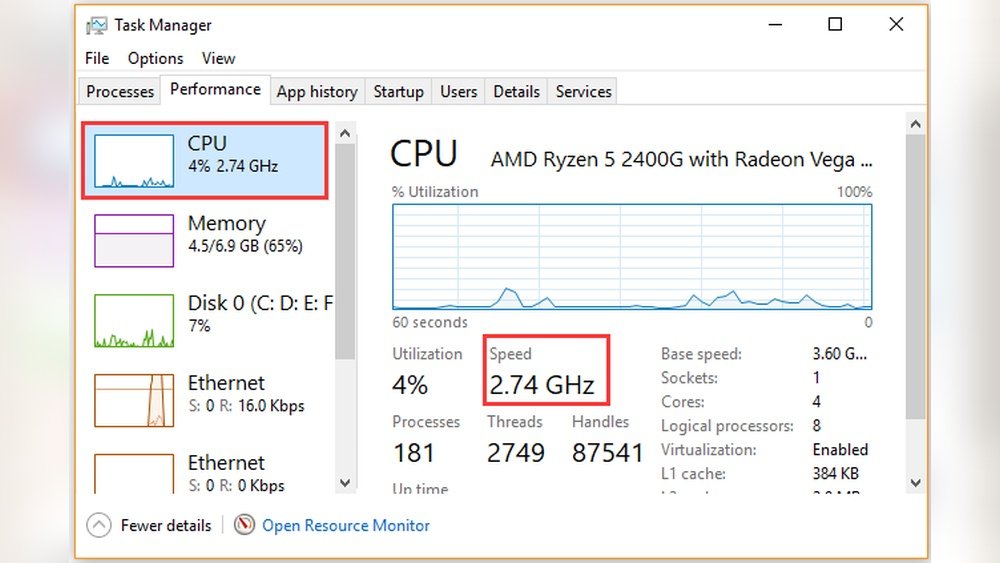
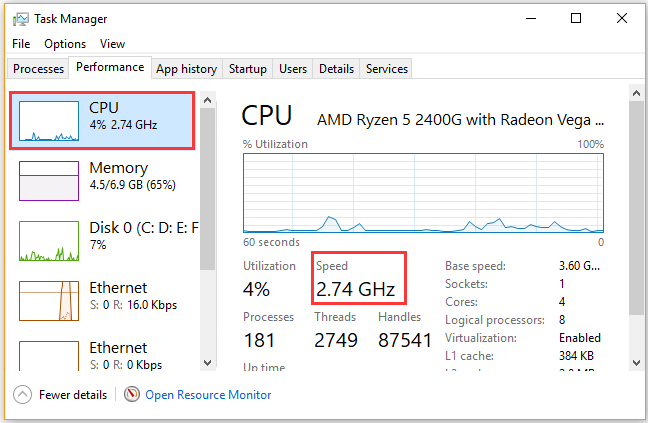
Most operating systems show CPU speed in system settings. On Windows, open “Task Manager” by pressing Ctrl + Shift + Esc. Click the “Performance” tab and select “CPU.” The speed appears in GHz.
For Mac users, click the Apple menu and select “About This Mac.” The window shows your processor type and speed clearly. This method is quick and requires no extra tools.
Command Line Tools
Command line tools provide detailed CPU information. On Windows, open Command Prompt and type wmic cpu get name, maxclockspeed. Press Enter to see the CPU name and speed.
Linux users can open Terminal and enter lscpu. This command displays CPU details, including speed. Mac users can type sysctl -n machdep.cpu.brand_string in Terminal for CPU info.
Third-party Software
Third-party tools offer more features for checking CPU speed. Programs like CPU-Z and Speccy give detailed specs and real-time data. These apps are free and easy to use.
Download the software from official sites. After installation, open the app to view CPU speed and other hardware details. This method suits users needing in-depth information.
Checking Cpu Speed On Windows
Checking the speed of your CPU on Windows is simple. It helps you understand how fast your computer processes tasks. Knowing the CPU speed can guide you when buying software or hardware. It also helps when troubleshooting slow performance.
Windows offers several ways to check the CPU speed. You can use built-in tools without installing anything. Each method shows the current speed and other useful details.
Task Manager
Open Task Manager by pressing Ctrl + Shift + Esc. Click on the “Performance” tab. Select “CPU” from the left menu. You will see the CPU speed in GHz near the top right. The speed may change as the CPU adjusts to workload.
System Information
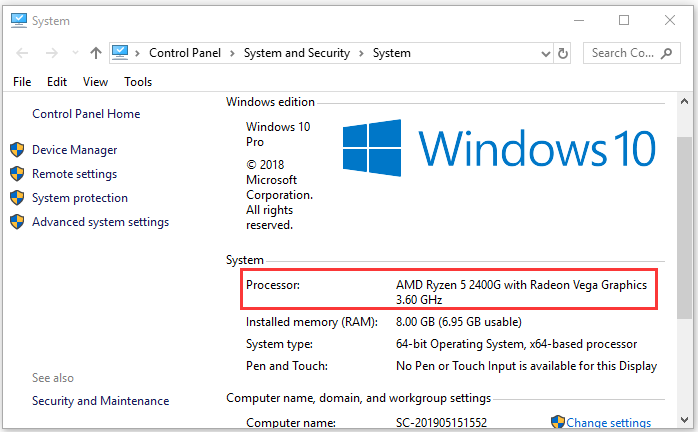
Press Windows key + R to open the Run box. Type “msinfo32” and press Enter. The System Information window will open. Look for “Processor” in the system summary. It displays the CPU model and speed in GHz.
Using Powershell
Open PowerShell by searching it in the Start menu. Type the command: Get-CimInstance Win32_Processor | Select-Object Name, MaxClockSpeed and press Enter. It shows the CPU name and maximum speed in MHz. This method is quick and works for all Windows versions.
Checking Cpu Speed On Mac
Checking the speed of your Mac’s CPU helps you understand its performance. The CPU speed shows how fast your computer processes tasks. Knowing this can help you decide if your Mac meets your needs. Several simple methods let you check CPU speed easily.
About This Mac
Click the Apple icon on the top left corner of your screen. Select “About This Mac” from the menu that appears. A window will open showing your Mac’s specifications. You can see the CPU speed listed next to “Processor.” This gives you the base clock speed of your Mac’s CPU in GHz. It is the easiest way to find your Mac’s CPU speed.
Activity Monitor
Open the “Activity Monitor” app from the Applications folder. Click the “Window” menu and choose “CPU Usage.” This shows real-time CPU activity and load. While it does not show the exact CPU speed, it helps you see how busy your CPU is. You can check if your Mac is running at full capacity or if the CPU is idle.
Terminal Commands
Open the Terminal app from Applications > Utilities. Type the command sysctl -n machdep.cpu.brand_string and press Enter. This command shows detailed CPU information, including the speed. You can also use system_profiler SPHardwareDataType for a full hardware report. Terminal commands give you in-depth CPU details for advanced users.
Checking Cpu Speed On Linux
Checking the CPU speed on a Linux system helps you understand your computer’s performance. It shows the current speed your processor runs at. Linux offers several simple ways to check this information using commands or tools. These methods work on most Linux distributions and are easy to use.
Lscpu Command
The lscpu command displays detailed CPU information. It shows the CPU speed along with other details like cores and architecture.
To check CPU speed, open the terminal and type lscpu. Look for the “CPU MHz” line. This line shows the current speed in megahertz (MHz).
/proc/cpuinfo File
The /proc/cpuinfo file stores CPU details in text format. You can read this file to find the CPU speed.
Run cat /proc/cpuinfo in the terminal. Find the line starting with “cpu MHz”. This shows the current speed of your CPU.
Using Hardinfo
Hardinfo is a graphical tool that displays system information, including CPU speed. It is user-friendly for those who prefer a visual interface.
Install Hardinfo using your package manager. Open it and go to the “CPU” section. You will see the CPU speed along with other hardware details.
Interpreting Cpu Speed Results
Understanding CPU speed results can be tricky. The numbers you see do not always tell the full story. CPU speed affects how fast your computer runs tasks. But raw speed is only part of the picture. Knowing how to read these results helps you make better choices for your needs.
Base Vs Turbo Speeds
Base speed is the CPU’s normal operating frequency. It shows how fast the processor runs under regular conditions. Turbo speed is a higher frequency the CPU reaches for short bursts. It helps with demanding tasks like gaming or video editing.
Turbo speed lasts only a few seconds or minutes. The CPU cools down or lowers speed to avoid overheating. Base speed is more reliable for everyday use. Turbo speed gives a quick boost but is not constant.
Real-world Performance
CPU speed alone does not show real performance. Other factors like the number of cores and threads matter. A CPU with more cores can run many tasks at once. This improves multitasking and heavy workloads.
Software also affects performance. Some programs use more CPU power than others. Benchmarks show how CPUs perform in actual tests. These tests give a better idea of how fast a CPU feels in daily use.
Tips To Optimize Cpu Speed
Optimizing your CPU speed helps your computer run faster and smoother. Small changes can make a big difference in performance. Focus on easy steps anyone can follow. These tips keep your CPU working well and avoid slowdowns.
Updating Drivers
Drivers help your CPU talk to other parts of the computer. Old drivers can slow down your system. Check for updates regularly to keep your CPU fast. Use the device manager or visit the manufacturer’s website. Updated drivers fix bugs and improve speed.
Adjusting Power Settings
Power settings control how much energy your CPU uses. Balanced or power-saving modes can limit CPU speed. Change to high-performance mode in your system settings. This lets the CPU run at full speed. Remember, this may use more battery on laptops.
Cooling Solutions
Heat slows down your CPU and can cause damage. Keep your CPU cool with good airflow and cooling fans. Clean dust from vents and fans regularly. Consider using a better cooling system if your CPU gets too hot. Cooler CPUs perform faster and last longer.

Credit: www.wikihow.com
Frequently Asked Questions
How Can I Check My Cpu Speed On Windows?
To check CPU speed on Windows, open Task Manager with Ctrl+Shift+Esc. Click the Performance tab and select CPU. The current speed shows under “Speed” in GHz.
What Is The Best Tool To Measure Cpu Speed?
CPU-Z is a popular free tool to measure CPU speed. It displays real-time clock speed, core count, and other detailed processor info.
Does Cpu Speed Affect Computer Performance?
Yes, higher CPU speed generally improves performance. It helps run programs faster, but other factors like cores and cache also matter.
Can Cpu Speed Fluctuate During Use?
Yes, modern CPUs adjust speed dynamically based on workload. This power-saving feature boosts speed when needed and lowers it during idle.
Conclusion
Checking your CPU speed helps understand your computer’s power. It shows how fast your tasks run. Use simple tools like Task Manager or online tests. This gives clear, quick results anyone can use. Knowing your CPU speed helps decide if your device suits your needs.
Keep it simple, check often, and stay informed about your computer’s health. This small step improves your tech knowledge and use. Easy to do, useful to know.
