
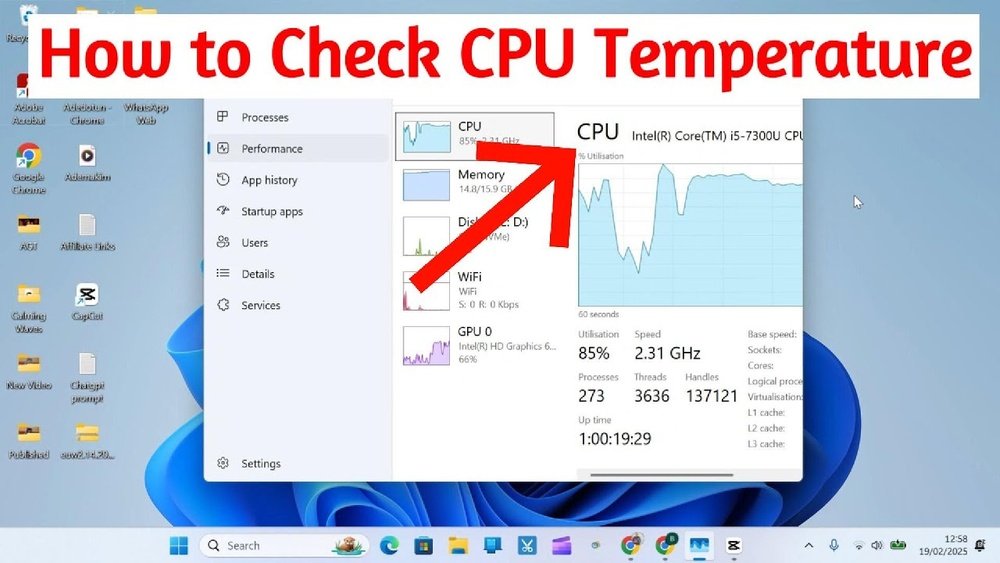
Are you worried that your computer might be overheating? Knowing how to check your CPU temperature is one of the simplest ways to keep your PC running smoothly and avoid costly damage.
If your device feels hot or starts slowing down, your CPU could be under stress. But don’t worry—you can easily find out what’s going on inside your machine. You’ll learn quick and effective methods to monitor your CPU temperature, helping you protect your computer and boost its performance.
Keep reading to discover the easy steps you can take right now.
Signs Of High Cpu Temperature
High CPU temperature can harm your computer. It slows down your work and may cause damage. Knowing the signs helps you act fast. Catching problems early saves time and money.
Performance Slowdowns
Your computer may start running very slow. Programs take longer to open. Tasks that were quick become frustrating. This happens because the CPU is too hot. It lowers its speed to cool down. This protects the hardware but causes delays.
Unexpected Shutdowns
The computer might turn off without warning. This prevents serious damage from heat. Sudden shutdowns disrupt your work. They can cause data loss. If this happens often, check your CPU temperature. Your system is trying to protect itself.
Overheating Alerts
Many computers show warning messages about heat. These alerts appear on the screen or beep. They tell you the CPU is too hot. Ignoring these signs can lead to bigger problems. Always take overheating alerts seriously. They are your computer’s way to warn you.

Credit: www.youtube.com
Tools To Monitor Cpu Temperature
Monitoring your CPU temperature is important to keep your computer safe and fast. Various tools help you check this temperature easily. These tools range from built-in options to third-party software and command line utilities. Each method has its own benefits and suits different user needs.
Built-in Bios/uefi Options
Your computer’s BIOS or UEFI settings often show CPU temperature. You can access this by restarting your PC and pressing a specific key like F2, DEL, or ESC. Inside the BIOS, look for hardware monitoring or system health menus. This method does not need extra software and works even if your operating system is not running.
Popular Third-party Software
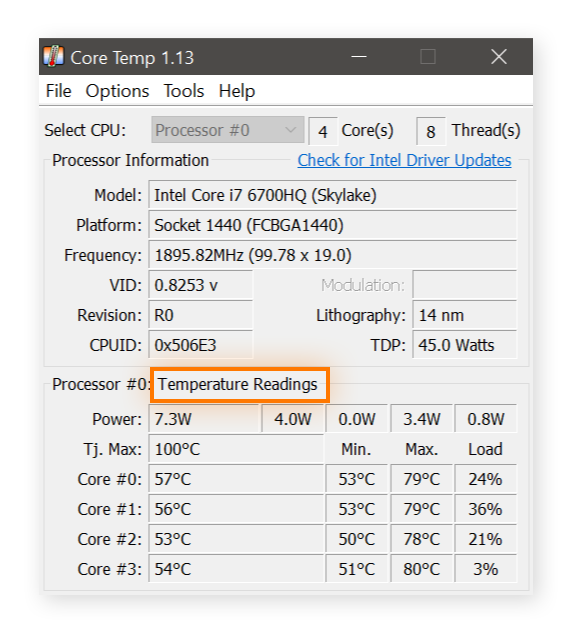
Many free programs display CPU temperature in real time. Examples include HWMonitor, Core Temp, and SpeedFan. These apps show detailed info about your CPU and other parts. They are easy to install and use. Some can also alert you if temperatures get too high.
Using Command Line Utilities
Command line tools give quick CPU temperature readings. On Windows, you can use PowerShell scripts or third-party command line apps. Linux users have commands like lm-sensors to check temperatures. This option is useful for advanced users and script automation.
Step-by-step Temperature Check
Checking your CPU temperature helps keep your computer safe and fast. It shows if your CPU is too hot. High temperatures can cause damage or slow down your PC. Follow these simple steps to check the temperature easily. You can do this using BIOS/UEFI or special software. You can also set alerts to warn you if the CPU gets too hot.
Accessing Bios/uefi For Temperature
Restart your computer and press the key shown on screen to enter BIOS/UEFI. Common keys are F2, Del, or Esc. Inside BIOS, look for a section named “Hardware Monitor” or “PC Health.” Here, you will find your CPU temperature listed. BIOS shows the temperature without extra software. This method works on almost all PCs.
Installing And Using Monitoring Software
Choose a trusted program like HWMonitor or Core Temp. Download and install the software on your PC. Open the program to see live CPU temperature readings. These apps show detailed info about each CPU core. You can check temperature anytime while using Windows. Some software also displays fan speed and voltage.
Setting Temperature Alerts
Many monitoring tools let you create temperature alerts. Open the alert settings in your chosen software. Set a maximum safe temperature, such as 80°C. The software will notify you if the CPU goes above this limit. Alerts help prevent overheating and protect your computer. Stay informed without constantly checking the temperature.

Credit: softwareg.com.au
Ideal Cpu Temperature Ranges
Knowing the ideal CPU temperature ranges helps protect your computer. It keeps your system running smoothly and avoids damage. Every CPU has a safe working temperature range. Staying within this range ensures your computer lasts longer.
Temperature changes based on workload. The CPU temperature is lower when the computer is idle. It rises when running heavy programs. Watching these numbers helps spot problems early.
Idle Temperature Standards
When your computer is not busy, the CPU should be cool. Idle temperatures usually range from 30°C to 50°C. Some CPUs run cooler, some warmer. Factors like cooling systems and room temperature affect this. If your CPU is hotter than 50°C at idle, check your cooling setup.
Safe Operating Temperatures
While working hard, the CPU gets hotter. Safe temperatures during heavy use are generally 60°C to 80°C. Many CPUs can handle short bursts above this. Keeping it below 80°C avoids stress on the chip. Good cooling helps maintain these safe levels.
Critical Temperature Thresholds
Every CPU has a critical temperature limit. This is often around 90°C to 105°C. Crossing this limit risks damage or shutdowns. The CPU may throttle speed or turn off to protect itself. Avoid reaching these temperatures to keep your CPU healthy.
Ways To Lower Cpu Temperature
Lowering your CPU temperature helps your computer run smoothly. It stops crashes and improves performance. Simple steps can make a big difference in cooling your CPU. Check these easy ways to keep your CPU cool and safe.
Improving Airflow
Good airflow moves hot air out and brings cool air in. Arrange cables neatly to avoid blocking air paths. Use case fans to push air through the computer. Place the PC in an open space, not inside a closed desk. This helps air circulate better and cool your CPU faster.
Cleaning Dust And Debris
Dust blocks air vents and coolers, trapping heat inside. Turn off your PC and unplug it. Use a soft brush or compressed air to clean fans and vents. Do this regularly to stop dust buildup. Clean parts work better and keep your CPU temperature low.
Upgrading Cooling Systems
Stock coolers may not be enough for heavy use. Consider buying better air coolers with bigger fans. Liquid cooling systems are also an option for strong cooling. These systems remove heat faster and keep your CPU stable. Choose a cooler that fits your PC case and needs.
Applying Thermal Paste Correctly
Thermal paste helps heat move from the CPU to the cooler. Old or poorly applied paste can cause high temperatures. Remove the old paste gently with alcohol wipes. Apply a small, pea-sized amount of new thermal paste on the CPU. Spread it evenly before attaching the cooler. This ensures good contact and better cooling.
Preventive Measures For Cpu Health
Keeping your CPU cool is essential to its performance and lifespan. Preventive measures help avoid overheating and damage. Regular checks and care keep your CPU running smoothly.
Regular Maintenance
Clean dust from your computer often. Dust blocks airflow and causes heat buildup. Use compressed air to clear vents and fans. Replace thermal paste every year. It helps heat move away from the CPU. Good airflow inside the case lowers temperature.
Avoiding Overclocking Risks
Overclocking makes your CPU run faster than designed. This increases heat and power use. Avoid overclocking unless you have proper cooling. High temperatures can cause crashes or permanent damage. Stable settings protect your CPU and extend its life.
Monitoring Software Updates
Keep your system and BIOS updated. Updates improve hardware management and cooling. Updated drivers help the CPU work efficiently. Some software can monitor CPU temperature. Use trusted programs to get alerts on heat issues.
Credit: www.avast.com
Frequently Asked Questions
How Can I Check My Cpu Temperature On Windows?
You can check CPU temperature on Windows using software like HWMonitor or Core Temp. These tools display real-time temperature data. Simply download, install, and run the program to monitor your CPU’s temperature easily.
What Is A Safe Cpu Temperature Range?
A safe CPU temperature typically ranges between 30°C to 70°C under normal use. Temperatures above 80°C may indicate overheating and could damage your CPU. Always monitor and maintain your CPU temperature within this safe range.
Can Bios Show My Cpu Temperature?
Yes, many BIOS setups display CPU temperature. Restart your computer and enter BIOS by pressing a key like F2 or Del. Look for hardware monitoring or PC health status to find the CPU temperature reading.
Why Is My Cpu Temperature So High?
High CPU temperature may result from poor ventilation, dust buildup, or faulty cooling systems. Overclocking and heavy workloads also increase heat. Regular cleaning and using quality cooling solutions can help reduce CPU temperature.
Conclusion
Checking your CPU temperature helps keep your computer safe. High temperatures can cause slowdowns or damage. Use simple tools to monitor your CPU often. Clean your computer’s fans and vents regularly. Good airflow keeps your CPU cool. Watching your CPU temperature is easy and smart.
Stay aware to avoid overheating problems. Your computer will run smoother and last longer. Small steps make a big difference in performance. Keep your CPU cool for better use every day.
