
Want to know how fast your computer really is? Checking your CPU speed can give you a clear picture of your device’s power and performance.
Whether you’re gaming, working, or just browsing, understanding your CPU speed helps you make smarter decisions about upgrades and troubleshooting. You’ll learn simple and quick ways to check your CPU speed, no matter your skill level. Keep reading, and you’ll be surprised how easy it is to unlock this important info about your computer.
Why Cpu Speed Matters
CPU speed is a key factor for your computer’s performance. It shows how fast the processor can handle tasks. A higher CPU speed means your computer works quicker and smoother.
Many people do simple tasks like browsing or watching videos. For them, a slow CPU might cause delays or freezing. For users who run programs or games, CPU speed directly affects how well these run.
What Cpu Speed Means For Everyday Use
CPU speed affects basic activities such as opening apps and loading websites. Faster CPUs reduce waiting time. It makes daily computer use more pleasant and efficient.
Cpu Speed And Software Performance
Software programs need processing power to run well. A slow CPU can make software lag or crash. Higher speed helps complex programs run smoothly.
Impact Of Cpu Speed On Gaming
Games require fast processing for good graphics and playability. A higher CPU speed improves game response and frame rates. This leads to a better gaming experience.
Cpu Speed And Multitasking
Running many programs at once needs a strong CPU. A faster CPU helps manage multiple tasks without slowing down. This is important for work and study.

Credit: www.wikihow.com
Using System Settings
Using system settings is the easiest way to check your CPU speed. Each operating system has built-in tools to show this information. These tools give quick and clear details about your processor.
Checking CPU speed through system settings requires no extra software. Just follow simple steps based on your device’s operating system. Here are methods for Windows, Mac, and Linux.
Windows Task Manager
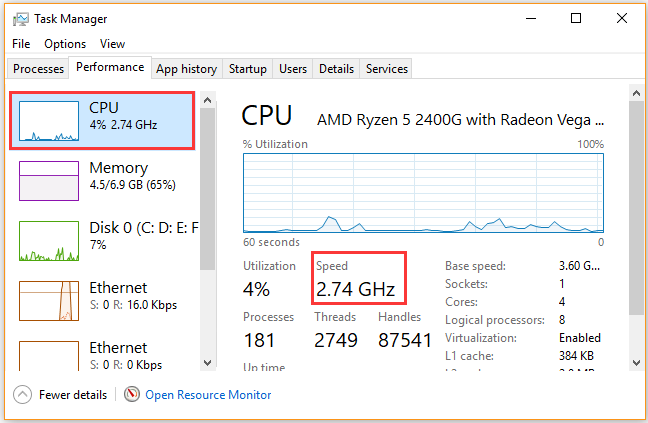
Open Task Manager by pressing Ctrl + Shift + Esc. Click the “Performance” tab at the top. Select “CPU” from the left side menu. You will see the CPU speed displayed in gigahertz (GHz). The speed shows the current running frequency of your processor.
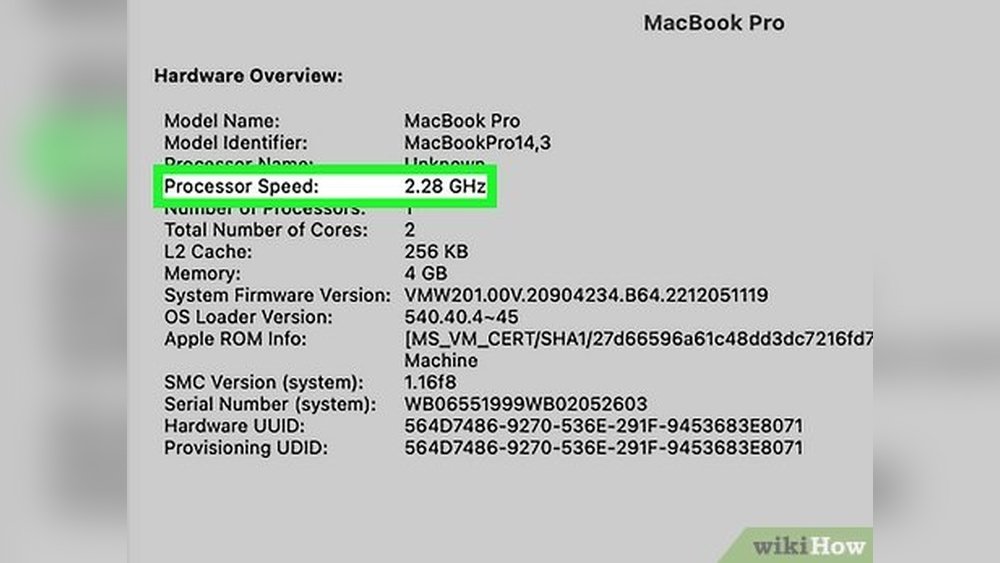
Mac About This Mac
Click the Apple logo at the top left corner. Choose “About This Mac” from the dropdown menu. A window will appear showing the processor type and speed. The CPU speed is listed next to the processor name in GHz.
Linux Terminal Commands
Open the Terminal application on your Linux system. Type the command lscpu and press Enter. Look for the “CPU MHz” or “CPU max MHz” in the output. This value shows your CPU speed in megahertz (MHz). Use cat /proc/cpuinfo for more detailed info.
Third-party Tools
Third-party tools help you check your CPU speed in detail. These apps provide clear data and extra features. They work well on different computers and operating systems.
You get more than just speed readings. Some tools also show temperature, usage, and performance trends. This helps you understand your CPU’s health better.
Popular Cpu Monitoring Apps
Many apps can measure your CPU speed easily. CPU-Z is a favorite for quick info and system details. HWMonitor shows temperature and voltage along with speed. Core Temp focuses on the processor temperature and speed. Speccy offers a full system overview including CPU data. These tools are free or have free versions for basic use.
Benefits Of Dedicated Software
Dedicated software gives accurate and real-time CPU speed readings. They show live data, so you see changes immediately. You can track CPU performance under different tasks or loads. Some apps alert you if the CPU overheats or slows down. They help with troubleshooting and keeping your PC healthy. These tools are easy to use for all skill levels.
Checking Cpu Speed On Mobile Devices
Checking the CPU speed on mobile devices helps you understand your device’s performance. Knowing the CPU speed can assist in troubleshooting slow apps or deciding on upgrades. Mobile devices have different ways to check CPU speed depending on the operating system.
Android Methods
Android devices offer several ways to check CPU speed. You can use built-in settings or third-party apps. Start by going to “Settings,” then “About Phone,” and look for “Processor” or “CPU.” Some models show the speed directly.
For more details, apps like CPU-Z or AIDA64 provide clear information. These apps show current speed, cores, and other specs. They are free and easy to use from the Google Play Store. Running these apps gives real-time CPU speed and helps monitor performance.
Iphone Options
iPhones do not show CPU speed in settings. Apple hides this info for users. To check the CPU speed, you need third-party apps like Lirum Device Info or Geekbench.
These apps display detailed hardware information, including CPU speed. Download from the App Store and open the app. You will see CPU specs along with battery and memory data. These apps help understand iPhone performance clearly.
Tips To Interpret Cpu Speed Results
Understanding your CPU speed results helps you know your computer better. It shows how fast your processor works and what to expect. This guide explains how to read those numbers clearly. Small details matter when you check CPU speed. Pay attention to different types of speeds and their effects.
Understanding Base Vs Turbo Speeds
Base speed is the normal running speed of your CPU. It stays steady during regular tasks. Turbo speed is higher and activates under heavy work. It boosts performance temporarily. Knowing this difference helps you see how your CPU handles tasks. Base speed shows steady power. Turbo speed shows maximum power in short bursts.
Impact Of Cpu Speed On Performance
Higher CPU speed usually means faster task completion. It helps with gaming, video editing, and software running. But speed alone does not tell the full story. Other factors like cores and cache also matter. Some tasks need more cores than speed. Still, faster speeds often improve overall experience. Checking speed helps predict how well your PC performs.
Credit: www.iolo.com
Credit: www.partitionwizard.com
Frequently Asked Questions
How Do I Find My Cpu Speed On Windows?
To find your CPU speed on Windows, open Task Manager with Ctrl+Shift+Esc. Click the Performance tab, then select CPU. Your CPU speed is shown in GHz under the CPU graph, labeled “Base speed” or “Speed. ” This method works for Windows 10 and 11.
Can I Check Cpu Speed On A Mac Computer?
Yes, on a Mac, click the Apple menu and choose “About This Mac. ” The Overview tab displays your processor details, including CPU speed in GHz. This quick method helps you easily check your Mac’s CPU speed and model.
Why Is My Cpu Speed Lower Than Advertised?
Your CPU speed may be lower due to power-saving modes or thermal throttling. Modern CPUs adjust speed to save energy or reduce heat. Check power settings and cooling to ensure your CPU runs at its full advertised speed.
Does Cpu Speed Affect Computer Performance?
Yes, CPU speed impacts computer performance by determining how fast it processes tasks. Higher GHz means quicker task execution. However, other factors like cores, cache, and architecture also affect overall performance.
Conclusion
Checking your CPU speed helps you understand your computer’s performance. It shows how fast your processor runs tasks. You can use built-in tools or simple apps to find this information. Knowing your CPU speed guides you in choosing software or games that fit your device.
It also helps spot any slowdowns or issues. Regularly checking keeps you informed about your computer’s health. Take a few minutes to check today. It’s quick and useful for better computer use.
