
Have you noticed your computer acting strangely after installing or using your GPU? It’s possible that your motherboard might be damaged, and catching this early can save you a lot of time and money.
But how do you check if your motherboard is really the problem? You’ll learn simple and effective ways to spot signs of motherboard damage caused by your GPU. By understanding these key points, you’ll be able to protect your system and avoid bigger issues down the line.
Keep reading—you don’t want to miss these crucial tips!
Signs Of Motherboard Damage
Motherboard damage caused by a GPU can be hard to spot. Yet, certain signs clearly point to problems. Catching these signs early helps prevent bigger issues. Watch for changes in your PC’s behavior and look carefully at the hardware.
Physical Damage Indicators
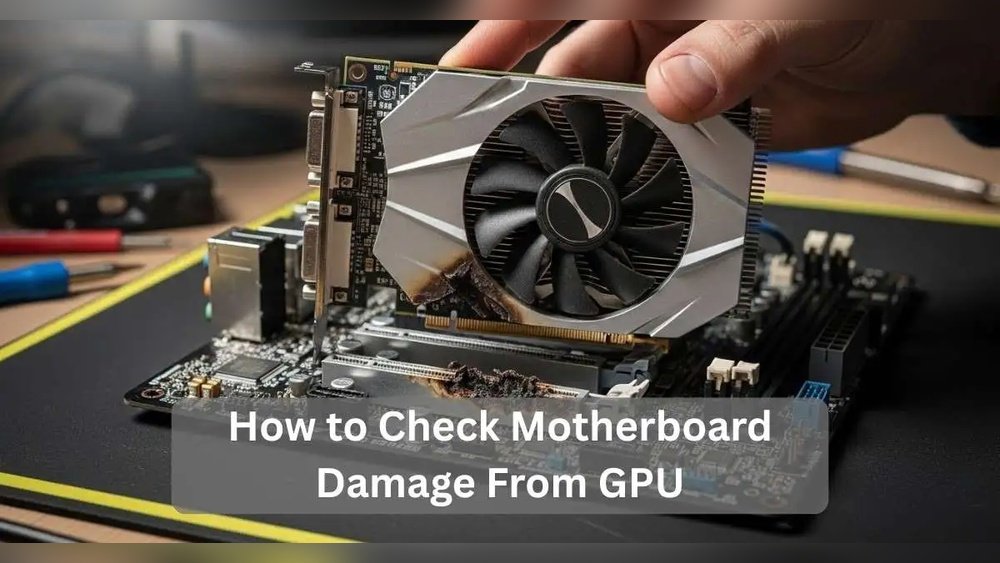
Check the motherboard closely for cracks or burn marks. Look near the GPU slot and power connections. Bent or broken pins also show physical damage. Swollen or leaking capacitors mean trouble. Dust and corrosion may worsen the problem.
System Performance Issues
The computer may slow down or freeze often. Programs could crash without warning. You might see strange colors or flickering on the screen. Random restarts or shutdowns can occur. These issues suggest the motherboard struggles to support the GPU.
Booting Problems
The PC might fail to start or get stuck on the logo. Beeps or blinking lights during startup signal errors. Sometimes the system restarts repeatedly without loading Windows. A damaged motherboard can block proper communication with the GPU. These boot problems need quick attention.

Credit: vocal.media
Inspecting Gpu And Motherboard Connection
Inspecting the connection between your GPU and motherboard is a key step. It helps find any signs of damage that could affect performance. Careful examination can reveal problems early. This saves time and money on repairs. Focus on the PCIe slot, GPU pins, and power connections. Each part plays a role in keeping your system stable and fast.
Checking Pcie Slot For Damage
Start by turning off your computer and unplugging it. Remove the GPU carefully from the PCIe slot. Look inside the slot for bent or broken pins. Check for dirt, dust, or burnt marks. These signs may cause poor connection or failure. Use a flashlight for a better view. Clean the slot gently with compressed air if needed.
Examining Gpu Pins And Contacts
Next, inspect the pins and contacts on the GPU side. Look for any bent, missing, or corroded pins. Dirty or oxidized contacts can also cause problems. Use a soft cloth or a brush to clean the contacts. Avoid using water or harsh chemicals. Make sure the pins are straight and intact for a secure fit.
Verifying Power Supply Connections
Check the cables that supply power to the GPU. Loose or damaged cables may cause the GPU to malfunction. Ensure all connectors are firmly plugged in. Look for cracked or frayed wires. Replace any damaged cables immediately. Proper power flow is crucial for GPU and motherboard health.
Testing With Alternative Components
Testing with alternative components helps find the exact cause of motherboard damage. It isolates the problem by swapping parts and observing results. This method saves time and avoids unnecessary repairs. It also confirms if the GPU, motherboard, or power supply is faulty.
Using A Different Gpu
Remove your current GPU and replace it with a known working one. Boot your system and check for errors or display issues. If the system works fine, your original GPU might be damaged. If problems persist, the issue could be with the motherboard or other parts.
Trying Another Motherboard
Install your GPU into a different motherboard that is compatible. Power on the system and observe its behavior. Smooth operation suggests your original motherboard has a problem. Persistent faults hint at GPU or power supply issues instead.
Swapping Power Supply Units
Use a different power supply unit (PSU) with enough wattage for your system. A faulty PSU can cause damage or unstable power delivery. Test the system with the new PSU and watch for any changes. Stable performance points to a bad original PSU causing motherboard problems.
Credit: vocal.media
Utilizing Diagnostic Tools
Utilizing diagnostic tools helps identify motherboard damage from a GPU. These tools give clear signs of hardware problems. They make troubleshooting easier and faster. You can find faults without guessing. Tools range from simple LEDs to complex software tests. Each tool helps in a different way. Using them correctly saves time and money.
Motherboard Diagnostic Leds And Beeps
Many motherboards have built-in LEDs and beep codes. LEDs light up to show where the problem is. Beeps also signal specific errors. For example, repeated beeps may mean GPU issues. Check your motherboard manual for beep code meanings. These signals help pinpoint damage quickly. They guide you on what to check next.
Software-based Hardware Tests
Software tests can scan your system for faults. Tools like GPU-Z and HWMonitor check GPU health. Some programs test motherboard functions too. They report errors in real-time. Run these tests after suspecting damage. They give detailed info about hardware status. Software tools work best with other diagnostics.
Using Multimeter For Voltage Checks
A multimeter measures electrical voltage on your motherboard. This helps find power issues caused by a faulty GPU. Measure voltage at key points on the board. Check if the voltage matches the motherboard specs. Low or unstable voltage can mean damage. Use the multimeter carefully to avoid further harm. This test needs basic electronics knowledge.
Preventing Future Damage
Preventing future damage to your motherboard from the GPU is important. Taking care of your hardware helps avoid costly repairs. Small steps in installation and maintenance can keep your system safe and running well.
Proper Gpu Installation Tips
Make sure the GPU fits snugly in the PCIe slot. Avoid forcing the card into place. Secure the GPU with screws to stop movement. Use the right power cables and connectors. Check that all connections are firm and tight.
Maintaining Clean And Dust-free Components
Dust can cause overheating and damage parts. Clean your PC regularly using a soft brush or compressed air. Focus on fans, vents, and heatsinks. Keep the area around your computer clean too. This helps keep dust from getting inside.
Ensuring Adequate Cooling
Good cooling prevents heat damage to the GPU and motherboard. Use enough fans to create airflow inside the case. Check that fans spin without noise or blockage. Consider adding extra cooling if your system runs hot. Monitor temperatures with software to catch heat issues early.

Credit: www.maketecheasier.com
Frequently Asked Questions
How To Identify Motherboard Damage From Gpu Issues?
Check for physical signs like burn marks or swollen capacitors. Also, test GPU in another system to isolate the problem. Use diagnostic tools to detect motherboard errors linked to the GPU slot.
Can A Faulty Gpu Damage The Motherboard?
Yes, an overheating or short-circuiting GPU can damage motherboard components. This can cause power surges or burnt traces, leading to permanent motherboard failure.
What Are Common Motherboard Symptoms Caused By Gpu Failure?
Symptoms include system crashes, failure to boot, no display output, and unusual beeping sounds. These signs often indicate motherboard damage related to the GPU.
How To Test Motherboard Health After Gpu Removal?
Remove the GPU and try booting with integrated graphics. If the system boots normally, the motherboard may be intact. Use motherboard diagnostic LEDs or software for further checks.
Conclusion
Checking your motherboard for GPU damage helps keep your PC safe. Watch for signs like strange noises, screen flickers, or slow performance. Use simple tools and follow clear steps for accurate checks. Early detection saves money and prevents bigger problems later.
Stay calm, take your time, and double-check your work. Regular checks keep your computer running smoothly and extend its life. Remember, careful observation is key to spotting motherboard issues from your GPU.
