
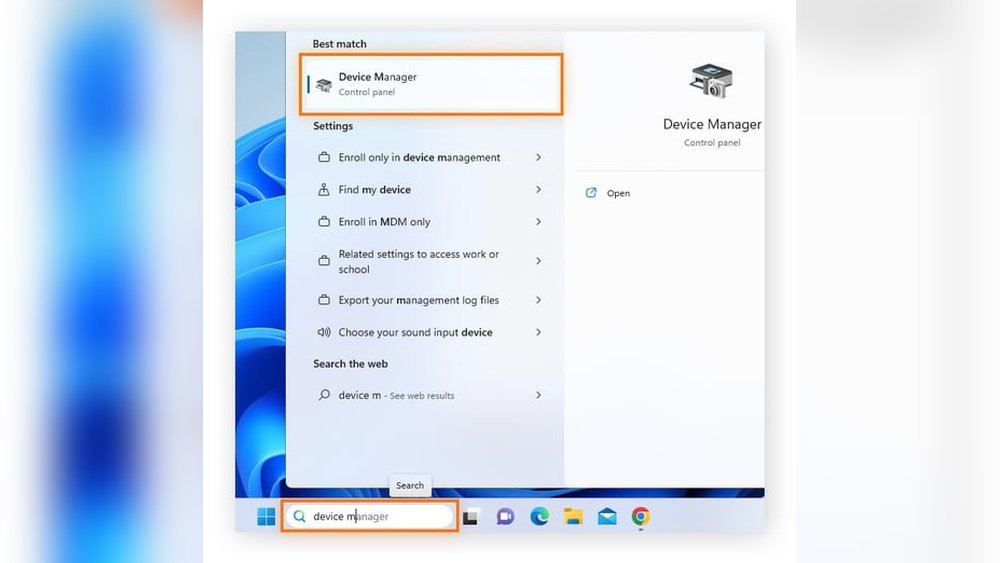
Wondering how to check your laptop GPU quickly and easily? Whether you want to know if your laptop can handle the latest games or need to confirm its specs for work, knowing your GPU details is key.
In this guide, you’ll learn simple steps to find out exactly which graphics card your laptop has—no tech jargon, no confusion. Keep reading, and you’ll be able to check your laptop’s GPU like a pro in just minutes.

Credit: www.hp.com
Check Gpu Via Device Manager
Checking your laptop’s GPU through Device Manager is a quick way to find out which graphics card you have. This tool is built into Windows and shows all hardware components in your system. It helps you see detailed information without installing extra software.
Follow these simple steps to check your GPU using Device Manager. The process is easy and suitable for all users.
Open Device Manager
Press the Windows key and the letter R together to open the Run box. Type devmgmt.msc and press Enter. This opens Device Manager, where you can manage all hardware devices.
Locate Display Adapters
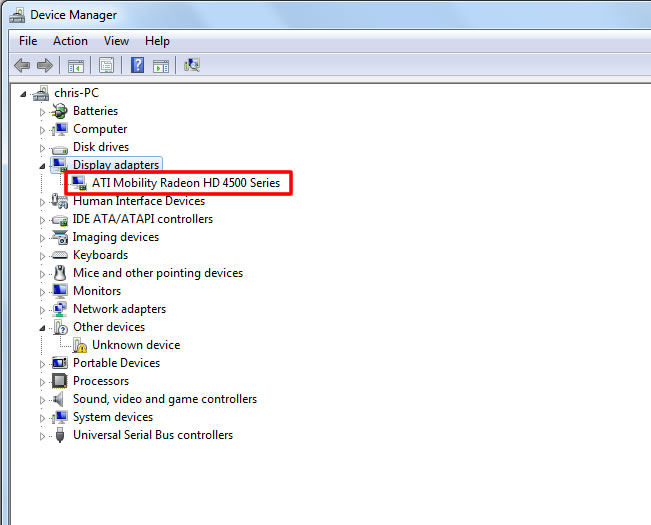
Look for the category called “Display adapters” in the list. Click the arrow beside it to expand and see the devices under it. This section lists your laptop’s graphics cards.
Identify Your Gpu Model
Read the names under Display adapters. The name usually includes the GPU model and manufacturer. Examples are “Intel HD Graphics” or “NVIDIA GeForce GTX 1650.” This tells you the exact GPU your laptop uses.
Credit: www.myfixguide.com
Use System Information Tool
The System Information tool on your laptop shows detailed hardware data. It helps you find your GPU info quickly. This tool is built into Windows and is easy to use.
Follow simple steps to access it. Then, locate the GPU details under the right section. This method works without any extra software.
Access System Information
Press the Windows key and type “System Information”.
Click the app that appears in the search results. It opens a window with all system details.
Find Components Section
In the System Information window, look at the left panel. Find and click “Components” to expand the list.
Under Components, you will see many categories like Display, Sound, and Storage.
Check Display Details
Click on “Display” under Components. The right panel shows detailed info about your GPU.
Look for “Name” or “Adapter Description” to see your GPU model. You can also find the manufacturer and memory size here.
Run Directx Diagnostic Tool
Running the DirectX Diagnostic Tool helps you check your laptop’s GPU quickly. This tool shows detailed information about your graphics card. It works on all Windows systems and does not need extra software. Follow simple steps to find out what GPU your laptop has.
Launch Dxdiag
Press the Windows key and the R key together. A small box called Run will open. Type dxdiag in the box. Click OK or press Enter. The DirectX Diagnostic Tool window appears. It loads information about your system.
Navigate To Display Tab
Look for the tab named Display at the top of the window. Click on this tab to see graphics details. The Display tab shows information about your laptop’s GPU and screen. It also shows if there are any problems with your graphics.
Review Graphics Card Info
On the Display tab, find the Name section. This is your laptop’s GPU model. Check the Manufacturer to know the GPU brand. You can also see the Chip Type and the amount of video memory. These details help you understand your laptop’s graphics power.
Check Gpu With Third-party Software
Checking your laptop’s GPU using third-party software is a simple and effective method. These tools provide detailed information about your graphics card. They help you understand your GPU’s model, performance, and capabilities. This method is user-friendly and works on most laptops.
Popular Gpu Identification Tools
Several third-party programs can identify your GPU quickly. GPU-Z is one of the most popular tools. It offers detailed data about your graphics card. Another good option is Speccy, which shows overall system information including the GPU. MSI Afterburner is also used, especially for monitoring GPU performance during gaming or heavy tasks.
Download And Install
Start by visiting the official website of the software you choose. Download the latest version to ensure compatibility and security. Run the installer and follow the simple steps on screen. Most of these programs are free and lightweight. After installation, launch the software to begin checking your GPU.
Analyze Gpu Specifications
Once the software opens, look for the GPU or graphics section. It will display your GPU’s name and model number. You can also see details like GPU clock speed, memory size, and type. Some tools show the driver version and temperature too. This information helps in troubleshooting or upgrading your laptop.
Identify Gpu On Macos Laptops
Identifying the GPU on your macOS laptop helps you understand its graphic power. This is useful for tasks like video editing or gaming. macOS makes it easy to find this information without extra software.
Follow simple steps to see which graphics card your Mac uses. This guide shows you how to check it quickly and clearly.
Open About This Mac
Click the Apple logo in the top-left corner of your screen. Select “About This Mac” from the menu. A window will open showing a summary of your Mac’s specs.
This page gives basic details about your Mac, including its GPU model. It is the easiest way to start checking your graphics card.
View System Report
In the “About This Mac” window, click the “System Report” button. This opens a detailed report of your Mac’s hardware and software. It provides a deep dive into your system’s components.
The System Report helps you find specific info about your GPU and other hardware parts. It is useful for users who want more details.
Find Graphics/displays Section
In the System Report window, look for “Graphics/Displays” on the left panel. Click it to see your Mac’s graphics card details. This section lists the GPU model, VRAM, and display info.
Use this information to confirm your Mac’s graphic capabilities. It helps you understand what your laptop can handle in terms of graphics performance.

Credit: www.hp.com
Tips To Confirm Gpu Details
Confirming the details of your laptop’s GPU is important for understanding its performance. This helps in checking compatibility with software or games. Use these simple tips to verify your GPU information accurately.
Cross-check With Manufacturer Website
Start by visiting your laptop maker’s official website. Enter your laptop model or serial number in the support section. The site will show the exact GPU your laptop has. This method ensures you get correct information directly from the source.
Update Graphics Drivers
Updating your graphics drivers can reveal detailed GPU data. Drivers are software that controls the GPU’s functions. Download the latest drivers from the GPU maker’s site like NVIDIA or AMD. Updated drivers often include tools to display GPU specs clearly.
Use Online Gpu Databases
Several websites list detailed GPU specifications. Use trusted online GPU databases by entering your GPU model number. These sites provide info on GPU speed, memory, and features. They help confirm your GPU details with easy-to-read charts and descriptions.
Frequently Asked Questions
How Do I Find My Laptop Gpu On Windows?
Open the Device Manager, expand Display adapters, and see your GPU listed there. Alternatively, use Task Manager’s Performance tab under GPU section to view details quickly.
Can I Check Laptop Gpu Using System Information?
Yes, open System Information by typing “msinfo32” in Run. Look under Components > Display to find your GPU model and status.
What’s The Easiest Way To Identify Laptop Gpu?
Using Task Manager is the quickest method. Press Ctrl+Shift+Esc, go to Performance, and select GPU to see your graphics card details instantly.
How To Check Laptop Gpu Using Directx Diagnostic Tool?
Press Windows + R, type “dxdiag” and hit Enter. Navigate to the Display tab to view your GPU name and driver details.
Conclusion
Checking your laptop’s GPU is easier than it seems. Just follow simple steps to find the right information. Knowing your GPU helps with gaming, work, and software choices. Use built-in tools or third-party apps for quick results. Keep your drivers updated for better performance.
Understanding your GPU supports better decisions about your laptop use. Stay informed and enjoy smoother computer experiences.
