
Is your computer acting up with strange glitches, crashes, or weird screen flickers? These issues might be signs that your GPU is faulty.
But how can you be sure? You don’t want to waste time or money replacing parts that are actually fine. You’ll discover simple, clear ways to check if your GPU is really the problem. By the end, you’ll know exactly what steps to take next—saving you frustration and helping your computer run smoothly again.
Keep reading to find out how to spot a faulty GPU before it causes bigger headaches.
Signs Of A Faulty Gpu
Knowing the signs of a faulty GPU helps avoid bigger computer problems. A bad graphics card shows clear symptoms. Spotting these early saves time and money. Watch your screen, system, and software for issues. These clues point to GPU troubles.
Visual Artifacts On Screen
Strange colors or shapes appear on your display. Lines, dots, or blocks may flicker or stay fixed. These visual errors happen during games or videos. They often mean the GPU is failing. Such artifacts are not caused by your monitor.
System Crashes And Freezes
Your computer crashes or freezes without warning. These stops happen during graphics-heavy tasks. The screen might go black or show a blue error. Frequent crashes suggest the GPU cannot handle the load. This problem worsens over time.
Overheating Problems
The GPU gets very hot even in normal use. Fans run loudly and constantly try to cool it. Overheating causes the system to slow down or shut off. Dust or broken fans can make this worse. Heat damages the GPU’s internal parts.
Driver Errors And Warnings
Windows or software shows driver errors or warnings. Programs may fail to start or freeze during use. Error messages mention the graphics card or driver. Outdated or corrupted drivers also cause issues. These software problems hint at GPU faults.
Credit: www.cgdirector.com
Preliminary Checks
Before diving into complex tests, start with simple checks. These preliminary steps help identify common GPU problems fast. They save time and avoid unnecessary repairs. Follow these easy actions to ensure your GPU setup is correct and clean.
Verify Physical Connections
Check if your GPU is properly seated in the motherboard slot. Loose connections cause display issues and crashes. Make sure power cables are firmly connected to the GPU. A disconnected or loose cable can stop the GPU from working.
Inspect For Dust And Damage
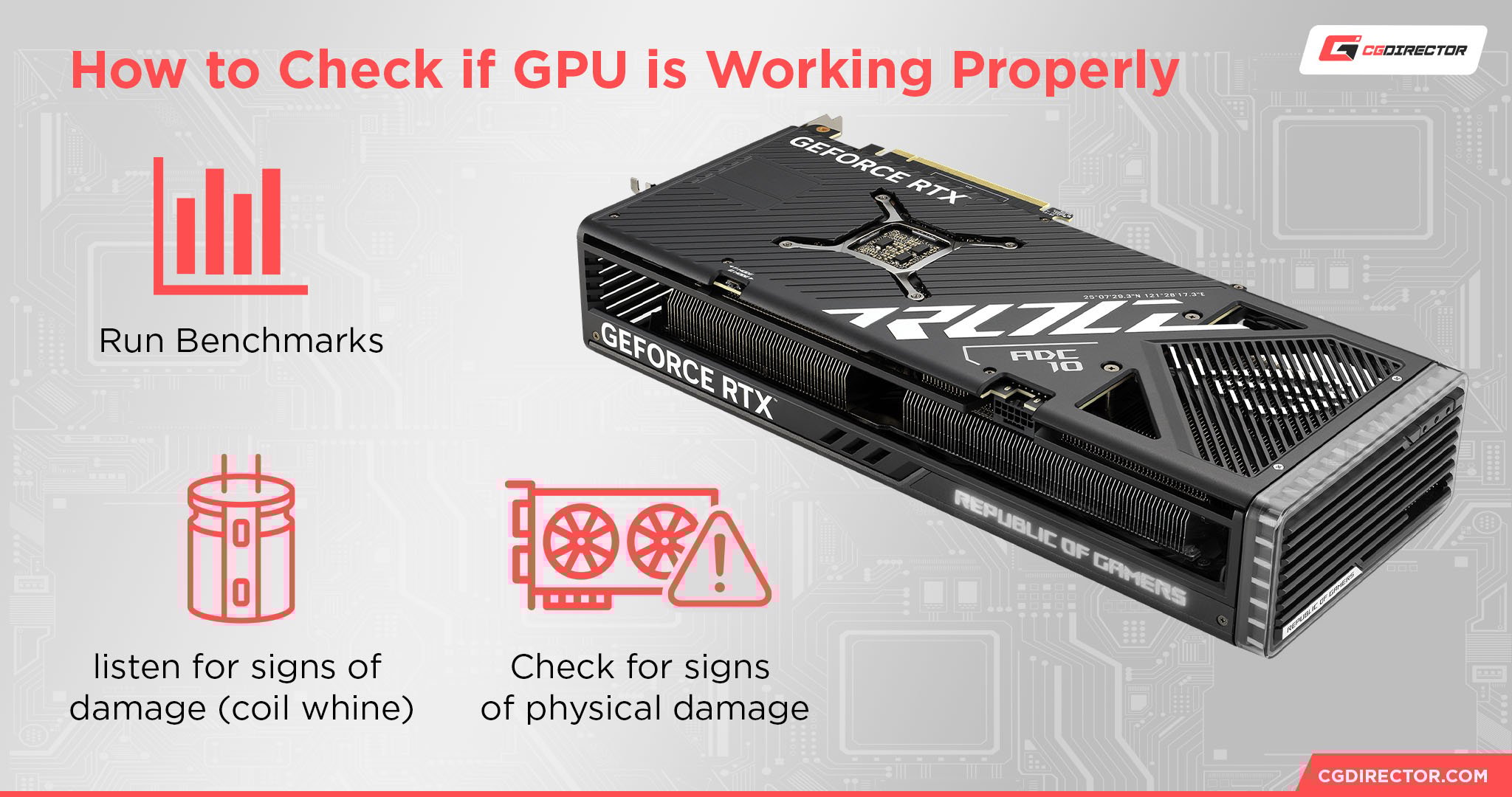
Look inside your computer case for dust buildup on the GPU. Dust blocks airflow and causes overheating. Use compressed air to clean the GPU and fans gently. Also, check for any visible damage like cracks or broken parts. Physical damage can cause GPU failure.
Update Graphics Drivers
Old or corrupted drivers cause many GPU problems. Download the latest drivers from the official website of your GPU brand. Installing updated drivers improves performance and fixes bugs. Restart your computer after updating drivers to apply changes.
Using Diagnostic Tools
Using diagnostic tools helps identify if your GPU has problems. These tools test the GPU’s performance and health. They give clear results to spot faults early. This section covers three key tools for checking your GPU.
Stress Testing Software
Stress testing software pushes your GPU to its limits. It runs heavy tasks to find errors or crashes. Programs like FurMark or OCCT are popular choices. Watch for crashes or screen glitches during the test. These signs often mean a faulty GPU.
Benchmarking Performance
Benchmarking measures your GPU’s speed and power. It compares your GPU’s output to normal levels. Software like 3DMark or Unigine Heaven works well. Low scores or sudden drops can indicate issues. Benchmarking helps track GPU performance over time.
Monitoring Gpu Temperature
High temperatures can damage your GPU. Monitoring tools show real-time heat levels. Apps like MSI Afterburner or HWMonitor are useful. Keep GPU temperature under safe limits, usually below 85°C. Overheating may cause crashes or reduced performance.

Credit: www.youtube.com
Testing With Different Hardware
Testing your GPU with different hardware helps find if it is faulty. Swapping parts can show if the problem is with your GPU or something else. This method saves money and time by avoiding unnecessary repairs or replacements.
Swap With Another Gpu
Remove your current GPU and replace it with a known good one. Check if the new GPU works fine in your system. If the new GPU runs without problems, your original GPU may be faulty. This simple swap confirms if the issue lies in the GPU itself.
Try A Different Power Supply
A weak or failing power supply can cause GPU problems. Use a power supply that meets or exceeds your GPU’s power needs. Connect your GPU to this power supply and test for issues. If problems disappear, the original power supply might be the cause.
Test On Another System
Install your GPU in a different computer. This step helps isolate the problem from your PC’s other parts. If the GPU works well in another system, your original PC may have the issue. If it still fails, the GPU is likely faulty.
Interpreting Test Results
Interpreting test results is the key step after running GPU diagnostics. It helps you know if the problem is with the hardware or software. Understanding the results can save time and money. It guides you to the right solution quickly.
Identifying Hardware Failures
Look for error codes or messages during the test. Frequent crashes or artifact lines on the screen often mean hardware issues. Overheating warnings also point to physical problems. If the GPU fails stress tests repeatedly, hardware failure is likely. Checking fan speeds and temperatures helps confirm this.
Distinguishing Software Issues
Software problems show different signs. Driver errors or outdated software cause performance drops. If the test shows no physical errors but the GPU lags, software may be the cause. Running updates or reinstalling drivers often fixes these problems. Errors during specific applications suggest software conflicts.
When To Seek Professional Help
Complex errors or unclear test results need expert advice. If hardware tests fail but you cannot fix the problem, contact a technician. Avoid opening or repairing the GPU yourself. Professionals have tools and skills to diagnose and repair safely. Early professional help can prevent more damage.

Credit: www.youtube.com
Frequently Asked Questions
How To Identify If My Gpu Is Faulty?
Check for screen artifacts, crashes, or driver errors. Use diagnostic tools like GPU-Z or MSI Afterburner to monitor performance and temperature. Faulty GPUs often cause system instability or graphical glitches during gaming or heavy tasks.
What Are Common Signs Of A Failing Gpu?
Common signs include screen flickering, system crashes, and overheating. You may experience driver crashes or distorted graphics. Sudden performance drops during games or video playback also indicate GPU problems.
Can Software Issues Mimic A Faulty Gpu?
Yes, outdated drivers or corrupted software can cause GPU-like symptoms. Always update your graphics drivers and run malware scans before assuming hardware failure. Reinstalling drivers often resolves many display issues.
How To Test Gpu Health Without Specialized Tools?
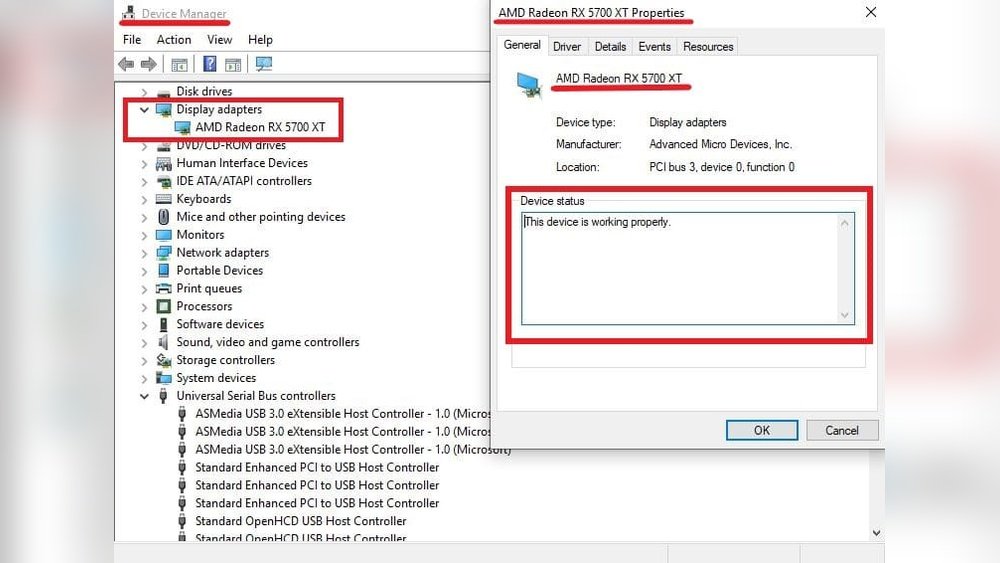
Run graphics-intensive games or benchmarks and watch for crashes or artifacts. Use built-in tools like Windows Device Manager for errors. Monitoring temperatures under load helps identify overheating problems.
Conclusion
Checking your GPU for faults helps keep your computer running smoothly. Simple tests can show if the GPU causes problems. Watch for strange noises, crashes, or poor graphics. Clean the GPU and check connections too. Early detection saves time and money on repairs.
Stay patient and follow steps carefully. A healthy GPU means better performance and fewer headaches. Keep your system in good shape by checking the GPU often. Easy checks make a big difference in the long run.
