
Are you curious whether your CPU is running faster than its original speed? Knowing if your CPU is overclocked can help you understand your computer’s performance and avoid potential issues.
You’ll learn simple and effective ways to check if your CPU is overclocked. By the end, you’ll have the confidence to verify your system’s speed and make smart decisions about your hardware. Keep reading—you’re just a few steps away from mastering your CPU’s true power.
Signs Of Overclocked Cpu
Recognizing the signs of an overclocked CPU helps maintain your computer’s health. Overclocking pushes the processor to run faster than its base speed. This can change how your system behaves, its heat output, and performance. Watch for these signs to know if your CPU is overclocked.
Unusual System Behavior
Your computer may act strangely if the CPU is overclocked. Sudden crashes or random restarts can happen. Programs might freeze or stop responding. These issues occur because the CPU is working beyond its normal limits. Stability problems often point to overclocking.
Increased Heat Output
Overclocked CPUs generate more heat than usual. The processor runs faster, using more power. You may notice your computer’s fans running louder or more often. The case might feel hotter to touch. High temperatures are a clear sign of overclocking.
Performance Boost Indicators
One big clue is a boost in system speed. Tasks like opening programs or loading games may happen faster. Benchmark tests show higher scores than usual. The CPU handles more work in less time. This speed increase often means the processor is overclocked.

Credit: www.reddit.com
Check Cpu Speed In Bios
Checking your CPU speed in the BIOS is a direct way to see if your processor is overclocked. The BIOS shows the hardware settings before the operating system loads. It displays the real CPU frequency, not affected by software. This method helps confirm the actual speed your CPU runs at.
Accessing the BIOS and finding the CPU frequency is simple. It requires restarting your computer and entering the BIOS menu. Each motherboard brand may have different options, but the process is similar.
Accessing Bios Settings
Restart your computer. Watch the first screen carefully. Press the key that opens BIOS setup. Common keys are Delete, F2, or Esc.
Press the key quickly before Windows starts. If you miss it, restart and try again. Once inside the BIOS, use the keyboard to navigate.
Locating Cpu Frequency Information
Look for a tab or section named “CPU,” “Hardware Monitor,” or “System Information.” The exact name varies by BIOS.
Find the CPU frequency or clock speed line. It shows the current speed in MHz or GHz. Compare this number with your CPU’s base speed.
If the displayed frequency is higher than the base speed, your CPU is overclocked. Note this number for future reference.
Use System Information Tools
System information tools help to check your CPU’s current speed and settings. They show if your CPU is running faster than its base speed. These tools give clear data about your processor without complex steps. Using them is simple and quick. You can compare the current speed to the official speed of your CPU model. This tells you if overclocking is active.
Windows Task Manager
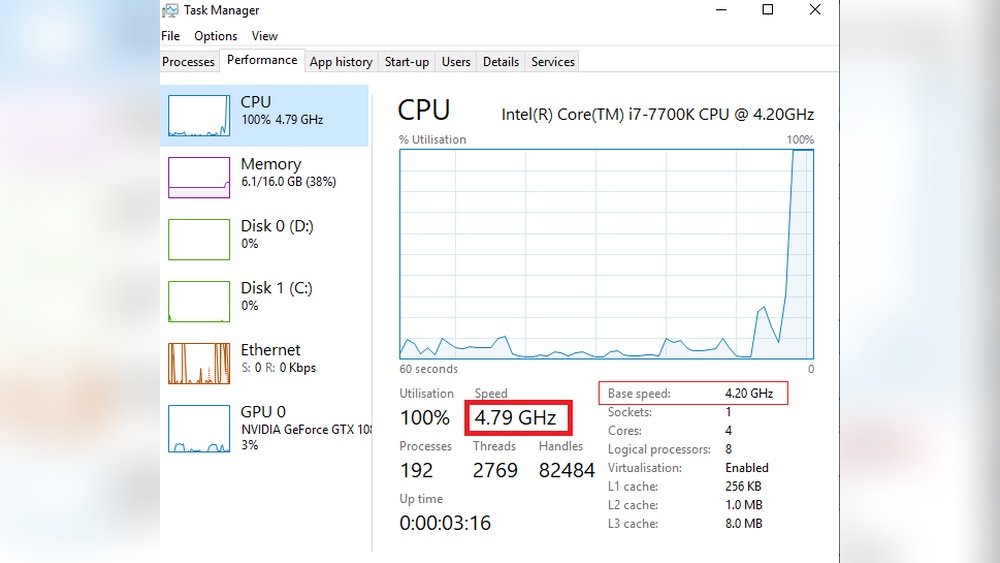
Windows Task Manager shows your CPU speed in real-time. Press Ctrl + Shift + Esc to open it. Click the Performance tab. Select CPU on the left side. Look at the speed listed near the top right. This speed changes as the processor works. If it is higher than the base speed listed by the manufacturer, your CPU is overclocked.
Cpu-z Application
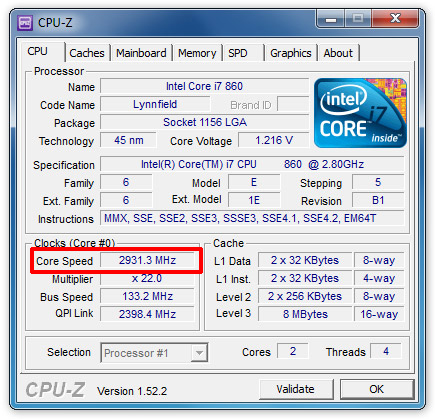
CPU-Z is a free app that gives detailed CPU info. Download and install it from the official site. Open the program and go to the “CPU” tab. It shows the processor name, code name, and clock speeds. Check the “Core Speed” value. If this number is above the base clock speed, your CPU runs faster than normal. CPU-Z also shows multiplier and voltage data.
Third-party Monitoring Software
Several third-party tools monitor CPU speed and health. Programs like HWMonitor or Speccy offer more detailed info. They track temperature, voltage, and clock speed over time. These tools help confirm if your CPU runs consistently above its normal speed. Use them to watch for stable or unstable overclocking. They are easy to install and free to use.

Credit: www.reddit.com
Compare Base And Current Clock Speeds
Checking if a CPU is overclocked starts with comparing its base and current clock speeds. The base clock speed is the speed set by the manufacturer. The current clock speed shows how fast the CPU runs now. If the current speed is higher than the base, the CPU is likely overclocked.
Finding Base Clock Speed
The base clock speed is listed in the CPU’s official specifications. Visit the CPU maker’s website or check the box the CPU came in. You can also use tools like CPU-Z to see this value. The base clock speed is usually shown in gigahertz (GHz).
Identifying Current Operating Frequency
The current operating frequency shows the CPU’s real-time speed. Use software like Task Manager on Windows or Activity Monitor on Mac. More detailed tools such as HWMonitor or CPU-Z also display this. Compare this number to the base clock speed to spot any overclocking.
Monitor Cpu Temperatures
Monitoring CPU temperatures is key to knowing if your processor is overclocked. Overclocking raises the CPU speed beyond its normal limits. This extra speed often causes higher heat output. Watching the temperatures helps prevent damage and keeps your PC safe.
Checking the CPU temperature is simple. You need the right tools and some knowledge about safe temperature levels. These steps help you spot if your CPU runs hotter than usual, which might mean overclocking.
Using Hardware Monitoring Tools
Hardware monitoring tools show real-time CPU temperatures. Many are free and easy to use. Popular options include HWMonitor, Core Temp, and SpeedFan. These programs display the current temperature of each CPU core.
Install a tool and run it while your computer works hard. High temperatures during normal use can suggest overclocking. These tools also show voltage and fan speeds, which relate to CPU stress.
Temperature Thresholds For Overclocking
CPUs have safe temperature limits. Most modern CPUs operate safely below 80°C. Overclocked CPUs often reach 85°C or higher under load. Consistently high temperatures can shorten CPU life.
Check your CPU’s official temperature range. Compare it with readings from your monitoring tool. If temperatures are near or above the limit, your CPU might be overclocked. Keep an eye on spikes during heavy tasks like gaming or video editing.
Credit: cleanerone.trendmicro.com
Check Bios Overclocking Settings
Checking your BIOS overclocking settings is a direct way to see if your CPU runs beyond its standard speed. The BIOS holds the core configurations for your computer’s hardware. By entering the BIOS, you can spot any changes made to the CPU speed or voltage. This helps confirm if overclocking is active.
Accessing the BIOS usually requires pressing a key like Del, F2, or Esc during startup. The exact key depends on your motherboard brand. Inside the BIOS, look for sections named “OC,” “Overclocking,” or “Advanced CPU Settings.” These areas contain the CPU speed, multiplier, and voltage controls.
Identifying Manual Overclock Profiles
Manual overclock profiles show specific speed and voltage values set by the user. You may see the CPU multiplier increased above the default number. Voltages could also be higher than standard. These settings differ from the “Auto” mode, which lets the system manage speeds on its own.
Manual profiles often have clear labels or names. Some BIOS versions let users save multiple profiles. Check if any profile is active other than the default one. This confirms the CPU runs with custom speeds.
Resetting To Default Settings
Resetting BIOS to default removes all custom changes, including overclocking. This option is usually found under “Exit” or “Save & Exit” menus. Select “Load Setup Defaults” or “Restore Defaults.”
After reset, the CPU runs at its original factory speed. This step helps troubleshoot if overclocking causes issues. Remember to save changes before exiting BIOS to apply defaults.
Use Benchmarking Software
Benchmarking software helps check if your CPU runs faster than usual. It measures the speed and performance under stress. This method shows if the CPU is overclocked by comparing normal and current speeds.
Using benchmarking tools is simple and effective. They give clear numbers to understand your CPU’s condition.
Running Performance Tests
Start by downloading a trusted benchmarking program. Popular choices include Cinebench, Geekbench, or CPU-Z. Run the test on your CPU without closing other programs. The software stresses the CPU to measure its maximum speed and stability. Record the scores and temperature readings shown after the test completes. Repeat the test a few times for accurate results.
Analyzing Results For Overclocking Signs
Compare your test scores to the CPU’s standard benchmarks. Higher scores than usual suggest overclocking. Check CPU temperature during the test; higher heat may indicate overclocking. Watch out for instability or crashes during tests. These signs often appear if the CPU is pushed beyond factory settings. Use the data to confirm if your CPU runs faster than its base speed.
Frequently Asked Questions
How Can I Tell If My Cpu Is Overclocked?
Check your CPU’s base and current clock speeds in BIOS or software like CPU-Z. If current speed exceeds base, it’s overclocked.
What Tools Detect Cpu Overclocking Status?
Use CPU-Z, HWMonitor, or BIOS settings. These tools display CPU clock speeds and help identify overclocking.
Does Overclocking Show In Windows Task Manager?
No, Task Manager shows CPU usage but not overclock status. Use dedicated tools or BIOS for accurate info.
Can Bios Settings Confirm Cpu Overclocking?
Yes, BIOS reveals CPU clock multiplier and frequency. Compare these with your CPU’s default specs to confirm overclocking.
Conclusion
Checking if your CPU is overclocked helps protect your computer. It ensures your system runs safely and avoids damage. Use simple tools like CPU-Z or BIOS settings to verify your CPU speed. Regular checks keep your PC stable and performing well.
Knowing your CPU’s status helps you make smart decisions about upgrades. Stay informed to keep your computer healthy and efficient. Don’t skip this step when troubleshooting or building a new system. Simple checks save time and prevent bigger problems later.
