
Is your computer acting slow, freezing, or not turning on at all? You might be dealing with a bad CPU.
But how can you be sure? Knowing how to check if your CPU is bad can save you time, money, and frustration. You’ll discover simple and effective ways to test your CPU’s health. By the end, you’ll have the confidence to identify the problem and decide what to do next.
Keep reading—you’re just a few steps away from solving your computer troubles.
Signs Of A Failing Cpu
Recognizing a failing CPU early helps save time and money. The CPU controls almost everything your computer does. If it starts to fail, your system will show clear signs. Spotting these signs can prevent more damage and data loss.
Frequent System Crashes
One common sign of a bad CPU is frequent system crashes. Your computer may freeze or restart without warning. These crashes often happen during heavy tasks or gaming. It means the CPU cannot handle the workload properly.
Overheating Issues
A failing CPU often runs hotter than usual. Overheating can cause your computer to shut down suddenly. Dust buildup or poor cooling can worsen this problem. If your CPU temperature stays high, it may be damaged.
Performance Drops
Slow performance is a clear indicator of CPU problems. Programs may take longer to open or run sluggishly. The CPU might struggle with simple tasks it handled easily before. This drop in speed signals possible CPU failure.
Blue Screen Errors
Blue screen errors, also called BSODs, often point to CPU issues. These errors show up during system failures. They usually include error codes related to hardware problems. Multiple BSODs can mean your CPU is failing.
Credit: www.shoshitamam.com
Initial Physical Inspection
Starting with a physical check of your CPU is an easy way to spot common problems. This step helps find visible issues that may cause your CPU to fail. You do not need special tools for this. Just a careful look can reveal a lot about your CPU’s condition.
Check For Visible Damage
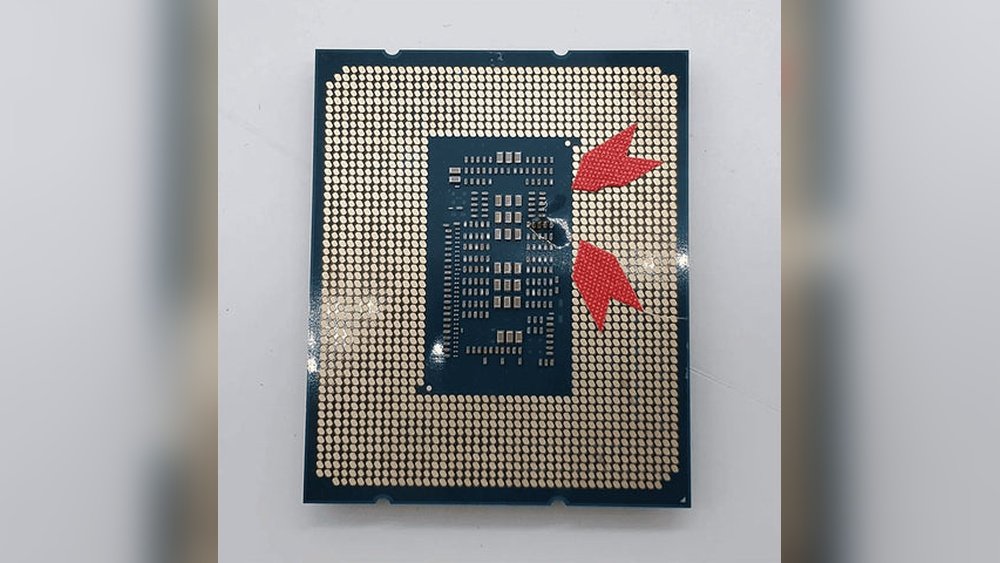
Look closely at the CPU surface and pins. Broken pins or bent ones can stop the CPU from working. Also, check for cracks on the chip or signs of burning. Any discoloration or marks may mean the CPU is damaged. Clean the CPU gently to see all parts clearly.
Inspect Thermal Paste And Cooling
Check the thermal paste between the CPU and the cooler. Old or dried paste does not transfer heat well. This can cause the CPU to overheat and fail. Remove the cooler carefully to see the paste condition. Replace it if it looks dry or cracked. Also, make sure the cooler itself is clean and not clogged with dust.
Verify Proper Seating
Make sure the CPU sits flat in its socket. A loose or misaligned CPU causes errors or no power. Press gently to confirm it is fully seated. Check the locking mechanism or lever to ensure it locks in place. If the CPU moves or wiggles, reseat it carefully before testing again.
Use Built-in Diagnostic Tools
Built-in diagnostic tools help check your CPU without extra software. They test hardware directly and report problems. These tools are free and easy to use. They give clear results to know if the CPU is bad. Use them before buying new parts or calling tech support.
Bios/uefi Hardware Tests
Most computers have hardware tests inside BIOS or UEFI. Restart your PC and enter BIOS by pressing a key like F2 or Del. Find the hardware test section. Run CPU tests to check for errors or overheating. The test results help identify CPU faults quickly. No need for extra programs.
Windows Memory And Cpu Diagnostics
Windows offers a built-in tool to check CPU and memory health. Press Windows + R, type “mdsched.exe,” and hit Enter. Choose to restart and check for problems. The test runs automatically and scans CPU and RAM. After reboot, Windows shows if it found any issues. This tool is simple and useful for PC users.
Mac Hardware Test
Apple computers include a hardware test tool to check CPU and other parts. Shut down your Mac. Turn it on and hold the D key until a test screen appears. Follow on-screen steps to start the test. It checks CPU, memory, and other hardware. Results show any detected problems clearly. This tool helps Mac users find CPU issues fast.
Run Stress Tests
Running stress tests helps find problems with your CPU. These tests push the processor to work hard. This shows if it can handle tough tasks without errors or crashes. Stress tests are quick ways to check CPU health and stability.
Prime95
Prime95 is a popular tool for CPU stress testing. It uses complex math to push your CPU fully. The program runs for a long time to find errors. If your CPU crashes or shows errors, it might be bad. Prime95 is simple to use and very effective.
Intelburntest
IntelBurnTest tests CPU stability by using heavy calculations. It runs fast but puts a lot of heat on the processor. This test helps check if your CPU can handle high stress. Watch for crashes or strange results during the test.
Occt
OCCT is a powerful tool for checking CPU and system stability. It has different tests to stress CPU, GPU, and power supply. The CPU test pushes the processor hard to find faults. OCCT also shows temperature and error reports in real time.
Monitor Temperatures And Voltages
Monitoring your CPU’s temperatures and voltages helps detect hardware problems early. High temperatures or unstable voltages can cause your CPU to fail or perform poorly. Keeping an eye on these values ensures your CPU runs safely and smoothly.
Two common ways to check these values are using software tools or the BIOS. Both methods give useful information about your CPU’s health. Let’s explore how to use each option.
Use Hwmonitor Or Core Temp
HWMonitor and Core Temp are simple programs that show real-time CPU data. They display temperatures, voltages, and fan speeds clearly. You can download them for free and install quickly.
Open the program and look at the CPU section. Temperatures above 80°C may signal overheating. Voltages should stay near the normal range, usually around 1.1 to 1.3 volts. Sudden drops or spikes can mean trouble.
Run the software while doing tasks like gaming or video editing. Watch if temperatures rise too high or voltages become unstable. These signs may mean your CPU is bad or cooling is insufficient.
Check Bios Voltage Readings
BIOS shows basic hardware status including CPU voltages. Restart your computer and enter BIOS by pressing keys like DEL or F2 during boot.
Find the hardware monitor or status page. Here, you see voltage values for your CPU and other parts. The readings are usually more stable than software tools.
Compare these voltages to your CPU’s specifications. Values far off the standard can indicate power issues. This helps confirm if your CPU or power supply needs attention.

Credit: www.youtube.com
Check System Logs
Checking system logs helps find CPU problems fast. These logs store details about errors and crashes. They show if the CPU causes system issues. Reading logs requires simple tools built into Windows. These tools give clues to spot a bad CPU early.
Event Viewer Errors
Event Viewer shows detailed error messages about system faults. Search for errors marked as “Critical” or “Error”. These often relate to hardware problems. CPU faults can cause frequent system crashes or freezes. Look for repeated errors during startup or heavy use. Notes about “Processor” or “CPU” in error details can confirm CPU issues.
Dump Files Analysis
Dump files save data when Windows crashes unexpectedly. These files help identify the crash cause. Use tools like WinDbg or BlueScreenView to open dump files. Check for error codes linked to CPU faults, such as “MACHINE_CHECK_EXCEPTION”. Analyzing dump files gives direct evidence of CPU failure. This method helps separate CPU problems from other hardware issues.
Swap And Test Components
Swapping and testing components helps find the cause of CPU problems. This method checks if the CPU really is the issue or another part. By changing parts one by one, you can see which one causes errors or stops the computer from working.
This way saves time and money. It avoids buying a new CPU when the problem lies elsewhere. It also helps keep the computer safe from damage during testing.
Test With Another Cpu
Take a working CPU that fits your motherboard. Replace your current CPU with it carefully. Turn on the computer and watch for errors or crashes. If the computer runs fine, your original CPU might be bad. If the problem stays, the CPU is likely not the cause.
Check Ram And Motherboard
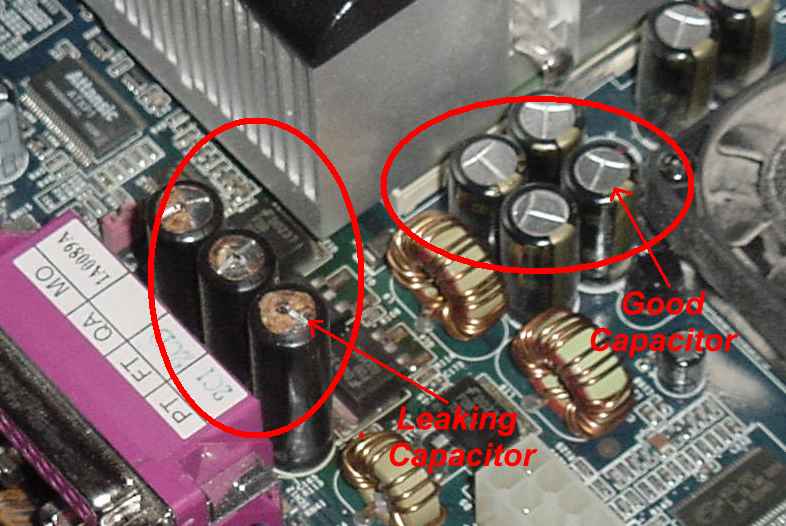
Faulty RAM or motherboard can cause CPU-like problems. Remove and test each RAM stick one by one. Use a RAM testing tool to find errors. Look for motherboard damage, like burnt parts or swollen capacitors. Testing these parts helps rule out other causes before replacing the CPU.
When To Replace The Cpu
Knowing when to replace your CPU is important for keeping your computer running smoothly. A bad CPU can cause many problems, from slow performance to crashes. Sometimes, fixing other parts will not solve the issue. That means it is time to check the CPU carefully and decide if it needs replacement.
Irreparable Damage Signs
Look for physical damage on the CPU chip. Burn marks or cracks show the CPU is broken. If the CPU gets too hot and stops working, damage inside may be permanent. Bent or missing pins on the processor can stop it from connecting properly. These signs mean the CPU cannot be fixed and must be replaced.
Consistent Failure Despite Testing
Run tests to check CPU performance and stability. If the CPU fails tests repeatedly, it may be faulty. Crashes, blue screens, and errors during simple tasks often point to CPU problems. Testing tools can help confirm these failures. If problems continue after cleaning and reinstalling, replacing the CPU is the best option.
Credit: www.liftingitalia.com
Frequently Asked Questions
How Do I Know If My Cpu Is Failing?
You can spot a failing CPU by frequent crashes, slow performance, or random restarts. Running diagnostic software also helps detect CPU issues accurately.
Can Overheating Cause Cpu Damage?
Yes, overheating can severely damage your CPU. It may cause shutdowns or permanent hardware failure. Proper cooling is essential to prevent this.
What Tools Check Cpu Health Effectively?
Tools like Prime95, Intel Processor Diagnostic Tool, and HWMonitor test CPU performance and temperature. They help identify potential CPU problems early.
Is Physical Damage Visible On A Bad Cpu?
Physical damage is rare but possible. Look for burnt marks or bent pins. However, many CPU issues are internal and not visually detectable.
Conclusion
Checking your CPU’s health helps keep your computer running well. Simple tests and careful observation reveal many problems early. Fix issues quickly to avoid bigger damage or data loss. Keep your system clean and cool to extend CPU life. Regular checks save time and money in the long run.
Stay alert to signs like crashes, slow speed, or overheating. Taking small steps today can prevent big headaches tomorrow.
