
Are you curious about the graphic card inside your CPU but don’t know where to start? Knowing how to check your graphic card is essential, whether you want to upgrade your gaming experience, troubleshoot display issues, or simply understand your computer better.
This guide will walk you through simple, clear steps to find out exactly what graphic card your system uses. Keep reading—you’ll be surprised how easy it is to uncover this important piece of your computer’s hardware.

Credit: www.nytimes.com
Identify Your Graphic Card
Identifying your graphic card is the first step to understanding your PC’s display power. It helps you know what kind of tasks your computer can handle. This knowledge is useful for gaming, video editing, or upgrading parts.
Several easy tools in Windows show your graphic card details. These methods do not need extra software. Just follow simple steps to find the information you need.
Check Device Manager
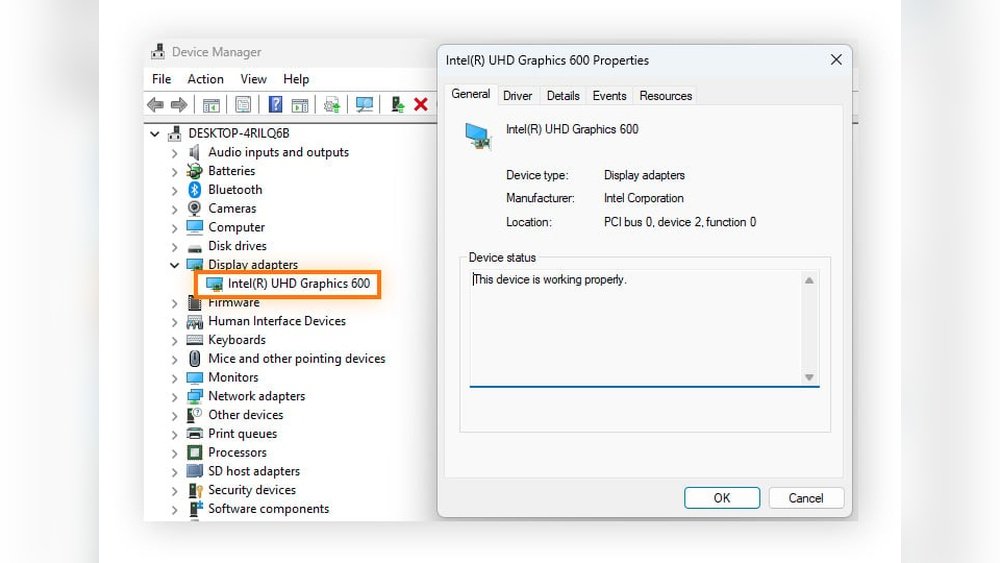
Device Manager lists all hardware in your PC. To open it, press Windows key + X. Select “Device Manager” from the menu. Look for “Display adapters” and click the arrow. The name of your graphic card appears here. This method works on most Windows versions.
Use Directx Diagnostic Tool
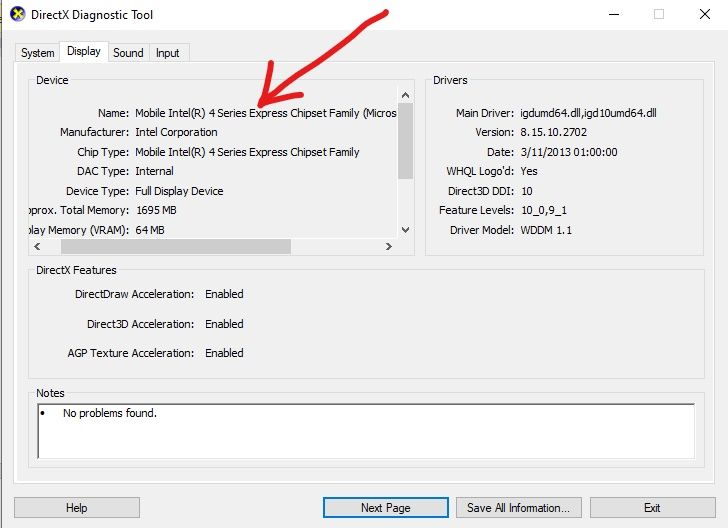
DirectX Diagnostic Tool shows detailed info about your graphic card. Press Windows key + R to open Run box. Type “dxdiag” and hit Enter. Switch to the “Display” tab. You see your graphic card name and manufacturer. This tool also shows driver info and video memory.
Explore System Information
System Information gives a complete overview of your PC. Open it by typing “System Information” in the Start menu. Go to “Components” then “Display.” Your graphic card details will be listed here. This method is helpful for deeper system checks.
Use Third-party Software
Using third-party software is a simple way to check the graphic card in your CPU. These programs give detailed information about your hardware. They show the exact model, memory size, and driver version of your GPU. This method is helpful for users who want quick and clear data.
Gpu-z Overview
GPU-Z is a popular tool for checking graphic cards. It is small and easy to use. The software shows real-time data like GPU temperature and clock speed. Users can see the name and manufacturer of their graphic card. It also displays memory type and size. GPU-Z works on most Windows versions. It does not need installation and runs instantly.
Speccy Features
Speccy is another useful program to view GPU details. It gives a full report of your computer’s hardware. The interface is clean and simple to read. Speccy shows GPU name, memory, and driver info. It also provides data on CPU, RAM, and motherboard. This makes it a great tool for overall system check. Speccy supports both 32-bit and 64-bit Windows.
Check Graphic Card Physically
Checking your graphic card physically helps you know exactly what hardware is inside your CPU. It lets you see the card’s details directly. This method is simple and reliable for identifying your graphic card.
Locate Graphic Card Inside Cpu
First, turn off your computer and unplug all cables. Open the side panel of your CPU case carefully. Look inside for a large card connected to the motherboard. The graphic card usually sits in a long slot near the center or bottom.
It has one or more fans and is bigger than most other components. The card also has ports like HDMI or DisplayPort on the back panel. These ports connect to your monitor.
Read Model And Manufacturer Details
After finding the card, check its surface for a label or sticker. The label shows the model number and manufacturer name. This information helps identify your graphic card precisely.
Look for names like NVIDIA, AMD, or Intel. The model number is often a mix of letters and numbers. Write down these details for future reference or research.
Check Graphic Card On Different Operating Systems
Checking the graphic card on your CPU helps understand your computer’s display power. Different operating systems have different ways to show this information. This section explains how to find your graphic card details on Windows, MacOS, and Linux.
Windows Steps
Press the Windows key and type “Device Manager.”
Open Device Manager from the list.
Find and expand the “Display adapters” section.
Your graphic card name appears here.
You can double-click the card to see more details.
Macos Steps
Click the Apple icon in the top-left corner.
Select “About This Mac” from the menu.
Your graphic card information is listed there.
Click “System Report” for more details.
Linux Commands
Open the Terminal on your Linux system.
Type lspci | grep VGA and press Enter.
This command shows the graphic card model.
For detailed info, use lshw -c video.
You may need to install lshw first with your package manager.
Troubleshoot Graphic Card Issues
Troubleshooting graphic card issues helps keep your computer running smoothly. Problems like screen flickering, crashes, or slow graphics often point to the graphic card. Fixing these problems early saves time and avoids bigger damage.
Update Drivers
Outdated drivers cause many graphic card problems. Drivers are software that help your computer talk to the graphic card. Check the graphic card manufacturer’s website for the latest drivers. Download and install updates carefully. Restart your computer after updating. This step often solves display and performance issues quickly.
Check For Hardware Conflicts
Hardware conflicts happen when devices try to use the same resources. Open Device Manager on your PC to find conflicts. Look for warning signs like yellow triangles next to devices. Disable or uninstall conflicting devices to test if the problem clears. You can also update or reinstall drivers to fix conflicts.
Monitor Temperature And Performance
High temperatures can damage your graphic card. Use software tools to check the card’s temperature during use. If the temperature is too high, clean the fans and vents. Ensure your PC case has good airflow. Monitor performance to spot drops or freezes. Fixing heat and performance issues improves stability.

Credit: www.acquetech.com
Credit: vixencomposites.com
Frequently Asked Questions
How Can I Check My Graphic Card On Windows Pc?
Open Device Manager, expand Display adapters, and see your graphic card listed. Alternatively, use DirectX Diagnostic Tool by typing “dxdiag” in Run.
What Is The Fastest Way To Identify My Gpu?
Press Windows + R, type “dxdiag,” and check the Display tab for GPU details quickly and easily.
Can I Check My Graphic Card Without Opening The Cpu?
Yes, use system information tools or third-party software like GPU-Z or Speccy to identify your graphic card remotely.
How Do I Find My Graphic Card Model In Linux?
Open Terminal and enter “lspci | grep VGA” to display your graphic card model on most Linux distributions.
Conclusion
Checking your graphic card in the CPU is simple and quick. You just need to follow a few easy steps. Knowing your graphic card helps with games, videos, and software. It also helps when upgrading your computer. Use built-in tools like Device Manager or system information.
This way, you get accurate details without extra software. Keep this guide handy for future use. Now, you can check your graphic card anytime without stress. Understanding your hardware is always a smart move.
