
Wondering if your GPU is running too hot? Knowing how to check GPU temps is key to keeping your computer safe and performing at its best.
If your graphics card gets too warm, it can slow down games, cause crashes, or even damage your hardware. But don’t worry—this guide will show you simple steps to monitor your GPU temperature quickly and easily. By the end, you’ll have the confidence to keep your system cool and running smoothly.
Ready to protect your gear and boost your PC’s performance? Let’s dive in!
Why Gpu Temps Matter
Keeping an eye on your GPU temperature is very important. Your graphics card works hard, especially during games or heavy tasks. High temperatures can cause problems. Knowing why GPU temps matter helps you keep your system safe and fast.
Impact On Performance
A hot GPU can slow down your computer. When temperatures rise, the GPU may reduce speed to cool down. This is called throttling. Throttling lowers performance and causes lag or stuttering. Keeping the GPU cool helps it run at full power.
Risks Of Overheating
Overheating can damage your GPU. It can cause crashes, freezes, and even permanent harm. Heat can also affect other parts inside your PC. Fans and cooling systems work to stop this. Watching GPU temps helps prevent costly repairs.
Credit: www.gpu-mart.com
Tools To Monitor Gpu Temperature
Knowing your GPU temperature helps protect your computer from damage. Monitoring tools show real-time temperature data. These tools help keep your system safe and running smoothly.
Built-in Software Options
Many graphics cards come with built-in software to check temperature. NVIDIA users can try NVIDIA GeForce Experience. AMD offers Radeon Software for their GPUs. These programs show temperature and other GPU details. They work well for basic monitoring without extra downloads.
Third-party Applications
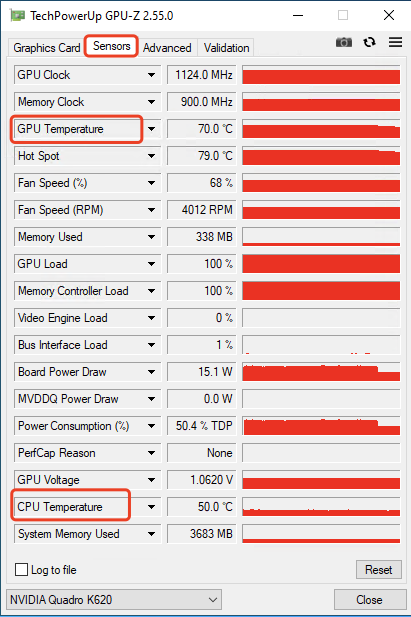
Third-party apps offer more detailed temperature readings. MSI Afterburner is popular and works with most GPUs. HWMonitor shows temperature along with voltages and fan speed. GPU-Z is another simple tool for GPU info. These apps provide detailed data for better control.
How To Check Gpu Temps
Checking your GPU temperature is important to keep your computer safe. High temperatures can cause your GPU to slow down or stop working. Many ways exist to check GPU temps. Some are simple and built into your computer. Others need special software. This guide explains easy steps to monitor GPU temperatures.
Using Task Manager
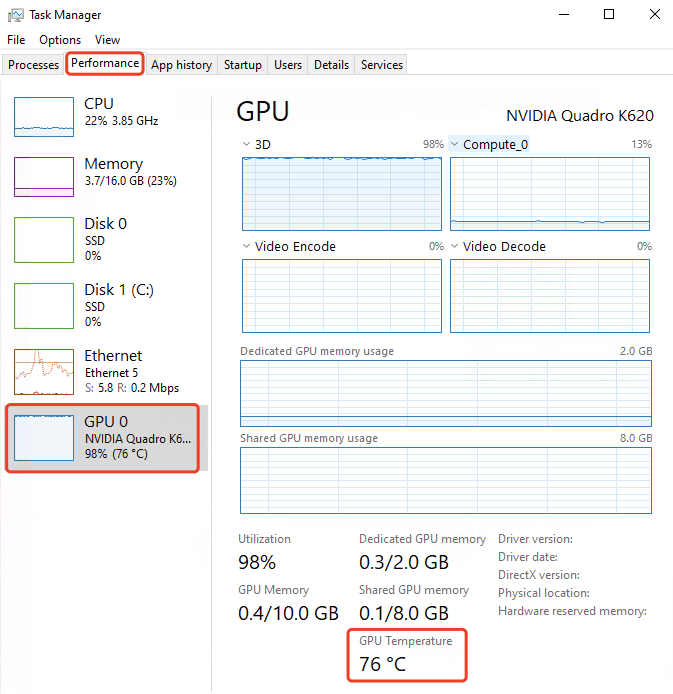
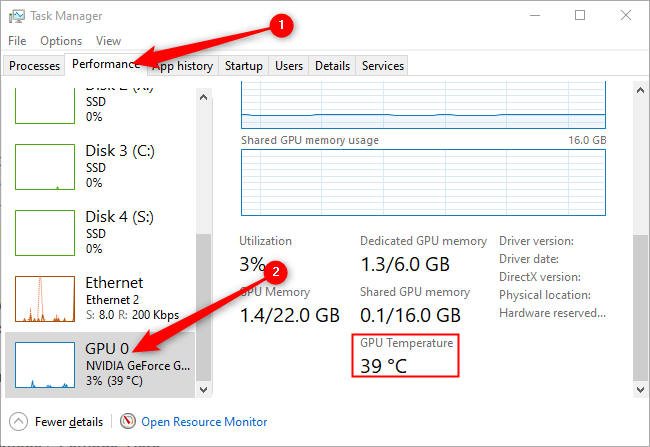
Windows Task Manager shows basic GPU info including temperature. Press Ctrl + Shift + Esc to open it. Click the Performance tab. Select GPU from the left menu. You will see the current temperature and usage. This method works on Windows 10 and later versions. It is fast and needs no extra software.
Using Gpu Manufacturer Software
GPU makers offer free apps for monitoring hardware. Nvidia users can try GeForce Experience. AMD users can install Radeon Software. These apps show detailed GPU temperatures and settings. They also let you adjust fan speeds and update drivers. This is a reliable way to check temps for specific GPU brands.
Using Third-party Tools
Third-party tools provide extra details about GPU health. Popular apps include HWMonitor, MSI Afterburner, and GPU-Z. These tools display temperature, clock speeds, and fan speeds. They support many GPU models and brands. Most are free and easy to use. Choose a trusted tool for best results.
Credit: www.gpu-mart.com
Normal Gpu Temperature Ranges
Knowing the normal temperature range for your GPU helps keep your computer safe. Temperatures that are too high can cause damage. Keeping an eye on these numbers is easy and important. Below, you will find typical temperature ranges for both idle and load states of your GPU.
Idle Temperatures
Idle temperature means the GPU is not working hard. It stays cool while doing small tasks. Normal idle temperatures range between 30°C and 45°C. If your GPU is hotter than 50°C while idle, it may need better cooling.
Load Temperatures
Load temperature means the GPU is working hard, like during games or video editing. Normal load temperatures range between 60°C and 85°C. Some GPUs can reach up to 90°C safely, but try to keep it lower. High temperatures above 90°C could cause your GPU to slow down or get damaged.
Common Causes Of High Gpu Temps
High GPU temperatures can cause your computer to slow down or even shut off. Understanding what causes these high temps helps you keep your GPU cool and working well. Several common reasons can lead to your GPU running hotter than it should.
Dust And Dirt
Dust builds up inside your computer over time. It covers the GPU and its fans. This layer blocks heat from escaping. Fans struggle to spin properly. The GPU cannot cool down well. Cleaning dust regularly helps keep temps low and parts safe.
Poor Airflow
Good airflow moves hot air away from your GPU. If your case is crowded or cables block vents, air cannot flow freely. Hot air stays trapped inside. The GPU heats up quickly. Organizing cables and choosing a good case improves cooling.
Overclocking
Overclocking pushes your GPU to run faster than normal. This creates more heat. Without better cooling, the GPU gets too hot. Overclocking needs careful monitoring of temps. Use extra cooling if you want to overclock safely.
Tips To Prevent Gpu Overheating
Keeping your GPU cool is important for its performance and lifespan. Overheating can cause slowdowns or even damage. Use these simple tips to keep your GPU temperature in check and your system running smoothly.
Regular Cleaning
Dust and dirt block airflow and trap heat inside your GPU. Clean your computer often. Use a soft brush or compressed air to remove dust from the GPU and fans. Pay attention to vents and cooling fins. Cleaning helps the GPU stay cool and work better.
Improving Case Ventilation
Good airflow inside your computer case moves hot air away from your GPU. Make sure cables are tidy and not blocking air paths. Add extra case fans if needed. Place intake fans at the front and exhaust fans at the back or top. Better airflow lowers GPU temperature significantly.
Adjusting Fan Speeds
Many GPUs allow you to control fan speeds through software. Increase fan speed to cool the GPU faster during heavy use. Set a custom fan curve for better temperature control. Faster fans reduce heat but may increase noise slightly.
Avoiding Overclocking
Overclocking pushes your GPU beyond its normal limits. This creates more heat and can cause overheating. Stick to the manufacturer’s settings for stable temperatures. Avoid overclocking unless you have good cooling and know what you’re doing.
When To Seek Professional Help
Knowing when to seek professional help for your GPU temperature issues is important. Some problems need expert care to avoid serious damage. Understanding the signs can save your GPU and improve your computer’s life.
Persistent High Temps
High GPU temperatures that do not go down need attention. Continuous overheating can harm your hardware. If cleaning fans and improving airflow do not help, it is time to get help. Professionals can find hidden problems that simple checks miss.
Hardware Issues
Hardware problems can cause GPU overheating. Faulty fans, damaged thermal paste, or broken sensors are common issues. These problems need skill and tools to fix properly. Trying to fix them alone may cause more damage. A technician can replace or repair parts safely.
Credit: www.ameelectrical.co.uk
Frequently Asked Questions
How Can I Check My Gpu Temperature On Windows?
You can check GPU temperature on Windows using software like MSI Afterburner or HWMonitor. These tools display real-time temperature and performance data. They are easy to install and provide accurate readings, helping you monitor your GPU health effectively.
What Is A Safe Temperature Range For Gpus?
A safe GPU temperature typically ranges between 30°C to 85°C. Temperatures above 85°C may cause overheating and damage. Keeping your GPU below 80°C ensures optimal performance and longevity.
Why Is Monitoring Gpu Temperature Important?
Monitoring GPU temperature prevents overheating, which can reduce performance and lifespan. It helps detect cooling issues early and maintains stable system operation during gaming or heavy tasks.
Can High Gpu Temperatures Damage My Computer?
Yes, high GPU temperatures can cause hardware damage and system crashes. Persistent overheating may lead to permanent GPU failure and reduced overall system reliability.
Conclusion
Keeping an eye on GPU temperatures helps your computer run safely. Use simple tools to check temps often. Cooler GPUs last longer and work better. Watch for high temps during heavy use. Clean fans and improve airflow to cool your GPU.
Checking temps is easy and saves money. Stay aware to avoid overheating problems. Your GPU will thank you.
