
Are you worried that your GPU might be overheating? Keeping an eye on your GPU temperature is crucial to ensure your computer runs smoothly and avoids damage.
If you’re using Windows 11, you might wonder how to check your GPU temperature quickly and easily. You’ll discover simple methods to monitor your GPU’s heat levels. By the end, you’ll know exactly how to protect your system and keep your games or work running without a hitch.
Let’s dive in and make sure your GPU stays cool!

Credit: pureinfotech.com
Why Monitor Gpu Temperature
Monitoring your GPU temperature is very important. It helps keep your computer running smoothly and safely. High temperatures can cause problems that affect your system’s performance and hardware health. Checking the GPU temperature often lets you catch issues early.
Impact On Performance
High GPU temperature can slow down your computer. The GPU may reduce its speed to cool down. This is called throttling. Throttling lowers performance in games and apps. Keeping the temperature low helps maintain fast speeds.
Preventing Overheating
Overheating can damage your GPU permanently. It may cause crashes or unexpected shutdowns. Watching the temperature helps you avoid these risks. You can clean dust or improve cooling if temperatures rise.
Extending Hardware Lifespan
Heat wears out your GPU faster. Cooler GPUs last longer and work better. Regularly checking temperature keeps your GPU healthy. This saves money by reducing the need for repairs or replacements.
Credit: www.windowscentral.com
Built-in Windows Tools
Windows 11 includes tools to check your GPU temperature without extra software. These tools help you monitor your graphics card easily. You can see the temperature using built-in features. This guide explains how to use these tools.
Using Task Manager
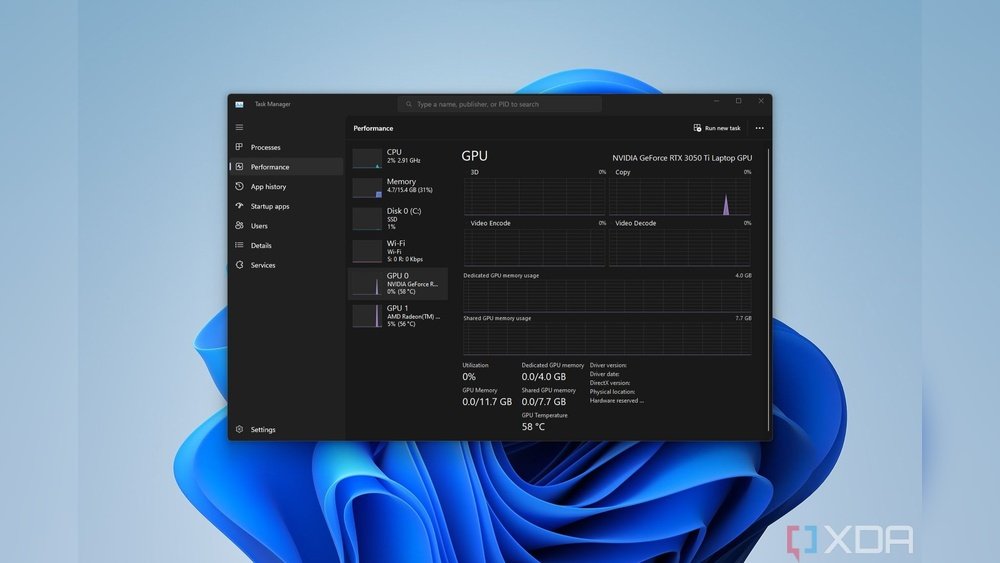
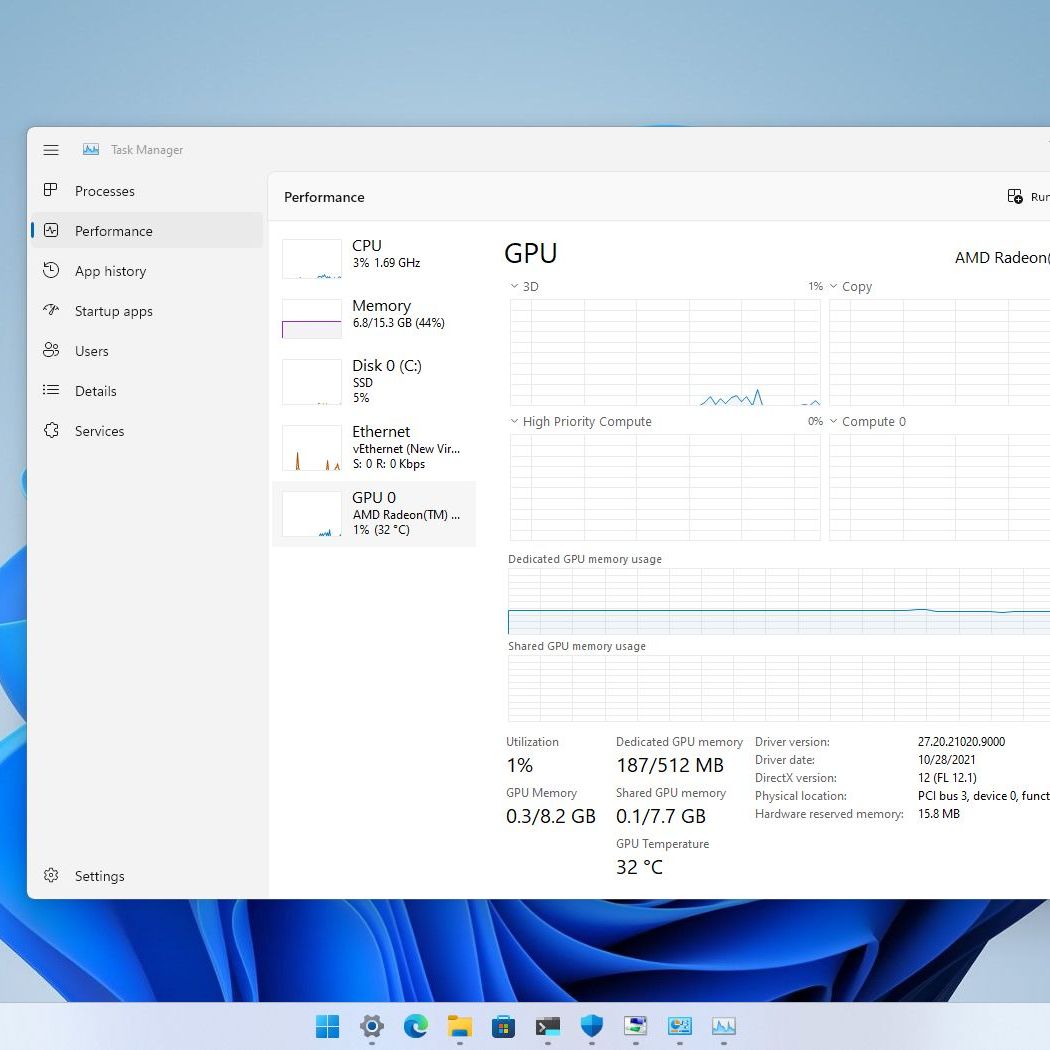
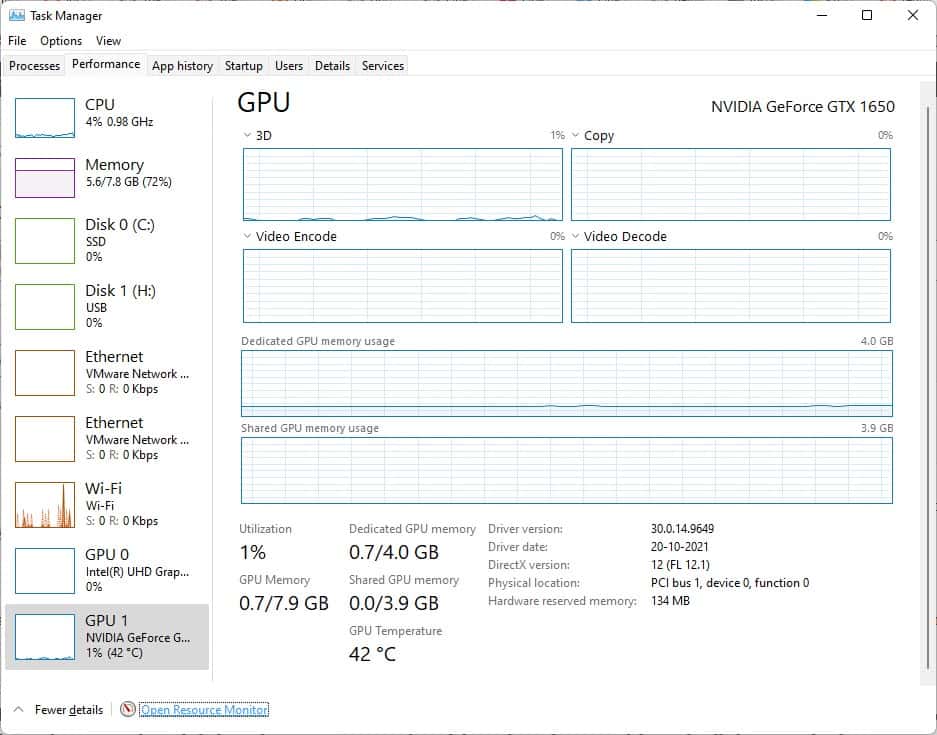
Task Manager in Windows 11 shows GPU temperature. Open it by pressing Ctrl + Shift + Esc. Click the “Performance” tab at the top. Select “GPU” on the left side. The temperature appears near the bottom. This method is quick and simple. You can check GPU use and temperature here.
Windows Settings For Gpu
Windows Settings also give GPU info but less detailed. Open Settings by pressing Win + I. Go to “System,” then “Display.” Scroll down and click “Graphics.” Here you see GPU usage details. Temperature may not show directly in this section. Use it to manage GPU priority for apps. It helps control GPU load and heat indirectly.
Third-party Software Options
Third-party software provides detailed information about your GPU temperature. These tools offer more features than built-in Windows options. You can track real-time temperature and other GPU stats easily. Many apps are free and simple to use. They help you keep your PC safe from overheating. Using third-party software is a smart choice for better GPU monitoring.
Popular Gpu Monitoring Apps
Several apps are widely used for GPU temperature tracking. MSI Afterburner is one of the most popular. It shows temperature, fan speed, and GPU usage clearly. HWMonitor is another reliable option. It displays temperatures for all hardware components. GPU-Z offers detailed info about your graphics card. Each app has a simple interface and useful features. These apps work well on Windows 11.
Installation And Setup
Download the software from the official website to stay safe. Run the installer and follow the instructions on screen. Most apps ask for basic permissions during setup. Once installed, open the app to check your GPU temperature. You can customize the settings for alerts and display options. Set the app to start with Windows for constant monitoring. The setup process is quick and user-friendly for beginners.
Using Gpu Manufacturer Software
Using software from your GPU maker is a simple way to check your GPU temperature. These programs come with tools that show real-time data about your graphics card. You can see temperature, fan speed, and usage all in one place.
This method is reliable because the software is designed specifically for your GPU. It updates automatically and works well with Windows 11. Below are steps for the two main GPU brands.
Nvidia Control Panel
Open the NVIDIA Control Panel by right-clicking on your desktop. Choose “NVIDIA Control Panel” from the menu. Navigate to the “Performance” or “System Information” section.
Here, you can view your GPU temperature and other stats. The data updates in real-time. You can monitor your GPU while running games or apps.
Amd Radeon Software
Launch AMD Radeon Software from your taskbar or start menu. Go to the “Performance” tab on the main screen. Click “Temperature” to see your GPU’s current heat level.
The software shows detailed info like fan speed and usage. It also offers tools to manage your GPU settings. Checking temperatures this way helps keep your PC safe.
Interpreting Temperature Readings
Understanding your GPU temperature readings helps maintain your computer’s health. It shows how hard your graphics card works. Reading these numbers right can prevent damage and keep your PC fast. Let’s explore what is normal and what signals trouble.
Normal Temperature Ranges
Most GPUs run well between 30°C and 60°C when idle. During gaming or heavy tasks, 65°C to 85°C is typical. Temperatures under 90°C usually do not harm your card. Each GPU model can differ, so check your manufacturer’s guide. Staying within these ranges means your GPU cools properly.
Signs Of Overheating
Temperatures above 90°C can cause problems. Your PC might slow down or crash suddenly. Fans running loudly and constantly is another warning. You may see graphic glitches or screen flickers. High heat can shorten your GPU’s life span. Act quickly if these signs appear to avoid damage.
Credit: www.ghacks.net
Tips To Lower Gpu Temperature
Keeping your GPU cool is important for better performance and longer lifespan. High temperatures can cause your computer to slow down or even crash. Simple steps can help lower the GPU temperature and keep your system running smoothly.
Improving Airflow
Good airflow inside your PC case helps remove hot air quickly. Arrange cables neatly to avoid blocking air paths. Use additional case fans to push hot air out and bring cool air in. Position your PC in a place with good ventilation and avoid closed spaces.
Cleaning Dust
Dust buildup blocks air vents and clogs fans. Clean your PC regularly to remove dust from fans and vents. Use compressed air to blow dust off the GPU and other parts. A clean PC keeps air moving freely and lowers temperature effectively.
Adjusting Fan Speeds
Faster fan speeds increase cooling but can make noise. Use software tools to adjust GPU fan speeds manually. Set fans to spin faster when the GPU gets hot. Balance between noise and cooling based on your comfort and needs.
Frequently Asked Questions
How Do I Check Gpu Temperature On Windows 11?
You can check GPU temperature via Task Manager or third-party apps like MSI Afterburner. Windows 11 also supports GPU monitoring through the Performance tab.
What Is The Ideal Gpu Temperature Range For Windows 11?
Ideal GPU temperature ranges between 30°C to 70°C during normal use. Temperatures above 85°C may indicate overheating or cooling issues.
Can Windows 11 Monitor Gpu Temperature Without Extra Software?
Yes, Task Manager in Windows 11 shows GPU temperature under the Performance section. For detailed info, third-party tools are recommended.
Why Is My Gpu Temperature High On Windows 11?
High GPU temperatures can result from heavy gaming, poor ventilation, or dusty fans. Regular cleaning and cooling solutions help maintain optimal temps.
Conclusion
Checking your GPU temperature on Windows 11 helps keep your computer safe. It shows if your graphics card runs too hot. You can use built-in tools or free apps to see the temperature. Watching the GPU temperature stops damage and improves performance.
Keep an eye on it during heavy tasks like gaming or editing. Simple steps make it easy to protect your PC. Stay aware, stay safe, and enjoy smooth computer use every day.
