

Are you worried that your GPU might be running too hot on your Windows 11 PC? Keeping an eye on your GPU temperature is crucial to make sure your computer runs smoothly and avoids damage.
But how do you check it quickly and easily? You’ll discover simple steps to monitor your GPU temp on Windows 11 without any hassle. By the end, you’ll have the confidence to protect your system and boost its performance. Keep reading to find out how!
Why Monitor Gpu Temperature
Monitoring your GPU temperature is very important for your computer’s health. The GPU works hard during gaming, video editing, or other tasks. High temperatures can cause problems that affect your experience.
Knowing why you should watch your GPU temperature helps you keep your PC running smoothly. It can save your hardware and improve how your system performs.
Impact On Performance
High GPU temperatures can slow down your computer. The GPU may reduce its speed to cool down. This drop in speed lowers your game or app performance. Watching the temperature helps avoid this slowdown. Keeping the GPU cool means better and steady performance.
Preventing Overheating Damage
Overheating can harm the GPU permanently. Heat can damage the chips and other parts. This damage may lead to costly repairs or replacements. Monitoring temperature helps you catch problems early. It lets you take steps to cool the GPU before harm occurs.

Credit: pureinfotech.com
Built-in Tools For Checking Gpu Temp
Windows 11 offers built-in tools to check your GPU temperature. These tools help you monitor your graphics card’s heat without extra software. Monitoring GPU temperature is important to keep your PC safe and running well.
Using built-in tools is simple and fast. You can see the temperature and other performance details easily. These tools provide basic but useful information for everyday users.
Using Task Manager
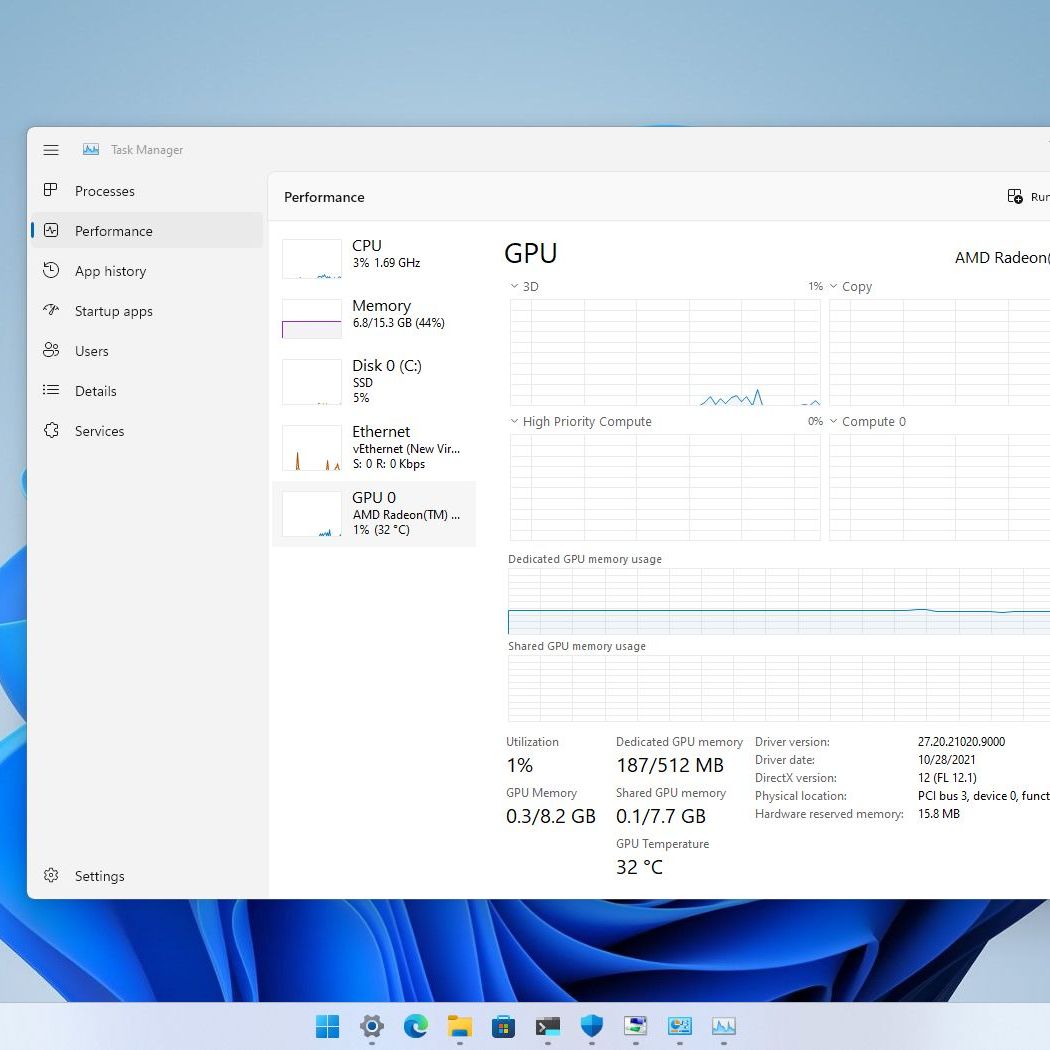
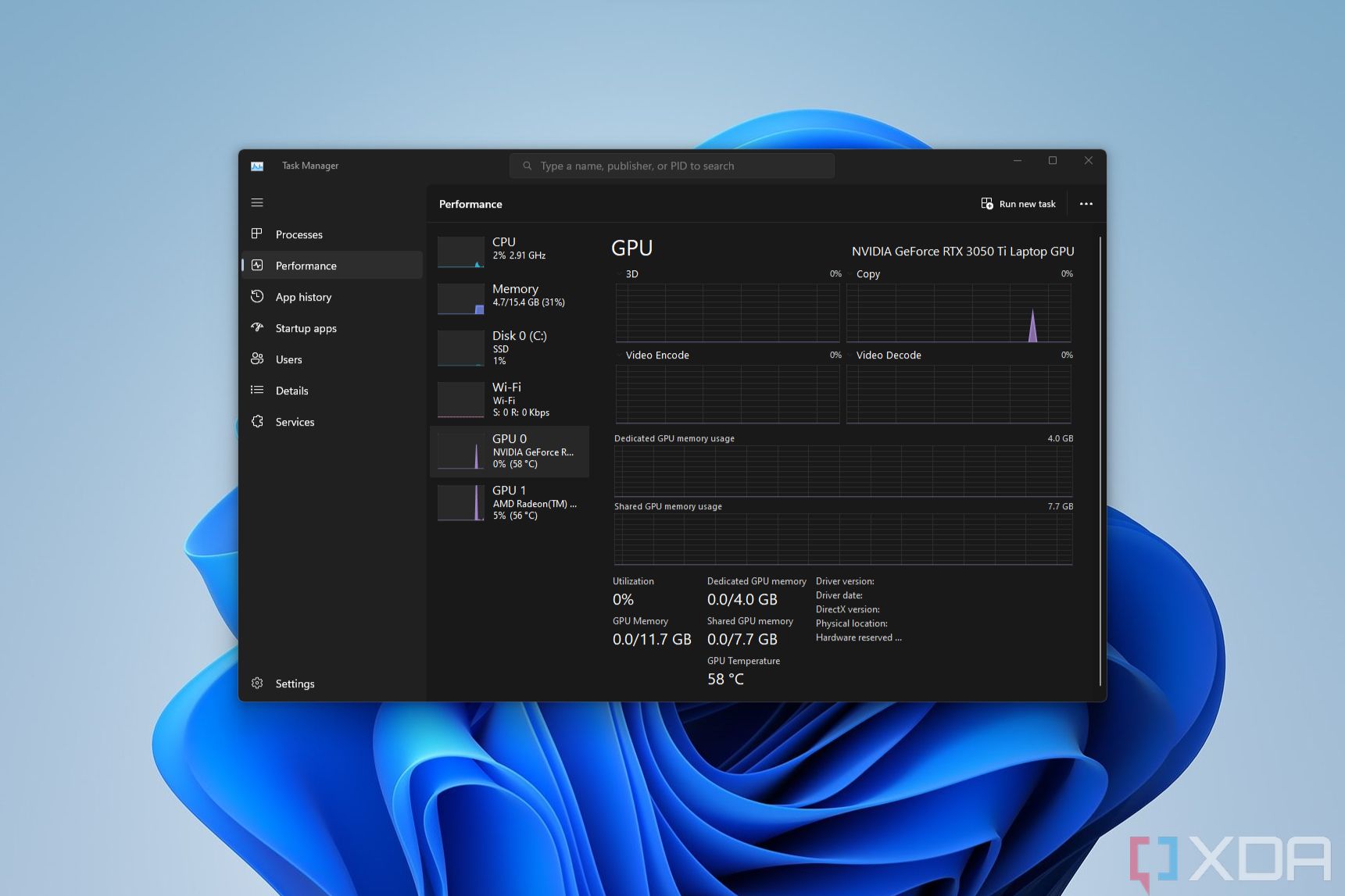
Task Manager in Windows 11 shows GPU temperature for some graphics cards. Open Task Manager by pressing Ctrl + Shift + Esc. Click the “Performance” tab to find your GPU.
Look for the GPU section on the left side. Here, you can see the GPU’s current temperature. This method works best if your GPU supports temperature reporting.
Windows Settings And Performance Monitor
Windows Settings do not directly show GPU temperature. But Performance Monitor helps track your GPU’s stats. Open Performance Monitor by typing “perfmon” in the Start menu.
In Performance Monitor, add a new counter for your GPU. This shows temperature and usage over time. It helps you watch how your GPU performs during tasks.
Third-party Software Options
Third-party software offers a simple way to check GPU temperature on Windows 11. These apps provide detailed information about your graphics card. They show real-time temperature readings and other vital stats. Using such tools helps keep your PC safe from overheating.
Popular Gpu Monitoring Apps
Many apps track GPU temperature effectively. MSI Afterburner is a favorite for many users. It shows temperature, usage, and fan speed. HWMonitor is another great option. It reads sensors for CPU, GPU, and more. GPU-Z focuses on the graphics card and its details. These tools work well with most GPUs on Windows 11.
Features To Look For
Choose software with clear temperature displays. Real-time updates help spot problems quickly. Look for apps that show other GPU data. Fan speed and clock rates give useful insights. Easy-to-use interfaces save time and effort. Some apps offer alerts for high temperatures. Make sure the app supports your GPU model. Lightweight software uses fewer system resources.
Credit: www.windowscentral.com
Step-by-step Guide To Monitor Gpu Temp
Monitoring your GPU temperature in Windows 11 helps keep your system safe. It prevents overheating and ensures smooth performance. This step-by-step guide shows you easy ways to check your GPU temperature. You will learn how to use built-in tools and dedicated software. Follow the steps below to keep your GPU cool and efficient.
Accessing Task Manager
Start by opening the Task Manager. Press Ctrl + Shift + Esc keys together. Click the Performance tab at the top. Select GPU from the list on the left side. Here, you can see the current GPU temperature. It updates in real-time as your system runs. This method works without installing extra software. It is simple and fast for basic temperature checks.
Using Dedicated Monitoring Tools
For detailed temperature info, use dedicated tools. Programs like MSI Afterburner or HWMonitor offer more data. Download and install one of these tools. Open the program and find the GPU section. These tools display temperature, usage, fan speed, and more. They help track GPU health during heavy tasks. Set alerts for high temperatures if available. This method suits users needing deeper monitoring.
Interpreting Gpu Temperature Readings
Understanding your GPU temperature is important for keeping your computer healthy. The GPU, or graphics processing unit, works hard during games or heavy tasks. This creates heat, which can affect performance and lifespan. Reading the temperature correctly helps you avoid problems. It also guides you on when to cool down your system.
Safe Temperature Ranges
Most GPUs run well between 30°C and 70°C. This range is normal during light tasks or idle times. Under heavy use, temperatures up to 85°C are usually safe. Some high-end GPUs can handle up to 90°C. Staying within these limits prevents damage. If temperatures go higher, the GPU may slow down or shut off to protect itself.
When To Take Action
Notice your GPU temperature above 85°C for a long time? Time to act. Check if your fans are working and your case has good airflow. Dust buildup can block air and raise temperatures. Clean your PC if needed. You may also lower settings in games or apps to reduce load. Persistent high temps mean it’s best to seek help or upgrade cooling.
Credit: www.xda-developers.com
Tips To Keep Gpu Cool
Keeping your GPU cool is important for its performance and lifespan. High temperatures can cause your computer to slow down or even shut off. Simple steps can help lower the heat and protect your hardware. Here are some easy tips to keep your GPU temperature in check.
Improving Airflow
Good airflow inside your PC case helps remove hot air quickly. Make sure there is enough space around your computer. Avoid placing it inside a closed desk or near a wall.
Use extra fans if needed. Fans at the front push cool air in. Fans at the back or top pull hot air out. This balance keeps the air moving well.
Check that cables do not block airflow. Organize cables neatly to improve air movement. Clean dust filters and vents regularly to prevent clogs.
Regular Maintenance
Dust buildup on your GPU and fans reduces cooling ability. Clean your computer every few months. Use compressed air to blow dust from fans and heatsinks.
Replace thermal paste on your GPU if it is old. This paste helps heat transfer from the chip to the cooler. Over time, it dries out and becomes less effective.
Monitor your GPU temperature often. Use simple tools on Windows 11 to check if the cooling is working well. Address high temperatures early to avoid damage.
Frequently Asked Questions
How Do I Check Gpu Temperature On Windows 11?
You can check GPU temperature using built-in tools like Task Manager or third-party apps like MSI Afterburner. These tools display real-time temperature and help monitor GPU health efficiently.
What Is The Ideal Gpu Temperature Range In Windows 11?
Ideal GPU temperatures range between 30°C and 70°C under normal use. Temperatures above 85°C may indicate overheating and need attention to avoid damage.
Can Windows 11 Detect Gpu Overheating Automatically?
Windows 11 doesn’t alert for GPU overheating by default. You must use third-party software or hardware monitoring tools for automatic temperature warnings.
Which Free Apps Work Best To Monitor Gpu Temps?
MSI Afterburner, HWMonitor, and GPU-Z are popular free apps. They provide accurate GPU temperature readings and other performance stats in Windows 11.
Conclusion
Checking your GPU temperature on Windows 11 helps keep your computer safe. You can avoid overheating and slowdowns by watching the temperature. Using simple tools makes this task easy and quick. Regular checks help you spot problems early. Keep your GPU running well and enjoy smooth performance.
Stay aware, stay safe.
