
Are you curious about how well your GPU handles graphics tasks? Understanding your GPU’s ROPs (Render Output Units) can give you a clear picture of its performance power.
Knowing how to check your GPU ROPs helps you make smarter decisions when gaming, designing, or upgrading your system. You’ll discover simple and effective ways to find out your GPU’s ROP count, so you can unlock better performance insights and get the most out of your hardware.
Keep reading to learn exactly what you need to know!
What Are Gpu Rops
GPU ROPs, or Render Output Units, are essential parts of a graphics card. They handle the final steps in creating an image on your screen. Understanding what GPU ROPs do helps you know how your graphics card works. It also explains why they matter for games and apps that use a lot of graphics.
Role In Graphics Rendering
ROP units take the processed data from the GPU’s shaders. They combine pixels and apply effects like blending and anti-aliasing. This process creates the final image you see on the monitor. Without ROPs, the GPU could not complete the rendering process properly.
They also manage writing the image data into the frame buffer. This step stores the image before it appears on your screen. Each ROP can handle multiple pixels at once, making the process faster.
Impact On Performance
The number of ROPs influences how fast a GPU can finish images. More ROPs mean the GPU can handle more pixels simultaneously. This improves frame rates and smoothness in games and videos.
ROPs work best alongside other parts like shaders and memory. A balanced GPU design ensures no part slows down the others. Low ROP count may cause bottlenecks, limiting overall graphics speed.
Credit: www.downloadsource.net
Methods To Check Gpu Rops
Checking the number of Render Output Units (ROPs) on your GPU helps understand its performance. ROPs affect how well your graphics card handles final pixel output. You can find this information through several simple methods.
Some tools show detailed GPU data. Manufacturer specs give official numbers. Windows also has a built-in tool that provides graphics details. Each method is easy to follow and quick.
Using Gpu-z Tool
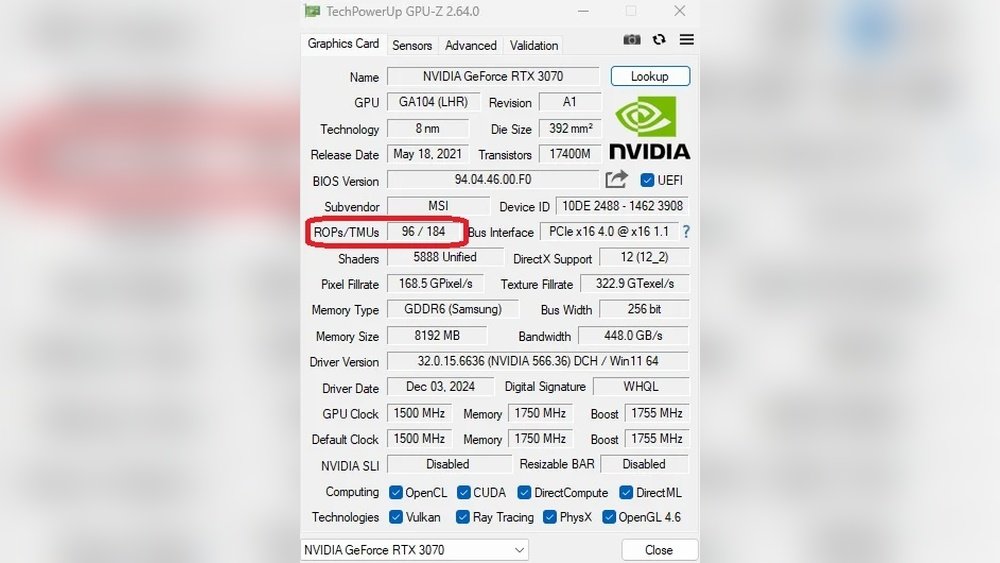
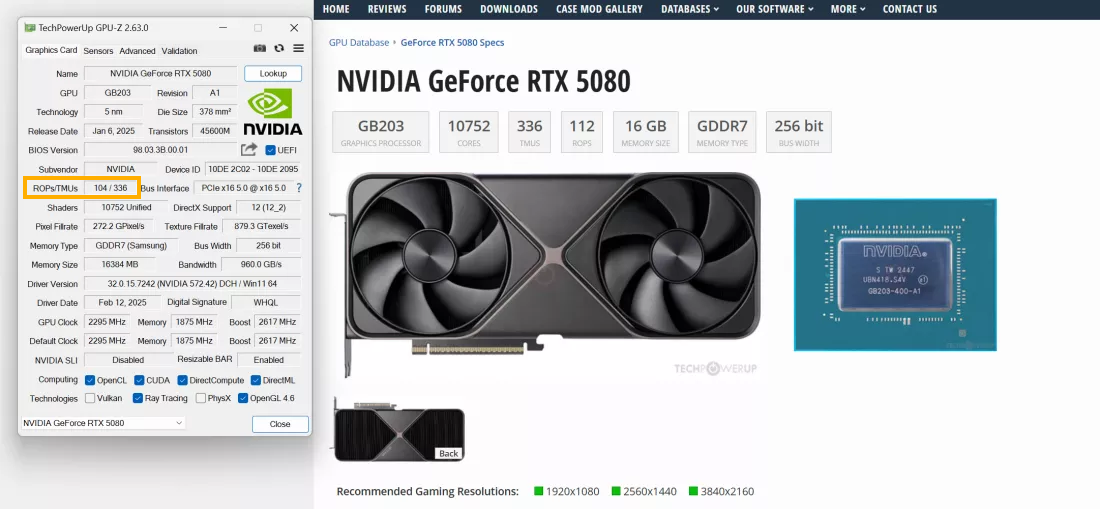
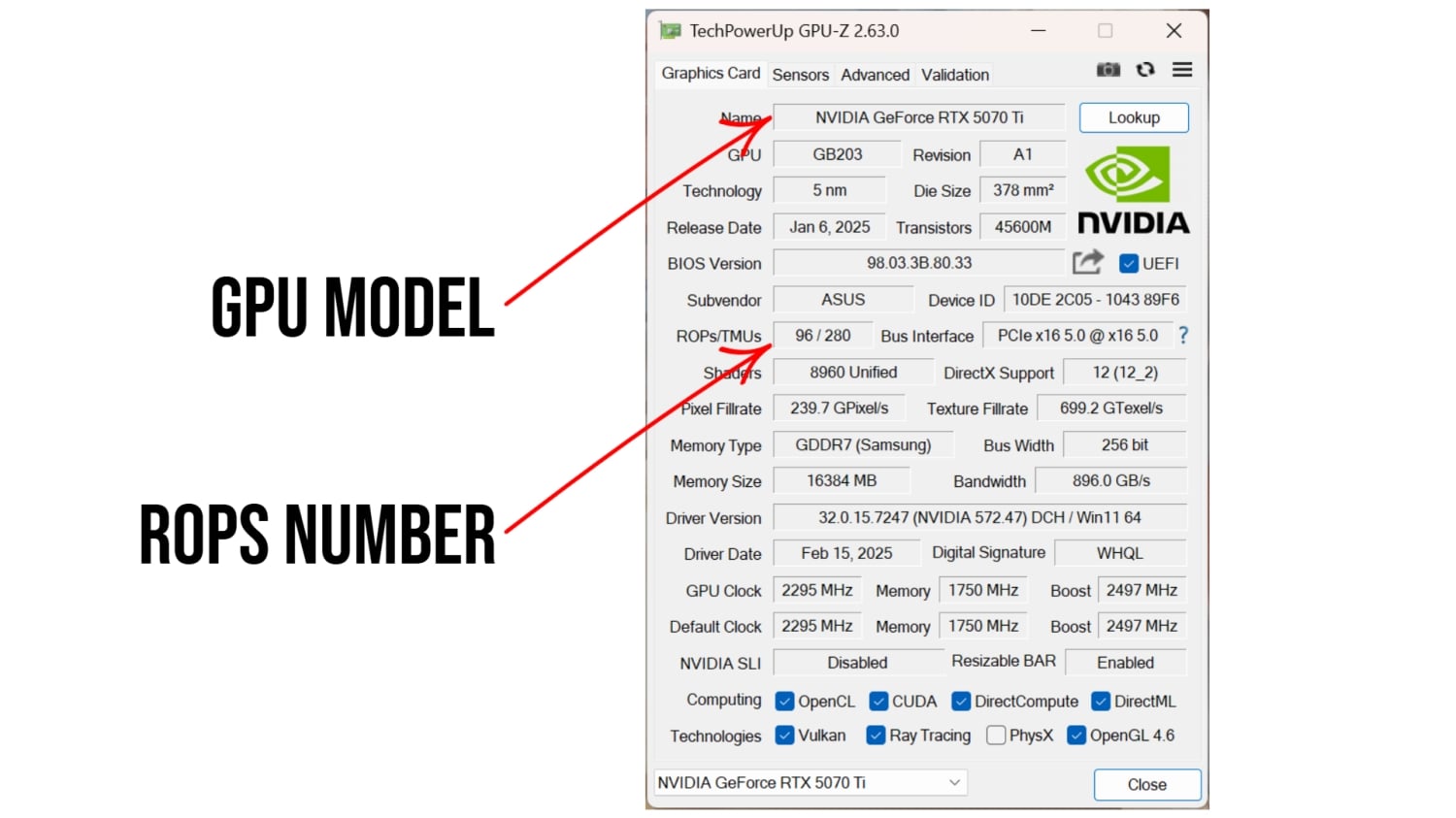
GPU-Z is a free program designed to display detailed GPU data. Download and install GPU-Z from its official site. Open the program and look for the “ROP Units” or “Render Output Units” field. This shows the exact number of ROPs on your GPU. The tool also shows other useful info like memory type and clock speeds.
Checking Manufacturer Specifications
GPU makers list ROP counts in product specifications. Visit the official website of your GPU brand. Search for your specific model. Look under the technical or detailed specs section. The ROP count is usually listed along with cores and memory. This method is reliable and ensures accurate data.
Using Directx Diagnostic Tool
Windows includes the DirectX Diagnostic Tool (DxDiag) to check system info. Press Windows + R and type “dxdiag,” then hit Enter. Go to the Display tab for GPU details. Though it may not show ROPs directly, it provides the GPU model. Use this model to find ROP counts online or in manufacturer specs.
Interpreting Rops Data
Interpreting ROPs data helps understand a GPU’s rendering power. ROPs, or Render Output Units, handle the final steps in image creation. They process pixels, manage blending, and write data to memory. Knowing how to read ROPs data reveals a GPU’s efficiency in these tasks.
ROP count affects frame rates and image quality. It plays a key role in how smooth games look. A higher ROP count means better handling of complex scenes and effects. This makes it easier to decide which GPU fits your needs.
Comparing Different Gpus
ROP numbers vary between GPU models. Comparing these numbers shows which cards handle rendering better. A GPU with more ROPs can process images faster. But ROP count is not the only factor. Other specs like memory and clock speed matter too. Use ROP data as one part of your GPU comparison.
Understanding Rops In Gaming
Games rely on ROPs to display detailed graphics. Higher ROP counts help maintain smooth gameplay at high resolutions. They improve effects like anti-aliasing and transparency. This means clearer images and fewer glitches. Knowing ROP data helps gamers pick the right GPU for their games.
Ways To Maximize Gpu Performance
Maximizing GPU performance helps get the best results from your graphics card. It improves speed, graphics quality, and overall experience. Small changes can make a big difference in how well your GPU runs. Focus on key areas that affect performance. These include ROPs efficiency, driver updates, and graphics settings.
Optimizing Rops Efficiency
ROPs, or Raster Operations Pipelines, handle final pixel processing. They affect how fast images appear on screen. To optimize ROPs, avoid unnecessary high resolutions. Lowering resolution reduces the workload on ROPs. Also, use efficient rendering techniques in games or apps. This helps ROPs process pixels faster. Keep an eye on GPU temperature. Overheating can slow down ROPs performance.
Updating Drivers
Drivers connect your GPU to your system and software. Updated drivers improve performance and fix bugs. Check for new driver releases regularly. Install updates from official GPU makers like NVIDIA or AMD. Updated drivers can enhance ROPs handling and overall GPU speed. Avoid using outdated drivers, which cause slowdowns and crashes.
Adjusting Graphics Settings
Graphics settings control how your GPU renders images. Lowering settings like shadows, textures, and effects helps GPU work faster. Turn off unnecessary features like anti-aliasing if frame rates drop. Use presets like “Medium” or “Low” for smooth gameplay. Adjust settings based on your GPU’s power. Balanced settings improve ROPs efficiency and overall performance.
Common Myths About Rops
Many people misunderstand what ROPs do in a GPU. Some think more ROPs always mean better performance. Others believe overclocking ROPs can boost frame rates significantly. These ideas create confusion about GPU power and speed. Clearing these myths helps you check and understand ROPs better.
Rop Count Vs Overall Gpu Power
ROP count is just one part of a GPU’s power. It affects how fast the card finishes rendering pixels. But many other parts matter too. The number of cores, clock speed, and memory all affect performance. A high ROP count does not guarantee a faster GPU. The balance of all parts makes the real difference.
Overclocking And Rops
Overclocking ROPs alone does not improve gaming much. ROPs handle pixel output, but the GPU’s core does the heavy work. Overclocking the entire GPU boosts performance more. Pushing ROPs too hard can cause errors or crashes. Safe overclocking focuses on the whole GPU, not just ROPs.
Credit: www.tweaktown.com

Credit: nvidia.custhelp.com
Frequently Asked Questions
What Are Gpu Rops And Why Check Them?
GPU ROPs (Render Output Units) finalize pixel rendering. Checking ROPs helps assess a GPU’s rendering power and performance in graphics tasks.
How Can I Find Gpu Rops On My System?
Use tools like GPU-Z or GPU-Z alternatives to view GPU specs. These tools list ROP count under the GPU details section.
Does Rop Count Affect Gaming Performance?
Yes, higher ROP count improves pixel processing speed. It enhances frame rates and image quality in games, especially at higher resolutions.
Can I Increase Gpu Rops Manually?
No, ROP count is hardware-defined and cannot be increased manually. Upgrading the GPU is the only way to get more ROPs.
Conclusion
Checking GPU ROPs helps understand your graphics card’s power. It shows how fast your GPU can finish tasks. Knowing this info guides you when choosing or upgrading hardware. Use simple tools or software to find ROP numbers quickly. Keep your GPU drivers updated for accurate results.
This small step improves your PC knowledge and gaming experience. Stay curious and explore more about your system’s parts. It makes tech less confusing and more useful every day.
