
Are you wondering how much GPU memory your computer has? Knowing your GPU memory is key to understanding your system’s performance, especially if you play games, edit videos, or run demanding applications.
But checking it isn’t always straightforward if you don’t know where to look. You’ll discover simple, step-by-step ways to check your GPU memory quickly. By the end, you’ll have a clear picture of your graphics card’s capabilities and be ready to make better decisions about upgrades or settings.
Keep reading to unlock this essential info about your PC!
Credit: totalplumbingfl.com
Signs Of Gpu Memory Issues
GPU memory problems can cause many issues in your computer. It affects how your system runs games, videos, and other graphics tasks. Spotting early signs helps you fix problems before they get worse. Watch for these common symptoms to check your GPU memory health.
Common Performance Problems
Slow game play and stuttering often mean GPU memory struggles. Programs may freeze or crash without warning. Loading screens take longer than usual. You might notice low frame rates in games. These are red flags that your GPU memory may be failing.
Visual Artifacts And Glitches
Strange lines, dots, or colors appear on your screen. Objects in games may flicker or distort oddly. Screens can show blocks or pixelation that should not be there. These visual glitches indicate damaged or overloaded GPU memory. Ignoring them can lead to bigger issues.
Methods To Check Gpu Memory
Checking your GPU memory helps you know how much video memory your graphics card has. This is useful for gaming, video editing, or running heavy apps. Various methods exist to check GPU memory, each easy and quick to use. Here are some common ways to find out your GPU memory.
Using Task Manager
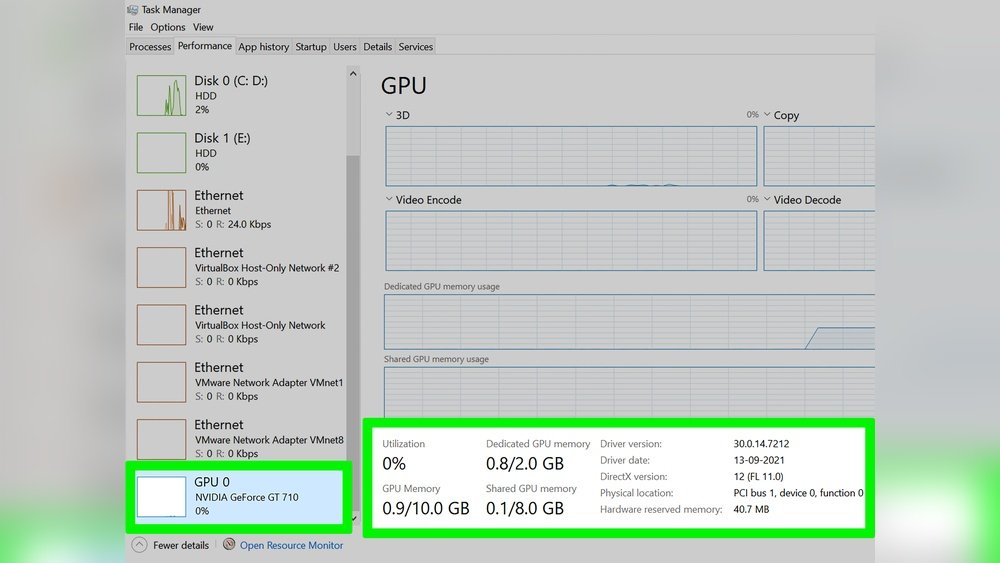
Task Manager is a built-in Windows tool that shows system info. Open Task Manager by pressing Ctrl + Shift + Esc. Click the “Performance” tab. Select “GPU” on the left side. Here, you can see the GPU memory usage and total memory. This method works without extra software.
Utilizing Gpu-z Tool
GPU-Z is a free program designed to show detailed GPU info. Download and install GPU-Z from its official website. Run the program and look at the “Memory Size” field. It shows the total video memory your GPU has. GPU-Z also displays other useful details about your graphics card.
Checking Via Directx Diagnostic Tool
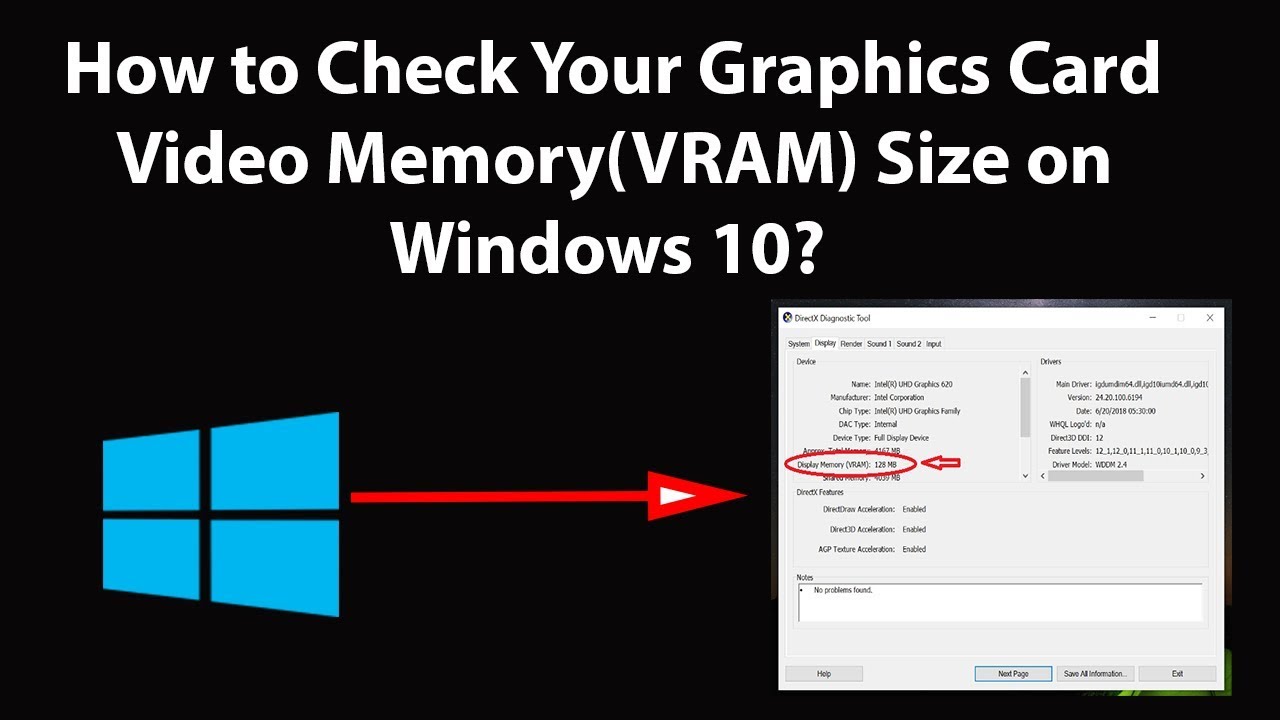
DirectX Diagnostic Tool helps check hardware details. Press Windows + R to open the Run box. Type “dxdiag” and press Enter. Go to the “Display” tab. Look for “Display Memory” or “Approx. Total Memory.” This value shows your GPU’s video memory size. It works on most Windows versions.
Using Manufacturer Software
GPU makers like NVIDIA and AMD offer software for their cards. NVIDIA users can open GeForce Experience. AMD users use Radeon Software. These apps show GPU memory under system info or hardware details. This method provides accurate info straight from the GPU maker.
Interpreting Memory Usage Data
Interpreting GPU memory usage data helps you understand how your graphics card handles tasks. This knowledge can improve your computer’s performance and prevent crashes. Knowing what the numbers mean allows you to make smart decisions about upgrades or settings.
Understanding Memory Allocation
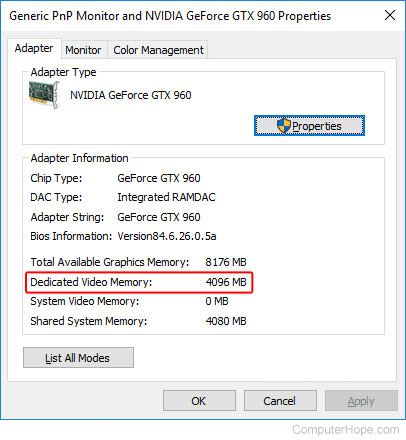
Memory allocation shows how much GPU memory is in use. It divides between system memory and dedicated video memory. Dedicated memory is faster and used for graphics tasks. System memory is slower but can support large workloads.
Check which processes use the most GPU memory. Games, video editing, and 3D applications often need more memory. Monitoring allocation helps avoid running out of memory during heavy tasks.
Identifying Memory Bottlenecks
A memory bottleneck happens when the GPU memory is full or nearly full. This limits performance and causes lag or stuttering. Watch for high memory usage percentages during your tasks.
Low frame rates and slow rendering times often point to bottlenecks. Reducing settings or closing background programs can ease the load. Upgrading to a graphics card with more memory can also help.
Credit: www.computerhope.com
Optimizing Gpu Memory Usage
Optimizing GPU memory usage helps improve your computer’s performance. It prevents slowdowns and crashes during heavy tasks. Managing GPU memory well lets your games and apps run smoothly. Follow simple steps to keep your GPU memory in good shape.
Updating Graphics Drivers
New drivers fix bugs and improve memory handling. Check your GPU brand’s website for updates. Install the latest driver version regularly. This keeps your GPU running efficiently.
Adjusting Game And Application Settings
Lower graphic settings to reduce memory use. Turn off high-resolution textures and shadows. Set games to medium or low detail modes. This frees up GPU memory for smoother gameplay.
Closing Unnecessary Background Processes
Background programs use GPU memory too. Open Task Manager to see running apps. Close apps that you do not need. This frees memory for your main programs.
Upgrading Hardware For Better Performance
Upgrading hardware is a key step to improve your computer’s graphics performance. It helps your system handle heavy tasks like gaming, video editing, or 3D rendering. Better hardware means smoother visuals and faster processing.
Choosing the right components can make a big difference. Not all upgrades bring the same benefits. Focus on parts that directly affect your GPU memory and overall speed.
Choosing The Right Gpu
Select a GPU that fits your needs and budget. Look for one with enough memory to run your programs smoothly. More GPU memory allows better handling of high-resolution textures and complex graphics.
Check the GPU’s compatibility with your motherboard and power supply. A powerful GPU needs proper support to work well. Consider brands and models known for reliability and good performance.
Increasing System Ram
More system RAM helps your computer run multiple tasks at once. It supports your GPU by reducing bottlenecks during heavy workloads. Increasing RAM can boost overall system speed and stability.
Choose RAM that matches your motherboard’s specifications. Faster and larger memory modules improve data flow. This upgrade complements your GPU for better graphics performance.

Credit: superuser.com
Frequently Asked Questions
How Do I Check My Gpu Memory On Windows?
You can check GPU memory on Windows via Task Manager. Open it with Ctrl+Shift+Esc, go to the Performance tab, and select GPU. The dedicated GPU memory is shown under “Dedicated GPU memory. “
What Tool Shows Detailed Gpu Memory Usage?
GPU-Z is a free tool that provides detailed GPU memory info. It displays memory type, size, usage, and clock speeds in real-time. It’s easy to use and great for in-depth GPU memory analysis.
Can I Check Gpu Memory On A Mac?
Yes, on Mac, go to Apple menu > About This Mac > System Report. Then select Graphics/Displays. Here, you’ll find your GPU memory size and other relevant details.
Why Is Checking Gpu Memory Important?
Checking GPU memory helps ensure your system can handle graphics-intensive tasks. It prevents performance issues in gaming, video editing, and 3D rendering by confirming your GPU meets software requirements.
Conclusion
Checking your GPU memory helps you understand your computer’s graphics power. It shows how much space your graphics card uses for tasks. Knowing this helps you run programs smoothly and avoid slowdowns. Use simple tools or settings to see your GPU memory quickly.
Keep an eye on it to improve your computer’s performance. Now, you can check your GPU memory with confidence and ease.
