
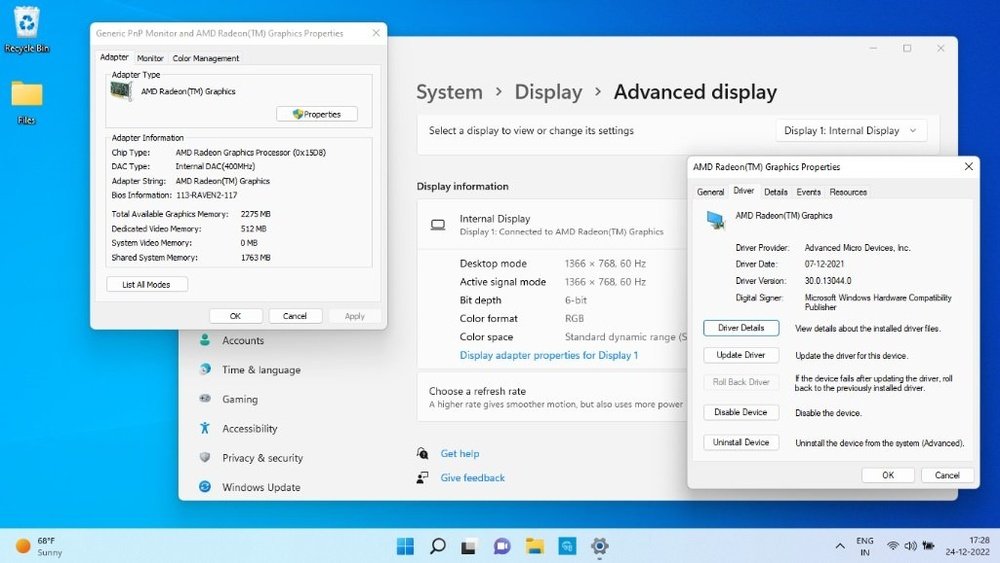
Wondering how to check the GPU in your laptop? Whether you want to know if your device can handle the latest games, run powerful software, or just need to troubleshoot, knowing your GPU is key.
You’ll discover simple, step-by-step ways to find out exactly what graphics card your laptop has—no tech jargon, no confusion. Keep reading, and by the end, you’ll have all the info you need to make smart decisions about your laptop’s performance.
Identify Your Laptop Model
Start by finding your laptop model on the device label or in system settings. This helps you check the GPU type quickly. Knowing the model makes it easier to find the right graphics information.
Find Model Number On Laptop Body
Start by checking the outside of your laptop. Look for a label or sticker. It usually sits on the bottom or under the battery. The model number may be near the brand name. It can be a mix of letters and numbers.
This number helps identify your laptop’s exact model. Knowing this makes finding GPU details much easier.
Use System Information Tool
Open the System Information tool on your laptop. Press Windows key + R, type msinfo32, and hit Enter. The window shows a summary of your system.
Look for the “System Model” entry. It lists your laptop model clearly. This method works for most Windows laptops.
Check Settings About Section
Go to your laptop’s Settings. Click on “System” then “About.” Here, you will see device specifications. The model name appears under “Device name” or “System model.”
This is a quick way to confirm your laptop model without extra tools.
Use Device Manager
Device Manager is a built-in tool in Windows that shows hardware information. It helps you find details about your laptop’s GPU quickly. This method works on almost all Windows laptops and does not need extra software.
Open Device Manager
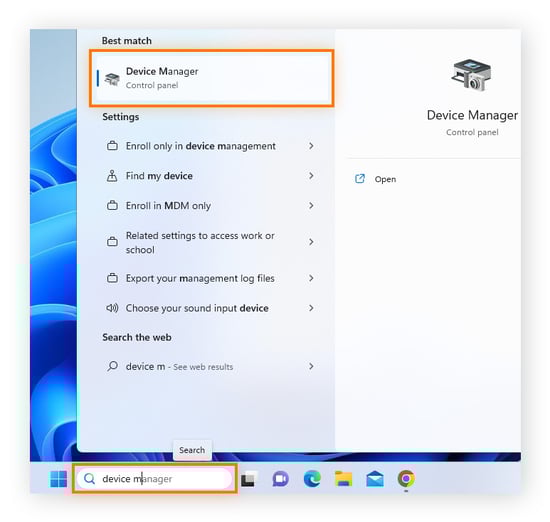
Press the Windows key and type “Device Manager”.
Select the Device Manager app from the list.
This opens a new window with a list of hardware categories.
Locate Display Adapters
Look for the “Display adapters” category in the list.
Click the arrow next to it to expand the options.
You will see the names of the GPUs installed on your laptop.
Check Gpu Details
Right-click on your GPU name and select “Properties”.
Switch to the “Details” tab in the new window.
Choose “Hardware Ids” or “Device description” from the dropdown menu.
Here, you find detailed information about your GPU model and manufacturer.
Check Gpu Via Task Manager
Checking the GPU in your laptop helps you understand its graphics power. Task Manager is a quick and easy tool to find this information. It shows real-time data about your GPU without needing extra software.
Access Task Manager
Press Ctrl + Shift + Esc to open Task Manager immediately. You can also right-click the taskbar and select Task Manager. This tool shows details about running programs and hardware.
Navigate To Performance Tab
Click the Performance tab at the top of Task Manager. Here, you see graphs and stats for CPU, memory, and disk use. Look for the section labeled GPU on the left side panel.
View Gpu Information
Select the GPU section to see its details. You find the GPU name, usage percentage, and memory data. This helps you check if your laptop’s graphics card is working well.

Credit: breezeresidency.com
Use Directx Diagnostic Tool
The DirectX Diagnostic Tool is a built-in feature in Windows. It helps you find detailed information about your laptop’s hardware. This tool shows the exact GPU model and manufacturer. It is simple to use and fast. You do not need to install any extra software.
This method works on most Windows laptops. It gives clear and reliable details about your graphics card. Follow the steps below to check your GPU using the DirectX Diagnostic Tool.
Launch Dxdiag
Press the Windows key and the R key together. A small box called Run will open. Type “dxdiag” in the box. Press Enter or click OK. The DirectX Diagnostic Tool window will appear on your screen.
Find Display Section
Look for the “Display” tab at the top of the window. Click on it. This section shows information about your laptop’s graphics system. It can have one or more display devices listed.
Identify Gpu Name And Manufacturer
In the Display section, find the “Name” field. This shows your GPU’s model name. Below that, see the “Manufacturer” field. It tells you who made the graphics card. Write down these details for future use.
Third-party Software Options
Third-party software helps you check your laptop’s GPU easily. These tools give detailed info about your graphics card. They are simple to download and use. No technical skills needed. These apps also show other hardware details. Great for quick checks or troubleshooting.
Gpu-z
GPU-Z is a small, free program. It shows your GPU model, memory size, and clock speeds. It also gives info about driver versions. The interface is clean and easy to read. Perfect for users who want clear, quick details.
Speccy
Speccy provides a full report of your laptop’s hardware. It lists GPU, CPU, RAM, and more. The GPU section shows name, memory, and temperature. Speccy updates in real-time, so you see current info. It works well for general hardware checks.
Hwmonitor
HWMonitor focuses on monitoring hardware health. It tracks GPU temperature, voltage, and fan speed. This helps spot overheating or power issues. The program shows many sensors at once. Ideal for users who want detailed performance data.

Credit: www.youtube.com
Check Gpu On Mac Laptops
Finding out which GPU your Mac laptop has is simple. This information helps you understand your laptop’s graphics power. It also guides you when installing software or games that need certain graphics capabilities.
Mac laptops come with different types of GPUs, depending on the model. You can check your GPU details quickly without extra software. The steps below show how to do this in just a few clicks.
Open About This Mac
Click the Apple logo at the top-left of your screen. Select “About This Mac” from the drop-down menu. A window will open showing an overview of your Mac. You can see the GPU name next to “Graphics” or “Displays” here.
Access System Report
In the “About This Mac” window, click the “System Report” button. This opens a detailed report about your Mac’s hardware. It shows more information about the GPU and other components.
View Graphics/displays Information
Inside the System Report, find and click “Graphics/Displays” in the sidebar. This section lists your GPU model, VRAM size, and display details. You get a full view of your Mac’s graphics capabilities here.
Tips To Verify Gpu Performance
Checking your laptop’s GPU performance helps ensure smooth graphics and gaming. It shows if your graphics card runs well or needs attention. Use simple methods to verify GPU power and spot issues early.
Run Benchmark Tests
Benchmark tests measure your GPU speed and power. These tests compare your GPU with others. Use tools like 3DMark or Unigine Heaven. They show how well your GPU handles graphics tasks. Run tests in normal laptop conditions for accurate results.
Check Driver Updates
GPU drivers help your laptop use the graphics card fully. Outdated drivers cause slow or poor graphics. Visit the GPU maker’s website or use software to find updates. Install the newest drivers to improve performance and fix bugs. Regular checks keep your GPU running smoothly.
Monitor Gpu Usage
Monitoring GPU usage shows how hard the card works. Use Task Manager or software like MSI Afterburner. Watch GPU load during games or heavy tasks. High usage means the GPU is active. Low usage might signal a problem. Tracking usage helps spot performance drops early.
Credit: www.avast.com
Frequently Asked Questions
How Do I Find My Laptop’s Gpu Model?
You can find your GPU model by opening Device Manager. Expand “Display adapters” to see your GPU’s name and details.
Can I Check My Gpu On Windows Without Software?
Yes, use the DirectX Diagnostic Tool (dxdiag). Run it, then check the Display tab for GPU info.
What Is The Easiest Way To Check Gpu On Mac?
Click the Apple menu, choose About This Mac, then select System Report. Find Graphics/Displays for GPU details.
How To Check If My Laptop Has Integrated Or Dedicated Gpu?
Open Device Manager and look under Display adapters. Integrated GPUs show CPU brand; dedicated GPUs show manufacturer names.
Conclusion
Checking your laptop’s GPU is simple and quick. You just need to follow easy steps. Knowing your GPU helps with gaming, video editing, and software use. You can find the GPU info in system settings or use tools. This guide shows clear ways to check your laptop’s graphics card.
Now, you can see what hardware your laptop has and choose the right programs. Keep your laptop’s performance in mind when selecting software. Stay informed and make smart choices for your device.
