
Is your GPU working as well as it should? If you’re noticing slow performance, crashes, or strange noises, your graphics card might be struggling.
Knowing how to check your GPU health can save you time, money, and frustration. You’ll learn simple, effective ways to find out if your GPU is in good shape or needs attention. Keep reading—you don’t want to miss these easy steps that could protect your investment and boost your computer’s performance.
Signs Of Gpu Issues
Knowing the signs of GPU issues helps protect your computer. Problems with the graphics card can cause many headaches. Early detection saves time and money. Watch for these common signs to check your GPU health.
Visual Artifacts And Screen Glitches
Strange lines or shapes appear on the screen. Colors may flicker or look wrong. Parts of the image might distort or break apart. These visual glitches often mean the GPU has errors. They show the graphics card is struggling to display images correctly.
Unexpected Crashes And Freezes
The computer crashes or freezes without warning. Games or apps close suddenly during use. The system may restart on its own. These issues can point to GPU problems. The graphics card might be failing under load or unable to process data properly.
Overheating Symptoms
The GPU feels very hot during use. Fans run loudly or constantly spin fast. The computer may shut down to cool itself. Overheating causes damage over time. It reduces the performance and lifespan of the graphics card.
Credit: www.guidingtech.com
Monitoring Gpu Temperature
Monitoring GPU temperature is key to keeping your graphics card healthy. High temperatures can cause damage and reduce performance. Checking the temperature helps you spot problems early. It also lets you control cooling better. There are simple ways to track GPU heat. Some tools come with your computer. Others are free or paid apps you can add.
Using Built-in Software Tools
Many GPUs have built-in software for temperature monitoring. For example, Nvidia users can use GeForce Experience. AMD users have Radeon Software. These apps show real-time temperature on your screen. They also give info about fan speed and usage. No need to install extra programs. Just open the software and check the GPU section.
Third-party Temperature Monitors
Third-party tools offer more features for monitoring GPU heat. Popular options include MSI Afterburner and HWMonitor. These apps show detailed graphs and logs. You can see temperature changes over time. Some also let you set alerts for high heat. They work with most GPU brands. Easy to download and use on Windows PCs.
Safe Temperature Ranges
Keeping your GPU within safe temperature limits is important. Most GPUs work well under 85°C (185°F). Temperatures above 90°C (194°F) can cause damage. During heavy use, 70-80°C (158-176°F) is normal. At idle, temperatures should be around 30-40°C (86-104°F). If your GPU gets too hot, improve cooling or reduce load.
Checking Gpu Usage And Performance
Checking GPU usage and performance helps you understand how well your graphics card works. It shows if the GPU is handling tasks smoothly or facing issues. Monitoring these details keeps your PC running at its best. It also helps find problems early before they affect your system.
Task Manager And Resource Monitors
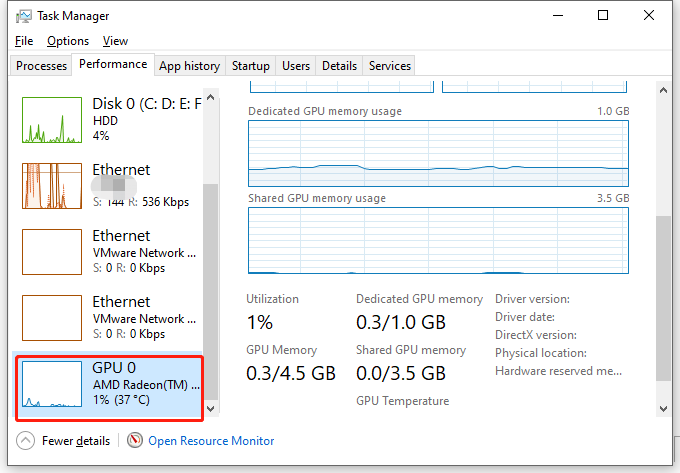
Task Manager is a built-in Windows tool. It shows real-time GPU usage and memory details. Open Task Manager by pressing Ctrl + Shift + Esc. Click the Performance tab and select GPU. Here, you see how much of the GPU is active.
Resource Monitors provide deeper insights. They track GPU temperature, power usage, and clock speeds. These details help spot overheating or power issues. Both tools are easy to use and require no extra software.
Benchmarking Tools
Benchmarking tools test GPU performance under stress. They run specific tasks to measure speed and stability. Popular tools include 3DMark and Unigine Heaven. These tests give scores to compare your GPU with others.
Benchmarks reveal if your GPU works as expected. Low scores may indicate hardware problems or outdated drivers. Regular benchmarking helps track performance changes over time.
Identifying Bottlenecks
Bottlenecks happen when one component slows down the system. The GPU may not run at full speed if the CPU or RAM is weak. Monitoring usage helps find these limits.
Look for high CPU or memory use with low GPU load. This signals a bottleneck outside the GPU. Fixing bottlenecks improves overall computer speed and gaming quality.
Credit: www.minitool.com
Driver And Firmware Updates
Keeping your GPU drivers and firmware up to date is key to maintaining good GPU health. Updates fix bugs, improve performance, and add new features. Ignoring updates can cause crashes or slowdowns. This section explains how to find, install, and manage these updates safely.
Finding The Latest Drivers
Start by visiting the GPU manufacturer’s official website. Common brands include NVIDIA, AMD, and Intel. Look for the “Drivers” or “Support” section. Enter your GPU model to find the correct driver. Avoid third-party websites to reduce risk of malware. Always download the latest stable driver version.
Installing Updates Safely
Before installing, close all running programs. This prevents conflicts during installation. Follow the on-screen instructions carefully. Use the “Custom” or “Clean Install” option if available. This removes old files and avoids issues. Restart your computer after installation to apply changes properly.
Rolling Back Problematic Drivers
Sometimes new drivers cause problems. If your GPU acts strange after an update, roll back the driver. Open Device Manager and find your GPU under “Display adapters.” Right-click and select “Properties,” then go to the “Driver” tab. Click “Roll Back Driver” to restore the previous version. Test your GPU after rollback to ensure stability.
Physical Inspection And Maintenance
Physical inspection and maintenance play a vital role in keeping your GPU healthy. Regular checks help spot problems early. This saves money and avoids bigger issues.
Examining your GPU physically lets you see dust, damage, and cooling problems. Simple care can extend your GPU’s life. Here is how to do it right.
Cleaning Dust And Debris
Dust builds up inside your computer over time. It blocks air and traps heat. Use a can of compressed air to blow dust away. Clean the fans, heatsinks, and vents carefully.
Do not use a vacuum cleaner. It can cause static electricity. Clean your GPU every few months to keep it cool and fast.
Checking For Hardware Damage
Look closely at your GPU for cracks or broken parts. Check the PCB and connectors for signs of wear. Bent pins or loose screws can cause issues.
Make sure the GPU is firmly seated in its slot. Replace any damaged cables or parts immediately to prevent failure.
Ensuring Proper Cooling
Cooling keeps your GPU from overheating. Check that fans spin smoothly and do not make noise. Replace worn-out thermal paste between the GPU chip and heatsink.
Good airflow inside your computer case is essential. Arrange cables neatly and avoid blocking vents. Use extra fans if needed to keep air moving.
Stress Testing Your Gpu
Stress testing your GPU is a key step to check its health. It pushes the graphics card to its limits. This helps spot any weaknesses or problems early. Stress tests simulate heavy use, like gaming or video editing. They show how well your GPU handles tough tasks. Running these tests can prevent crashes and overheating.
Popular Stress Test Applications
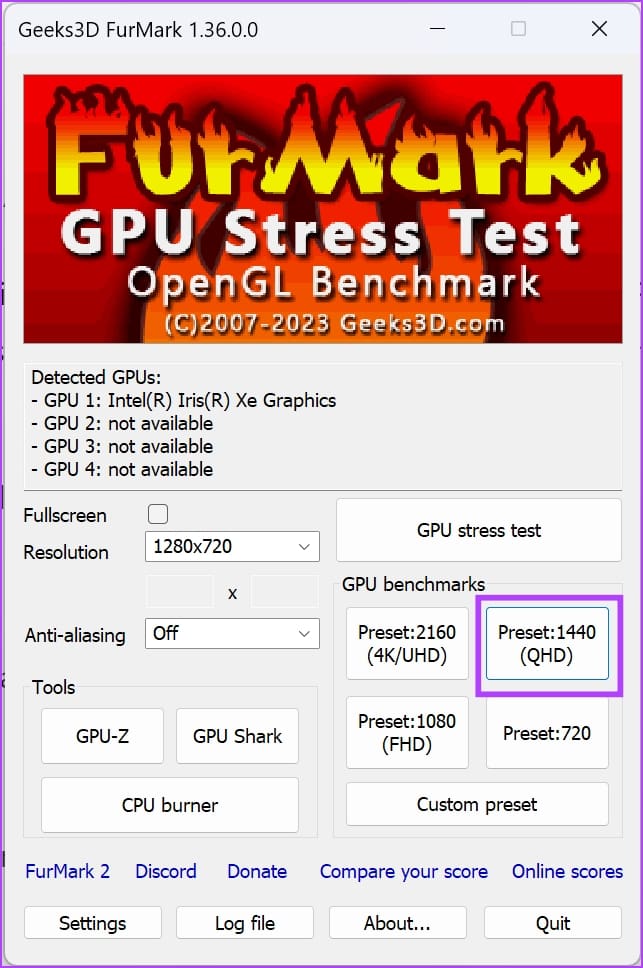
Many tools exist to stress test GPUs. FurMark is a common choice for intense GPU loads. It tests thermal and stability limits by running a demanding graphical benchmark. MSI Kombustor works similarly and pairs well with MSI Afterburner for monitoring. Heaven Benchmark tests GPU performance and stability with detailed graphics. 3DMark offers various tests for different GPU strengths. Choose one that matches your GPU and comfort level.
Interpreting Test Results
Watch the temperature closely during testing. Most GPUs should stay below 85°C under stress. Sudden crashes or screen glitches mean instability. Consistent frame rates show good performance. Noise from fans rising quickly can suggest overheating. If results show errors or crashes, your GPU might have issues. Use monitoring software alongside stress tests for detailed data.
When To Stop Testing
Stop the test if temperatures rise too high. Persistent crashes or artifacts are warning signs. Running tests beyond 30 minutes usually gives enough data. Long tests may cause unnecessary wear on the GPU. If the GPU passes without issues, stop to avoid extra stress. Always keep an eye on system stability during testing.
Optimizing Gpu Settings
Optimizing GPU settings is essential to maintain your graphics card’s health and performance. Proper adjustments can reduce heat and power use. This helps the GPU run smoother and last longer. Small changes can make a big difference.
Adjusting Clock Speeds And Voltage
Clock speeds control how fast the GPU works. Increasing speeds can boost performance but raise heat. Lowering speeds reduces heat but may slow down tasks. Voltage controls power to the GPU. Higher voltage can stabilize faster speeds but wears the GPU faster. Use software tools to test safe levels. Watch temperatures closely to avoid damage.
Managing Power Settings
Power settings help control energy use and heat output. Set your GPU to balanced mode for everyday tasks. Use high-performance mode only during heavy work like gaming. Some GPUs have custom power limits. Lowering the power limit reduces heat and noise. This can protect your GPU from stress over time. Adjust settings through your GPU’s control panel.
Balancing Performance And Longevity
Finding the right balance keeps your GPU healthy and fast. Don’t push your GPU to the maximum all the time. Moderate settings extend the GPU’s life. Monitor temperatures to prevent overheating. Regularly update drivers for better stability. Small changes help your GPU run well for years.
Credit: forums.tomshardware.com
Frequently Asked Questions
How Can I Check My Gpu Temperature Safely?
You can monitor GPU temperature using software like MSI Afterburner or HWMonitor. Keep your GPU below 85°C to avoid damage and ensure optimal performance.
What Tools Detect Gpu Performance Issues?
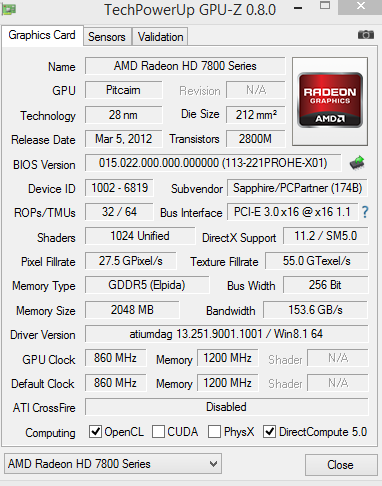
Tools like GPU-Z, FurMark, and HWMonitor help identify performance drops, overheating, or hardware failures in your GPU quickly and accurately.
How Often Should I Check My Gpu Health?
Check your GPU health monthly or before heavy usage. Regular monitoring prevents unexpected failures and maintains smooth graphics performance.
Can Gpu Health Affect Gaming Performance?
Yes, poor GPU health causes lag, crashes, and low frame rates. Maintaining good GPU condition ensures stable and high-quality gaming.
Conclusion
Checking your GPU health keeps your computer running smoothly. Regular tests help spot problems early. Use simple tools to monitor temperature and performance. Watch for unusual noises or crashes during use. Keeping drivers updated also supports GPU health. Taking these steps saves time and money.
Stay alert to signs of wear or damage. A healthy GPU means better gaming and faster work. Small efforts now prevent big issues later. Keep your system strong and reliable with easy checks.
