
Are you sure your GPU drivers are up to date? If not, your computer might not be running as smoothly as it should.
Checking your GPU drivers is easier than you think, and it can make a big difference in how your games, videos, and apps perform. In this guide, you’ll learn exactly how to find out which drivers you have and how to keep them current.
Stick with me—you’ll be improving your system’s speed and stability in no time.
Why Gpu Drivers Matter
GPU drivers act as a bridge between your computer’s hardware and software. They help your system understand how to use the graphics card correctly. Without proper drivers, the GPU cannot perform at its best.
Drivers ensure your graphics card runs smoothly and efficiently. They fix bugs, improve performance, and add support for new software. Updating drivers can prevent crashes and errors.
Many games and applications depend on the latest drivers for better visuals and speed. Old or missing drivers can cause poor graphics, lag, or even stop programs from working.
What Gpu Drivers Do
GPU drivers translate software commands into hardware actions. They tell the GPU how to draw images on your screen. Drivers also manage power use and temperature control for the GPU.
Impact On Gaming And Graphics
Updated drivers improve game stability and frame rates. They fix bugs that cause graphics glitches. New drivers often support the latest games and graphic features.
Security And Stability
Driver updates fix security holes that hackers might exploit. They also patch bugs that cause system crashes. Keeping drivers updated helps keep your PC safe and stable.

Credit: totalplumbingfl.com
Identifying Your Gpu Model
Knowing your GPU model is key to checking and updating drivers correctly. Each graphics card needs specific drivers to work well. Using the right driver keeps your system stable and fast. This section shows simple methods to find your GPU model on a Windows PC.
Using Device Manager
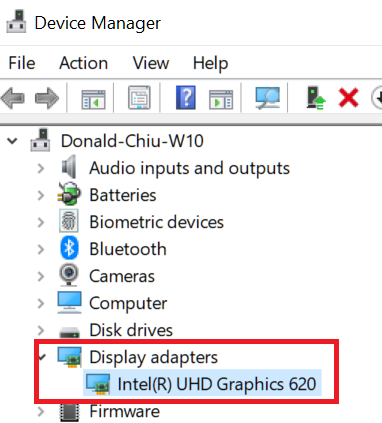
Device Manager is a built-in tool in Windows. It lists all hardware components on your PC. To open it, press Windows + X and select Device Manager. Expand the “Display adapters” section. Your GPU model appears there. This method is quick and needs no extra software. It works on almost all Windows versions.
Third-party Tools
Third-party tools give more details about your GPU. Tools like GPU-Z or Speccy show information clearly. Download and install one of these tools. Open it and find the graphics section. These tools also provide details about memory and temperature. They help if Device Manager shows unclear or generic names.
Methods To Check Gpu Driver Version
Knowing your GPU driver version helps keep your system updated and running smoothly. There are simple ways to check this on your Windows PC. Each method offers clear steps for quick results. Choose the one that suits you best.
Windows Settings
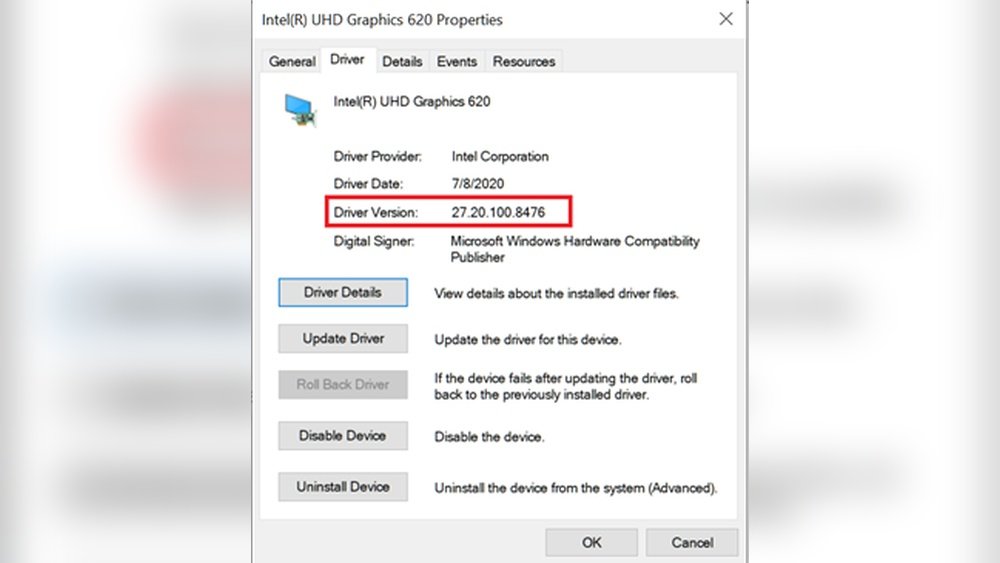
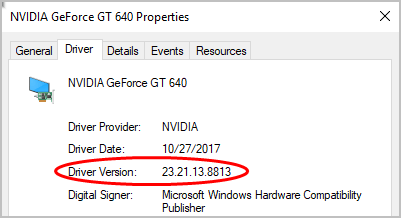
Open the Start menu and select Settings. Click on System, then choose Display. Scroll down and click on Advanced display settings. Find your display adapter and click on Display adapter properties. A new window appears showing your GPU details. The driver version is listed under the Driver tab.
Gpu Control Panel
Most GPUs have a control panel from the manufacturer. Right-click on your desktop and select the GPU control panel. For NVIDIA, choose NVIDIA Control Panel. For AMD, pick AMD Radeon Settings. Look for System Information or similar. The driver version will be displayed there.
Command Prompt Techniques
Press Win + R, type “cmd,” and hit Enter. In the Command Prompt, type “dxdiag” and press Enter. The DirectX Diagnostic Tool opens. Go to the Display tab to see your GPU details. The driver version is shown under Drivers. This method works on all Windows versions.
Steps To Update Gpu Drivers
Updating GPU drivers is important for better performance and fewer errors. Drivers help your computer talk to your graphics card. Old drivers can cause slowdowns or crashes. Follow simple steps to keep them current.
Automatic Updates Via Windows
Windows can update GPU drivers automatically. Open Settings and go to Update & Security. Click on Windows Update and choose Check for updates. Windows will find and install driver updates for you. This method is easy and safe.
Manual Download From Manufacturer
Visit the GPU maker’s website to get drivers directly. Find the support or download section. Enter your graphics card model or use auto-detect tools. Download the latest driver version for your system. Run the installer and follow on-screen instructions.
Using Driver Update Software
Driver update tools scan your PC for outdated drivers. They show a list of drivers to update. Choose the GPU driver and start the update. These tools simplify the process and save time. Use trusted software to avoid security risks.
Fixing Common Gpu Driver Errors
Fixing common GPU driver errors can improve your computer’s performance. Drivers control how the GPU works with your system. Problems with these drivers cause crashes, slowdowns, or display issues. Fixing these errors helps keep your PC stable and fast.
Understanding typical driver problems makes it easier to solve them. This section covers three common issues. Learn how to fix installation failures, driver conflicts, and compatibility problems. Each fix is simple and clear.
Resolving Installation Failures
Installation failures happen when drivers do not install properly. This can be due to corrupted files or interrupted setup. First, uninstall the old driver completely. Use a tool like Display Driver Uninstaller for a clean removal.
Download the latest driver from the official GPU website. Avoid third-party sites to prevent corrupted files. Run the installer as an administrator. This gives the program full access to your system.
Turn off antivirus temporarily during installation. Some antivirus programs block driver setup. Restart your computer after the installation finishes. This ensures the new driver loads correctly.
Addressing Driver Conflicts
Driver conflicts happen when multiple drivers clash or overlap. This causes errors and system instability. Check Device Manager for warning signs on your GPU device. Yellow exclamation marks mean conflicts or errors.
Remove older drivers that may conflict with the new one. Use Device Manager or a driver cleaner tool. Update Windows to the latest version. Sometimes conflicts arise from outdated system files.
Disable unnecessary startup programs that might load extra drivers. This reduces conflicts during boot. Restart your PC to apply all changes.
Handling Compatibility Issues
Compatibility issues occur when the driver does not support your GPU or OS version. Verify your GPU model and system specifications first. Check the driver’s release notes for supported devices.
Download drivers matching your exact GPU model and Windows version. Using the wrong driver causes errors or poor performance. Older GPUs may require legacy drivers from the manufacturer.
Try compatibility mode if the driver installer does not run. Right-click the setup file, select Properties, then Compatibility tab. Choose an earlier Windows version that matches your system.
Credit: www.kancelariafalco.pl
Tips To Maintain Gpu Driver Health
Maintaining the health of your GPU drivers keeps your computer running smoothly. Good driver care prevents crashes and boosts performance. Follow simple tips to keep your GPU drivers in top shape.
Regular Update Schedule
Set a routine to check for driver updates. New versions fix bugs and improve speed. Use official websites or trusted tools to find updates. Avoid skipping updates to keep your GPU stable.
Backup Drivers
Save a copy of your current drivers before updating. Backups help restore your system if new drivers cause issues. Use built-in tools or third-party software to create backups easily.
Safe Uninstall Practices
Remove old drivers carefully before installing new ones. Use dedicated uninstall tools or Device Manager for clean removal. Avoid leftover files that may cause conflicts or errors.
Credit: support.viewsonic.com
Frequently Asked Questions
How Do I Check My Gpu Driver Version?
To check your GPU driver version, open Device Manager, expand Display adapters, right-click your GPU, select Properties, then go to the Driver tab. The driver version is displayed there. This method works for Windows users and helps ensure your GPU runs optimally.
Why Should I Update My Gpu Drivers Regularly?
Updating GPU drivers improves system stability, fixes bugs, and enhances gaming or graphic performance. New drivers also add support for the latest games and applications. Regular updates ensure your GPU operates efficiently and prevents compatibility issues with software.
Can Outdated Gpu Drivers Cause Performance Issues?
Yes, outdated GPU drivers can cause crashes, stuttering, and poor graphics performance. They may also lead to security vulnerabilities. Keeping drivers up to date ensures smooth visuals and avoids common problems related to hardware and software compatibility.
How Can I Update Gpu Drivers Safely?
To update GPU drivers safely, download the latest version from your GPU manufacturer’s official website. Avoid third-party sources to prevent malware risks. Use the manufacturer’s installation tool or Windows Update for a secure and reliable update process.
Conclusion
Checking your GPU drivers keeps your computer running smooth and fast. It helps fix bugs and improves graphics performance. Always update drivers from official sources for safety. Regular checks avoid problems during games or work. Now, you know simple steps to check your GPU drivers.
Stay up to date to enjoy better visuals and fewer crashes. Easy to do, quick to learn, and worth the effort. Keep your system ready and your graphics sharp.
