
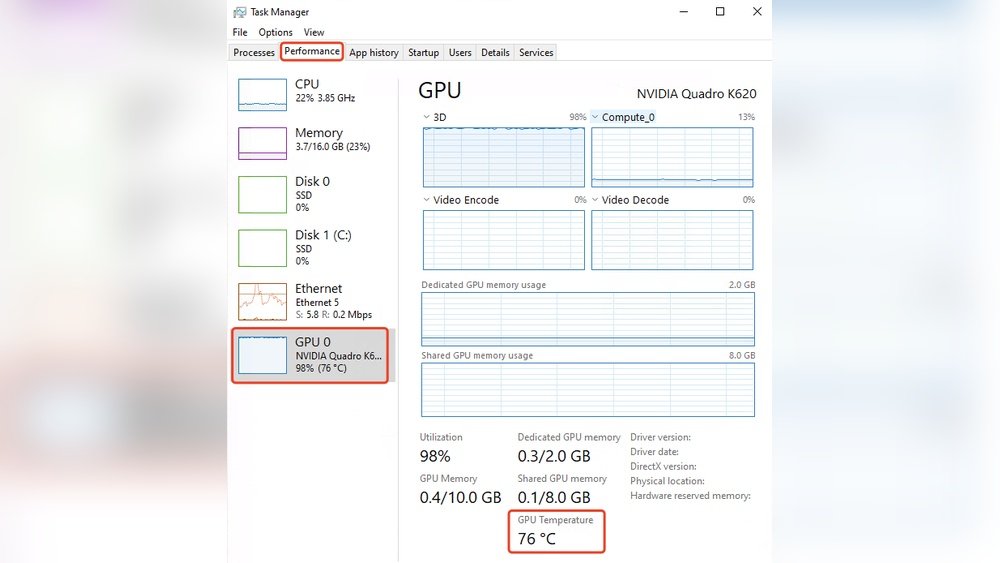
Are you worried your computer might be running too hot? Knowing how to check your GPU and CPU temperature is key to keeping your system healthy and running smoothly.
If your device overheats, it can slow down, crash, or even get damaged. But don’t worry—checking these temperatures is easier than you think. You’ll learn simple, step-by-step ways to monitor your CPU and GPU temps. By the end, you’ll have the confidence to keep your hardware safe and boost your computer’s performance.
Keep reading—you won’t want to miss these easy tips!
Why Monitor Cpu And Gpu Temps
Monitoring CPU and GPU temperatures is important for every computer user. These parts create heat while working. Too much heat can cause problems. Checking temperatures helps keep your system safe and fast.
Impact On Performance
High temperatures slow down your CPU and GPU. This is called throttling. Your computer lowers speed to cool down. It means programs and games run slower. Watching temps helps keep performance steady and smooth.
Preventing Overheating
Overheating can damage your computer parts. It may cause sudden shutdowns or crashes. Regular temperature checks warn you before it gets too hot. This helps you fix cooling issues early and avoid damage.
Extending Hardware Lifespan
Heat wears out CPU and GPU faster. Cooler parts last longer and work better. Monitoring temps helps you keep hardware safe. This saves money by reducing the need for repairs or replacements.

Credit: openhardwaremonitor.org
Tools To Check Cpu Temperature
Checking your CPU temperature is important to keep your computer running smoothly. High temperatures can cause slowdowns or damage parts. Many tools help you monitor your CPU temperature easily.
These tools vary from built-in utilities to third-party software and even mobile apps. Each option has features that suit different users. You can choose the one that fits your needs best.
Built-in System Utilities
Most computers come with built-in tools to check CPU temperature. Windows users can use Task Manager or BIOS settings. Mac users can check Activity Monitor or system reports. These tools show basic temperature readings without extra downloads.
Third-party Software Options
Third-party software offers detailed temperature data and alerts. Popular programs include HWMonitor, Core Temp, and SpeedFan. These apps provide real-time stats and let you customize alerts for high temperatures. They work well for gamers and heavy users.
Mobile Apps For Monitoring
Mobile apps let you check CPU temperature remotely. Apps like HWiNFO and AIDA64 have companion mobile versions. You can connect your phone to your PC and monitor temperature on the go. This helps keep track without sitting at your computer.
Tools To Check Gpu Temperature
Checking your GPU temperature helps keep your computer safe. High temperatures can cause damage or slow down performance. Many tools exist to monitor GPU heat levels. Some tools are simple and free. Others offer detailed reports for advanced users.
Choosing the right tool depends on your needs. Some tools come from the graphics card makers. Others work on many types of computers. Real-time tracking helps catch problems early.
Graphics Card Software
Graphics card makers offer their own software. These programs show temperature and other details. Examples include NVIDIA GeForce Experience and AMD Radeon Software. They provide accurate readings tailored to their cards. The software often includes options to control fan speed. This helps cool the GPU faster if needed.
Cross-platform Monitoring Tools
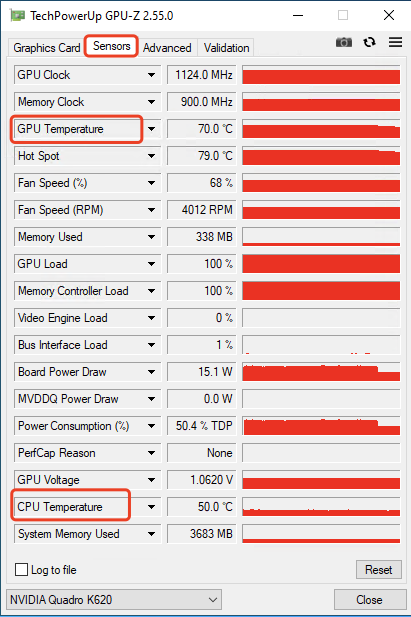
These tools work on Windows, Mac, and Linux. They support many hardware brands. Popular options are HWMonitor, Open Hardware Monitor, and MSI Afterburner. These apps show temperature, voltage, and fan speed. They give a clear view of your system’s health. Most are free and easy to install.
Real-time Temperature Tracking
Real-time tools display GPU temperature as it changes. This helps spot spikes during gaming or heavy use. Some software shows temperature on the desktop or in the taskbar. Alerts can warn if temperatures get too high. This instant feedback helps prevent overheating and damage.
Credit: www.sietesetenta.com.ar
Step-by-step Cpu Temp Monitoring
Monitoring your CPU temperature is important to keep your computer safe. High temperatures can cause damage or slow down your PC. This guide walks you through simple steps to check your CPU temperature. You will learn how to download the right software, run temperature checks, and understand the readings.
Downloading And Installing Software
First, choose a reliable temperature monitoring tool. Popular options include HWMonitor, Core Temp, and SpeedFan. Visit the official website of the chosen software. Download the latest version for your operating system. Open the downloaded file and follow the installation instructions. Make sure to install only the necessary components to keep it simple.
Running Temperature Checks
After installation, open the software. You will see a list of your computer’s hardware. Look for the CPU section. The software updates temperature readings in real-time. Let it run for a few minutes to get accurate data. You can check temperatures during normal use or while running heavy programs.
Interpreting Temperature Readings
CPU temperatures usually range from 30°C to 70°C under normal use. Temperatures above 80°C may cause problems. Check your CPU model’s maximum safe temperature online. If your CPU gets too hot, consider cleaning fans or improving airflow. Regular monitoring helps prevent overheating and keeps your computer healthy.
Step-by-step Gpu Temp Monitoring
Monitoring your GPU temperature helps keep your computer safe. Overheating can cause slowdowns or damage. Checking temperature regularly ensures smooth performance. Follow simple steps to track your GPU heat easily.
Accessing Gpu Monitoring Features
Most GPUs have built-in tools for temperature tracking. Open your graphics card control panel. Look for a section named “Performance” or “Monitoring.” Here, you can see the current temperature of your GPU. Some systems show this info directly in the taskbar or system tray. This method uses no extra software and is fast to check.
Using Overclocking Software
Overclocking apps also monitor GPU temperature. Download popular tools like MSI Afterburner or EVGA Precision X1. Install and open the software. Find the temperature display on the main screen. These tools show live temperature and fan speed. You can also view graphs to track changes over time. They provide more details than built-in features.
Setting Temperature Alerts
Set alerts to avoid GPU overheating. Many overclocking programs allow this. Define a safe temperature limit, usually around 85°C. The software will warn you if the GPU gets too hot. Alerts help prevent damage by prompting you to stop heavy tasks. This keeps your computer running safely and smoothly.
Tips To Maintain Optimal Temps
Keeping your GPU and CPU temperatures low helps your computer run smoothly. High temperatures can cause slowdowns and damage parts. Simple steps can keep your system cool and safe.
Improving Airflow
Good airflow moves hot air out of your computer case. Position fans to push air in and out. Avoid blocking vents with cables or objects. Open spaces inside the case help air circulate better.
Cleaning Dust And Debris
Dust blocks airflow and traps heat inside your computer. Use a soft brush or compressed air to clean fans and vents. Clean your PC regularly to stop dust buildup. This keeps your system cooler and quieter.
Upgrading Cooling Solutions
Stock coolers may not be enough for heavy use. Consider upgrading to better air coolers or liquid cooling. High-quality cooling parts remove heat faster. This helps keep your CPU and GPU at safe temperatures.
Common Temperature Issues And Fixes
Checking your GPU and CPU temperatures helps avoid damage and slowdowns. Common temperature issues can affect your computer’s performance. Knowing how to spot and fix these problems keeps your device safe and fast.
Identifying Overheating Causes
Dust buildup blocks air vents and fans. This stops cool air from entering the system. Old or dried thermal paste can cause poor heat transfer. Overclocking your CPU or GPU raises temperatures too high. Poor airflow inside the case traps heat around components.
Troubleshooting Software Errors
Sometimes software reports wrong temperature readings. Outdated drivers or monitoring tools cause false alarms. Conflicts between programs may affect sensor data. Restarting your PC can fix temporary glitches. Updating your hardware monitoring software ensures accurate info.
When To Seek Professional Help
Persistent high temperatures need expert attention. Physical damage to fans or heat sinks requires repair. If cleaning and software fixes don’t help, call a technician. Professionals can replace thermal paste or faulty parts. They ensure your system runs safely and smoothly.

Credit: hognerdobrasil.com.br
Frequently Asked Questions
How Do I Check My Cpu Temperature?
You can check CPU temperature using software like HWMonitor, Core Temp, or your BIOS settings. These tools show real-time temperature readings to help monitor your CPU’s health and performance.
What Is A Safe Gpu Temperature Range?
A safe GPU temperature usually ranges between 30°C and 85°C. Temperatures above 85°C may cause overheating, affecting performance and hardware lifespan.
Can High Cpu Temperature Damage My Computer?
Yes, high CPU temperatures can cause system instability, crashes, and permanent damage. Proper cooling and monitoring prevent overheating and extend your CPU’s life.
Which Software Is Best For Gpu Temperature Monitoring?
Popular GPU temperature monitoring tools include MSI Afterburner, GPU-Z, and HWMonitor. They provide accurate, real-time temperature data and performance stats.
Conclusion
Checking your GPU and CPU temperature helps keep your computer safe. High temperatures can cause damage or slow down your system. Use simple tools or software to monitor these temps regularly. Watching your hardware’s heat shows when to clean fans or improve cooling.
Staying aware prevents problems before they start. Keep your computer running smooth and cool by checking temps often. Small steps can save you from big repairs later. Easy, quick checks make a big difference for your device’s health.
