
Are you worried that your computer might be overheating? Knowing how to check your GPU and CPU temperature is the first step to keeping your system safe and running smoothly.
Overheating can slow down your computer or even cause damage if left unchecked. You’ll learn simple and effective ways to monitor your hardware temperatures. By the end, you’ll feel confident in protecting your computer and boosting its performance. Keep reading to find out how easy it is to stay on top of your system’s health!

Credit: openhardwaremonitor.org
Why Monitor Cpu And Gpu Temps
Monitoring CPU and GPU temperatures is important for every computer user. These components create heat when they work. Too much heat can cause damage or slow down your computer.
Checking temperatures helps keep your system safe. It also improves performance. You can spot problems early and avoid costly repairs.
Prevent Overheating Damage
High temperatures can break parts inside your computer. Overheating may cause crashes or permanent damage. Monitoring temps helps you cool down your PC in time.
Maintain Optimal Performance
CPUs and GPUs slow down if they get too hot. This protects the hardware but hurts speed. Keeping an eye on temps keeps your computer running fast.
Extend Hardware Lifespan
Heat shortens the life of computer parts. Lower temperatures reduce wear and tear. Regular checks help your CPU and GPU last longer.
Detect Cooling System Issues
Temperature spikes can signal a failing fan or poor airflow. Monitoring temps alerts you to fix cooling problems quickly. This prevents bigger issues later.
Credit: www.readwritesolutions.com
Signs Of Overheating
Overheating is a common issue for both GPUs and CPUs. It can cause your computer to slow down or even shut off. Recognizing the signs early helps protect your hardware and avoid damage.
Heat affects performance and can shorten the life of your device. Watch out for unusual behavior or noises. These signs often point to a temperature problem.
Unexpected Shutdowns Or Restarts
Your computer may turn off suddenly to avoid damage. This is a safety feature that triggers under high temperatures. Frequent shutdowns indicate overheating problems.
Slow Performance And Lag
The CPU or GPU may slow down to cool off. This reduces speed and causes lag in games or programs. Overheating often leads to poor performance.
Loud Fan Noise
Fans spin faster to cool hot components. A louder fan noise than usual means the system is hot. Constant loud fans suggest overheating issues.
Visual Artifacts And Screen Glitches
Overheated GPUs can create strange colors or lines on screen. These visual glitches appear during gaming or video playback. They signal GPU temperature problems.
High Temperature Readings In Monitoring Software
Temperature apps show real-time heat levels of CPU and GPU. Numbers above recommended limits confirm overheating. Use these tools to check your device’s health.
Built-in Tools For Temp Check
Checking your CPU and GPU temperature is important to keep your computer safe. High temperatures can cause damage or slow down your system. You do not need extra software to check these temps. Many built-in tools in Windows and your PC’s BIOS provide this data. These tools are easy to use and free. They give you quick access to your hardware’s temperature.
Using Task Manager
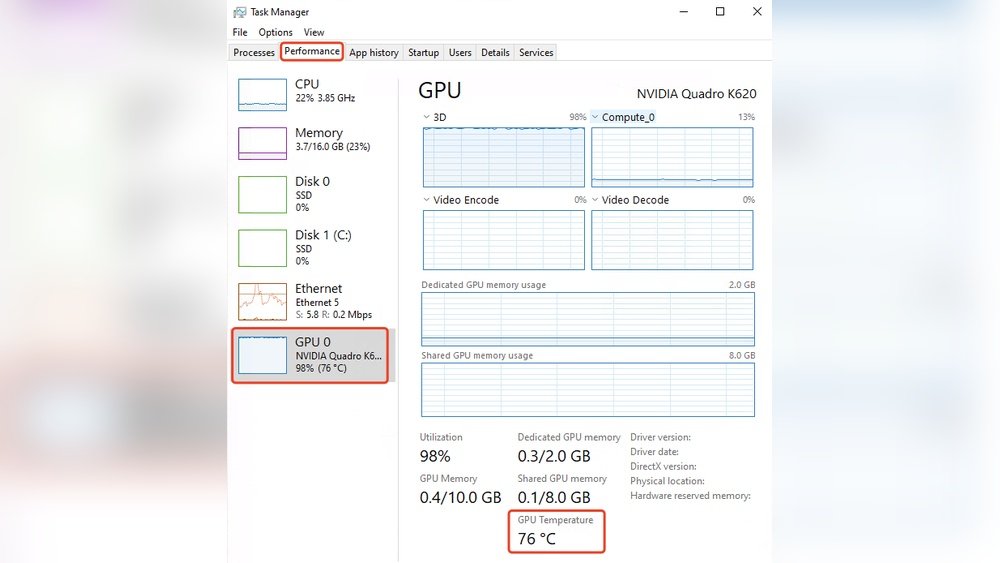
Task Manager in Windows shows CPU temperature on some systems. Open Task Manager by pressing Ctrl + Shift + Esc. Then go to the Performance tab. Look for your CPU section. Some PCs display the current CPU temperature here. Not all systems support this feature yet. If you see the temperature, it updates in real time. This helps you monitor your CPU without extra apps.
Bios Temperature Readings
The BIOS gives detailed temperature info for both CPU and sometimes GPU. Restart your computer and enter BIOS by pressing a key like F2, Del, or Esc. Look for a section named Hardware Monitor or PC Health Status. Here, you find the exact temperature readings. BIOS shows temps even before Windows loads. Use this to check if your system cools properly from startup.
Third-party Software Options
Third-party software offers a simple way to check your CPU and GPU temperatures. These tools provide real-time data and detailed reports. They help keep your computer safe from overheating. You can choose from many apps based on your needs and preferences.
Popular Cpu Temp Apps
Several apps monitor CPU temperature easily. Core Temp shows the exact temperature of each core. It is lightweight and works on most Windows PCs. HWMonitor displays temperatures, voltages, and fan speeds. It gives a full overview of your system’s health. SpeedFan allows you to control fan speeds and read temperatures. These apps help spot overheating early to avoid damage.
Gpu Monitoring Tools
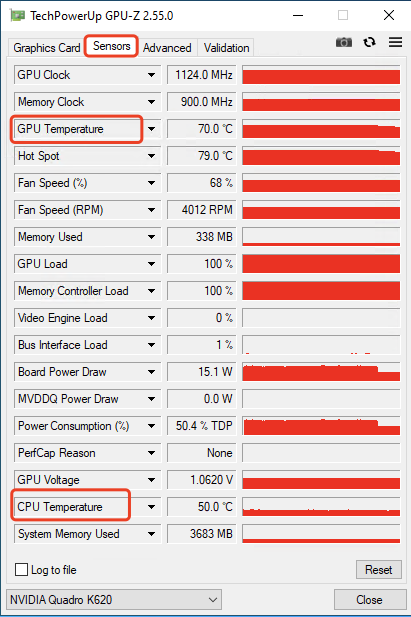
Monitoring GPU temperature is vital for gaming and graphic work. MSI Afterburner shows GPU temperature and usage in real time. It also lets you adjust fan speed. GPU-Z provides detailed info about your graphics card. It tracks temperature, clock speeds, and memory usage. EVGA Precision X1 offers similar features for NVIDIA cards. These tools keep your GPU safe and running smoothly.
Step-by-step Temp Checking Guide
Checking the temperature of your CPU and GPU is important for keeping your computer safe. Overheating can cause damage and slow down your system. This guide shows simple steps to check these temperatures. Follow each part carefully to understand your system’s health.
Preparing Your System
Turn off all heavy programs before starting. This helps get accurate temperature readings. Make sure your computer is on a flat surface for good air flow. Clean dust from vents and fans if possible. This prevents false high readings caused by blocked airways.
Running Monitoring Software
Download a trusted temperature monitoring tool. Popular options include HWMonitor, Core Temp, or MSI Afterburner. Install and open the software. Look for CPU and GPU temperature sections. Run a normal task or game to see how temps change under use. Avoid closing the software while monitoring.
Interpreting The Results
Check the temperature values shown. Normal CPU temps usually stay below 70°C during use. GPU temps should stay under 85°C. If temperatures are higher, your system may be overheating. Look for sudden spikes or constant high readings. Take action like cleaning fans or improving cooling if needed.

Credit: privin.net
Tips For Accurate Temp Readings
Getting accurate temperature readings for your GPU and CPU is important. It helps you understand your computer’s health and avoid overheating. Many factors can affect the accuracy of temperature measurements. Following simple tips will ensure you get the most reliable results.
Accurate readings allow you to take timely action. They help keep your system stable and extend its life. Here are some useful tips to improve temperature monitoring.
Use Reliable Software
Choose trusted programs designed for temperature monitoring. Popular tools include HWMonitor, Core Temp, and MSI Afterburner. These apps provide real-time data and support various hardware models.
Check Temperature At Idle And Load
Measure temps when your PC is idle and under stress. Idle temps show baseline heat, while load temps reveal maximum levels. Use stress tests or games to create load conditions.
Keep Your Pc Clean
Dust and dirt block airflow, causing higher temps. Clean fans, vents, and heatsinks regularly. This helps your system cool efficiently and keeps readings accurate.
Ensure Proper Airflow
Good airflow inside the case prevents heat buildup. Organize cables and install enough fans. Proper ventilation maintains stable temperatures during heavy use.
Monitor Room Temperature
Ambient temperature affects internal readings. Cooler rooms lead to lower GPU and CPU temps. Avoid placing your PC near heaters or direct sunlight.
Update Bios And Drivers
Manufacturers release updates to improve hardware monitoring. Keep your BIOS and drivers current. This ensures your system reports temperatures correctly and safely.
When To Take Action
Knowing when to take action on your CPU and GPU temperatures is important. High temperatures can cause slowdowns or damage. Watch for signs of overheating. Your computer may shut down suddenly or run very loud. Temperatures above 80°C for the CPU or GPU need attention. Acting early can save your hardware from harm.
Cooling Solutions
Check your cooling system first. Fans should spin freely and quietly. Clean dust from vents and fan blades. Use a soft brush or compressed air. Consider adding extra fans if your case allows. For laptops, use a cooling pad. Liquid cooling can help in high-performance PCs. Replace old thermal paste to improve heat transfer.
Hardware Maintenance
Regular maintenance keeps your system healthy. Open the case and clean inside every few months. Remove dust from heatsinks and power supply. Make sure cables do not block airflow. Check that all fans work properly. Inspect thermal paste on CPU and GPU chips. Replace it every 1-2 years for best cooling. Tighten screws on heatsinks if loose.
Frequently Asked Questions
How Do I Check My Cpu Temperature On Windows?
You can check CPU temperature using tools like HWMonitor or Core Temp. These apps display real-time temperatures accurately. Install one, open it, and look for the CPU temperature reading under sensor data. Ensure your PC is idle for the most accurate results.
What Is A Safe Gpu Temperature Range?
A safe GPU temperature typically ranges between 30°C to 85°C under normal use. Temperatures above 90°C may cause overheating and performance issues. Monitoring your GPU temperature helps maintain hardware longevity and prevents thermal throttling during intense tasks.
Can High Cpu Temperature Damage My Computer?
Yes, consistently high CPU temperatures can damage your computer. Overheating may reduce performance, cause crashes, or permanently harm the processor. Use cooling solutions and monitor temps regularly to avoid hardware failure and keep your system stable.
Which Software Is Best For Monitoring Cpu And Gpu Temps?
Popular software for monitoring CPU and GPU temperatures includes HWMonitor, MSI Afterburner, and SpeedFan. These tools offer real-time temperature tracking, customizable alerts, and detailed hardware information for effective thermal management.
Conclusion
Checking your GPU and CPU temperature helps protect your computer. It stops overheating and keeps your system running smoothly. Use simple tools to monitor temps regularly. Watching the numbers can prevent damage and improve performance. Stay aware of your hardware’s health for longer life.
Small checks save big repairs later. Keep your PC cool and enjoy worry-free use every day.
