
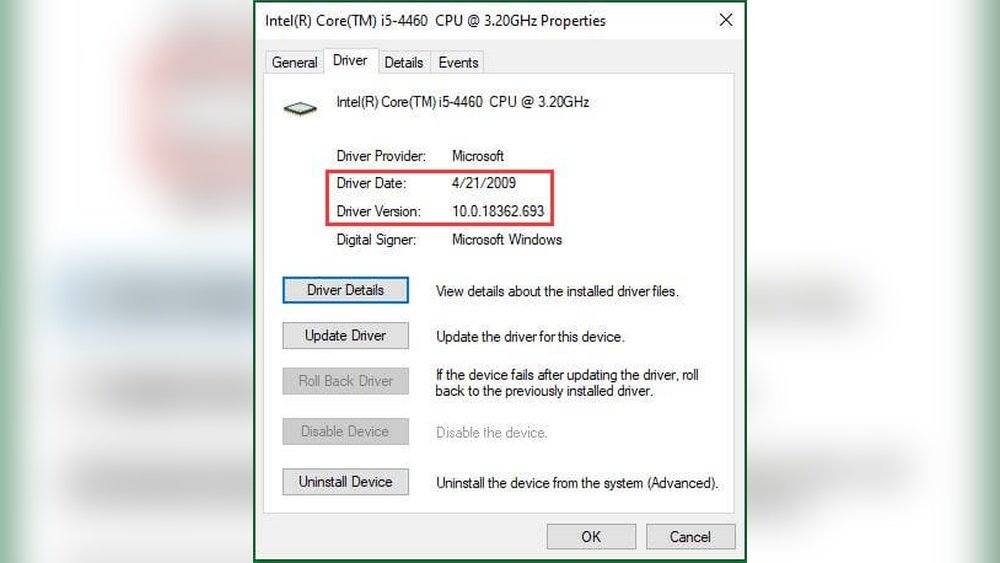
Are you sure your computer’s performance is at its best? One simple step you might be missing is checking for CPU updates.
These updates can boost your system’s speed, fix bugs, and even improve security. But how do you know if your CPU needs an update? You’ll learn easy, clear steps to check for CPU updates quickly. By the end, you’ll have the confidence to keep your computer running smoothly and efficiently.
Keep reading—your PC will thank you!
Why Update Your Cpu
Updating your CPU is important for keeping your computer running smoothly. It helps your system work better and stay safe. Regular updates can fix problems and add new features. Understanding why you should update helps you keep your device in good shape.
Performance Improvements
CPU updates often make your computer faster. They improve how your processor handles tasks. This means apps open quicker and programs run smoother. Updates can optimize power use, helping your CPU work well without overheating.
Security Enhancements
Security is a top reason to update your CPU. Updates fix weaknesses that hackers might use. They protect your personal data from being stolen. Keeping your CPU updated helps guard against new online threats.
Bug Fixes
CPU updates solve bugs that slow down your system. Bugs can cause crashes or errors in programs. Fixing these bugs makes your computer more stable. It also reduces annoying freezes and unexpected shutdowns.
Identify Your Cpu Model
Knowing your CPU model is the first step to check for updates. This information helps you find the right drivers and firmware. It also ensures your system runs smoothly and stays secure. Here are easy ways to identify your CPU model on Windows.
Using System Information
Open the Start menu and type “System Information.” Click the app to open it. Look for “Processor” in the system summary. The name and model of your CPU will be listed there. This method is quick and shows detailed info about your CPU.
Through Device Manager
Press the Windows key and R together. Type “devmgmt.msc” and hit Enter. This opens Device Manager. Expand the “Processors” section. You will see the CPU model listed under this category. Device Manager helps you see hardware details easily.
Command Line Methods
Open Command Prompt by typing “cmd” in the Start menu. Type “wmic cpu get name” and press Enter. Your CPU model will appear on the screen. This method is fast and works well for users comfortable with commands.
Check Manufacturer Website
Checking the manufacturer’s website is the best way to find CPU updates. The site offers the latest drivers, firmware, and software needed for your processor. It also provides detailed instructions and support for updates. This helps keep your CPU running smoothly and securely.
Each CPU brand has a dedicated section for downloads and updates. Knowing where to go saves time and avoids confusion. Below are the main steps for popular CPU brands.
Intel Cpu Updates
Visit Intel’s official website to find CPU updates. Use the “Support” or “Downloads” tab. Enter your CPU model or use the automatic detection tool. Intel provides driver updates, BIOS updates, and performance patches. Follow the instructions carefully to install updates safely. This keeps your Intel CPU in top shape.
Amd Cpu Updates
AMD’s website hosts all updates for its processors. Navigate to the “Support” section and select your CPU model. You can find drivers, chipset software, and BIOS updates here. AMD also offers tools to help detect your CPU version. Download and install updates according to the provided guide. This ensures your AMD CPU performs well.
Other Cpu Brands
For other CPU brands like VIA or ARM, check their official sites. Look for a support or downloads area. Most manufacturers list updates by product name or number. Some brands may require creating an account to access updates. Always download from the official site to avoid risks. Keeping your CPU updated improves stability and security.
Use Automatic Update Tools
Keeping your CPU updated is important for better performance and security. Automatic update tools make this task easy and fast. They scan your system and find the latest updates for your CPU. These tools save time and reduce errors in manual updates.
Intel Driver & Support Assistant
The Intel Driver & Support Assistant checks Intel CPUs for new updates. It runs on your PC and scans your hardware. It then shows available updates and guides you through installation. This tool keeps your Intel CPU drivers current without much effort.
Amd Ryzen Master
AMD Ryzen Master helps users with AMD Ryzen CPUs update their system. It offers a simple interface to check for CPU updates and optimize settings. The tool ensures your Ryzen processor runs smoothly with the latest improvements.
Third-party Utilities
Some third-party tools also help update CPU drivers automatically. Programs like Driver Booster or Snappy Driver Installer scan all hardware, including your CPU. They find and install the newest drivers safely. These tools work with many CPU brands and make updates easy.
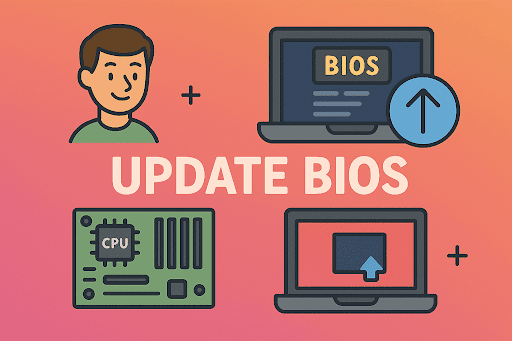
Update Bios For Cpu Support
Updating the BIOS is a key step to ensure your CPU works well with your motherboard. It helps your system recognize new processors and improves performance. Without the right BIOS version, your computer might not support the latest CPU models.
This section explains what a BIOS update is, how to do it safely, and the risks you should know.
What Is Bios Update
BIOS stands for Basic Input/Output System. It is the software on your motherboard that starts your computer. A BIOS update changes this software to add features or fix problems.
Motherboard makers release BIOS updates to support new CPUs. Updating BIOS can improve compatibility and stability. It may also fix bugs and security issues.
How To Safely Update Bios
First, check your motherboard model and current BIOS version. Visit the manufacturer’s website for the latest BIOS update file. Download the correct file only.
Follow the instructions from the motherboard maker carefully. Use the official BIOS update tool provided. Avoid turning off your computer during the update.
Keep your PC plugged into a power source. Interruptions during the update can cause serious problems.
Risks And Precautions
BIOS updates carry risks. A failed update can stop your computer from starting. This may require professional repair or motherboard replacement.
Always back up important data before updating BIOS. Use only trusted sources for update files. Read all instructions carefully to reduce risks.
Do not update BIOS unless necessary for CPU support or fixing bugs. Taking these precautions keeps your system safe and stable.

Credit: softwareg.com.au
Verify Cpu Update Installation
Verifying the installation of a CPU update is important. It ensures your computer runs smoothly and benefits from the latest improvements. This step confirms that the update worked correctly and your system is stable.
Checking the update helps avoid performance issues or bugs. It also gives confidence that your CPU is up to date with security patches and optimizations.
Check System Performance
Start by observing your computer’s speed and responsiveness. Notice if it boots faster or runs programs more smoothly. Pay attention to any crashes or freezes. A stable system suggests the update installed correctly.
Run everyday tasks to see if performance feels better. Slower or unstable behavior may mean the update did not install properly.
Review Update Logs
Locate the update logs on your computer. These files record details about the CPU update process. Look for messages like “installation successful” or “update completed.”
Check for errors or warnings in the logs. Errors indicate problems during installation. Clear logs without errors confirm a smooth update.
Use Benchmarking Tools
Benchmarking tools test your CPU’s speed and power. They provide scores to compare before and after the update. Use simple tools available online or built into your system.
Higher scores after updating show the CPU works better. Similar or lower scores suggest the update might not have installed correctly. Running benchmarks gives clear proof of update success.
Troubleshooting Common Issues
Checking for CPU updates can sometimes lead to issues that slow you down. Knowing how to fix common problems helps keep your system running smoothly. Troubleshooting saves time and avoids frustration. Below are common issues and ways to handle them effectively.
Update Failures
Updates may fail due to poor internet or system errors. Restart your computer and try again. Clear temporary files to free space. Disable antivirus temporarily, as it may block updates. Check if the update file is corrupted and download it again.
Compatibility Problems
CPU updates may not work with older hardware or software. Verify your CPU model before installing any update. Check the update’s release notes for compatibility details. Use manufacturer tools to detect if your CPU supports the update. Avoid forcing updates on unsupported systems.
Rollback Options
Some updates cause issues or slow down the system. Use rollback options to return to the previous CPU version. Access rollback through system settings or BIOS. Keep backup copies of important data before updating. Rollback restores system stability without complex fixes.

Credit: softwareg.com.au
Credit: www.itarian.com
Frequently Asked Questions
How Do I Check For Cpu Updates On Windows?
To check CPU updates on Windows, open Device Manager. Expand “Processors,” right-click your CPU, and select “Update driver. ” Windows searches for updates automatically. You can also visit the CPU manufacturer’s website for the latest drivers and firmware updates.
Can I Update My Cpu Without Reinstalling Windows?
Yes, you can update CPU drivers without reinstalling Windows. Use Device Manager or manufacturer software to install updates. Firmware updates may require BIOS updates, which don’t affect your Windows installation but should be done carefully.
Why Is It Important To Update Cpu Drivers?
Updating CPU drivers ensures better performance, stability, and security. It fixes bugs and compatibility issues with new software. Updated drivers help your system run smoothly and prevent crashes or slowdowns related to outdated CPU support.
How Often Should I Check For Cpu Updates?
Check for CPU updates every 3 to 6 months or when facing performance issues. Regular updates keep your system optimized and secure. Critical updates might be released more frequently, so staying informed is essential.
Conclusion
Checking for CPU updates keeps your computer running smoothly. Regular updates fix bugs and improve performance. Always visit the official CPU or motherboard website to find updates. Use trusted tools to avoid errors or security risks. Stay patient and follow instructions carefully during updates.
A well-updated CPU helps your system stay fast and secure. Keep checking often to catch new updates on time. Simple steps lead to better computer health and longer device life. Don’t skip updates—they matter more than you think.
