
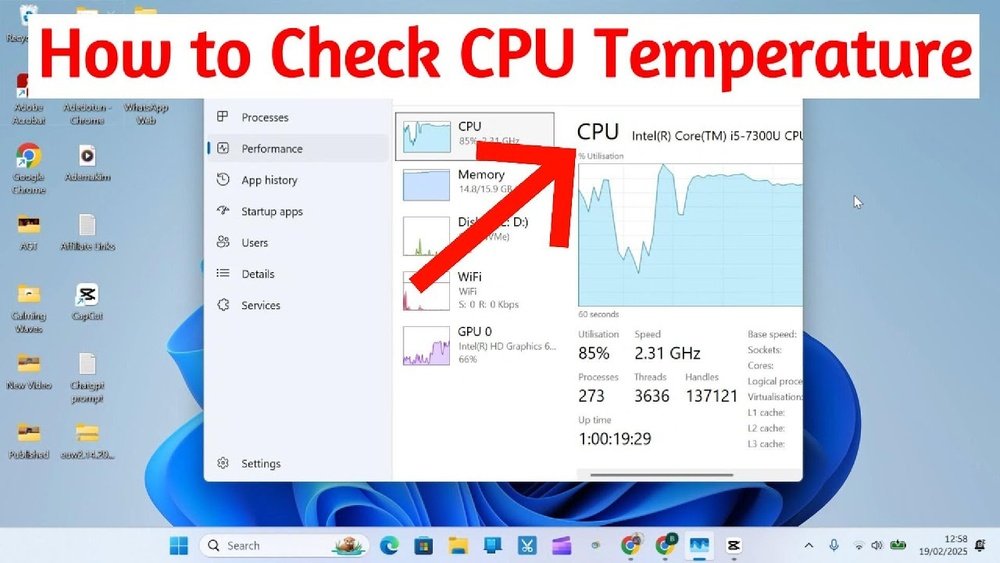
Are you worried your computer might be overheating? Knowing how to check your CPU temperature is a simple step that can save you from unexpected crashes and costly repairs.
Your CPU works hard, and if it gets too hot, it can slow down or even get damaged. But don’t worry—this guide will show you easy ways to monitor your CPU temperature, even if you’re not a tech expert. Keep reading, and you’ll learn how to protect your computer and keep it running smoothly every day.
Why Cpu Temperature Matters
CPU temperature is a key factor for your computer’s health. It affects how well your PC runs and how long it lasts. Watching the CPU temperature helps you avoid problems and keep your system stable. Understanding why CPU temperature matters will guide you in taking care of your device.
Impact On Performance
High CPU temperatures slow down your computer. The CPU reduces its speed to cool down. This process is called throttling. Throttling causes apps and programs to run slower. Your games, videos, and work tasks may lag. Keeping the CPU cool keeps your PC fast and smooth.
Risks Of Overheating
Overheating can damage the CPU permanently. It may cause sudden shutdowns to protect the hardware. Heat can also harm other parts inside the computer. Too much heat shortens the lifespan of your PC. Monitoring temperature helps prevent these serious risks.
Signs Of Cpu Overheating
CPU overheating can cause serious problems for your computer. It may lead to damage or reduce the CPU’s lifespan. Knowing the signs helps you act fast and protect your device. Watch out for these common symptoms that show your CPU is too hot.
System Slowdowns
Your computer may become very slow without reason. Programs take longer to open. Browsing the internet feels sluggish. Overheating CPUs often reduce speed to cool down. This slowdown helps avoid damage but affects your work.
Unexpected Shutdowns
The system may turn off by itself suddenly. This happens to stop heat damage. You lose unsaved work and face frequent restarts. Unexpected shutdowns are a clear sign your CPU is too hot.
Fan Noise Increase
Fans inside your computer get louder than usual. They spin faster to lower the CPU temperature. High fan noise can show the CPU is working hard to stay cool. Listen closely for unusual sounds from your device.
Tools To Monitor Cpu Temperature
Monitoring your CPU temperature is important for keeping your computer safe. High temperatures can cause damage or slow down your PC. Several tools help you check the CPU temperature. These tools range from simple built-in utilities to advanced hardware devices. Understanding the options helps you pick the best method for your needs.
Built-in Bios Utilities
Many computers include temperature monitoring in the BIOS. You can access these utilities by restarting your computer and entering the BIOS setup. This method does not require extra software. BIOS shows real-time temperature readings. It offers a basic but reliable way to check CPU heat levels. It is useful for quick checks before starting your operating system.
Third-party Software Options
Third-party programs provide detailed temperature data and alerts. Popular tools include HWMonitor, Core Temp, and SpeedFan. These apps display real-time temperatures and log history. Some also show fan speeds and voltage. They are easy to install and use in Windows. Many offer free versions with enough features for casual users. These software tools help spot overheating early.
Hardware Monitoring Devices
Hardware devices measure temperature directly from your PC. These include external sensors and thermal probes. They connect to your motherboard or sit inside the case. Hardware monitors give accurate readings independent of software. They are handy for overclockers and professionals. Some devices come with screens or connect to smartphones. These tools provide constant temperature tracking for serious users.

Credit: www.alcpu.com
Step-by-step Cpu Temperature Check
Checking your CPU temperature is important to keep your computer safe. High temperatures can cause damage and slow down performance. This guide shows how to check your CPU temperature step-by-step. The process is simple and can be done using your computer’s BIOS or special software. Understanding the temperature data helps you make smart decisions about cooling and maintenance.
Accessing Bios Temperature Readings
Turn off your computer. Turn it back on and press the BIOS key during startup. The key is usually F2, Delete, or Esc. Look for a tab or section named “Hardware Monitor” or “PC Health.” Here, you find the CPU temperature listed. Note the temperature and exit BIOS without changing settings. BIOS readings are basic but reliable.
Using Software To Monitor Temps
Download a CPU temperature monitoring program. Popular options include HWMonitor, Core Temp, and SpeedFan. Install the software and open it. The program will display real-time temperatures for each CPU core. Software tools offer more detailed data and alerts for high temperatures. Keep the program running during heavy computer use to track changes.
Interpreting Temperature Data
Normal CPU temperature ranges from 30°C to 50°C at idle. Under load, temperatures can rise to 70°C or 80°C safely. Temperatures above 90°C indicate overheating. High temperatures can cause crashes or reduce CPU life. Use cooling solutions like fans or thermal paste if temperatures are too high. Regular monitoring prevents damage and keeps your PC running smoothly.
Tips To Prevent Cpu Overheating
Keeping your CPU cool is key to a healthy computer. Overheating can cause crashes and damage parts. Simple steps can stop your CPU from getting too hot. These tips help your system run smoothly and last longer.
Improving Airflow
Good airflow moves hot air out and cool air in. Make sure your computer case has space around it. Avoid blocking vents with objects or walls. Organize cables to stop air from getting trapped. Use fans to help air flow inside the case.
Cleaning Dust And Debris
Dust blocks air and traps heat inside your PC. Turn off your computer and unplug it before cleaning. Use a soft brush or compressed air to remove dust. Focus on fans, vents, and heat sinks. Regular cleaning keeps your CPU cooler and safer.
Applying Thermal Paste
Thermal paste helps heat move from CPU to cooler. Over time, old paste can dry out and lose effect. Remove the old paste carefully and apply a new, thin layer. This improves heat transfer and lowers CPU temperature. Use a high-quality thermal paste for best results.
Upgrading Cooling Solutions
Stock coolers may not be enough for heavy use. Consider installing a better air cooler with bigger fans. Liquid cooling systems offer even better temperature control. Make sure the cooler fits your CPU and case. Upgrading cooling keeps your CPU safe under load.
Credit: www.youtube.com
When To Seek Professional Help
Knowing when to seek professional help is important for your CPU’s health. Some temperature problems need expert care. Ignoring these signs can cause serious damage. This section explains when to call a technician to avoid bigger issues.
Persistent Overheating Issues
Sometimes, your CPU keeps getting too hot even after cleaning and cooling attempts. Persistent overheating may signal deep problems. Faulty fans or poor thermal paste application can be hard to fix alone. Experts can find hidden issues causing high temperatures.
Repeated shutdowns or crashes due to heat also need professional attention. A technician can test your system properly. They offer solutions that prevent future overheating. Don’t let constant heat damage your computer’s parts.
Hardware Replacement Needs
Old or damaged hardware can cause CPU temperature problems. If your cooling system or CPU is failing, replacement might be necessary. Professionals can identify which parts need changing.
Replacing hardware requires skill and proper tools. A technician ensures correct installation and compatibility. This helps your computer run cooler and last longer. Avoid risking damage by trying hardware swaps alone.

Credit: openhardwaremonitor.org
Frequently Asked Questions
How Can I Check My Cpu Temperature On Windows?
You can check CPU temperature on Windows using software like HWMonitor, Core Temp, or SpeedFan. These tools provide real-time temperature readings for your CPU cores. They are easy to install and free, helping you monitor and prevent overheating issues effectively.
What Is A Safe Cpu Temperature Range?
A safe CPU temperature typically ranges between 30°C and 70°C during normal use. Temperatures above 80°C may indicate overheating risks. Maintaining good airflow and cooling helps keep your CPU within this safe range, ensuring optimal performance and hardware longevity.
Can Bios Show Cpu Temperature?
Yes, most BIOS setups display CPU temperature under hardware monitoring or system health sections. You can access BIOS by pressing a key (like F2 or Del) during startup. This method provides a quick way to check CPU temperature without additional software.
Why Is My Cpu Temperature Suddenly High?
Sudden high CPU temperatures may result from dust buildup, poor ventilation, or failing cooling systems. Malware or heavy background processes can also increase load and heat. Regular cleaning, updating software, and monitoring can help identify and fix these issues.
Conclusion
Checking your CPU temperature helps keep your computer safe. High temperatures can cause damage or slow down your device. Use simple tools to monitor the heat easily. Regular checks can prevent unexpected crashes or hardware failure. Stay aware of your CPU’s condition for better performance.
Keep your system cool with proper ventilation and cleaning. Knowing how to check CPU temperature saves time and money. Stay proactive and protect your computer today.
