
Are you wondering why your computer feels slow or unresponsive? Checking your CPU usage is the first step to understanding what’s happening inside your Windows 11 system.
Knowing how to monitor your CPU can help you spot problems early, improve performance, and keep your PC running smoothly. You’ll learn simple and clear ways to check your CPU usage on Windows 11, even if you’re not a tech expert.
Keep reading, and you’ll gain control over your computer’s power like never before.

Credit: www.youtube.com
Check Cpu Usage Via Task Manager
Checking CPU usage on Windows 11 helps understand how your computer works. It shows how much power your CPU uses. This info helps find problems or slow apps. Task Manager is the best tool for this. It is easy and built into Windows 11.
Open Task Manager Quickly
Press Ctrl + Shift + Esc on your keyboard. Task Manager opens right away. Another way is to right-click the Start button. Choose Task Manager from the menu. This tool runs fast and shows real-time data.
Navigate To Performance Tab
Inside Task Manager, find the Performance tab. Click it to see CPU details. This tab shows graphs and numbers. You see CPU speed, usage, and cores. It updates live, so data is always fresh.
Interpret Cpu Usage Data
The CPU usage graph shows percent used. A low number means the CPU is free. A high number means it works hard. Spikes can show heavy tasks or programs. Use this data to spot slowdowns or issues. It helps decide which apps to close.
Use Resource Monitor For Detailed Insights
Resource Monitor is a powerful tool in Windows 11. It shows detailed information about CPU usage. This helps you understand what programs use the most power. It also tracks how your CPU performs over time. Using Resource Monitor gives clear insights beyond the basic Task Manager.
Launch Resource Monitor
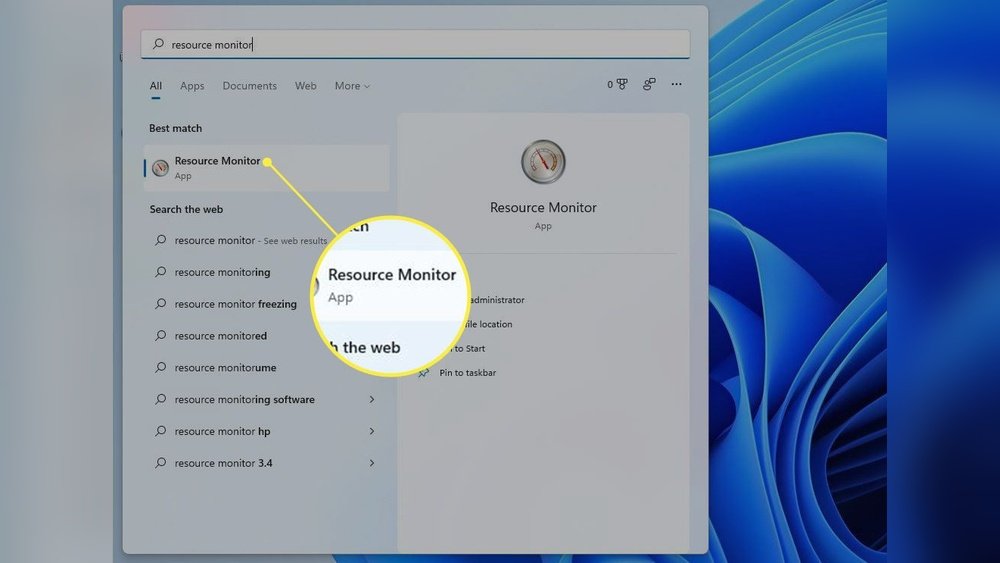
Press Windows + R to open the Run box. Type resmon and hit Enter. This opens Resource Monitor instantly. You can also search for “Resource Monitor” in the Start menu. The tool opens with a clean, easy-to-read interface.
Analyze Cpu Usage By Process
Go to the CPU tab inside Resource Monitor. Here, you see a list of processes using the CPU. Each process shows the exact percentage of CPU it uses. You can sort processes by CPU use to find the heaviest ones. This helps identify apps slowing down your PC.
Monitor Cpu Utilization Over Time
The CPU tab also has a graph showing CPU use over time. Watch this graph to see peaks and drops in CPU activity. It updates live, so you can track changes as they happen. This feature helps spot unusual CPU spikes that may indicate problems.
Check Cpu Usage With Settings App
Checking CPU usage is important to understand your computer’s performance. Windows 11 lets you do this easily through the Settings app. You can see how much of your CPU is in use without extra software. This method is quick and clear for anyone.
Access System Performance
Start by opening the Settings app on your Windows 11 PC. Click the Start button, then choose Settings from the menu. Inside Settings, select System. Scroll down and find the Performance section. This area shows details about your device’s system health.
View Cpu Usage Metrics
Within the Performance section, look for CPU usage information. It shows the percentage of CPU power being used now. You can see real-time data and spot if the CPU is overloaded. This helps to know if your device runs smoothly or slows down.
Credit: www.guidingtech.com
Leverage Third-party Tools
Checking CPU usage on Windows 11 can be simple with built-in tools. Yet, third-party apps offer extra features. These tools give detailed insights about your CPU. They help track performance over time and spot issues early.
Third-party tools often show more data than the Task Manager. They can alert you if your CPU runs too hot or too fast. This helps protect your PC and keep it running smooth.
Popular Cpu Monitoring Apps
Many apps help you watch CPU usage easily. HWMonitor shows temperatures and voltages alongside CPU load. Core Temp focuses on CPU temperature and load per core. Open Hardware Monitor tracks CPU, GPU, and hard drive status. CPU-Z offers detailed info about your processor’s specs and speed.
Most of these apps are free and simple to use. They update in real-time and display clear graphs. This makes it easy to understand how your CPU works.
Benefits Of Using Third-party Tools
Third-party tools provide more info than Windows’ default tools. They track CPU temperature, speed, and load by core. This helps find hidden problems fast. Many apps run quietly in the background and alert you to changes.
These tools also help with long-term monitoring. You can save data and check trends over days or weeks. This helps decide if your PC needs upgrades or repairs.
Tips To Reduce High Cpu Usage
High CPU usage can slow down your Windows 11 PC. It makes tasks take longer and can cause overheating. Reducing CPU load helps your computer run smoother and saves energy. Follow these simple tips to lower CPU usage and keep your system healthy.
Close Unnecessary Programs
Many apps run in the background without you knowing. These use CPU power and slow your PC. Open Task Manager by pressing Ctrl + Shift + Esc. Look for programs using a lot of CPU. Select them and click “End Task” to close. This frees up CPU and speeds up your computer.
Manage Startup Applications
Some apps start automatically when you turn on your PC. These increase CPU use right away. Open Task Manager and go to the Startup tab. Disable apps you do not need at startup. This reduces CPU load during boot and keeps your system fast.
Update Drivers And Software
Outdated drivers and software can cause high CPU use. Check for updates regularly to fix bugs and improve performance. Open Settings, then go to Windows Update. Install all available updates. Also, update your device drivers from the manufacturer’s site. Updated software runs better and uses less CPU.
:max_bytes(150000):strip_icc()/AA-3-CheckCPUUsageinWindows11-annotated-643c382be09f4cdbb511284cd2e872de.jpg)
Credit: www.lifewire.com
Frequently Asked Questions
How Do I Open Task Manager In Windows 11?
Press Ctrl + Shift + Esc together to open Task Manager quickly. You can also right-click the Start button and select Task Manager. It shows CPU usage and other system information instantly.
Where To Find Cpu Usage Details In Windows 11?
Open Task Manager and click the Performance tab. Select CPU from the left sidebar. You will see real-time CPU usage graphs and statistics displayed clearly.
Can I Monitor Cpu Usage Using Windows 11 Settings?
No, Windows 11 Settings do not show CPU usage. You must use Task Manager or third-party apps for accurate CPU monitoring.
How To Identify High Cpu Usage Processes In Windows 11?
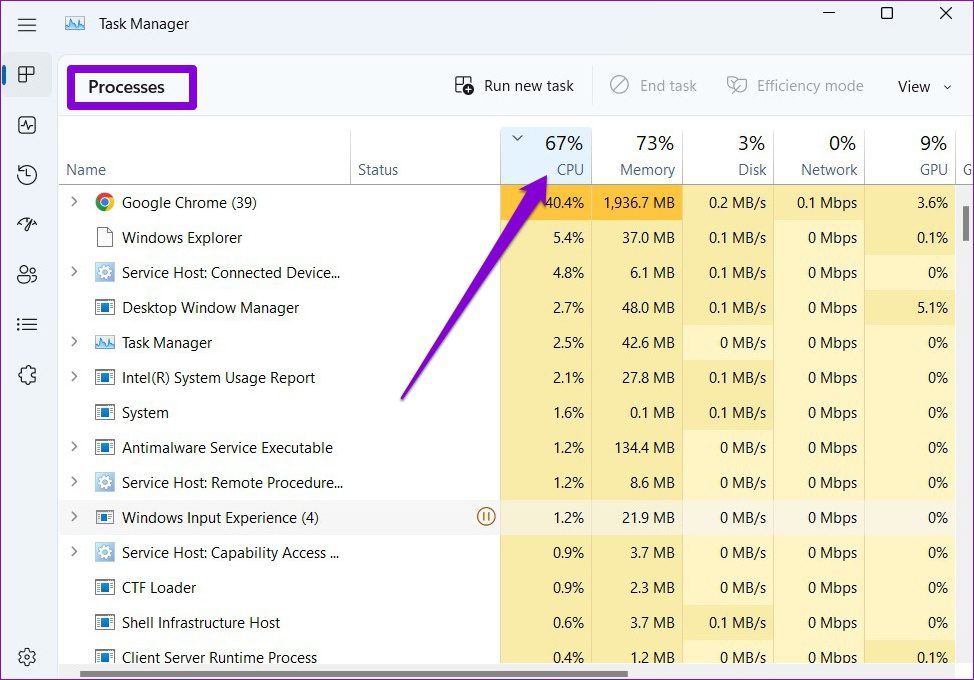
In Task Manager’s Processes tab, sort by CPU column. This helps you spot apps or processes consuming high CPU resources instantly.
Conclusion
Checking CPU usage on Windows 11 helps keep your computer healthy. You can find which apps use the most power. This lets you close programs that slow your PC down. Task Manager shows real-time CPU data quickly and clearly. Regular checks prevent crashes and improve speed.
Knowing how to monitor CPU keeps your system running smooth. Try these steps anytime you feel your PC lagging. Simple and fast ways make it easy for everyone. Stay in control of your computer’s performance today.
