
Are you noticing your computer slowing down or acting sluggish? Understanding how much of your CPU is being used can help you find the cause.
Checking your CPU usage on Windows 10 is easier than you think, and it can reveal important clues about your system’s performance. You will learn simple and quick ways to monitor your CPU usage. By the end, you’ll know exactly how to keep your computer running smoothly and avoid unnecessary frustration.
Keep reading to discover the easy steps that anyone can follow!
Credit: www.4winkey.com
Access Task Manager
Task Manager is a key tool to check CPU usage on Windows 10. It shows real-time data about your system’s performance. You can see which programs use the most CPU power. Accessing Task Manager is quick and easy. It offers several simple methods.
Open With Keyboard Shortcut
Press Ctrl + Shift + Esc together. This shortcut opens Task Manager immediately. It is the fastest way to access it. No need to click through menus.
Use The Start Menu
Click the Start button or press the Windows key. Type Task Manager in the search bar. Select the app from the results. This method works well if you prefer using the mouse.
Launch Via Run Command
Press Windows key + R to open the Run dialog. Type taskmgr and hit Enter. Task Manager will open right away. This method is simple and fast.
Credit: softkeys.uk
Navigate To Performance Tab
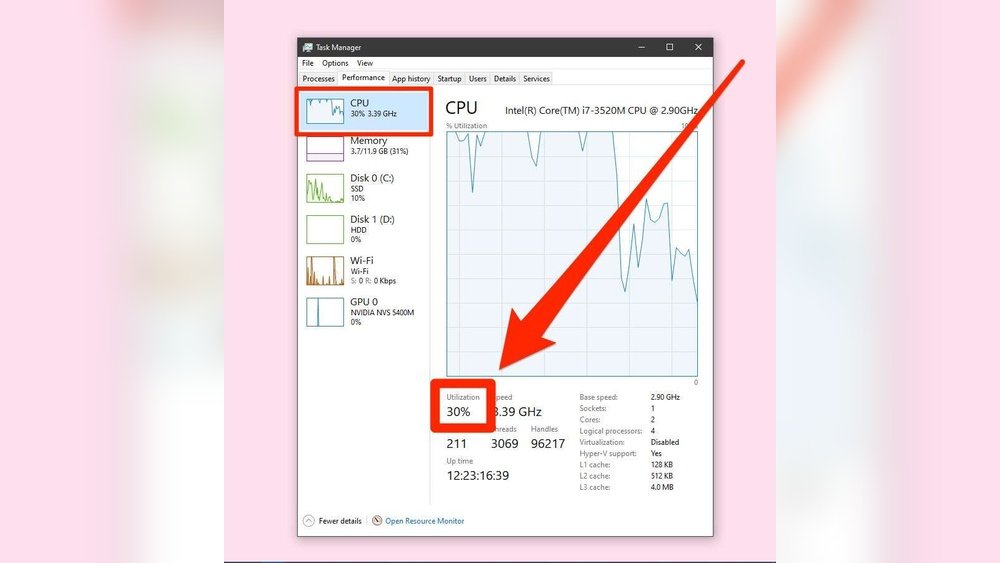
The Performance tab in Windows 10 Task Manager shows real-time data about your computer’s CPU. This section helps you understand how much of your CPU power is in use. It also displays detailed graphs and statistics. Navigating here is simple and gives you important insights.
Locate Cpu Section
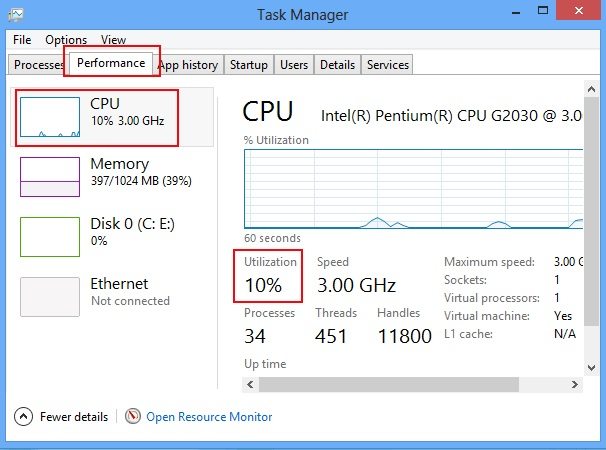
Open Task Manager by pressing Ctrl + Shift + Esc. Click the Performance tab at the top. On the left side, find the CPU option. Click it to open the CPU performance details. This section shows your processor’s name and speed. You can see how busy your CPU is right now.
Interpret Cpu Usage Graph
The CPU usage graph shows CPU activity over time. The line moves up when usage increases and down when it decreases. A higher line means more CPU power is in use. The graph updates every few seconds. This helps you spot spikes or constant high usage. Look for patterns that match your computer’s speed or lag.
Use Resource Monitor
Resource Monitor is a powerful tool in Windows 10. It shows detailed CPU usage and other system resources. This tool helps you see which programs use the most CPU power. It is useful for troubleshooting slow computers or high CPU usage issues.
Open Resource Monitor
Press Ctrl + Shift + Esc to open Task Manager. Click the Performance tab. At the bottom, select Open Resource Monitor. The Resource Monitor window will open.
Check Detailed Cpu Activity
In Resource Monitor, click the CPU tab. You will see a list of processes and their CPU usage. The graph shows real-time CPU activity. This helps identify programs consuming most CPU power. You can also check services and associated handles here.
Monitor Cpu With Command Prompt
Monitoring your CPU usage helps you understand how your computer handles tasks. The Command Prompt in Windows 10 offers a quick way to check CPU performance. It uses simple commands to show real-time data about your processor. This method is useful when you want fast results without opening extra apps.
Run Wmic Command
First, open Command Prompt. Press the Windows key, type “cmd,” and hit Enter. In the black window, type wmic cpu get loadpercentage and press Enter. This command asks your CPU for its current load in percentage. Wait a moment, and you will see a number. This number shows how busy your CPU is right now.
Understand Output Data
The number you see is your CPU load percent. A low number means your CPU is free. A high number means it is working hard. If the number stays high for a long time, your computer might slow down. Use this data to check if your system is overloaded. It helps you decide if you need to close some programs.
Utilize Third-party Tools
Utilizing third-party tools offers a simple way to check CPU usage on Windows 10. These tools often provide clearer visuals and more detailed data than built-in options. They help users monitor their system performance easily and quickly.
Many third-party apps come with user-friendly interfaces. They display real-time CPU usage with graphs and charts. This makes understanding your computer’s workload easier.
Popular Cpu Monitoring Apps
Some popular apps include HWMonitor, Core Temp, and Speccy. HWMonitor shows temperature, voltage, and CPU load. Core Temp focuses on CPU temperature and load per core. Speccy gives a full overview of your system, including CPU usage.
These apps are free or offer free versions. They work well on Windows 10 and require little setup. Users can download and install them quickly to start monitoring.
Benefits Of Third-party Software
Third-party software offers detailed and accurate CPU data. It provides notifications if CPU usage goes too high. This helps prevent overheating or system slowdowns.
Many tools allow customization of alerts and display options. Users can track CPU usage over time with logs and reports. This helps identify problems that affect computer speed.
Such software often uses fewer system resources than built-in tools. This means they run smoothly without slowing down your PC. Overall, third-party CPU monitors make checking system health easier and more effective.
Tips To Reduce High Cpu Usage
High CPU usage can slow down your Windows 10 computer. It may cause programs to freeze or run slowly. Reducing CPU usage helps your system run smoother and faster. Here are some easy tips to lower high CPU usage.
Close Unnecessary Programs
Too many open programs use a lot of CPU power. Check the Task Manager to see running apps. Close the ones you don’t need right now. This frees up CPU resources and speeds up your PC. Focus on programs using the most CPU first.
Update Drivers And Software
Outdated drivers and software can cause high CPU use. Visit the manufacturer’s website to download the latest drivers. Update your Windows system regularly through Settings. New updates fix bugs and improve performance. This can reduce CPU load and prevent slowdowns.
Scan For Malware
Malware can run hidden tasks that consume CPU power. Use a trusted antivirus program to scan your PC. Remove any threats found during the scan. Regular scans keep your system clean and fast. Protecting your PC also lowers unnecessary CPU use.

Credit: superuser.com
Frequently Asked Questions
How Do I Open Task Manager On Windows 10?
Press Ctrl + Shift + Esc keys simultaneously to open Task Manager quickly. You can also right-click the taskbar and select “Task Manager” from the menu to access it.
Where Can I Find Cpu Usage In Task Manager?
In Task Manager, click on the “Performance” tab. Here, you’ll see real-time CPU usage along with other system metrics like memory and disk activity.
What Is Normal Cpu Usage On Windows 10?
Normal CPU usage varies but typically stays below 20% during idle or light tasks. Higher usage may occur during demanding applications like gaming or video editing.
Can I Monitor Cpu Usage Without Task Manager?
Yes, you can use third-party apps like HWMonitor or CPU-Z for detailed CPU monitoring. Windows also offers Resource Monitor for more in-depth analysis.
Conclusion
Checking CPU usage on Windows 10 helps keep your computer running well. You can find out which programs use the most power. This helps you close apps that slow down your system. Task Manager makes it easy to track CPU performance.
Try to check your CPU often to avoid problems. A healthy CPU means a faster and smoother PC. Simple steps bring better control over your computer’s speed. Stay aware of your CPU use to keep things running.
