
Wondering why your Mac feels slow or overheats? The answer might be hiding in your CPU usage.
Knowing how to check your CPU usage on a Mac can help you spot problems early and keep your computer running smoothly. You’ll discover simple steps to monitor your CPU, understand what the numbers mean, and take action to improve your Mac’s performance.
Stick with me, and you’ll gain control over your Mac’s power like never before.
Credit: www.liftingitalia.com
Check Cpu Usage With Activity Monitor
Checking CPU usage on your Mac helps you understand how your computer handles tasks. Activity Monitor is a built-in tool that shows real-time CPU performance. It lets you see which apps use the most power. This guide explains how to check CPU usage with Activity Monitor step by step.
Open Activity Monitor
First, open the Activity Monitor app. Click the Finder icon in the Dock. Choose “Applications” from the sidebar. Then open the “Utilities” folder. Find and double-click “Activity Monitor” to launch it. You can also press Command + Spacebar and type “Activity Monitor” to open it quickly.
Locate Cpu Tab
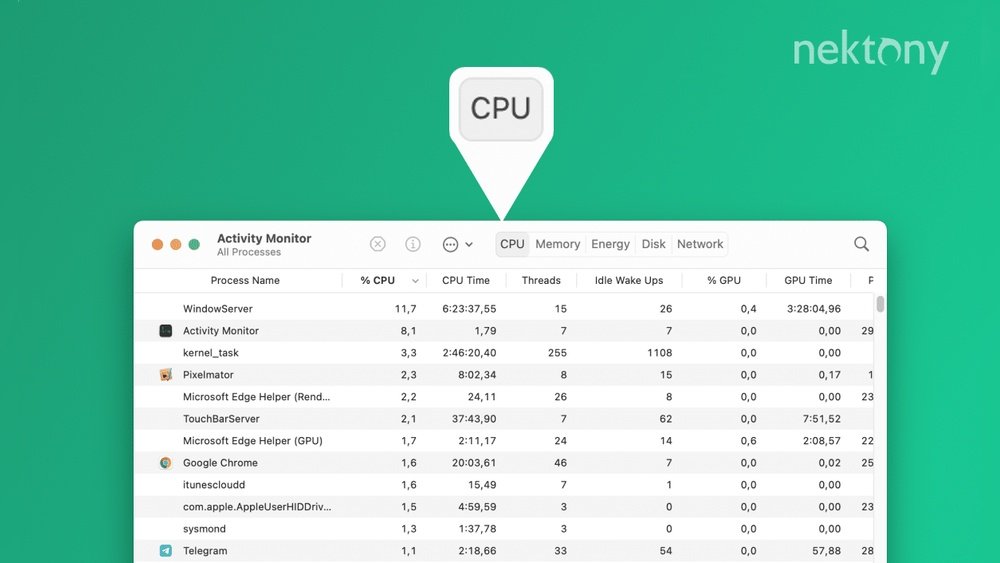
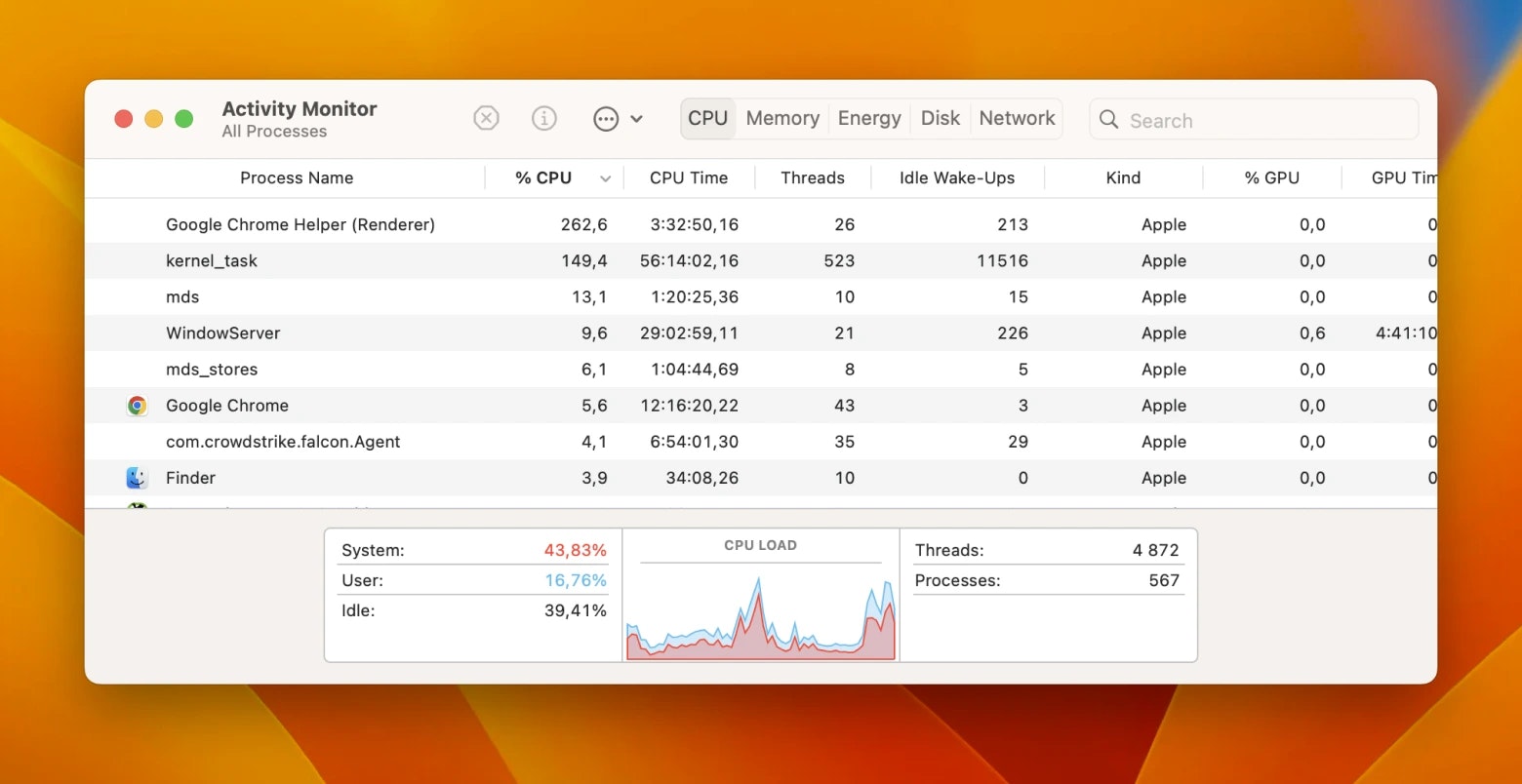
Inside Activity Monitor, look at the top tabs. Find and click the “CPU” tab. This tab shows CPU usage details for all running processes. It updates in real time so you can watch changes as they happen. The list includes app names and their CPU percentages.
Interpret Cpu Usage Data
Check the % CPU column to see each app’s CPU use. High numbers mean more CPU power is in use. The total CPU usage appears at the bottom as a graph and percentage. If the CPU is near 100%, your Mac is working hard. A low percentage means your Mac has free processing power.
:max_bytes(150000):strip_icc()/003_check-cpu-usage-on-a-mac-5210010-01ca29b7aa164785ba21871ce9a48790.jpg)
Credit: www.lifewire.com
Use Terminal Commands For Cpu Monitoring
Using Terminal commands to check CPU usage on a Mac offers a fast and clear way to see system performance. The Terminal app lets you access detailed data directly from your Mac’s operating system. This method is helpful for users who want a quick snapshot or detailed info about CPU activity without opening many apps.
Terminal commands show live updates of CPU usage and running processes. These tools use simple text commands that provide real-time data. You can track how much CPU power each app or process uses. This insight helps manage system resources and spot problems early.
Access Terminal
Open the Terminal app by going to Applications > Utilities > Terminal. You can also use Spotlight by pressing Command + Space and typing “Terminal.” Press Enter to launch it. The Terminal window will appear with a command prompt, ready for your input.
Run ‘top’ Command
Type top and press Enter. This command shows a list of all running processes. It updates automatically every few seconds. Look at the CPU column to see the percentage each process uses. Press Control + C to stop the command and return to the prompt.
Use ‘ps’ Command
Type ps -A -o %cpu,comm and press Enter. This command lists all running processes with their CPU usage. It shows the CPU percentage and the command name for each process. Use this to get a quick overview without live updates.
Third-party Apps For Cpu Monitoring
Third-party apps provide extra features for monitoring CPU usage on a Mac. These tools offer detailed insights beyond the built-in Activity Monitor. They help track performance trends and spot issues early. Many apps show CPU load in real-time and log usage history. Users can customize alerts for high CPU usage. This makes managing your Mac easier and more efficient.
Popular Cpu Monitoring Tools
Several apps are popular for CPU monitoring on Mac. iStat Menus is well-known for its detailed statistics. It shows CPU, memory, and network data in the menu bar. Another option is MenuMeters, which is free and simple to use. Intel Power Gadget works well for Macs with Intel chips. It offers real-time CPU frequency and temperature data. These apps suit different needs and budgets.
Installing And Using Apps
Download apps from official websites or the Mac App Store. After installation, grant the necessary permissions for full access. Most apps run in the menu bar for easy viewing. Open the app to customize settings like update intervals and alerts. Check CPU usage anytime by clicking the app icon. Many apps provide graphs and logs for detailed analysis.
Benefits Of Third-party Solutions
Third-party apps give more detailed data than built-in tools. They help identify specific apps that use too much CPU. Some apps offer temperature and fan speed monitoring. Custom alerts notify users about high CPU usage. These tools improve Mac performance and prevent overheating. They suit users who need deeper control over their system.
Tips To Reduce High Cpu Usage
High CPU usage can slow down your Mac and reduce its performance. Managing this issue helps your Mac run smoother. Follow these simple tips to lower CPU usage and improve speed.
Close Unnecessary Apps
Many apps running at the same time use more CPU power. Close apps you do not need. Check the dock or Activity Monitor to find apps using high CPU. Closing these apps frees up resources for other tasks.
Manage Startup Programs
Some programs start automatically when you turn on your Mac. These programs use CPU even if you do not use them. Go to System Preferences and find Users & Groups. Select your user and click Login Items. Remove unnecessary programs from this list to speed up startup and reduce CPU load.
Update Software Regularly
Software updates often include fixes that improve CPU usage. Keep your macOS and apps updated. Go to System Preferences and select Software Update. Install updates as soon as they are available to keep your Mac efficient and fast.
Identify Background Processes Affecting Cpu
Checking your Mac’s CPU usage helps find apps or processes using too much power. Some programs run in the background without you knowing. They can slow down your computer or use more battery. Identifying these background processes is key to keeping your Mac fast and smooth.
By watching which apps use the most CPU, you can stop those that cause problems. This guide shows how to spot heavy processes, quit them if needed, and keep an eye on CPU use over time.
Spotting Resource-hungry Processes
Open Activity Monitor from the Utilities folder. Click the CPU tab to see all running processes. Look at the % CPU column for the highest numbers. These are the processes using the most power. Some may be apps you opened, others run quietly in the background.
Sort the list by CPU usage to find the heaviest ones quickly. Check the process name to see if it is familiar. Unknown names might be system tasks or software you installed. Keep an eye on processes that use more than 10% CPU for a long time.
Force Quit Problematic Apps
If an app uses too much CPU and slows your Mac, you can stop it. Highlight the app or process in Activity Monitor. Click the “X” button at the top left of the window. Choose “Force Quit” to close the app immediately.
Force quitting helps free CPU power fast. Only force quit apps that are not responding or using too much CPU. Closing some system processes can cause issues. Always check the process name before quitting it.
Monitor Cpu Usage Over Time
CPU use changes as you work. Some processes spike briefly and then stop. Watch your CPU over time to spot consistent problems. Activity Monitor updates in real-time, showing current CPU use.
Check CPU use during your normal tasks. Note any app that regularly uses high CPU. This helps find apps that slow down your Mac during daily use. Monitoring over time gives a clearer picture of your Mac’s health.
:max_bytes(150000):strip_icc()/005_check-cpu-usage-on-a-mac-5210010-6049386c65e743488b6ac4f65ad13a65.jpg)
Credit: www.lifewire.com
Frequently Asked Questions
How To Open Activity Monitor On Mac?
Open Finder, go to Applications, then Utilities. Double-click Activity Monitor to launch it. It shows CPU usage and system processes.
Where To Find Cpu Usage On Mac?
In Activity Monitor, click the CPU tab. It displays real-time CPU usage by processes and overall system load.
What Does Cpu Usage Percentage Mean?
CPU usage percentage shows how much processing power is in use. Higher values indicate more active tasks or programs.
Can I Monitor Cpu Usage Using Terminal?
Yes, use the command top in Terminal. It displays current CPU activity and running processes in real-time.
Conclusion
Checking CPU usage on your Mac helps keep it running smoothly. You can find this information easily using built-in tools. Watching your CPU use can show if apps use too much power. It helps you decide when to close programs or restart your Mac.
Regularly checking keeps your computer fast and saves battery life. Try these simple steps anytime you feel your Mac is slow. Stay aware, and your Mac will work better every day.
